Hands-On Apple 204 transcript
Please be advised this transcript is AI-generated and may not be word for word. Time codes refer to the approximate times in the ad-supported version of the show.
Mikah Sargent [00:00:00]:
Coming up on Hands on Apple, let's take a look at what I promised, which is a return to Spotlight in macOS Tahoe. Stay tuned. Podcasts you love from people you trust. This is Twit. Welcome back to Hands on Apple. I am Micah Sargent, and as I said I would. We are continuing on with our overview of the new features, a new way of things when it comes to spotlight in macOS Tahoe. Yes, Apple has updated macOS Tahoe with some new features and some changes to existing features to make Spotlight even more powerful than it already was.
Mikah Sargent [00:00:50]:
So let's head over to macOS and take a look. Here we are on macOS, and as you can see, I have the desktop open and I currently don't have Spotlight running. Now, we've talked a lot about how to access Spotlight. One way is by going up to the menu bar and clicking on the Spotlight icon if you have it there. My favorite way to access Spotlight, and the way that I regularly do, is by holding down the command key and hitting the spacebar that opens up Spotlight Search. Now, today we're talking about the browsing features of Spotlight. So last time we talked about how to search with Spotlight, that's what you're used to doing. Now Spotlight becomes even more powerful and capable, letting you access apps and actions, files and clipboard, all from Spotlight.
Mikah Sargent [00:01:35]:
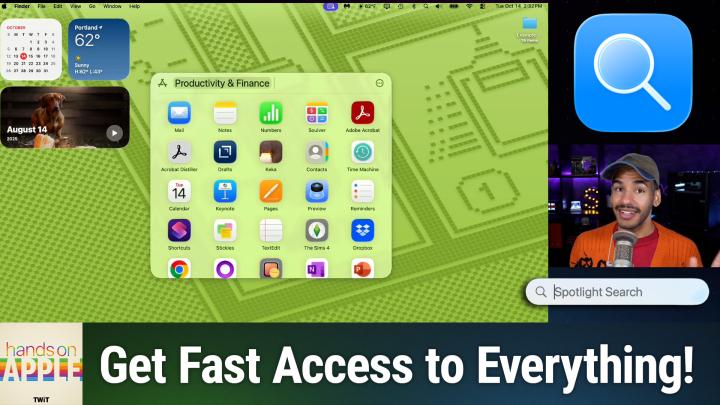
So let's start at the top. The first thing that we can do is access apps in a new way. When you launch Spotlight, you have a few ways of gaining access to this area. You can hold down the command key and hit the one on your keyboard to immediately access applications. Or you can use the arrow key, the right arrow key, to bring up the four browse options of which applications is the first. If you do use the arrow key, you will have to hit enter after you hit arrow key. So command one is technically faster to access applications. Now, when you do this, it's actually going to categorize your apps based on how you use them and the categories to which they belong.
Mikah Sargent [00:02:22]:
So I can see I can quickly access utilities, for example, and in fact, typing in a word is going to start to kind of trim down and filter out what apps I'm looking for. So it shows the ones that I use the most at the top. 1, password, system, settings, messages, Safari photos, and then underneath it has them listed alphabetically. But I can quickly just view the utilities I have installed. I can quickly change that from utilities by hitting the backspace key or delete key to remove that category and say, oh, I only want to look At Developer tools, I only want to see productivity in finance or I only want to view the apps for creativity that will quickly just bring up those apps and then from that point I am able to launch any of these apps that I would like. Now if you have iPhone mirroring turned on as I talked about before, it will actually show you the apps on your phone as well. So it's a quick way to gain access to iPhone mirroring and launch an app from your phone that is nearby and is charging. We've talked a lot about how to go about using iPhone mirroring, so we won't cover that in this episode, but that is how you access apps both on your Mac and as I mentioned, being able to also access those apps from your phone.
Mikah Sargent [00:03:42]:
Have you heard of Club Twit? Well, here's what it gets you Ad free versions of every show, a feed of bonus content and members only shows you won't hear anywhere else. Like my Crafting Corner and Stacy's Book Club, it's the easiest way to support the work we do and stay even closer to the tech community around Twit. Join today at TWiT TV ClubTWiT. If we go back to Spotlight search, I hit the escape key to return to the basic spotlight. But of course you can always hold down command and hit space. The third way of kind of getting to that browse menu where you can choose from the different icons is to move your mouse, which is going to bring up those four options. But I'm about to big keyboard user, keyboard shortcut user and so that's the way that I'll be doing it. Now Command 2 is going to bring up our files.
Mikah Sargent [00:04:31]:
Files are exactly what you would expect. You can see recent files, but it also has intelligent suggestions based on what you are regularly doing at a given time. So it's going to pull those relevant documents up for you very easily and then you can just simply move through and see what it is that you want to act on. Like the applications, you also can filter based on an application or a type. So for example, I can say I only want to see files that are available in preview. I want to see files that are PDFs, I want to see files that have to do with Xcode and there's also a numbers option. Now again, those categories are going to be based on what you actually do on your Mac. And so in fact, let me just see here really quick.
Mikah Sargent [00:05:21]:
I'm kind of curious. On my Mac when I go to the files section, I have Google Drive and TextEdit As I regularly using TextEdit, I also have Preview, which I'm not surprised and I have Photoshop. So that's what shows up on my Mac. Based on my usage in particular. Now, long time listeners, longtime watchers, you will be familiar with a certain button that has appeared under the files part, which is my favorite button, the three dots meaning more. If we click on this, it lets us change how the content. You can do a grid which shows you little icons of the different files, or you can do a list. Personally, I'm a list person.
Mikah Sargent [00:06:06]:
It has a little icon next to it with a preview of what the document is. So that way I'm able to see what is being shown on the Mac. Once again, to hop out of files, we hit the escape key to get back to the main Spotlight search. So so far we've covered apps and we've covered files. The third browsing option, Actions. If we hit the right arrow key three times, we'll get to Actions or as I mentioned, Command three, which will bring up actions as well. Now this is a really cool category because there are hundreds of options for setting actions on your Mac. And with each of these you can set up something called a quick key, which we're going to talk about in next week's episode.
Mikah Sargent [00:06:50]:
All about Spotlight Actions. But this is a way to view some of the stuff that's possible. Many of these are going to be actions that are actually shortcuts. Some of them are just basic actions that are part of macOS built in. But it's a quick way to do different things on your Mac. So it's providing me some suggestions based on my activity and actions. So I can send a message. I can start a timer with the Clock app.
Mikah Sargent [00:07:14]:
I can create a note with the Notes app, send an email with the Mail app, or create a calendar event with the Calendar app. But it also looks at the other apps that I have and looks for actions for those. With the Books app, I can open my default collection of books. I could play an audiobook with. Let's keep scrolling. We've got drafts with hundreds of actions. Fantastical. My calendar app of choice.
Mikah Sargent [00:07:39]:
Let's do Finder, for example. With Finder, I have actions to allow me to connect to a specific server, create a folder, delete files, label files, move files, rename files, Freeform. I can create a new board image playground. Quickly create an image. You get the idea. These are shortcuts, sometimes literally shortcuts. Apple shortcuts. To be able to quickly take action.
Mikah Sargent [00:08:04]:
They're called actions on your Mac. And when you use Quick Keys and leverage Quick Keys, you'll be able to quickly make that happen again. We'll talk more about actions in the next episode and how to even create your own actions, which is nice as well. The last section, arguably one of the most helpful sections, and that is Clipboard. With Clipboard, you have access to a Clipboard manager, meaning that you can see the different things that you have copied to your Clipboard and get at them. So if you copied a link earlier on and then you were moving about, you know, doing other things and you went back and suddenly, oh no, I copied something new. I don't remember what that link was. Don't worry, Clipboard has it there in the Clipboard history.
Mikah Sargent [00:08:52]:
So to access Clipboard once again, we would hit the arrow key in this case four times. Or we can do Command four once Spotlight is open. First thing I'll mention, three dots. Hitting that more icon lets you clear your Clipboard history. Or you can go into Settings, which has some information about privacy related to Clipboard, where you can say stuff from this app. Don't include it as part of my Clipboard. Well, Clipboard history, in this case, I can see a URL, I can see a png, a jpeg, a heif image, a PDF. It's not just text, it's also files.
Mikah Sargent [00:09:30]:
And what's cool about this is if I open up a text edit document and I go to my clipboard by holding down command, hitting space and then holding down command and hitting 4, I can, if I have my cursor in my textedit document, as I do, I can easily take text that I copied and hit move down with the arrow key and hit return to immediately paste it into my text edit document. This of course works with pages. It works with any text entry location. And let's do that again and do it with the URL, which in this case is just going to paste the URL. If we launch Safari and we do command 4 once again, that URL, because I'm in the URL bar, will let me access that. If I had a rich text document, then I would be able to let me do file new format and we'll change this to rich text and then I can hit command space and command four and let's paste this PNG into our rich text document here. And so now you can see that I'm able to paste an image from my Clipboard as well. It will keep quite a rich history on your Clipboard.
Mikah Sargent [00:11:00]:
So that's something to bear in mind if we hit those three dots and we choose Settings. That's going to bring up the Spotlight settings where you are able to say by scrolling down Clipboard Search, which says allow Spotlight to search and display. Excuse me, items you've copied to your Clipboard. Items on your Clipboard will be available for 8 hours. Personal and sensitive information may appear in search results. So that's just something to bear in mind and gives you the ability to say, actually, I don't want that to show up on Clipboard. So you can turn that off if that's a feature that you're not interested in. That is a look at Spotlight browsing, a way to access your apps, your files, your actions and your clipboard, all from Spotlight, a command space away.
Mikah Sargent [00:11:48]:
Next week we'll take a look at Spotlight actions, including creating and personalizing your actions, as well as quick keys to give you even more power on your Mac with just a few quick keyboard movements. Thank you so much for tuning in to this week's episode of Hands on Apple. Always a pleasure to bring you the show and looking forward to seeing you again next week. Bye bye.