Windows 11 25H2: What’s New and How to Use the Latest Features
AI-created, human-edited.
The Windows 11 25H2 update is gearing up to deliver useful changes for users, from lock screen upgrades and widget improvements to smarter AI search and enhanced app integrations. Here’s a practical breakdown of what’s coming, how to get early access, and how these features can help you work smarter on your PC.
On Hands-On Windows, Paul Thurrott explored these updates in detail, providing actionable insights so you can take full advantage of what's new in Windows 11 25H2.
Lock Screen Widget Customization
One of the most noticeable enhancements is in the lock screen customization. Soon, you’ll be able to select which widgets appear, control their order, and remove or add widgets, all from a new streamlined interface. The widget options will go beyond weather and sports, with further integration from third-party apps expected down the line.
How it works: Up to four widgets on the lock screen; use add, remove, and reorder features for a tailored glanceable layout.
Availability: Rolling out gradually to Windows 11 users on supported versions (24H2, 25H2); may not appear immediately on all devices.
Desktop Widgets Panel Improvements
The widgets panel on the desktop is getting a visual update, including a new side rail/navbar for switching between all-widgets view or a combined widget-and-discover feed. The process for adding feeds and widgets is being streamlined, though wider third-party support is still in development.
AI-Powered Settings Search
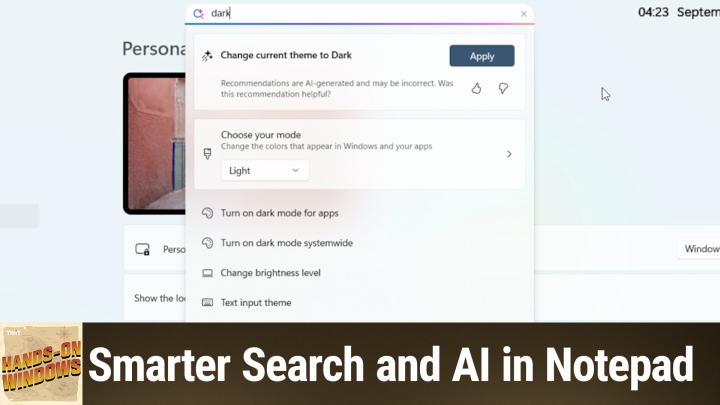
A major usability boost comes from upgrades to search in Settings. With AI recommendations and soon “settings agent” capabilities, you’ll be able to perform certain tweaks directly from search results—skipping the tedious hunt through the control panel. This feature uses a small language model running locally on your device for both privacy and performance.
Tip: Try using natural language searches like "turn on dark mode" or "move taskbar" for faster results as the AI suggestive system rolls out.
File Explorer & Context Menu Updates
File Explorer will now surface recommended files to consumer accounts, not just work/school users. Context menus are being refined for clarity, with less cryptic icons, clearer separators, and new “share with” options that allow sharing via app features (not just the apps themselves).
Note: As third-party app integrations grow, expect these menus to become more feature-rich—potentially to the point of clutter.
Notepad: Built-In AI and Smarter Context Menus
Notepad is evolving into a lightweight AI-enabled writing tool. With Copilot integration, you can write, rewrite, or summarize text using AI, either locally (on Copilot+ PCs) or via the cloud if you have a Microsoft 365 subscription.
Requirement: Certain AI features require a Copilot+ PC or a Microsoft 365 subscription; local AI requires a compatible Neural Processing Unit (NPU).
Customization: Users can choose between running AI tasks locally for privacy or in the cloud for potentially better results.
Notification Center Improvements
Windows 11 will restore the classic feature of showing the current time within the Notification Center (as it did in Windows 10). This small but useful tweak is now available as an option under “Adjust date and time.”
How to Get These Features Early
Enroll your PC in the Windows 11 Release Preview channel to test new features ahead of broad public release.
Not all users will see features at the same time; Microsoft’s gradual rollout means device eligibility and timing can vary.
Key Takeaways
Lock screen and widgets: Increased flexibility and customization for information at a glance.
AI in Settings and Notepad: Practical, integrated AI that saves time and boosts productivity for both basic and power users.
Context menus and file recommendations: Simplified user experience, with a note of caution as menus grow with more features.
Early access: Enthusiastic users can opt in to the Release Preview, but should expect some inconsistencies and delays in distribution.
The Windows 11 25H2 release brings worthwhile upgrades, especially for those looking to personalize their Windows experience and explore practical uses of on-device AI. While some features are rolling out gradually or require premium hardware/subscriptions, the overall direction is toward greater flexibility, smarter search, and a more productive desktop.
To stay ahead, consider joining the Release Preview channel or keep an eye out for public updates this fall.
Listen and subscribe for more practical tips: https://twit.tv/shows/hands-on-windows/episodes/160