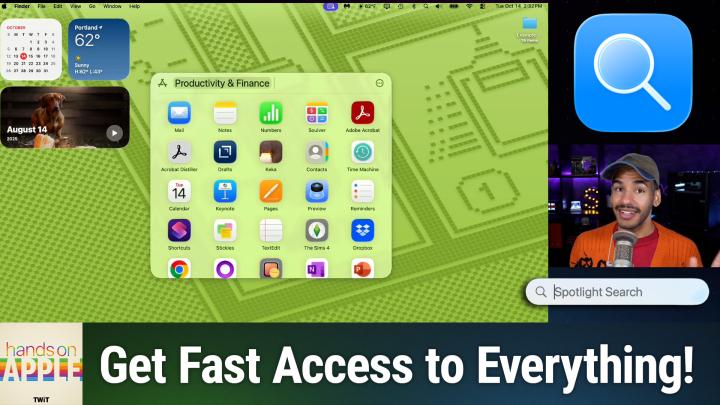
How to Use the New Spotlight Browsing Tools in macOS Tahoe
AI-generated, human-reviewed.
The new Spotlight in macOS Tahoe brings upgraded browsing features that make finding and launching apps, files, actions, and clipboard history smoother and more intuitive than ever. On Hands-On Apple, host Mikah Sargent explores how these changes can streamline daily Mac workflows and save users time.
Quick Summary: What’s New in Spotlight Browsing
Apple’s latest macOS update gives Spotlight Search robust browsing capabilities, letting users quickly access not just search results, but also categorized lists for apps, recent files, system actions, and clipboard history.
Spotlight can be launched via keyboard shortcut (Command + Space) or the icon in the menu bar. Once open, additional shortcuts (Command + 1/2/3/4) or arrow keys cycle through dedicated areas for:
- Apps: Browse and launch categorized applications, including those mirrored from an iPhone.
- Files: See recent and relevant documents, with intelligent filtering and layout options.
- Actions: Execute shortcuts and common tasks directly from Spotlight.
- Clipboard: Access and paste recent clipboard items, including text, files, and images.
Access Your Apps Lightning Fast
With Spotlight’s Applications section, pressing Command + 1 or the right arrow brings up categorized app lists. Spotlight predicts your most-used apps and displays them at the top for swift launching. You can filter by type (e.g., Utilities, Developer Tools, Productivity) or include apps mirrored from your iPhone if supported. Simply type to refine results or hit return to open.
Instantly Find Relevant Files
Press Command + 2 or cycle right to the Files area. Spotlight smartly organizes recent and frequently used documents, offering category filters like PDF, preview, or app-specific types (such as Xcode projects). Choose between grid view (thumbnail icons) or list view for more details, easily switching using the three-dot icon.
Run Actions and Shortcuts Directly
The new Actions browser (Command + 3) surfaces hundreds of common tasks and shortcuts, from sending messages or emails to creating notes and calendar events. It also pulls in app-specific actions, such as Finder tools (create folder, move files) or automation shortcuts. Quick Keys make launching actions even faster.
Effortlessly Manage Clipboard History
The Clipboard section (Command + 4) lets you browse and paste previously copied content, including URLs, text, and images. You can clear history or adjust privacy settings to exclude sensitive data from being stored. Pasting into documents (e.g., TextEdit) is as simple as selecting the desired item and hitting return.
Why These Upgrades Matter Now
Spotlight has always been a powerful tool, but the browser-style navigation in macOS Tahoe makes it far more accessible and actionable. Users juggling multiple apps, files, and tasks can cut down on repetitive clicks and locate what they need instantly. Clipboard management is especially useful for anyone working with lots of text or files, while the Actions panel opens automation to everyday users.
These changes empower both seasoned Mac enthusiasts and newcomers to maximize productivity, leveraging robust built-in search and organization tools without extra setup or third-party utilities.
The View From the Top
- Spotlight Browsing centralizes access to apps, files, actions, and clipboard, with easy-to-use shortcuts.
- Categories and smart suggestions help surface frequently used items, reducing time spent searching.
- Clipboard history is now built into Spotlight, offering seamless recall and privacy controls.
- The Actions area previews a shift towards more comprehensive workflow automation on macOS.
Spotlight’s revamped browsing features in macOS Tahoe are a must-use upgrade for anyone looking to speed up navigation and workflow on their Mac. Whether you’re launching apps, tracking files, running automations, or managing your clipboard, these tools are just a keyboard shortcut away. For a deeper walkthrough, catch the next episode of Hands-On Apple.
Looking for more hands-on Apple guides? Subscribe here: https://twit.tv/shows/hands-on-apple/episodes/204