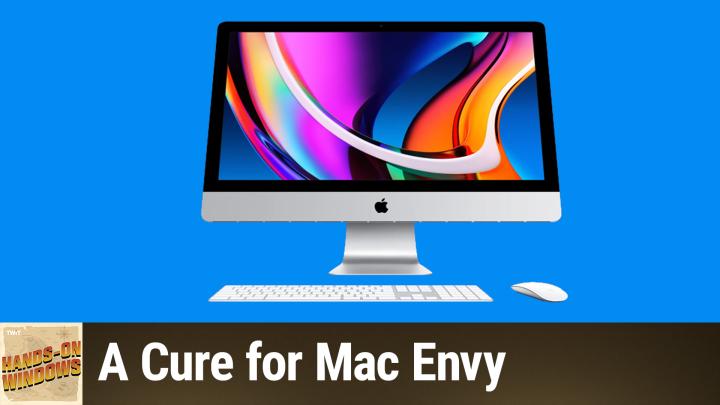
Customize Windows 11 for a Mac-Like Experience
AI-generated, human-reviewed.
Many Windows users find themselves admiring the slick look and integrated features of macOS. On Hands-On Windows, host Paul Thurrott explored how you can bridge that gap—no Apple hardware needed. If you want your Windows 11 PC to offer Mac-like search, transparency, and full-screen effects, you can achieve much of this using free (and a few paid) utilities.
Why Customize Windows 11 to Look and Feel Like macOS?
With Apple's "Liquid Glass" effects and unified design pushing the Mac’s visual appeal, some Windows users experience so-called “Mac envy.” Not only does macOS look sharp, but features like Spotlight search, a transparent dock, and immersive fullscreen apps improve everyday usability. Paul Thurrott found that even though Windows 11 has evolved, you can still take a few steps to enhance your desktop environment—without compromising on the Windows benefits you love.
Core Features & Tools to Emulate macOS on Windows
Here's how you can mimic the Mac experience on your Windows 11 machine:
Spotlight-Style Search with PowerToys Run or Command Palette
A key macOS feature is the fast search bar (Spotlight), which you can access system-wide. While Windows has built-in search, it's less flexible. The free utility PowerToys adds "PowerToys Run" and the new Command Palette, which both offer:
- Keyboard shortcut activation (default: Alt+Space, but easily remapped)
- Quick launches for apps, files, and web searches
- Extensibility for plugins and extra features
Paul notes that this makes Command Palette an excellent alternative to Spotlight, effectively replacing or complementing the Start menu for power users.
Transparency Effects with TranslucentTB
macOS stands out with a transparent dock. To achieve a similar look for your Windows taskbar, TranslucentTB is available free from the Microsoft Store. It:
- Adds transparency to the taskbar
- Updates in real-time as you switch between full-screen and regular modes
- Blends with your desktop wallpaper for a cleaner workspace
Always-on Clock with DS Clock
When hiding your taskbar for a cleaner look, you lose quick access to the time and date. DS Clock solves this by:
- Displaying a customizable date and time overlay (with options for colors, fonts, and transparency)
- Stays always-on-top so it's visible even when the taskbar is hidden
- Available for free and easy to configure
Maximize Windows for a Fullscreen Feel
While Windows 11 doesn’t include a dedicated “fullscreen app” mode like macOS, you can:
- Enable "auto-hide taskbar" in settings (right-click taskbar > Taskbar settings > Taskbar behaviors)
- Combine with DSClock for always-visible clock info
For most use cases, maximizing windows with the taskbar hidden gives a nearly full-screen effect popular among Mac users.
Extra Glass Effects with WindowBlinds (Optional)
If you want even more visual customization, WindowBlinds by Stardock (paid) lets you:
- Apply glass-like transparency and custom themes system-wide
- Mimic older Aero glass or modern translucent styles
Paul found the built-in and free tools sufficient, but WindowBlinds is an option if you want deeper skinning.
Key Takeaways
- With PowerToys, TranslucentTB, and DS Clock, Windows users can replicate many of the productivity-focused and aesthetic features of macOS, all for free.
- Hardware can also be upgraded for a more Mac-like experience, with devices such as Snapdragon X Windows 11 on ARM PCs for improved efficiency and battery life.
- Advanced options like Stardock WindowBlinds add more visual flair but are optional and paid.
What This Means for You
With simple tweaks and free tools, you no longer need to feel like a second-class citizen when it comes to desktop experience. These utilities help you get the best of both worlds—a familiar Windows workflow and a polished Mac-style interface.
The Bottom Line
If you’re craving a more modern, Mac-inspired desktop, these free solutions are easy to install and highly configurable. You’ll benefit from improved search, cleaner visuals, and a more immersive workspace—all without giving up your favorite Windows apps or workflows.
Stay ahead with practical tips—subscribe to Hands-On Windows for weekly updates.