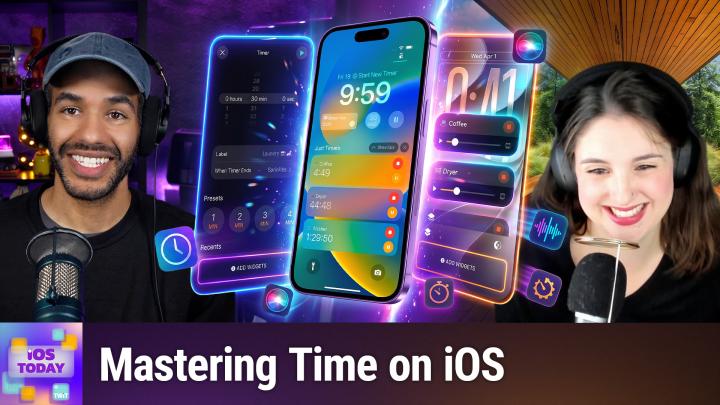
iOS Today 823 Transcript
Please be advised that this transcript is AI-generated and may not be word-for-word. Time codes refer to the approximate times in the ad-free version of the show.
Mikah Sargent [00:00:00]:
Coming up on iOS Today, Rosemary Orchard and I, Micah Sargent, talk about time. Yes, it's time to do so. Stay tuned. Podcasts you love.
Rosemary Orchard [00:00:12]:
From people you trust.
Mikah Sargent [00:00:15]:
This is TWIT. This is iOS Today, episode 823, with Rosemary Orchard and me, Micah Sargent. Recorded Tuesday, October 6th, 2026 for Thursday, October 8th, 2026. It's about time, apps. Hello and welcome to iOS Today. This is the show where we talk all things iOS, iPadOS, watchOS, HomePod, the software that runs on that platform, and perhaps a new bit of tech coming soon. I am one of your hosts, Micah Sargent.
Rosemary Orchard [00:00:53]:
And I promise you folks that unlike lunchtime, I am not an illusion. Uh, my name is Rosemary Orchard though, and I'm very excited to be here, even if Douglas Adams couldn't join us to, you know, add a few interesting quotes to the episode.
Mikah Sargent [00:01:08]:
Uh, so Rosemary pitched a great show today to talk about time. Um, you know, the— there's a lot of sort of clock, time, watch, uh, stopwatch offerings on, uh, iOS itself. Apple gives you the lock screen clock, the clock app's timer, uh, you got a world clock in there, Apple Watch faces, and then of course Well, your Apple Watch, if you have one, tells time and you can see it, you know, while your wrist is down even. And I just recently upgraded to a new Ultra, so now I finally have every second tick where before I didn't. So I'm very excited about that. I feel like I'm living in the future now. But let's get into it because I think we can start with sort of what Apple provides already. And one of those is, you know, making a lock screen for your device that tells the time.
Mikah Sargent [00:02:14]:
Can you believe? Rose, is that how you still check the time?
Rosemary Orchard [00:02:18]:
Yeah, it is, Micah. So I have my custom lock screen for podcasting right here. It's very exciting, as folks can tell. I've actually got it dimmed, but you can tap and hold on your lock screen and customize it. And there's a number of things you can do. Obviously, you can add things like the date on here and widgets and so on. But if you tap on the time, you can make this kind of as fancy as you like. Uh, so you can actually change the size of it as well depending on, you know, which home screen you've got.
Rosemary Orchard [00:02:48]:
Uh, you can change the font style, you can make it super thick and chunky, uh, if you want to. Uh, there's, there's all sorts of options. I recently discovered that there is also, uh, for some of these somewhere— I've forgotten where it is now— there is There we go. If you set solid, you can choose a rainbow.
Mikah Sargent [00:03:05]:
Yay.
Rosemary Orchard [00:03:06]:
Sorry, I like having rainbow time. I have rainbow time on my main lock screen. I think I'm actually going to stick to, uh, just a sort of glass effect here on this one because it makes a little bit more sense. But it is really nice to be able to just customize this and change your preferences. Now it does use, uh, or have the option, sorry, of choosing various different, uh, Time formats? Numeric formats. That's the one. That's what I'm thinking of. Arabic Western is what most people will be familiar with for telling the time, but obviously there are alternatives too, which can be fun.
Rosemary Orchard [00:03:42]:
You could choose it just for looks because you actually never want to see what the time is on your home screen anyway, or, uh, you know, actually useful. Uh, if we— if you use 24-hour time on your iPhone like I do, then it will use 24-hour time here on your lock screen, and that's not something that you're able to separate out as a setting that you can control. But yeah, I really like this, and I really like the fact that I could also, if I were so inclined, go down here and go, I want to go to the clock, and I can add a world clock. I can add specific cities in digitals. I can add alarms in here as well. The timer doesn't unfortunately have widgets, which makes me kind of sad because there are certain timers that I would love to repeat if I had them in a widget. So I'll— talk about how we can get around that later. But yeah, there's a lot that you can do with the time right on the lock screen before you even unlock your phone.
Rosemary Orchard [00:04:34]:
And that is a really good place for people to start, I think.
Mikah Sargent [00:04:37]:
Yeah, I agree. I mean, this feature has been around since the ability to sort of customize your lock screen. I remember, I think it was iOS 16 back in 2022, people being very excited about getting to customize and Apple has improved upon it over time to make your screen exactly what you want it to be. Being able to do that with iOS 27. Shrinking the clock is sort of the new feature. It's kind of funny we're talking about time and yet the newest feature is making time smaller. In it, you can go in, tap the clock, and then tap the little minimize icon and make those changes as you need to. I really like the ability to have the time blend in with the— with whatever I have on screen.
Mikah Sargent [00:05:26]:
I just think that's such a neat feature and I can remember in college graphic design classes, one of my favorite things to do was create magazine layouts where the logo sort of blended in with the person that was on the front cover. It was always my favorite. And yeah, now that iOS 27 is here, despite the fact that we're talking about time today, it is kind of nice that the one element on the screen that used to have to be just this big old honking thing is now something that you can also sort of make smaller if you want to. Moving along, along with the system, what else you're able to do. Of course, the Clock app itself is jam-packed with lots of different features, including the world clock and a stopwatch. But one of my favorite features, I'm sure it's something you use, Rosemary, as well, are timers. Yes.
Rosemary Orchard [00:06:22]:
Timers, plural now, because that took a surprisingly long time for us to get, didn't it?
Mikah Sargent [00:06:27]:
Yeah, being able to run multiple timers at once, have a list of recents is great. And then, of course, my favorite feature is the tie-in with the Dynamic Island and Live Activity so that I can keep an eye on how far my timers are going. And that's something that I use, like, really often, both on my Apple Watch and on my phone, just being able to look and go, okay, the circle is halfway through, so I know the timer's halfway through. IOS 26 brought a feature called AlarmKit, which I know people in the developer community who deal with time were excited about. It basically lets third-party apps, so apps made by developers, set alarms and timers that are treated with the same sort of permissions and push-through ability as the timers and alarms that exist in the Clock app. So that means that timers and alarms can bust through silent mode, they can bust through focus modes, and they can also, as first-party timers, show on the lock screen and show on the Dynamic Island. So that was a really exciting part of iOS 26, and it's actually been something that surprisingly comes up a lot. in some of the vibe coding that I've done.
Mikah Sargent [00:08:01]:
It's interesting seeing AlarmKit mentioned so often and what you're able to do with it. And then I also think that it's great for people who are, it seems to be a common request, Rosemary, for, or it has been a common request in Shortcuts Corner, is managing multiple timers.
Rosemary Orchard [00:08:16]:
Yeah.
Mikah Sargent [00:08:17]:
Managing multiple alarms and being able to really dig into that system is quite handy for sure. The new addition in iOS 27 is that there's, if you tap the timer control in Control Center, there's an orange slider that will drop down from the Dynamic Island if you have one. And then what's cool is you can drag it for minutes and then sort of just like when Force Touch was introduced on the Force Touch trackpad for macOS, You can kind of keep holding it and then it fine— lets you fine-tune it 15 seconds. And then of course you can start it. So that is a new kind of, I think, fun feature that has been added to the interactivity of the timer and Control Center. And then also in iOS 27, it will— I think that's actually— that's an interesting 9to5Mac said that it splits alarm volume from ringtone volume. I guess, yeah, you had alerts and you had media before, and there wasn't the ability to sort of split up between alerts, but now that ability is there as well, which is quite nice. Any kind of tips or anything on timers that you have?
Rosemary Orchard [00:09:46]:
Well, one of the things I would suggest is if you don't have a HomePod in your kitchen, but you are somebody who likes to cook and you're there trying to figure out, you know, like, what time do I need to do this? I was cooking a full Sunday roast on Sunday. So, I was there going like, oh, right. So, in 10 minutes, I need to, like, parboil the carrots, and then I need to do that for 5 minutes, and so on. So, I just had my iPhone because I don't yet have a HomePod set up in the kitchen. I've got one, I just need to put it down there. The whole moving house thing is really throwing a wrench into the automation works, I've got to say, Micah.
Mikah Sargent [00:10:18]:
I bet.
Rosemary Orchard [00:10:19]:
But if you don't have a HomePod, just leave your iPhone hanging around, and then you can just shout, you know, Apple Lady, do this, uh, and add all of your timers. And then when something goes wrong, because my timer names were very specific, it was things like bake carrots for 20 minutes, uh, but I wasn't necessarily great at saying it, so I'd have a long pause when my brain was, you know, trying to find the word, but I was also dealing with something else at that point, uh, then you can tap on the timer and go back in and rename it and just tap to rename it. It's very, very easy to do that. So I would recommend naming your timers and also just adding them. Add lots of timers, add all the timers you want, add alarms for things. It's great when you have all these things figured out and the timers go off, the alarms go off, and you get notified about the things that you need to be notified for, particularly if you're cooking a larger meal. Thanksgiving's coming up in the US, lots of seasonal events are coming up where people might do a lot of cooking, it's really great to figure out your timings beforehand instead of trying to do it on the fly. That's what I was doing, but Siri AI didn't do a terrible job when I was like, so if I need this to be finished at this time and I have to do this step and this step and this step, and I'm probably going to need a couple of minutes to like migrate things between steps, what should I do? Uh, yeah, it was, it was coming up with some okay suggestions.
Rosemary Orchard [00:11:42]:
Uh, I— of course you can't just sit it down. sit down with a pen and paper, figure it all out manually, but then you don't get the timers. So some compromise between the two of those is probably the best.
Mikah Sargent [00:11:51]:
Yeah, I, um, the timers are very— like, I've got so many timers. I've got a bunch on my watch and a bunch on my phone, and every once in a while I'll sort of go in and audit them, cut them back, uh, because there are so many of them. But it is handy to have the, you know, most common timers that I use, uh, you I've got a 3-minute timer that's very common. And just knowing that that's right there on my— in fact, on my Apple Watch, the complications that I have include the timer complication so that I can very easily tap it. And my 2 timers that are pinned are 2 minutes and 8 minutes. And the 8-minute timer is the timer for gluten-free pasta to, to sit in the hot water. Not quite the boiling water, but the hot water. And I honestly don't remember what the 2-minute timer is for at this point, but I think just 2-minute timers come up a lot.
Rosemary Orchard [00:12:59]:
And brushing your teeth.
Mikah Sargent [00:13:00]:
Yeah, there you go. Yeah. And then, of course, I've got some that are like an hour and 5 minutes, an hour and 10 minutes that were, you know, added over time. But just having those right there at my hand is really nice. And then being able to see that show up on the phone as well, if I have that nearby, is really handy. And I'm really looking forward to having a certain, a certain multi-screen foldable device sitting near me with, with the timer showing up on it as I've got it propped near me. So that's going to be fun as well. Moving along, you are also able to Go in.
Mikah Sargent [00:13:42]:
So let me start with something because there's a feature that I really, really, really want Apple to add. And this feature, it would be tied to probably Find My, but I think it could be in the Contacts app. That's where I would want it is if you right now when you are, you can set it so that when you're texting someone, it automatically, if they have the proper device on the other end, it can automatically share your some of your contact information, your name for one, and then a profile photo if they don't already have one set up for you. And if they do, then it'll prompt you to update the profile photo if you'd like, or you can keep the one that you have. I want there to be a toggle there that says share current time because—
Rosemary Orchard [00:14:31]:
Oh, that's such a good idea. Wouldn't that be so wonderful?
Mikah Sargent [00:14:34]:
I, um, I talk to people like you, uh, in different time zones. My— the other person that I talk to in a different time zone every single week, a few times a week, is Dan Morin. He lives on the East Coast, and, uh, my, my family all live in Central Time. And knowing what time it is there is, uh, you know, it requires a little bit of mental math. What I ended up doing is In the people that I talk to the most, so that are in different time zones, I mean, I have added after your first names parentheses plus, in your case, 8 parentheses. So your name in my contact is now Rose plus 8 Orchard, and that gives me a quick way to know what time it is for you. But That can change, and so that's annoying. I wish that—
Rosemary Orchard [00:15:32]:
Yes, didn't you folks go to— or aren't you folks about— Australia just did a DST switch. That was it. They switched to summertime. And obviously the US changes to summertime at a different time to the UK changing to summertime, or backwards and so on. Oh, the help. Time zones are crazy, folks.
Mikah Sargent [00:15:52]:
I hate them. I hate them so much.
Rosemary Orchard [00:15:55]:
I'm a software developer who has voluntarily worked with time, if that tells you anything. Yeah, yeah. If that does not get me some kind of compensation at some point in my future, I don't know what will, uh, because I feel like, yeah, that it, it's amazing how complicated time zones get. And the world clock feature, or the worldwide clock area inside of the, inside of the clock app, is very useful, but I would love to be able to see which people are on it. Um, also on iPad, it has like a really fun, you know, up and down sort of wave across the world. Uh, I would love to have people's faces show up on that. Um, you know, like a Find My, but like time zone My.
Mikah Sargent [00:16:34]:
Yeah.
Rosemary Orchard [00:16:35]:
Because especially, you know, I've shared my location with you permanently, uh, in Find My, Micah. So in theory, like, that information is already there because you, you know where I am. I could see it being a safety feature where somebody would, you know, if who hasn't shared their location with somebody wouldn't want to share their time zone. But I think it would be really nice if Find My had time zone support and that showed up in the Clock app somehow. That'd be amazing.
Mikah Sargent [00:17:00]:
I agree. I agree. It's something that I wish was, was part of it. So in the meantime, what you are able to do is in the Clock app, you can go to the world clock, you can add new cities, kind of reorganize them. In my Clock app, my world clock shows Cupertino because that's this time zone that I'm in, New York, Chicago, London, and Denver, and that covers the people that I talk to the most. But yeah, that's a really cool idea too, just sort of a visual of what time it is in different places. There's also a world clock widget, so you can set that up in home screen and standby it on the lock screen. And of course, you can always ask your assistant, what time is it in blank, and do so that way.
Mikah Sargent [00:17:52]:
Yeah, whenever it comes to talking to you, I use a few of those. Of course, now the main way is having my little reminder of how far ahead you are, but I also use a little app called Elsewhen that helps me keep track of time, particularly when I am doing, when I'm doing sort of messages that I can plan ahead to send.
Rosemary Orchard [00:18:14]:
Mm-hmm.
Mikah Sargent [00:18:15]:
Being able to pop in all the different time zones and have that all right there is really handy. Do you do any special fancy things for doing timezone conversion?
Rosemary Orchard [00:18:28]:
I mean, I try to avoid it as much as possible, especially at this time of year where all of the timezone changes are happening and nobody knows what time anything is. What time is lunch? I'll just let the dog tell me when it's time for him to go outside, and at that point it's lunchtime. But yeah, no, I do love Elsewhen. It has a couple of features where you can just see what time this is gonna be, but you can also export a list, which is really helpful if you're planning things, especially if you want to post somewhere. You can have France and the UK and Italy. France and Italy are on the same time zone. But then you can also have East Coast, West Coast, Central, the 16 different Canadian time zones, 'cause there's Mountain Time up there as well. That random 45-minute time zone from Australia that nobody uses, the half-hour time zone from India.
Rosemary Orchard [00:19:19]:
It's really great getting that out as a list, and also it being organized chronologically. So you can have it organized alphabetically, but you can also just chronologically, like, do it chronologically, which kind of makes the most sense, you know, earliest to latest. Um, so yeah, yeah, I, I do love Elsewhen, and I'm very surprised I forgot to put it on the list. So thank you for reminding me about that, Micah.
Mikah Sargent [00:19:39]:
No problem. Um, when it comes to the Apple Watch, of course, that's a great way to, uh, check the time. That's sort of its first and primary purpose. Uh, if you touch and hold the face, or if you go into the Watch app to the Face Gallery, You can switch between them. You can edit. We've talked a lot in the past about editing your complications, adding complications. Some of those complications include World Clock additions, so you can see what time it is in other places regularly. There are also some faces that support that functionality.
Mikah Sargent [00:20:12]:
And I love that if someone else with an Apple Watch sees your Apple Watch and they go, ooh, I love how you have that set up, now you have the ability to share your watch faces with friends. In watchOS 27, Apple added the Siri modular watch face, which I feel isn't that different from the Ultra's modular face, but it has a complication at the top. It has time sort of in the middle and then a Siri suggestions widget, plus a row of circular complications at the bottom. A few different layouts, modern, classic, and rounded. Ultra gets its own special face as well, or excuse me, font as well. And then the backgrounds include things like dark bronze and radiant gold. And on the Ultra, you also get the bezel options like I talked about. There's one that looks at your readiness.
Mikah Sargent [00:21:11]:
So it's based on the new wellness features in health. And there's one that's just seconds. There's one that is altitude. There's one for diving. So you can see depth. And so far, it's the one new face that is, in comparison to the faces that we always see added that come as part of like Apple Watch band pairings, like the Pride face, this is just a completely new face that came as part of the new Apple Watches that shipped. You know, I, I am not bothered by this, but I know some people are. Are you surprised that in this, the year 2026, we still don't have third-party watch faces? Does that surprise you, Rose?
Rosemary Orchard [00:22:06]:
I've seen what third parties have done when they're given access to things that have a limited amount of resources. Most notable being Home Assistant, people making custom dashboards, particularly with something like a template card, which is a third-party thing. The number of people who've crashed their browser— hi, that's me, I'm in that picture. At least I knew how to fix it more easily than a lot of people though, because browsers have a limited amount of RAM. It's one of these things where I am slightly surprised that there is no way to do it because Apple does have a vetting process. It's called App Store Review, and they can easily run tests and they can run multiple tests concurrently in virtual environments because the amount of memory and the resources available to an Apple Watch is significantly less than that on a Mac. You know, it's, it's not nothing, but it's not a huge amount. However, I think they've just decided for the time being that they're, they're gonna leave it as is, which is a shame because I think there would be a lot of very cool watch faces out there.
Rosemary Orchard [00:23:06]:
But there is potentially an issue with copyrights and things like that because of course Apple have got the Snoopy faces and the Disney faces like Minnie and Mickey and Buzz Lightyear and so on and so forth. So yeah, I would, I would love to see third-party Apple Watch faces when, you know, when we can get them. And I have played with a few apps that do that. It just, it just never works the way it's supposed to because it's an app trying to hack itself to be an Apple Watch face instead of an actual Apple Watch face.
Mikah Sargent [00:23:34]:
Yeah.
Rosemary Orchard [00:23:35]:
So yeah, for the meantime, uh, I've, you know, I've played with things like adding chimes and haptics to help try to make me aware of times. time passing on the Apple Watch, which is a really cool accessibility feature, and I really recommend that. But, uh, overall, I, I, I'm, I'm just sticking with, uh, at the moment I believe I'm using mostly, most of the time I'm using one of the new modular faces. I'm currently using the kaleidoscope face because it's podcasting time. So my Apple Watch face changes automatically based on my current focus mode, because of course it does. That, this is me, I'm automating everything if I can.
Mikah Sargent [00:24:08]:
Uh, yeah, I There are these special features that I find really confusing. And so I've tried using them in the past and then I end up getting confused going, wait, how does this work? I'll go through them. There's Taptic Time. And what it does is it taps the time on your wrist. It can do it via digits, via what it's called, what it calls terse or Morse code. I don't know Morse code. It's probably a bucket list item for me. Digits makes a little bit more sense, but then sometimes I forget and I go, wait, did I set that for terse or did I set that for digits? Terse has sort of a special code where hours are one thing, minutes are another.
Mikah Sargent [00:24:51]:
And so that's confusing, if I remember correctly. And then there is— but again, as Rosemary pointed out, these features can be helpful for someone who needs them. And so I'm glad they're there. They're just not for me. Speak time, what you can do is hold 2 fingers on the watch face and then it will speak the time out loud. And that is a very handy feature as well. And then there's chimes. I don't ever have my Apple Watch making noise.
Mikah Sargent [00:25:24]:
I just have it tap my wrist. But if you do like to have your Apple Watch make noise, you can set it so that there's an hourly sound like bells or birds. Sometimes I want to turn this on because I remember fondly spending— I would spend a lot of time with my great-grandparents because they lived very close to my elementary school. And so I would stay the night there, you know, regularly. And every hour on the hour, all of the cuckoo clocks and the grandfather clocks and the bells bird sounds clock and all these clocks every hour on the hour. Boom, boom, boom, boom. And so there are times where I'm like, wow, that would take me back if I turned on the chimes feature. I also love this.
Mikah Sargent [00:26:14]:
Some people like to set their clocks fast, right? So that they are sort of lying to themselves about what time it is to make themselves go faster. Mm-hmm. That doesn't work for me. I'll like screw it up. It does not work for me. I will look at it and go, oh no, I've actually got this amount of time. And then the truth is I also don't have that amount of time. But you can set the displayed time up to 59 minutes fast and it will not mess with alarms.
Mikah Sargent [00:26:44]:
It will not mess with notifications. It will not let you cheat in the video game. It's just a sort of fake thing that is just for your watch face. So if that's something that helps you, you can do that. Um, yeah, that— those are some of the, the features that are available. All right, let's get into third-party apps, uh, with your picks, Rose.
Rosemary Orchard [00:27:10]:
Well, my first pick, Micah, is, uh— I've just opened the wrong app, which is always fun because it turns out there's a couple of Which start with the word Just, and I accidentally opened Just Watch instead of Just Timers. As folks might be able to tell, I'm on the beta for this, which is very exciting because Just Timers is more than just timers, which of course is a little bit misleading based on the name, but it has support for things like live activities. Which is really useful when you've got 6 or 7 timers on the go and you want to be able to see what's going on. You've got live activities, you've got Apple Watch widgets, you've got shortcuts and automations. And one of the recent changes that's been made is you can now keep active timers at the top of your list, which works much more like the Clock app does. So I have a couple of things that I have to do that take chunks of time that I have to do in sequence here. And that sounds very complicated. So I will give folks a demonstration.
Rosemary Orchard [00:28:08]:
But what you can also do is you can just add A timer. Okay, so you can have a timer, you give it a name, you give it a color. This can be really useful for people who like having colors to identify things with, or you can just leave everything the same color. You can have your timer start immediately, self-destruct, or sync. And these are all 3 independent options. Syncing means that it then goes to other devices that may also be running the Just Timers app. So for example, if you have it on your iPad or your Apple Watch, then you can sync your timers between your devices. So intervals is essentially a series of intervals.
Rosemary Orchard [00:28:43]:
So for example, it might be that you need to boil the carrots for 5 minutes and then bake them for 30 minutes and then bake them for 20 minutes because you need to add honey in between or something like that. So you can add each of those 3 stages. You can also do a stopwatch, which is counting up, ideal for lap tracking, or just a straight amount of time that something's going to run for. Now you'll note that something you can do with just timers is days, because sometimes things genuinely take days to complete. Uh, see, also baking a loaf of sourdough. Uh, that is one of the things I actually have a series of timers for here. So I've got this set up with intervals. So I've got my mixing, and then I wait 30 minutes, I do a stretch and fold, then coil folds, and I need to do coil folds 4 times with a 30-minute rest between each one.
Rosemary Orchard [00:29:31]:
And I leave it 2 hours and then I do my rest of my shape. And this is something that I can handle with Just Timers. And I can also say, oops, you know, I forgot to start this. I've already done my first coil fold. So I'm starting right here. And I'm just going to go straight into that section. And I just find this to be really useful for a bunch of reasons. You know, I can skip through to the next stage if I need to.
Rosemary Orchard [00:29:54]:
I can pause things. I can stop and restart. I love this app. I've been using it for such a long time because Apple's native clock app did not have support for multiple timers on iOS. It did on watchOS. Well, that came sooner, but having multiple timers and having named timers is a thing that has always been very, very important to me. And I really love Just Timers and it's free to download and give a try. And that's an in-app purchase, not an in-app subscription, uh, to have all the features.
Rosemary Orchard [00:30:22]:
So. Yeah, that's Just Timers. I absolutely love it. It does more than just timers, uh, though, because of the ability to do all the kinds of timers, which is the thing that I do really find so useful throughout my day.
Mikah Sargent [00:30:37]:
Uh, yeah, that is a really, um, I love how it looks. It's a really good looking app. Um, sometimes like that's part of it for me. I want it to be I want it to be something that I'm happy to hop into and check out. The app that I want to talk about, one of the apps, is one that's been around for a long time, and it's part of a whole set. It's called Not Boring Timer. It is available to download for free. It does have a lifetime purchase if you want the extra features for $14.99.
Mikah Sargent [00:31:19]:
It's $0.99 a month. But But it is created by Andy Allen. That's the Not Boring Software developer. And it was first inspired by an egg timer. No hours, no seconds, just minutes. You scroll, you set, you tap to start. And then if you go to zero, then it starts from the top. So you know how long, you know, like, so basically not scroll, but if the timer reaches zero, then it starts counting up.
Mikah Sargent [00:31:48]:
So if you, for example, set the timer for 10 minutes and 10 minutes hits and the alarm goes off, it will start that count and let you know, oh yeah, you actually went for 12 minutes, which is really handy, for example, when you're trying to make al dente pasta and you're wondering why it's dente or al. I don't know, whichever one. These are all very pretty, not boring apps. They're all very pretty. It does not have an Apple Watch app, so that's something to bear in mind. You know, it's just a fun little, fun little app to use and might be something that if you don't like the built-in timer or you feel like the built-in timer is too complicated or not as fun, this could be an option for you. Another app, Timer Plus Countdown and Stopwatch, available for free as well. And then you can upgrade to the pro version made by Minima Software.
Mikah Sargent [00:32:52]:
Now this has multiple timers and stopwatches, multi-step routines, which is really handy. So if you're doing a workout and you want to move between stages, you can do that. Cooking, moving between stages, focus, you can do that. And then while it's working, you can actually take off time and add time, which is really handy. You can also set repeats, so up to 64 repeats on a timer. And durations up to 99 days. So it is— that's why it's called Timer Plus. It is definitely a timer plus app.
Mikah Sargent [00:33:26]:
It also does have an Apple Watch version, and it is— I would call it a veteran of the App Store. It's been around for— it's hard to believe that any app could be around for 16 years. I There are times when I feel old, and this is one of them. And then the other one that I wanted to mention, because I didn't see Elsewhen in the show notes originally, is an app called Overlap. It is a world clock available just completely for free. And basically, you kind of set available hours for each time zone for a person. So I could set the available hours for Rosemary, which are probably close to 24 because Rose works so hard. And then the overlap graph will show like, hey, here's where the two of you overlap and it would be a good time for you to meet.
Mikah Sargent [00:34:22]:
It can also pull in your calendar events as well and show you where your stuff is overlapping. It's available on iPhone, iPad, and Mac. No watch app. And, you know, there's one thing that I really don't like. This is another little complaint that I have. I wish that, um, all of the, like, clock systems out there would give me— because some of them don't. That's the problem, is that some of them don't, some of them do. I don't want to have to search time zones by city, and there are a couple of reasons why.
Mikah Sargent [00:35:01]:
One, it annoys me that most of them don't actually give me the city that I'm in. So I have to think about what city also falls in my time zone, which is already more complicated than me just knowing what my time zone is.
Rosemary Orchard [00:35:16]:
Mm-hmm.
Mikah Sargent [00:35:16]:
And then if it does give me my city, that's great. And that, you know, is a little bit better, but I just want my time zone. I know not everybody knows their time zone, and I know that there's a difference between PDT and PT, but it could account for that. If I say I'm in Pacific time and then it checks and goes, oh, right now it's Pacific Daylight Time, then it can do that automatically. It just really grinds my gears. But I want to ask you, Rose, do you know— I'm saying this not from me actually knowing, I'm saying just in case you do, you work with clocks and times and stuff— was there a reason that that was the way of things and continues to be the way of things, or is that just— or does it also Does it also bother you, or are you chill with it?
Rosemary Orchard [00:36:01]:
It, it does bother me, but the, the problem is basically people don't— time is difficult, okay? It, it just is. And people don't know what time zones are. I've recently been trying to explain this to a 5-year-old, and the entire concept, believe it or not, is boggling the mind of a 5-year-old. Because time— what is time? Uh, and then also, time is different in different places. Ah, it's confusing. The, the thing that is very difficult for a lot of people, especially if you, uh, have a friend who's traveling. They're like, oh yeah, I'm in Lyon. Okay, cool.
Rosemary Orchard [00:36:34]:
What time zone is that? I don't know. So you type in Lyon, and Lyon— okay, Lyon's a very big city, so it's probably going to come up, and it is the same time zone as Paris. Some countries have got the same time zone everywhere. Some countries are very large. There is a Venn diagram of those two. It's China, by the way. China has one time zone for the entire country. It's kind of crazy.
Rosemary Orchard [00:36:54]:
Um, because their country is so huge. Other countries have loads of time zones, including half-hour offsets. And Australia has part of Australia that goes in front of the other part of Australia, but geographically stays in the same place. It's very confusing. The, the problem is essentially, if you're trying to search for something by time zone name, then you're expecting people to have a piece of information that most people have never even considered what it is. Uh, because I live on British time, Right? Well, British Summer Time. But then I've got GMT, which is Greenwich Mean Time. So those two aren't related at all, whereas at least Pacific Time and Pacific Summer Time are.
Rosemary Orchard [00:37:34]:
They're much more closely related from a nomenclature way anyway. It's— yeah, time is confusing. Also, folks, I'm just going to give you a little pro tip. If you're one of those people who likes to try and set your clocks ahead, please don't do this with your device clocks, because things like factor authentication codes will not generate correctly. You will not be able to log in. You will experience weird issues. Your IT department, if you have a device that has been handed out by an IT department, will tear their hair out at all of the weird issues that you're having. And yeah, that, that it's going to be because your time zone's wrong.
Rosemary Orchard [00:38:11]:
So if you want to check that your time is correct on your device, go to time.is, which is an Icelandic website. Is is an Icelandic domain name, and it will tell you how close your device clock is. Also, if you're having weird issues generating 2-factor authentication codes, updates don't install right, all sorts of weird things. Double-check your time clock, uh, because that will do weird stuff. The only time I would recommend manually changing the time on your device is, for example, when you get on a plane. I turn off automatically selecting my time zone, and I manually select the time zone of the place that I am traveling to, because that is the only time that I would recommend manually changing it. Just remember to change it back on the way— on the way home, because otherwise you will get stuck in whatever the future time zone is, or the past time that you're traveling to or from.
Mikah Sargent [00:38:58]:
I just went to that. It says your time is exact. The difference from time.ias was plus 0.005 seconds.
Rosemary Orchard [00:39:08]:
That's really good. Well done, Micah.
Mikah Sargent [00:39:10]:
Thank you. I worked really hard on that.
Rosemary Orchard [00:39:13]:
Most people will never have it as an issue, but every so often, I had it once and I hadn't even manually changed my time zone. I got in touch with 1Password because my 2-factor authentication codes were only working for like 5 seconds.
Mikah Sargent [00:39:25]:
Yeah.
Rosemary Orchard [00:39:26]:
And 1Password support was actually very useful and said, hey, I think the time on your clock is wrong. It's like, oh, yep, that would do it.
Mikah Sargent [00:39:34]:
That's wild. Wow. Yeah. I hadn't even thought about that with the time-based codes.
Rosemary Orchard [00:39:40]:
Yeah.
Mikah Sargent [00:39:41]:
All right. Moving along, it's time to talk about the news. Of course, the iPhone Duo, is about to hit preorder stage. So if you have been thinking about getting an iPhone Duo, those preorders go live on October 12th. That's 5:00 AM for where I am as the time. I'll be setting an alarm to wake up and get that done. Julie Clover reports that, and I wanted to check this myself because I always set things up to do the kind of get ready, and I always recommend people do this as well. I'm not currently seeing a get ready, but some people have.
Rosemary Orchard [00:40:29]:
It's coming on the 12th of October according to the iPhone Duo official page on the Apple website. So you'll be able to get ready from Monday as we record this.
Mikah Sargent [00:40:39]:
There you go. So on, yeah, on Monday. Yes, thank you, because I actually did say the, the wrong date for when it actually ships, or when the pre-orders begin, which is Friday, October 16th. That's the time at 5 AM Pacific, uh, 8 AM Eastern if you're curious. And, um, then it launches officially, so you'll be able to see it in stores and stuff. Well, you'll be able to get it in stores the next Friday. Um, so yes, if you are thinking about getting one, get ready for October 12th to get ready. And And if you're like, what's Get Ready? Well, this is Apple's way of kind of speeding up the preorder process.
Mikah Sargent [00:41:19]:
It's, uh, the company started doing this a few years ago. And what it does is it lets you kind of pre-select your, your phone that you want, like the model, the, the storage. It also lets you add accessories that you might want. Obviously you gotta get a case for it. Um, and then also if you want to, you know, sign it up with a carrier, if you want to do trade-ins, all of that stuff, basically everything that you need to do so that on the day, it's pretty much just hitting a button and moving along. And so that is the get ready process, and that will hit according to a post on Reddit and, you know, some, some spelunking, as it were. That'll happen on October 12th. So get ready to buy an iPhone, aka drop so much money in order to get it.
Mikah Sargent [00:42:13]:
All right, let's head back here to— oh, that's right. I think I can hear the music. We're going to see if I can pull this off. It's time for Shortcuts Corner. This is Shortcuts Corner. That's the part of the show where you write in with your shortcuts requests and Rosemary Orchard, our shortcuts expert, provides a response. Although this week is a little different. Rosemary, tell us what's going on this week.
Rosemary Orchard [00:42:50]:
Well, I know for a fact that I am not the only person who occasionally struggles with time blindness or just needing something a little bit more than just a vibration or ding to tell me about a calendar event. Well, this may or may not have happened that I've been late to meetings today, so I really need to fix this and figure out how I can get my work calendar onto my phone to show off, to make sure I can actually use this. But I like to have an alarm go off 15 minutes before an actual calendar event because that gives me plenty of time to go, hey, okay, cool, I'm going to wrap up what I'm doing. That's like 5 to 10 minutes. I'm going to run to the bathroom, grab a glass of water, and then I've got my meeting. Now, obviously, this doesn't take into count commute times or anything like that. I'm assuming that I'm already in the right place for this, but you can do that. But we're going to stick with the simple option for now.
Rosemary Orchard [00:43:45]:
And so what we're going to do is we're going to start with a calendar action and we're going to get upcoming events. Now, actually, I'm going to use find calendar events because I think find calendar events is a little bit more important. So I'm going to say find calendar events where start date is today. And I'm also just going to limit this and I am just going to look for my general calendar because I've added something right here. Hello iOS Today. And that is happening at approximately 16 minutes, give or take. So we have enough time to pull this off if I work quickly. Um, and so now what we need to do is we're going to do a repeat with each because you're getting a list of calendar events, and so you need to iterate over each one.
Rosemary Orchard [00:44:28]:
So we're going to repeat with each calendar event and we're going to adjust the date. Okay, and we're going to adjust the date and we are going to subtract— we're going to say 15 minutes. And then not just from the repeat time, we're explicitly going to say the start date. And then we are going to add an alarm, and we're going to add an alarm for the adjusted time called— and then we just select our repeat item, and we pop the title in, and that's it. It's very simple. And I'm gonna run this, and unfortunately I did just about miss it. And that is the only problem with this, with this automation, of because I've set this up, this alarm is now gonna go off at 6 o'clock tomorrow.
Mikah Sargent [00:45:16]:
Oh no.
Rosemary Orchard [00:45:17]:
Which is a little bit of a bummer. But, uh, obviously that usually wouldn't happen because this is something that I have actually got tied tied into my sleep focus turning off as an automation. So my sleep focus turns off, then my phone goes through and it actually gets events out of way more calendars than this and it automates things. So for work events in particular, it has another alarm that goes off 3 minutes before as a, hey, so you know when the alarm went off 12 minutes ago and you said you're just going to finish wrapping this up and run to the bathroom and get a drink? You are now not finishing wrapping this up. You're running to the bathroom and grabbing a drink on the way back. because I know what I'm like. I get sucked into a project at work, and this is one of the things that helps surface me back up out of it and keep me on top of things and make sure that I don't miss my meetings. So yeah, this is what I do.
Rosemary Orchard [00:46:08]:
Now, you can actually, instead, you can get your details of calendar events, and I will just— that's not how you spell calendar. I will add a space. There we go. And so we can get the details of calendar events, and what you can do is you can actually get the location And then you can say, hey, travel time, uh, and you can get the travel time from your current location. And this is where it gets tricky. If you've got multiple appointments moving around throughout the day, then you need to plan your travel time based on your previous location. If anybody's interested in that, I'd be very happy to make that shortcut, but I'm trying not to overwhelm people here. But you can get your driving time and then you can subtract 15 minutes.
Rosemary Orchard [00:46:51]:
And then what you can do is actually we can duplicate this again and we can subtract And we can get the travel time, uh, and we can say, hey, our travel time, we're going to subtract that from here. And then we can just make sure that we get the selected variable. And we're not going to subtract that from the start date anymore. We are going to subtract that from the adjusted date. So you take 15 minutes and then you take away the travel time on top. If you really wanted to. So that can be very, very useful there. But yeah, there's also things that you can do with shortcuts and your clock and the alarms.
Rosemary Orchard [00:47:31]:
You can also use it to, and I'll just demo that, you can use it to create a timer and have it with a particular name. As I mentioned, Just Timers has got great support for this, but you can actually start a timer. The only thing you can't do here, and this really bothers me, I can't give this timer a name.
Mikah Sargent [00:47:48]:
Oh, really?
Rosemary Orchard [00:47:48]:
name. So Apple, if you're listening, hi, I love Shortcuts. I'd like to be able to name my timer in Shortcuts, which is one of the reasons why I still use Just Timers for basically everything, because it works so much better for me and for all the automation options. That— there we go. That's just something that you can do with alarms and timers in Shortcuts.
Mikah Sargent [00:48:11]:
Nice. That is, uh, that's, that's great. And again, Again, there are so many reasons why part of what makes iOS magical are the third-party options. When the first party is letting us down in different ways, the third party sweeps in and says, don't worry, I got you, I got your back, which is quite nice. All right, it is time for our app caps. And my app cap this week is the sort of to-do list planner app Tiimo, T-I-I-M-O. I think it's appropriate given our topic this week. And Tiimo is an app that I've used in the past.
Mikah Sargent [00:48:53]:
I didn't end up, for me, sticking with it, but I think that it scratches the itch of a lot of people who have neurodivergence that is similar to myself, being folks with ADHD.
Rosemary Orchard [00:49:09]:
Mm-hmm.
Mikah Sargent [00:49:10]:
So with Teemo, it is sort of a to-do list and also a schedule/timer app. It kind of does it all. It's won an App of the Year award in 2025. It has won an award as the best app for productivity. It's won Editor's Choice awards. It has won an Apple Design Award or was a finalist in Apple's Design Awards. So it has quite the acclaim. It lets you schedule reminders that continue to bug you, just like the app that I use, Do.
Mikah Sargent [00:49:48]:
It lets you organize tasks. It also now has a feature where you can do what they call brain dump, and it uses AI to let you say, this is all the stuff that I need to do, and it will create tasks out of it. And I think one of the best things about it is that it's multi-device. So your phone, your watch, your iPad, You can, you know, interact with it and engage with it on all of those different devices as well as on the Mac. It is available again to try out for free. The Pro subscription is, I think, $14 a month. You do get a 7-day free trial so you can check it out that way. And it's just very, it's very visual.
Mikah Sargent [00:50:36]:
Yeah. It has lots of different options for widgets so you can keep track of things that way. And with iOS 27, the app got quite the update, including Siri Intents. We've talked about that on the show before with Matthew Casinelli. Timed subtasks. So if you are doing something where you've got multiple tasks you need to complete and each of them needs to have their own timer, you can do that as well. Well, if you have time blindness like this guy and apparently like Rosemary, well, this was the perfect episode, Rose. We both have time blindness issues and it's good that we're talking about time.
Mikah Sargent [00:51:17]:
And honestly, in trying to find an app for my AppCap today and seeing, you know, Timo getting so much attention, I said, I probably need to give that another try.
Rosemary Orchard [00:51:32]:
Mm-hmm.
Mikah Sargent [00:51:33]:
I ended up downloading it and I started to set it up again to get it working for me. So I'm gonna give it another shot. I think the last time that I downloaded it, it was, you know, I was in the midst of trying a bunch of other tools. So now I can kind of focus and go, focus, huh? And go, oh, this is for me. So yeah, that is my pick this week. Rose, what is yours?
Rosemary Orchard [00:51:59]:
Uh, so my pick this week is Signal, the messaging app. And there is a couple of reasons why I'm recommending it, but the, the main reason is I recently went to a conference in Lisbon. There were about 170 people there, and you can use Slack or Discord to message people for these things, and it's fine, but sometimes you want something that just works a bit more like Messenger. But you don't want 169 people getting your phone number, and that is something that can be a little bit tricky to manage. You know, and there's a bunch of reasons why you might not want to just give out your phone number. But there, the thing that I liked about Signal, which is what was used for this, is you can have multiple administrators for a group, and also you can get people to join the group by just giving them a URL. URL, and that's it. And then even if you decide that you're going to message somebody one-on-one outside of that group, you still don't have their personal information.
Rosemary Orchard [00:52:58]:
You've only got the information that they have chosen to share to Signal, um, which, you know, that— and/or share through Signal, I should say, because it doesn't include their phone number. And so yeah, uh, my recommendation for today is Signal. No messaging app is perfect. There's Signal, there's Telegram, there's WhatsApp, messages. Everything has flaws, nothing is perfect. However, Signal worked really, really well for a large group of us attending a conference. So people could say, hey, I'm heading to the bar downstairs in the hotel for drinks, would anybody like to join me and then walk to dinner together to XYZ place? And people would say, yeah, yeah, actually that sounds great. And it was just really helpful for being sociable.
Rosemary Orchard [00:53:38]:
So yeah, especially if you are doing something open source and nerdy and you've got the the other participants who are also somewhat nerdy, then Signal is gonna be a great option for that sort of group. So yeah, that's my recommendation.
Mikah Sargent [00:53:52]:
Lovely. Well, folks, if you can believe it, and I will switch the camera, that brings us to the end of this episode of iOS Today. I wanna thank you all so much for being here with us today. If you would like to get in touch with us, iosday@twit.tv is Rosemary Orchard, if people would like to follow you online, where are the places they should go to do so?
Rosemary Orchard [00:54:16]:
So the best place to go is rosemaryorchard.com, which has got links to apps, books, podcasts, and more that I am or have been involved with. And of course, it's got links to my social media as well, where you can find me just about everywhere, including in the ClubTuit Discord for iOS Today, where we are talking about various interesting things in the live chat, including Time drift because it breaks so many things.
Mikah Sargent [00:54:40]:
If you're looking to follow me online, you can find me @micasargent on many a social media network, or you can head to the newly redesigned chihuahua.coffee at chihuahua.coffee. I love e-ink displays and my little link site has been redesigned as an e-ink display. So I'd love it if you all went and checked that out and gave me your thoughts on it. It's even got a little, a few little Easter eggs in it, if you will. So yeah, that's at chihuahua.coffee. Of course, you can check out my other shows on the network, including Hands on Tech and Hands on AI. Check out the blog to learn about the shuttering, the sunsetting of Hands on Apple and Tech News Weekly, of course, which I record Every Thursday right here on the network. Thank you so much everyone for tuning in this week, and you will have another episode with us next week.
Mikah Sargent [00:55:44]:
Bye-bye!
Rosemary Orchard [00:55:47]:
Bye!