iOS Today 815 Transcript
Please be advised that this transcript is AI-generated and may not be word-for-word. Time codes refer to the approximate times in the ad-free version of the show.
Mikah Sargent [00:00:01]:
Coming up on iOS Today, Rosemary Orchard and I talk about sleeping apps. Stay tuned for this episode of iOS Today. Podcasts you love.
Rosemary Orchard [00:00:19]:
From people you trust.
Mikah Sargent [00:00:22]:
This is TWiT. This is iOS Today, episode 815, with Rosemary Orchard and me, Micah Sayer. Recorded Tuesday, August 4th, 2026 for Thursday, August 13th, 2026. Snoozy sleepy time. Hello and welcome to iOS Today. This is the show where we talk all things iOS, iPadOS, watchOS. My voice isn't doing that today. There's fire in the air.
Mikah Sargent [00:00:51]:
I am one of your hosts. My name is Micah Sargent.
Rosemary Orchard [00:00:54]:
And my name is Rosemary Orchard. And unlike Micah, I am currently wide awake. For various reasons, but that's okay because we're gonna show you how you can control that and whether or not you should be changing some settings on your iPhone.
Mikah Sargent [00:01:09]:
Absolutely. This is an episode all about sleepy time. These are apps and gadgets and gizmos. No, it's not. It's apps and settings that will help you make the most of your sleep. And what's great is that A lot of this stuff is built right into iOS. You don't even need to, you know, step out into something else. You can just do it right there in iOS.
Mikah Sargent [00:01:42]:
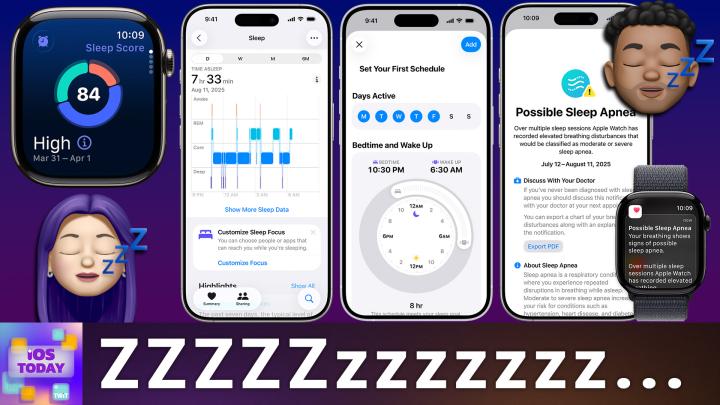
So whether you're using an Apple Watch or an iPhone, you set up your— you set up your settings exactly as you need to based on when you want to sleep and then use those to track afterward. It's kind of like an indicator of when you are— of when you're sleeping, and it gives the phone the ability to kind of, or watch, the ability to kind of pay closer attention to what's going on. Really, I think, powerful set of features on the app, or rather on your device. And so let's kind of take a look at what we have here. First and foremost, tracking your sleep on the Apple Watch and using the Sleep app on your, or the Sleep settings on your phone. So in order So you go to set up sleep, it's a health feature. Okay. So you open the health app and then you go to set up sleep within the app and kind of follow through the process.
Mikah Sargent [00:02:44]:
What you do is you set your goals. So the number of hours that you'd like to spend asleep, you can say, you know, I want, I want 8 hours of sleep total. And then based on that, you set your time for when you want to go to bed and when you want to wake up. Then with that, and I would love to hear Rosemary talk more about the focus, there is a sleep focus that can turn on. On at your scheduled bedtime to help reduce distractions. And then while you are going to bed, you can track your sleep with your Apple Watch. You wear your watch to bed. It's part of the setup process.
Mikah Sargent [00:03:21]:
And in that, then again, it gives the note of the sort of indicator that this is when you plan on sleeping, and it can kind of kick in and make sure that it's set up. Now, Something that's important about this to understand, because I've had someone talk about this before. Someone asked me, why do you use that? What if I want to change my alarm in the morning? What if I don't want to wake up at this time? If you use that, it's going to make you wake up at 10 every morning. To which I wanted to say, that is actually a good thing for you to go to bed and wake up at the same time every day, believe it or not. But I didn't say that. Instead, I said, Don't you worry, you can change your alarm for the next day and it doesn't have to affect everything else. Okay, so you can set, uh, you can go into your, your clock and at the top it'll show you your special sleep and wake alarm and you can change that. And when you do, it'll ask you if you want it to affect the full schedule or if you're just looking to change the time for the next day.
Mikah Sargent [00:04:28]:
So it's not necessary that you maintain that the whole time in order to To update your schedule in full, you go into the Health app and you make changes there. Now, Rosemary, it lets you tie in a sleep focus. For anyone who's not familiar with focus modes, could you explain what those are?
Rosemary Orchard [00:04:49]:
Yeah, so a focus mode is sort of like having Do Not Disturb, but it's not just one Do Not Disturb, which is a blanket, basically almost completely shut off everything on my device because I don't wanna be bothered at all. It's customizable. So you can have a work focus mode, which is like, cool, I'm going to allow notifications in from Outlook and Microsoft Teams and things like that because I'm working and I want to see these calendars and I would like these phone calls to be able to come through. Then you could have a fitness focus which would just change your home screen and also maybe only allow calls from certain people or maybe just block certain people like your grandmother has a tendency to just message you all the time while you're trying to do a workout and you're just like, cool, I'm just going to mute that. It's not I'm blocking her, I'm— and I'm never going to get back to her. But while I'm doing this, I really don't want this person to be able to bother me, please and thank you. Um, and yeah, focus modes are great. There's driving focus.
Rosemary Orchard [00:05:48]:
Um, so there was always a special sort of car mode as soon as Apple introduced CarPlay. Um, but the focus modes themselves have advanced over the years, allowing you to create more, uh, custom ones. And the sleep one is a special one because they're, they're essentially 4 modes which exist on everybody's iPhone for everybody, whether or not you've ever set anything up here. So under Settings, if you scroll down, it's in the section with Notifications. There's Focus. So Do Not Disturb, Driving, and Sleep at Work. They kind of just exist for everybody, even if you don't need them. There's also a new one, which is Reduce Interruptions, which is a whole separate thing.
Rosemary Orchard [00:06:30]:
But the Sleep one is a little bit special, just like the Driving one, that you can't change everything that you might think that you can change based on other ones, but also it shows you things like your sleep schedule. So you can see that my schedule for tonight is wind down is at 10:30 PM and wake up tomorrow is at 7:30. So I have a couple of filters here which I've set up. But to start with, I'm just going to go with people because while your sleep is absolutely critical and you should ideally not let anybody or anything interrupt it, There may be exceptions to this rule. So for example, if you have somebody potentially who is unwell and trying to get in touch with you, needing to let you know that, then you probably want to add them to an allow list so they can get in touch with you. So you can see my parents are on here, as is a couple of other people. I've also allowed calls from favorites and I've got allow repeated calls on as well. So somebody tries to call me 3 times in a row, it will get through to me.
Rosemary Orchard [00:07:30]:
You can also allow explicit apps. And then there are some further options as well where you can show so that it's notifications on your lock screen. You can hide notification badges, et cetera. Right, so you can also customize your screens, and this can be quite useful if you would like a specific watch face that you're gonna see while you're sleeping. So something that's, you know, less information focused. So for example, if you usually use the modular face, then you might wanna switch to something like the X large face, which just displays the time. I currently have it set to the breathing bubbles. You can change your home screen and your lock screen as well.
Rosemary Orchard [00:08:03]:
So I have mine set to like a dark moon lock screen, which is quite nice. This also means that you can change the widgets. So if you create an extra home screen for this, and these options will also allow you here to show whether or not you just control whether or not you want to see the time and also if you want a sleep screen so it reduces distractions on there. Then we see our schedule here, which I've already mentioned, and then we've got our focus filters. So for example, I have an appearance set to dark. And that's just always there. I want my— when I'm asleep, I want my focus— I want my phone to be in dark mode because I'm probably in a dark room. Last thing I want, if I do have to pick up my phone, is for bright white to glare into my eyes.
Rosemary Orchard [00:08:45]:
That would be too much. I filtered my calendars in Fantastical to my personal calendar set because I don't want to be bothered by my parents' calendars or, uh, you know, other calendars which are there but they're not relevant at this moment in time. I do have my phone in low power mode while I'm asleep, and this is an intentional choice. I don't necessarily need my emails to be updating constantly in the background while I'm asleep. I can, I can manually check them when I wake up. And, you know, it's kind of nice to slow things down. And also, if I'm somewhere where I don't have the ability to plug in overnight, this is a great way to conserve power. I have customized Drafts to automatically open to a particular view, and there are lots of other things that you can do based on what apps you've got.
Rosemary Orchard [00:09:28]:
So everybody should have Calendar, for example. Apple and Mail. Um, but you can, yeah, customize a whole bunch of things. So you can turn on and off a SIM. So if you have a work SIM and a personal SIM in your phone, uh, you know, be that eSIMs or physical SIMs, doesn't matter, you can turn on and off a whole SIM. Um, if you want to, you can set a profile or a tab group in Safari and things like this. You can also turn silent mode on and off with a focus mode. So this can be really useful if you wanted to You know, have your phone in non-silent mode most of the time, then yeah.
Rosemary Orchard [00:10:03]:
But you do want it on automatically for sleep instead of having to push your action button. Assuming your phone doesn't have a physical silent switch, this is a great filter to add to a sleep mode, for example. But yeah, I really like using my focus modes. There are also some automations that you can add to your focus modes, which we will talk about later. But yeah, I personally think that the sleep focus mode is something that everybody should experiment with. And give a try on. I have deliberately turned off intelligent breakthrough and silencing because I have made the point of customizing this and dialing it into my personal preferences. But if you just want to get started, then maybe turn that on and see how well your sleep goes.
Rosemary Orchard [00:10:44]:
And if it doesn't go as well as you'd like, then you can spend a bit more time customizing it to suit your preferences.
Mikah Sargent [00:10:50]:
Wonderful. Apple, when it first released the sleep score, sleep scoring system didn't have quite as much information about how the score was calculated. Now we know the, the methodology— that sleep duration being 50 points, bedtime consistency being 30 points of your sleep score, and then interruptions being 20 points. And so all of that combines to determine your score from 0 to 100. For consistency, it looks at when you fell asleep during the last 13 nights. So it's Consistency across 13 nights. Interruptions look at the quality and duration of moments you were awake during your sleep. So that is a little bit more insight into what otherwise might just feel like an unfair score that you don't know what you could do to, to sort of influence or improve upon.
Mikah Sargent [00:11:48]:
So that is something to bear in mind. Now, there are, if you do wear your Apple Watch to bed, new sleep apnea and breathing disturbances notifications. And so what it does is it will look for breathing disturbances that you have while you're sleeping, and then if it's consistent, it will tell you that you're showing moderate to severe signs of sleep apnea. So they're categorized elevated or not elevated, and it looks over a 30-day period. If you do consistently experience elevated breathing disturbances during that 30-day period, it means that you're showing signs of sleep apnea and that you should talk to your doctor about it. So if that's something that you or your bedmate has brought up or been, you know, worried about, this can be a way to keep track of what's going on. Lastly, I wanted to talk about a few little apps that you might want to check out, and I'll just kind of go through them pretty quick here. AutoSleep is an app that will help you to track your sleep and frankly had been an app for tracking sleep before Apple really invested in that part.
Mikah Sargent [00:13:13]:
4.7 stars across 61,000 ratings. It's the number one top-paid health and fitness app in the US. It's been a Best Of pick 6 years running, or it was a Best Of pick 6 years running from 2018 through 2024. 2023. I like that it has one price of $899, and then you don't have to worry about it after that. The system is fully automatic. You wear the watch, you don't have to worry about it. It will also use phone identifiers.
Mikah Sargent [00:13:46]:
So if you pick up your phone, it assumes that that might be when you're waking up. And then it also does integrate with Apple's own data. So that means that Apple's data can be displayed by AutoSleep and vice versa. It did add sleep apnea tracking or sleep disturbance tracking. It has added heart rate variability information for while you're asleep and also has stuff to do with like stress. And if you work a specific shift, you know, graveyard shift or what have you. The other app is called Sleep Cycle Tracker and Sounds. It's free with in-app purchases, 4.7 stars across 28,000 ratings.
Mikah Sargent [00:14:26]:
It'll use— it doesn't need a wearable, uses the microphone sound or the accelerometer on your phone to determine what's going on. So if you don't have a watch, this might be the one for you. What I like is that Sleep Cycle offers a smart alarm, and this alarm waits for you to be in a lighter phase of sleep and then wakes you up in the— I shouldn't say waits because it will do it. It'll look at when you want to wake up and then it will wake you up at a time previous to that based on when you're in a light stage of sleep. It makes it so that when you wake up, you're not as drowsy right away. It is, it's again free with in-app purchases. The most expensive in-app purchase is $57.99. So just be aware that, you know, it, while it offers some of these features within the app, you will need to pay for more.
Mikah Sargent [00:15:19]:
And then lastly, an app that I've used before, it's called Pillow Sleep Tracker, free with in-app purchase as well. It works with Apple Watch, iPhone. It also works with iPad, which is funny. Audio analysis for snoring, sleep talking, and breathing disturbances. And all of that is processed on device, which is very important. Nap and shift work, very popular, this app, for those folks. It has a feature called Power Nap, Recovery, and Full Cycle Nap. It also has alarms that can be set by sleep duration rather than clock time.
Mikah Sargent [00:15:52]:
So So not, I wanna wake up at 8:00 AM. No, I want to get 8 hours of sleep. That is nice. One reviewer who worked 7-on, 7-off overnights said that it was the best app that they've ever used for being able to manage that horrible, horrible working situation. It has added recurring alarms. It makes use of Apple's new AlarmKit framework. So this is a nice, very well-integrated system across. And so you can get that as well.
Mikah Sargent [00:16:30]:
It does have a $19.99 a month option. Premium runs at $40 a year. So they really do seem to be pushing you toward the yearly subscription. But as I said, having, having such good reviews and especially for people who are shift workers, this might be the app for shift workers. Anything else, Rosemary, that you want to mention in our app segment?
Rosemary Orchard [00:16:56]:
I don't think so, Micah, other than if you haven't tried this stuff out before and you're there going, ah, do I really need to? I mean, you don't have to. We're never gonna force you to try these things out. But I personally think it's well worth giving all these things a go because you might discover that actually your phone works way better for you, or you thought you were getting good sleep and then maybe now you're getting great sleep, or maybe you need to go and get a doctor to check out whether or not you do have sleep apnea. Um, you know, it could go either way, but especially, uh, when it It's really important. It's the foundation of your day. So it's worth trying some things to see if you can make it any better than it already is.
Mikah Sargent [00:17:36]:
Absolutely. Alrighty, folks, those are the apps that we think will help— apps and features that we think will help you with managing your sleep. And if you have other apps that you like to use that you think are great, please do let us know about them. We'd love to hear about them. You can reach out to us by messaging us Messaging us, iosToday@tweet.tv is how you get in touch with us. Moving right along, I can hear the music. It's time for Shortcuts Corner. This is Shortcuts Corner, the part of the show where you write in with your shortcuts requests and Rosemary Orchard, our shortcuts expert, provides a response.
Mikah Sargent [00:18:28]:
If you have Shortcuts Corner requests, email us. iosToday@twit.tv is how you get in touch. This week, Rose, you have, uh, something interesting to tell us about related to sleep.
Rosemary Orchard [00:18:43]:
Yes, I do, Micah, because I have gone through, let's just say, a number of automations on my iPhone. It's fine, I only— I have less than 2,000 shortcuts, people, it's not a problem. Um, but I have quite a few automations that I have created, and as you can see, in some cases disabled because I no longer meet them, or I've come with a new solution for my, uh, problem, or for the thing that I'm looking to improve over time. Um, and I have a couple of things here that do make my life better when it comes to waking up. So first of all, as an attempt to discourage myself to snooze— I have to say, folks, as much as this one's a great one, it did not work for me this morning— I use a really great little app which allows me to actually flash the lights in my bedroom in the morning when I hit snooze. Uh, so first of all, if you're gonna use this and you have a partner who sleeps in the same room as you, or anybody else that sleeps in the same room as you, I recommend having a little conversation about this before implementing this, um, and seeing if they're okay with it. Because, uh, if you flash all of the lights in your bedroom really, really brightly and the other person desperately needs to sleep, uh, you may find yourself, uh, at the wrong end of a very grumpy somebody who's just been waking up from deep sleep. But Signal is a really great app for this.
Rosemary Orchard [00:20:01]:
It can allow you to do things like flashlights, and I have it flash this really bright bluish-white light, um, in my bedroom whenever I hit the snooze, specifically on my wake-up alarm, not anything else. Now there is a little tweak that you can make to this, and maybe you should wait to make this, especially if you do share a bedroom, is to check that you're actually at home first. You could do this by location, you could check if you're on your home Wi-Fi, there's a whole bunch of things, but for the time being, I've just got this flashing my lights when it hits snooze. Uh, so far my partner is okay with it. I will be double-checking in a couple of weeks because we currently have no child in the house for childcare reasons. Uh, so we'll see if this continues. Um, next up, when my wake-up alarm is stopped, I actually have a couple of things go on. I make sure that dark mode is turned off because I had a couple of issues with that previously, and I should check to make sure that that's still necessary.
Rosemary Orchard [00:20:55]:
And then I check if I am on my home network. Yes, folks, it's called TrebleNet because I I am indeed a Star Trek fan at heart. And then I just tell Home Assistant that my wake-up alarm ran, and that just fires the information off so that Home Assistant is aware that I've woken up. Then there are also some other things. So at the moment I have one of these turned off, which is— so I've put a repeat in here and I've changed that repeat to repeat 0 times. This is how I disable actions in Shortcuts. shortcuts when I may want to re-enable them later. So it's basically a way of removing the action without actually removing everything.
Rosemary Orchard [00:21:32]:
There's some configuration in there. But when I wake up, I get Carrot to tell me what's going on with the weather right now, please and thank you, shove that in my face. And I check my deliveries in Parcel, uh, just to see what's going on there. So this is just a really great way to see what the weather is, uh, see if there's any deliveries coming for today. If I could get my work calendar onto my phone, then I would also have that information pulled in here and have it let me know if I've got any early morning meetings or anything like that. But unfortunately, that is no longer possible with my work for security reasons, so I can't do that anymore. But there are a whole bunch of things that you can do with Shortcuts and waking up or sleeping, uh, whatever it is that you choose. You could have it whenever sleep turns on automatically dim the lights in your bedroom if they're on, or turn them off, um, or things like that.
Rosemary Orchard [00:22:19]:
You know, there's a bunch of things. So if anybody would like to ask for how to do something related to Shortcuts, possibly related to sleep, then please do let us know. This has just been a sort of rapid-fire tour of things that you can do. Uh, but yeah, I do really enjoy my, my widgets, uh, that I create from this, and also just my Shortcuts in general and the automations. So you should have a little play if you can. And this is just one of the great things that Focus Voice Memos could do for you with Shortcuts.
Mikah Sargent [00:22:53]:
Lovely. Um, all right, uh, before we say goodbye today, I do have a quick little App Cap for you. This is the part of the show where we share our apps or gadget picks of the week that we think are great and want to tell you about. And with, uh, summer well underway as you're watching this, um, well, you know, perhaps coming to a close as you're watching this, It is a great time to think about getting out on the water if you can. And I recently purchased a little waterproof phone pouch from Pelican, just $20. And this little— I don't have it with me because it's in my water gear stuff, but I really like this pouch. It has sort of foam around the outside that helps add to the buoyancy and these little clips at the top. And so you unclip it, these little roll clips and you slide your phone in.
Mikah Sargent [00:23:51]:
It's a very tight fit, which is good. And it has an opening on the back for your camera and, oh well, a clear spot on the back for your camera, like clear vinyl, and then opening on the front for your phone, again, clear vinyl. And so you can put it inside of this case. It comes with a lanyard. Uh, it tells you don't squeeze out the air. You close it tight and you can use it just like you would if you were not, if it wasn't in the case. Um, but it will make it so that if you Drop your phone in the water; it will float instead of sink, and it will keep it protected from the water. IP68 waterproof phone pouch from Pelican.
Mikah Sargent [00:24:32]:
I was thinking like a $20 pouch. I don't know those are going to be any, and I've been very impressed with it. Of course, I had to put it through its paces and give it a shot in the in the bathtub. So I I did that, and it it works great. So if you are looking for a waterproof floating pouch— that's the big part, I think— um, this is an option for you. Uh, great.
Rosemary Orchard [00:24:57]:
It's also great for keeping sand out.
Mikah Sargent [00:25:00]:
Oh, that's a good point.
Rosemary Orchard [00:25:02]:
Yeah, because I was using some really cheap versions of this, uh, at the beach over the last couple of weeks to keep the sand out, and one of the things I noticed is they scratched really easily. But I trust Pelican to make a quality product that is not gonna, like, scratch the plastic of the— like, it wasn't my device that got scratched, but it was still like, I thought my device had been scratched to start with because 'cause of how it looked. So yeah, I'm gonna be upgrading to a Pelican in very short order. Thanks for the tip, Micah.
Mikah Sargent [00:25:27]:
Absolutely. That brings us here now to the end of this episode of iOS Today. Uh, you remember you can reach out to us, iosToday@twit.tv is how you get in touch to share your thoughts, your concerns, your questions, et cetera. Rosemary Orchard, if people would like to follow you online and check out all the great work you're doing, where should they go to do so?
Rosemary Orchard [00:25:47]:
Uh, the best place to go is rosemaryorchard.com, which has got links apps, uh, books, podcasts I am or have been involved with. And of course my social media is there as well, but you can also find me hanging out in the ClubTwt Discord in the live chat during the show where we're discussing about waterproof phones. Do they need a waterproof pouch, yes or no? The answer is yes, folks. Um, and of course the iOS Today forum after the show.
Mikah Sargent [00:26:09]:
Beautiful, beautiful. Alrighty, that is that for that. Thank you for being here, and we'll catch you again next week for another episode of iOS Bye-bye.
Rosemary Orchard [00:26:20]:
Bye-bye.