iOS Today 800 Transcript
Please be advised that this transcript is AI-generated and may not be word-for-word. Time codes refer to the approximate times in the ad-free version of the show.
Mikah Sargent [00:00:00]:
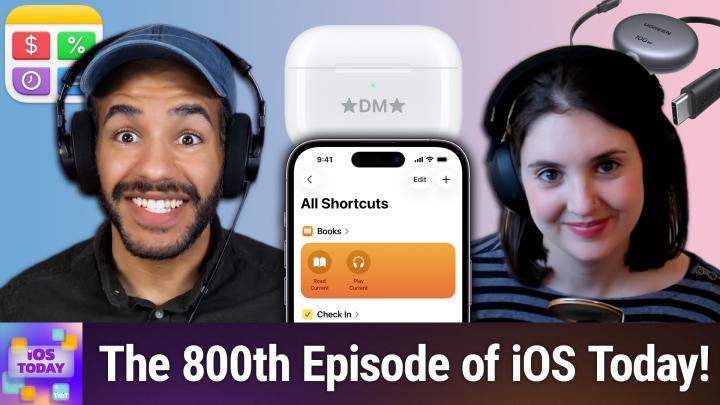
Coming up on iOS today, it's episode 800. Can you believe it? And can you dig it? Yes, you can. Stay tuned for this very special episode of iOS today. Podcasts you love from people you Trust. This is TWIT. This is iOS Today, episode 800 with Rosemary Orchard and me, Micah Sargent. Recorded Tuesday, April 28, 2026 for Thursday, April 30, 2026. Our top favorites.
Mikah Sargent [00:00:41]:
Hello and welcome to iOS Today, the show where we talk all things iOS, iPadOS, WatchOS, HomePod, OS. All the OS is all the platforms that Apple has to offer. I'm very excited because today is a very special episode of the show. It's episode 800 and I am but one of the hosts celebrating the 800th episode. My name, by the way, is Micah
Rosemary Orchard [00:01:06]:
Sargent and I am Rosemary Richard. And I'm also very excited to be here hosting our eighth hundred episode. What better way to do that than with a few of our favorite things?
Mikah Sargent [00:01:18]:
Yes. So given that it is our 800th episode and you know, this show of course, even predates the work that Rosemary and I have done. So a hearty thank you to those who came before when it came to the show. In any case, I want to or we want to take the time to talk about some of our favorite apps, our favorite features and our favorite accessories. I thought it'd be fun if Rosemary and I both picked two of our most favorite third party apps, two of our most favorite iOS and iPadOS or other OS features, and then one favorite accessory. So I think we should get right into it. Rosemary, tell us about your first pick for your third party app.
Rosemary Orchard [00:02:17]:
Yes. So I don't, I didn't mention this to you, Micah, because I don't know, it felt like one of those things that was almost a given. But when you said or suggested third party apps is one of the categories of things that we should pick today, my brain said, okay, but it can't be like a mainstream app. We're not talking like Reddit or TikTok or Instagram, Right. Or anything like that. I was like, I want indie developer apps, like people who are really small teams or one person who's doing the whole thing by themselves. Because at the end of the day, those developers are doing a huge amount of work. They are their marketing team, they are their own troubleshooting people.
Rosemary Orchard [00:02:53]:
They don't have people that they can really turn to with questions. You know, they turn to other developers on the Internet and so on. But they produce so much and they produce such high quality. And also my Experience. Indie developers are the ones that actually genuinely care. Every year when Apple are like, hey, so we've got this entirely new ui, UX Experience, Liquid Glass, have at it. And they're there going, oh my gosh, it's June, I need to release something by September. Oh, and I need to make this look good.
Rosemary Orchard [00:03:21]:
And then somehow they pull it out of a bag every single time. And so the first app, I've mentioned this app before, it is one of my favorite apps. I am going to be sneaky and say you should check out every single app produced by Agile Tortoise, because whether you need a dictionary, something to do, tallies, or just a quick way to make notes, Agile Tortoise has something for you. But one of my favorite apps to use all the time is Drafts. So at the moment I'm in the middle of moving house, so I've moved my office, but I haven't moved everything else. So I've been building a list of the things because it's not a case of just shoving everything into a large storage van and driving it to, you know, the next place. I am being selective about the things I need to take with me. So, you know, on my list I've got things like my HomePods, my wall speaker, my Apple TV.
Rosemary Orchard [00:04:05]:
And Drafts is a great place to make this note because I can just add to it. And then I actually have another much more complex system that I'm using to take that data and break it down into steps. So this is just my place for I need to put these things somewhere so that then when I have a little bit more time, I can break it down into the steps of like, you know, in the case of my Xbox 3 60, because I am a girl of modern technology, of the latest and the greatest, you know, I need to like unplug it and I need to bundle up all the cables and things like that and put that into some kind of containment system, like a box or a bag of some kind. And then that can go into the van, but it can't go into the van until I had the van and all those things. So I've got a separate system for that. But yeah, it's just, this is a really nice way to capture things. You know, I, I really like the fact that I could just tap plus and it's blank. And when I open the app, it's going to be a new blank note.
Rosemary Orchard [00:04:57]:
Unless I was working on, on a note in the last minute. If I was working on a note in the last minute, then it's going to go back to that one and I can change that setting. I can make this app as complicated and nerdy as I want by writing my own scripts and creating my own. Or I can just use it as a basic text note application, or I can go somewhere between the two and download action groups and action and keyboard sparse other people have made for us. And I personally love the fact that I can make this as easy or as crazy complex as I want. And I can just. It's a really great digital post it note system that you can make into an entire archival system if you want to, with tags and statuses and things like that. Or you can just keep it really simple and just write down a piece of text and then later you can go back and just delete it.
Rosemary Orchard [00:05:45]:
Or you can even have actions that automatically delete things after you do things. It's really good. Love it. 100% recommend it every single time.
Mikah Sargent [00:05:54]:
Yeah. Drafts. I am not surprised to see it on your list. And I mean that in the best way, because when I think of your mind and the things that you're capable of doing on iOS, drafts is one of those apps that comes to mind for me. And it's one, you know, that you perhaps did not introduce me to, but what you did was show me the capability of the app and, you know, what all could be done with it. And so it's certainly one that ranks highly up there for me, another app that is on my list. I think both of us can relate in that we are neurodiverse. And a lot of times that means recognizing the way that our brains are perhaps different from the typical.
Mikah Sargent [00:06:50]:
And occasionally apps come along that fall into that same boat. And I feel like Solver S O U L V E R is one of these apps that it's like if Douglas Adams was thinking about a tool that could be used by people who think like Douglas Adams does, then Solver would be one of the apps that would be made because it's like a little notepad that just figures out the math that can be kind of difficult or a little bit weird. So let me kind of show you an example here. Let's say you're doing some. You. You just, you're about to get an apartment, your. Your, you know, upcoming roommate. So you're like, oh, rent is 2700.
Mikah Sargent [00:07:48]:
I wish that. Oh, utilities are, let's say, 180. And Internet comes in at a cool $95. And that gives you the total of 29.75. Okay, that is just, you know, Something simple where I'm just saying here's a thing and here is the amount. But let's try something else. Let's go with, let's say you're planning a trip. Okay.
Mikah Sargent [00:08:25]:
So we say flight is $340, hotel is
Rosemary Orchard [00:08:39]:
€100.
Mikah Sargent [00:08:41]:
Oh yeah, let's do that. Hotel is €500. Remind me, is it here? And then boom. And then we go 500. And then we say dinner is 60 go. Plus somebody spent 75 on dinner. And then we got wine, that was 90. But then we go like this because it was three of us split three ways.
Mikah Sargent [00:09:12]:
Oh, that didn't work that time. But you can say things like, okay, now divide that by three, which in case we'll divide the 90 by three and boom, at the end you've got that euro total at the bottom. You can also do currency conversions. So like Rosemary was talking about, I could say 200 USD in euros. I could do, you know, pounds in Canadian, whatever it happens to be. And then I really like that. You can also set variables. So if you've got a variable like hourly equals 60 and then you do, you know, hourly times, which is just the asterisk here.
Mikah Sargent [00:09:58]:
And then you do six. Now if I decide I could change the variable and it updates of course the totals there. So it works like a calculator, but it's more than a calculator. I love and I'll show you just really quickly some of the examples that are given. You course can do basic calculations, but you can also do percentages. Perhaps you don't think of percentages in the traditional way. So you could say 50 is what, percent of 200. You could easily do unit conversions for times, minutes, megabytes to gigabytes.
Mikah Sargent [00:10:36]:
It does volume and mass calculations, intervals of time, which is really nice. Getting the interval of time between two dates, finding dates relative to today, so today plus three weeks. I really like some of the time formats. So 45 days as time span, very, very clever things that you probably don't realize you're doing regularly. And those calculations can be a little difficult. This makes it so much simpler. Like it's just, it's a way that I think already and so being able to kind of like work out these equations line by line and see how this all works and read it and understand it I think is what makes this app unique and worth, worth a look, if not a full on purpose purchase of the app. So that's solver.
Mikah Sargent [00:11:30]:
Let's go to our next pick which comes from Rosemary.
Rosemary Orchard [00:11:35]:
Well, I was a Little sneaky with this next pick my kit because it's three apps kind of pretending to be one app. Because James Thompson, lovely developer and friend of mine, created a wonderful app called Peakalc. And Peakalc is a calculator. It's available for macOS, is available for iOS iPados, it's available on Vision Pro. But Peak alc got this really cool thing called the about screen. And the about screen in most apps just tells you the name of the developer and so on and so forth. Love it. However, James was a little too nerdy as far as Apple developers go and wanted to do things like play with all of the cool new APIs Apple release every year, like the virtual gravity and stuff like that, so you can throw bananas and so on.
Rosemary Orchard [00:12:20]:
That section of the app got so big, it got split out into another app called ABOUT by pcalc. And so if you want a really cool game, you can download the about app. And then it turns out that James was so nerdy that he was playing D and D probably with Micah at the time, and went, I really need an app for that. And so he built a really cool little app called Dice, which is also by pcalc, which is based on the about code. So technically all of those apps are based on the original same code base. Obviously things have expanded and improved from there. James is constantly working on things and if he's watching this, he should not feel pressured to add loads more features right now because he's not very well and he's look after himself. But yes, Peacock is just one of those apps that I really love.
Rosemary Orchard [00:13:06]:
It has a tape so you can add things to the tape. I currently have that. Actually not doing anything right now, but one of the things I use this for the vast majority of the time is for doing conversions. So I just typed in 45 because my focaccia recipe requires that I cook something at 425 degrees. However, that's 425 degrees Fahrenheit. If I was cooking at 425 degrees Celsius, I would be cremating my focaccia and I don't think it tastes very good. So convert that from Fahrenheit Celsius and it tells me 218. I could also convert the mileage on my car.
Rosemary Orchard [00:13:41]:
If I go down to fuel, I can select miles per gallon UK and convert that to, for example, miles per gallon US. That would be 45 US. Or I could do miles per liter or liters per 100 miles. And it, yeah, it Gets really, really fun in a complex way, but in a good way. I honestly, the thing that I use peacock for the most isn't really calculating things necessarily. It usually starts with a conversion of some type, some kind. So I might be converting, I don't know, 55 ounces into kilograms, which is 1.55, blah, blah, blah, kilograms. But then, you know, I can do the square root and all of those things on it.
Rosemary Orchard [00:14:24]:
And then, yeah, there's just so many math functions in here. The settings are great. You can specify the number of decimal places. You can turn on RPN mode, which is very important. If you're turning this on, please check the help and understand what it does. You can have multiple memories, you can show thousand separators, you can show ticker tape, you can change your theme. So obviously mine is purple, because I do love purple. But there are a bunch of styles that you can like lay that color over.
Rosemary Orchard [00:14:53]:
You can let all themes everywhere. You know, there's so many options to make this the right kind of calculator for you. And, you know, you can change how your digits look, you can change the display, you can customize the vertical layout. So I have it set to the default, but I could also change it to a programming calculator, which then adds a whole bunch more buttons like, you know, if I rotate it, then it shows me. It can show me a different layout and things like that. The amount of attention to detail that has gone into making this a really good calculator app is excellent. And yes, I can confirm If I do 6 times 7. It does give me the meaning of life 42.
Rosemary Orchard [00:15:35]:
So it works as designed as well.
Mikah Sargent [00:15:38]:
Yay, the math works. We love it when the math works. The next app that I want to talk about, we'll actually be talking more about in a future episode and very future, in a very soon episode. But it does make the list, frankly, for one of my favorite third party apps, and that is Halide. That's because Halide is the camera app for people who kind of you open up the stock camera app and you go, hey, this is fine, but I actually want to be able to do more. And that's what Halide can do. You get manual controls, you get raw capture, a real histogram, you get focus peaking. So you get that iPhone camera and you get sort of the app respects the iPhone camera and says, hey, this is a real camera that can be used in real ways if you have the tools to do so.
Mikah Sargent [00:16:36]:
And so better than just point and shoot, you get the Opportunity to really dial in exactly the settings that you like and get more data to to take a better photo. The team behind it, Lux, always regularly updating the app with new features based on what the community wants. And so when Apple made adjustments to its image signal processor, the company said, what we're going to do is give you the ability to take a photo that is less processed or as little processed as possible and not use some of the generative image data that is in place. As Apple's image signal processing flow has changed over time, Halide doesn't at the same time, I think punish me for not being a pro. I like to have a little bit more control, but I don't know everything there is to know right about photography or even much of what there is to know about photography. And so the auto mode within Halide is quite good. You get these depth tools as well so you can make use of that depth information. And I like that I'm able to make adjustments to things like the macro mode.
Mikah Sargent [00:18:03]:
I like taking macro photos a lot, but when I take a macro photo with the built in stock camera, the way that it switches lenses and the options that I have therein just aren't the same as what I'm given when I use Halide. And so I get to treat it more like a regular camera and then, you know, make the changes that I want after the fact. And I just really like that Halide is trying to give you all of the tools that you need. You know, the exif data, making adjustments to the brightness of the photo based on exposure and just really trying to lock in all those settings that you can get. So yeah, props to the team that make Halide because I just think it's next level for sure. Those are our third party apps. Up next we're going to talk about our favorite iOS iPodOS features. And I think everyone you should know what is Rosemary's first pick for iPadOS or iOS feature? If you don't know, well, you're about to find out.
Mikah Sargent [00:19:20]:
Rosemary.
Rosemary Orchard [00:19:22]:
Well, obviously my kit is the Tips app, so I am going to give an honorable mention to the Tips app. It's one of those apps that often gets overlooked. It does have a propensity to turn up in possibly, you know, the least helpful places. But I actually have it as a widget on my home screen, but not all the time. And I'm going to talk about how I do that in my second pick. But my first pick, to nobody's surprised, is the Shortcuts app because you can do so many cool little things with it. And I am just going to show people how to do one thing that I've been doing recently because when I go into my day job and I have to go into the office, I have to park in a multi story car park. Can I ever remember what level I've parked on? No.
Rosemary Orchard [00:20:07]:
Can I ever remember which lift I've used? Absolutely not. No. I cannot remember either of those things. I end up wandering around an eight story multi story car park with multiple entrances via lifts because each level is actually a split level. So they're both like. So it's like 7.5 as well as 7 and then there's 8 and depending on how you go, you get very lost and I can't find my car later. So what I am going to do is I'm actually going to get my location and obviously I'm not going to show folks my current location, but then I'm going to add a reminder so that I can say I would like an alert and I would like it when I arrive and then I can select the location. Actually I don't even need to get my location.
Rosemary Orchard [00:20:50]:
I can do the current location and then I can just ask each time and I could name this anything I like. I'm actually going to stick a little NFC tag in my car so I can tap my phone to the NFC tag on my dashboard and run this shortcut and then it can just, you know, ask me for the information and I can just type parked on level five, lift two. And then I know that I need to get back into the two and go to level five and then I'm done. And that's it. Really simple. I can as much detail as I want or as little as I want. So from here I can even tweak things like the radius of how far out I can be before it will show up the reminder on my screen. I could add images to it so I could take a photo of where my car is, which can be really useful if you're in a humongous car park like they have an airport.
Rosemary Orchard [00:21:36]:
I can nest this under other reminders. I can add tags, I can add notes, I can flag it, you name that. But yes, there's many ways to solve many problems with shortcuts. This is just one way that I'm solving one particular problem. I have. How many shortcuts do I have? 1,741 shortcuts. Now a number of these have been made for iOS today over the years, but they all solve problems and Unless a shortcut is genuinely something I'm never going to use again, I tend to name it and just save it because it's useful to look back over time and be like, oh yeah, how did I do that thing? And so yeah, I love shortcuts. It genuinely makes my life easier.
Rosemary Orchard [00:22:18]:
It can solve so many problems, mostly through automations for me, where stuff just magically happens in the background. But sometimes it's also just things like sticking a little NFC tag in my car so I can just tap my phone to it and add a reminder for when I get back to around where my car is so that it can help me find it.
Mikah Sargent [00:22:37]:
Nice. Yes, I obviously am glad that you chose shortcuts. I have not only learned a lot about shortcuts from you, but also benefited quite greatly from your shortcuts knowledge and have always appreciated your help therein. One of the features that I want to talk about is a newer feature for hardware and that's the action button. And I think it's because rarely is you sort of like, you kind of get what a feature is meant to be and meant to do pretty quickly. And I think the action button, despite it itself not evolving over time, our understanding of it has evolved over time as you play around with it and as you. It's one of these things where the more you play around with it, the more you're willing to play around with it, the more you dial into how it's helpful for you. And that's what I realized is that, you know, I tried to do all these wild things with it.
Mikah Sargent [00:23:47]:
It's this programmable physical button and you can of course have it sort of launch this special screen where you've got 50,000 different things you can do. And I thought about, you know, I was setting up a shortcut that has all these actions that I could run. And then I got overwhelmed and thought, no, I'm not going to do that. I didn't really use it. And then I said, you know what? Something that you regularly do at night is reduce the white point of your phone in accessibility and you can set up an accessibility shortcut that is tied to your action that when you what your action button, rather that when you press and hold it, it just enables that feature and thereby dims your screen even, excuse me, even more. And that's exactly what I wanted. That's precisely what I needed. And that is how I use it every day.
Mikah Sargent [00:24:43]:
And before that I wasn't really using it because for me it was like this overwhelming too many. It's the paralysis of choice. Right. There are too many options of what I could do with it, and I felt like it. I needed to do so much with it. And then it turned out, no, it could be whatever you want it to be, obviously. And when I just sort of leaned into what did I want my action button to do, that's when I, you know, it sort of clicked for me and I said, yes, this is the thing that I want. And, you know, for you, it could be any number of features, settings and options.
Mikah Sargent [00:25:17]:
But, yeah, for me, it was just making an adjustment to the brightness of the screen. You can set it up in so many different ways. I've done. If it wasn't hands on iOS or. Yeah, it was either hands on iOS or it was hands on Apple. On one of those shows, I did a whole feature on the action button, especially when the first iPhone with the action button came out. But it's just a lovely little addition to the phone that has grown with me as much as I've grown with it. Rose, what is your next pick for iOS and iPadOS features?
Rosemary Orchard [00:25:55]:
Well, my next pick is actually something I personally feel that Apple have been watching users of Shortcuts, formerly known as workflow, a lot and gone. Oh. So we added this feature called Focus Modes, which was cool. And then the shortcuts nerds went and did things like started changing their watch face based on focus mode. They started changing the home screen of their phone based on focus mode and things like that. And there were a whole bunch of things that people were doing with focus modes that you couldn't do natively. And Apple listened to that, and then they added these features, which makes Focus Modes one of my personal automation loves. Because I don't always want the TIPS app as a large widget on my home screen.
Rosemary Orchard [00:26:38]:
Don't get me wrong, I love the app. It's great for inspiration, for little things that I can, you know, throw out as a mention on iOS today or something, but it's not something that I want there all the time. So I have different home screens depending on my focus mode. So if I go into my podcasting focus mode, then you'll see that I've allowed Micah to be one of the people that can break through. In fact, Maika is the only person who can break through and actually notify me in my podcasting focus mode. Because if Mike is messaging me about something, it's either a dog picture or it's critically important, which is not as important as a dog picture, but it could be, you know, so it it's going to be one of those things apps you will possibly, for the eagle eyed folks who are looking at the video go, huh, what's that weird white one? That is a Mac application which for some reason they're still not managing to sync the app icon off Apple. Come on. I felt feedback about this like three years ago.
Rosemary Orchard [00:27:33]:
Um, and then there's a bunch of other options here as well, which is things like I can hide my notification badges, I can show silence notifications on my lock screen. Folks, no offense, but if I get a notification for my banking application, I don't want you seeing that whilst I'm podcasting. So no, I've got things like that turned off. But that can also be really useful at work where you don't want notifications from silenced applications to show up. Or if you have like shift coverage and things like that and you're there going, no, I want my personal focus mode work is gone. You can get rid of all those work notifications and just hide them. You can choose to silence notifications, dim your lock screen and then there's customizing your home screen and your lock screen. So I'm going to show folks here the edit what happens.
Rosemary Orchard [00:28:15]:
So I've created a number of home screens here and you can see that I've selected the world with the giant tips app and the four apps at the bottom, Messages, Health, Fitness and Journal. There's also a weird space at the bottom of every single one of these and that is because your dock is persistent across all focus modes. So the three applications that I have in my dock, which are Safari Shortcuts and also, wait for it, Omnifocus. Yep, I had to double check just to make sure it was indeed Omnifocus because I tried putting drafts in my dock the other day and then it broke my brain because I usually have omnifocus there and drafts as a widget on every home screen. But yeah, so I can choose my home screen, I can choose my lock screen screen. So I've got a whole bunch of lock screens here with various different things. I won't scroll too far down because otherwise there could be some pictures. And then I can also edit my and choose my watch face so I could have Pride Radiance, which is a great watch face.
Rosemary Orchard [00:29:09]:
I usually just have it set to this purple palette because, you know, that's good. Then you can add schedules and you can then on top of this, which I love, you can change the way that some of your apps work. So I can specify, hey, I would like drafts to load a particular workspace for me, for example, or I would like, I've already got calendar set up so I can filter it for iOS today and remote and iOS today. Those are the two iOS today calendars that I have. And I can just say, hey, when I open the calendar app, just show me those two. I don't want any of the details right now I'm podcasting, I just need to see those. And you know, you could be doing this either to just keep you in the zone or in my case as well as a little bit of data protection of trying not to show everybody, you know, all of my calendar appointments that are going on during my day because I don't need people to see that I have work meetings at this time and I'm talking to that person at that time and things like that. You know, I can create data on the fly as needed.
Rosemary Orchard [00:30:09]:
So yeah, there's, there's a whole bunch of things you can do with focus modes and it's a really good way of getting away from certain applications at certain times. You don't want Microsoft Teams notifying you on a weekend that somebody who is going a little too hard is working and is like sending you 28 messages. You can, you know, make sure that you've got a nice personal focus mode so you can just lock into that and enjoy the apps that you want with the home screen, watch screen and lock screen that you want as well.
Mikah Sargent [00:30:37]:
Also, I should mention I have just done, just completed a series on focus modes for Hands on Apple. So if you are wanting an in depth guide on not only understanding focus modes but setting them up and being able to, you know, get some inspiration for possible focus modes you could set up. That's what the, I think it's a three episode series covers. Moving along to my second iOS IPADOS feature, this is one that I think is sort of. Anybody who's part of the Apple ecosystem is going to acknowledge that one of the most important aspects of being part of the Apple ecosystem is the ability to sort of make use of the features that work across the various devices that you have on the various platforms that you have. Right. It is this opportunity to really see how using devices from a company that takes care of the whole stack really makes a difference. And that is what continuity is all about.
Mikah Sargent [00:31:54]:
I love continuity. It's this umbrella term, right, for all of the ways that our devices are kind of communicating with one another, that are working with one another. It's, it's not just Airdrop, which we're familiar with or handoff, but it's also universal Clipboard. It's unlocking the Mac. It's the Mac being able to take phone calls. It's your home pod being able to take phone calls. It's SMS forwarding. It's sidecar, where your iPad becomes a second display Individually, perhaps some of these features might not seem like they'll make much of a difference, but it's this collection of features that all together make working on Apple's platforms all the more enjoyable and easy to do.
Mikah Sargent [00:32:50]:
Continuity means copying a paragraph on your phone and then walking over to your Mac command V and it pastes to where you need to. Or being able to place a phone call while you're sitting at your desk and then move away if you need to with your phone. Being able to pull up Photoshop on my iPad and use it with my Apple pencil and then move back to its use on the screen. The other day I needed another monitor for a moment and so I just plugged in my iPad mini real quick and moved some stuff to that display. It's so nice. I love continuity. And again, anytime someone asks me, which rarely happens these days, but if they were, you know, why choose iOS? You know, what puts you there with all of Apple's stuff? Why do you have a Mac and an iPhone and a this and a that? It is continuity first and foremost that makes a difference. It is all of the devices working in the background to make sure that convenience is at the forefront of my use of these various devices.
Mikah Sargent [00:34:04]:
So, yeah, huge shout out to continuity as the one of the most important, I think, feature sets that has ever come to the platform. Oh, and I should mention too, macOS recently gaining the ability to mirror what's on my iPhone's screen and also let me interact with the phone from my Mac. Also another handy feature. All right, it is time for our final segment of our top favorites. And that is our favorite accessory.
Rosemary Orchard [00:34:45]:
Yes. So you said favorite accessory, Micah. And I went, ah, okay, so how many? And you said one favorite accessories singular. And I said, really? Because I've got like a thousand here. Okay, that conversation didn't actually happen, but that's what happened when in your mind, at least Micah's message. And I was like, okay, how many can I get get away with here? So I've got three. No, I've, I've got one. And it's the AirPods Pro.
Rosemary Orchard [00:35:12]:
Now for some people, AirPods fit better in their ears. Some people, AirPods Pro. I personally love these. I have the, the latest Gen that was the lightning ones. I haven't upgraded to the USB C ones. I don't have a Vision Pro and for me upgrading is not necessary. Something that's worth it. But honestly, AirPods Pro are really great.
Rosemary Orchard [00:35:32]:
I have convinced both my parents that they need AirPods Pro as well because these are tiny enough that they will fit in pockets even in women's clothing. Assuming that the said women's clothing has pockets, but it sometimes doesn't. Still drives me crazy. But even when we have tiny pockets, if it, if there is a pocket I can jam my AirPods Pro in, they can function as hearing aids. They can do all sorts of things like the remote listening feature which it was really great when I was trying to set up my intercom system and I needed somebody inside to tell me if they could hear the buzzer being pressed and it's like, well I don't have anybody else. So I, you know, was able to do it through AirPods Pro and Remote listening and things like that. I can connect these to my Apple tv, I can connect them to my iPhone, to my iPad, to my Mac and they do just seamlessly work. The noise canceling is great.
Rosemary Orchard [00:36:21]:
I wouldn't necessarily want them for a 10 hour flight but when I flew up to Glasgow a couple of weeks ago on, on, on the plane, it's a one hour 15 minute flight. I was not going to bother with my big over ear headphones. I took my AirPods Pro and they're fabulous. They charge via the watch charger or a MagSafe charger or wireless charging or plugging them in obviously might plug into a lightning cable but yeah, they're just so good. Yes, they're pricey but honestly they're worth it. I keep mine in this little ESR case which has extra magnets it on that so that when you drop it it doesn't like bounce then open and release your AirPods Pro into the world. It also has little magnets on the back so I can put it on a MagSafe charging stand and they will just pop on charge and that's it. I don't need to worry about it.
Rosemary Orchard [00:37:08]:
So yeah, I highly recommend AirPods Pro as an accessory. If you've got more than a couple of Apple devices, the seamless switching for those 100% something that you will enjoy.
Mikah Sargent [00:37:22]:
I love my AirPods Pro and so if Rose, excuse me, if Rosemary had not chosen this as an accessory it certainly would have made my list because I think it's fantastic. I love my AirPods Pro. I do and every time Apple comes out with a new version of the top of the line AirPods Pro, I buy them. Even if the pair that I had before are still doing just fine. I want the latest and greatest. I want the noise cancellation. I want the ease of use. I think they're fantastic.
Mikah Sargent [00:37:57]:
My pick for my favorite accessory is a moment of me opening foot. Nope. Opening foot, inserting mouth. Yes, we'll go with that. Opening foot, inserting mouth. Have I told you it's my Monday. Open mouth, insert foot, eat my hat, eat crow. All the other forms of I said a thing and now I feel differently.
Mikah Sargent [00:38:26]:
And I have to be honest about that because I thought originally that wireless charging was stupid. And that is mostly because I am a recovering pedant. And during my more extreme pedantry, I did have a problem with the idea that we could call something wireless charging when the charging pad upon which one would place their device had a wire attached to it. And in my mind what I wanted was what we have only ever been teased about having, which is being able to sort of walk around in a house and have power sent to our or I shouldn't say just a house, but a structure and have power sent to our device via something, right? And so given that future looking promise, at the time I thought let's not call this wireless charging because then people are going to think wireless charging has been solved and stop working on what I at the time wanted, which was this wireless wireless charging. Anyway, then wireless charging hit Apple's devices and I saw the light. I love MagSafe in particular the thwack of MagSafe, the charging pucks that we have now instead of the big charging pads. Very nice. I have MagSafe chargers everywhere because a my phone and my AirPods both charge with MagSafe but also because it means that at my desk I can thwack my phone onto the charging stand and it's upright.
Mikah Sargent [00:40:26]:
It's clear what's on my phone, which is nice. But then also in my, you know, next to my bed I have the MagSafe charger for my phone that is also a charger for my watch, that is also a charger for my AirPods that is very handy and, you know, easy to do. So I went from feeling like Mag or not MagSafe but wireless charging in general was a lie to seeing what it meant when you combined the technology of wireless charging, of this coiled induction charging with magnets for alignment to improve upon the efficiency. And it's just so smart. And it all came together and I just think they've done a great job with MagSafe accessories and sort of opened up a whole new category of potential accessories. So when I say MagSafe, I'm talking about not a specific accessory, it is more of a feature. I realize I'm cheating a little bit, but I could hold up any number of MagSafe accessories I have and use that as a means of talking about what is really a feature. It's just fantastic.
Mikah Sargent [00:41:53]:
And so, yeah, you should. If you have held out on the wireless charging game, consider it me as a holdout. Once I gave in. I've been very happy with that, folks, believe it or not, that is two third party app picks from both Rosemary and myself, two iOS or iPados features from Rosemary and myself, and one accessory from Rosemary and myself. I challenge you all. Email us IowaWit TV with your top five picks like we just shared with all of you, IowaWit TV. All right, let us head to our app caps. These are the apps or gadgets we're using now or have been using for some time that we think are great and want to share with all of you.
Mikah Sargent [00:42:44]:
I'll go first. The app that I'm sharing today is called Stoic. And Stoic is a journaling and mental health app that it's kind of like bookending your day. So you check in in the morning and then you reflect in the evening. Stoic. To give it some props, it's an Editor's choice app on the App Store. The app says they're it has over 4 million users. And what you kind of do, what it does is, is when you start your day, it will give you some prompts to.
Mikah Sargent [00:43:23]:
I know for some people this stuff is a little woo woo, but the fact is our brains are a little woo woo. Our brains have trouble separating reality from what's imagined. And so setting intentions is on its face, kind of woo woo. But cognitively speaking, it actually does have an impact on our brains. So you can set out your day, plan what you're going to do, note what you want to focus on, and then in the end, at the end of the day, you reflect back. There are guided journals, there are mental health tools. Let me actually just show you here in the app. We'll pop into it here.
Mikah Sargent [00:44:07]:
So with this app, you have this daily check in. And so I'll just tap begin here and it says, welcome to your first daily check in. This is a quick reflection to pause and settle in your feelings. Over time, it helps you notice patterns in Your moods, your habits and your everyday life. First you talk about how you're feeling. I'm feeling pretty great. You can sync it with Apple Health. It's really cool because this app actually will integrate with the journal system that iOS has started to add.
Mikah Sargent [00:44:37]:
So you will get prompts how rest how well rested did you feel today? I will say slightly rested. I am not feeling very rested. Says rest comes and goes. Remember your body will find its rhythm again. What areas do you want to focus on today? Work. Good job. Choosing a focus adds intention to your day, especially when you're busy or feeling a bit powerless. And then comes a prompt.
Mikah Sargent [00:45:00]:
What's a recent win that made you feel good? So you can start to fill that out. You get these ideas for things to journal on again. You can explore some of the options. Journaling for motivation, doing an emotions check in, being able to check out the daily essentials. So let's see. Overcome negative emotions by teaching your mind to focus on positive positivity. And so there are some journal prompts there I'm trying to find because it's not just journal prompts, it also does other little moments of options. Let's see.
Mikah Sargent [00:45:41]:
Here we go. So breathing for example, here you work through a breathing exercise. Now all of this and there are some meditations as well. Thank you for hanging with me there for a moment to find that. So that's kind of a quick look at Stoic, but if you're looking for for me I wanted to journal more but I am not good at just journaling a blank page and wanted to find a system that would kind of prompt me a little bit. If you just use it outright, you'll have noticed in the app as I was going through it that there are lots of sort of here are some premium features. Those are there. You don't have access to them, but you can use the app without paying.
Mikah Sargent [00:46:24]:
If you do choose to pay, you'll get even more more obviously access to the content. But on top of that you get icloud sync across your various devices and you get access to the on device models that it uses to sort of respond to the prompts that you're given with a little bit more context than you would otherwise have. So where normally these these journals may not be ongoing or reflect sort of of what you've said before unless you choose to add that context yourself, this will let it use the on device models to give you kind of more contextual journaling follow ups and things like that. So I think it's pretty neat. It's also again, this is one of the apps that Apple has highlighted as an app that's using Apple's foundation models framework. So this on device AI set. So be sure to check that out. It is stoic in the App Store.
Mikah Sargent [00:47:27]:
Rosemary Orchard, what is your pick? I see one word in there that starts with an R and that makes me want this more than anything else.
Rosemary Orchard [00:47:36]:
Well, I've been having a little bit of difficulty in my car because I need like an extra charging cable so I could just plug something in via USB C and I would like it to be a fast charger. So if that does happen to be like a laptop or something, I'm actually going to get it charged during my car journey. However, I don't want a massive long floppy cable noodling about all over the place. That would be really annoying and just get in everybody's way. And I also wanted, yeah, I needed it to be powerful enough and then I discovered Ugreen have made this fabulous 100 watt surprisingly long retractable USBC cable and it works really well. I can just plug this into one of the ports of my car and does what it says on the tin. It's a 100 watt cable. Once you extend it out, it is actually one of those flat cables so, you know, it will tuck nicely into any slots if you need to.
Rosemary Orchard [00:48:35]:
But this is something where I, I really, I'm a big fan of retractable cables in the appropriate context. I don't need a retractable cable everywhere. Sometimes I'm better off having like a nice thick braided cable that just sits where it is. You know, if you're not going to be constantly tidying these away. But just the fact that I can just grab on this with one hand, you know, the other hand, the, the other hand does not need. I'm just using that to anchor it like pretending this hand is my car and I can just pull and then it, it stops and then I can just pull it again and release it and it will just tidy itself back up as I leave my car. It's perfect. I want to say I paid 9.99 for this in the UK.
Rosemary Orchard [00:49:12]:
I did get it through Amazon. Ugreen often have sales on Amazon and they are very good quality all of their products. I have a number of Ugreen devices which I would recommend. I'd say they're up there with Anker in terms of quality and delivery. So yeah, highly recommend the Ugreen Nexode retractable USBC cable. 100 watt watts it's a bit of a mouthful, but it tells you what you're getting. I can see it says it's 16.99 US, but there is a 23 off code if you buy it directly through Ugreen. So check the Ugreen website, check Amazon, check other retailers, but their stuff is high quality and it works really well.
Rosemary Orchard [00:49:50]:
So. Yeah, why, if you, if you're in need of a retractable cable, this is the one that I would recommend right now.
Mikah Sargent [00:49:57]:
Nice. There you go, folks. That is going to bring us to the end of this, our 800th episode of iOS today. Very exciting, very cool. Thank you all for being a part of this show. This show has been around for quite a while at this point, and it's fantastic that we get to continue to bring it to you here in the club. If you have yet to share this show with friends, family and others, please do so. I mean, that's.
Mikah Sargent [00:50:29]:
Our show is all about helping people with their Apple devices. And I think that anyone who has an Apple device has every reason to want to make more of it. And so this, I think, is a show that's easy to find, the utility that makes it worth sharing. So if you, you know, if you'd like, head back into the library of the stuff that we've done, find an episode that you think would be helpful to someone and send it to them, we would appreciate it. Thank you again, Rosemary Orchard, for all of the awesome work that you do. If people want to follow you online and check out all your great work and or congratulate you on being part of episode 800 of our show, where do they go to do so?
Rosemary Orchard [00:51:16]:
Well, the best place for everyone to go is rosemary orchard.com which has got links to apps but books, podcasts and so on, all of which I am or have been involved in. And of course there's social media links there. One link there is not, however, is the club to a discord because we do like to hang out there during the show as we record. And There's a wonderful iOS today area where if you've got like, I don't know, a request for an episode topic or anything you want to say to us, you are very welcome to post it there. Micah, we're going to find you.
Mikah Sargent [00:51:45]:
If you're looking to find me online, I'm ikasargent many a social media network where you can head to Chihuahua Coffee, that's C h I H u a H u a coffee where I've got links to the places I'm most active online. Thank you all for being here with us today. We'll be back again next week for episode 801 of iOS today. Bye. Bye.