iOS Today 799 Transcript
Please be advised that this transcript is AI-generated and may not be word-for-word. Time codes refer to the approximate times in the ad-free version of the show.
Mikah Sargent [00:00:00]:
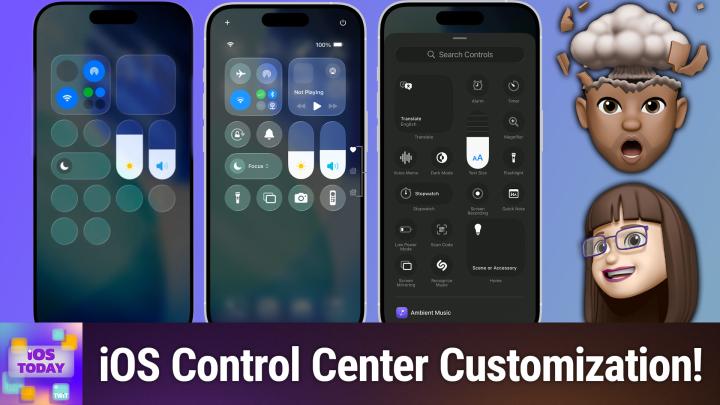
Coming up on iOS today, Rosemary Orchard and I, Micah Sargent, are very excited to be talking about Control Center. Stay tuned for this episode of iOS Today
Rosemary Orchard [00:00:13]:
podcasts you love from people you trust.
Mikah Sargent [00:00:18]:
This is twit. This is iOS Today episode 799 with Rosemary Orchard and me, Micah Sargent. Recorded Tuesday, April 21, 2026 for Thursday, April 23, 2026. Managing Control center hello and welcome to iOS Today, the show where we talk all things iOS, iPados, WatchOS, HomePod, OS, et cetera, et cetera, et cetera. This is the show where we talk about some awesome devices and also give you advice on how to make the most of said devices. I am one of your hosts. My name is Micah Sargent.
Rosemary Orchard [00:00:58]:
And my name is Rosemary Orchard. And I thought it would be lovely to talk to Micah about, you know, controlling your device and, you know, taking charge and putting things in a centralized place. That's what we're doing today.
Mikah Sargent [00:01:13]:
Oh, boy. So if you have a modern phone, then you are probably by this point familiar with the gesture, I should say a modern iPhone. The gesture of swiping down from the top right corner of the screen if you've got an older device, device, you know, swiping up from the bottom, if you've got that home button is going to get you access to Control Center. On newer devices, including the newer iPhones, you are able to swipe down from the right side of the screen and boom, Control center is there. Now, Control center has seen a lot of changes over time and that is, I think, you know, been one of the most exciting changes to come to iOS devices because there's a lot you can do. And that's part of why I really wanted to talk about Control center on the show today. There's a lot happening here and Control center has just gotten so incredibly powerful over time. Now when you swipe down from Control center, you are presented with your standard layout.
Mikah Sargent [00:02:16]:
In the top right corner there's a power button which you can tap to swipe to power off your device. In the top left corner is a plus sign which lets you enter edit your Control center commands. And right in the middle, you should see right below the, in my case, Dynamic Island, a little bit of information about how apps might currently be using your different data and in this case it's location. So next to what the top of my phone says oura, which means that the Oura Ring app is using my location, I can hit a little disclosure triangle and it shows what device or what apps recently used my location. So there's a Lot more in Control center than just controls. There's also information available as well. But the big thing here, the big thing that we're talking about today is how to use and customize and manage Control center when you are trying to decide how you want things to be set up. Now by default you'll have your basic controls.
Mikah Sargent [00:03:15]:
A lot of your controls you're able to access by tapping and holding. And I want to just remind people of that tab. Tap and hold on one of these sections and you'll be presented with a good amount of information. If the section of Control center has, you know more that you can do. So tapping and holding in the top left square is all of my connection stuff. So at the top I've got airplane mode which I can turn on by tapping on that. I of course turning it off will toggle off airplane Mode. Tapping on WiFi will allow me to change the WiFi network.
Mikah Sargent [00:03:47]:
Tapping and holding, excuse me, tapping on it will turn it off. Tapping and holding lets you change which network. You can also make adjustments to your airdrop depending on whether you want to only be reached by contacts or by everyone. You can adjust and switch between Bluetooth devices. You can make changes to your cellular data. Turning that on and off, personal hotspot, vpn, satellite, it's all in that connectivity section. To the right of that of course is your playing now playing section where you are able to control not just the stuff that's playing on your device, but any of the media devices in your home. It'd be AirPlay 2 essentially in the background.
Mikah Sargent [00:04:28]:
Now that's just the kind of built in basic controls that you have. But you'll notice that I have lots of little circles and even one sort of rounded rectangle, a rounded square on my home screen or rather on the home screen of Control Center. And that is a choice that you can make as to what you choose to have in these spots. So in the top left corner of my sort of selected items I have a little text recognition tool that can help me be able to see what text is in front of me physically and take that text and apply it digitally. So copy something essentially from a photo. I also have a timer, I've got my Apple TV remote, I've got the flashlight. I have active listening. I can't remember actually what this is called.
Mikah Sargent [00:05:28]:
Oh, it's all of the audio options but includes live listen. It includes system capture background sounds. You can make adjustments there. Low power mode screen recording. Big user of that. This accessibility shortcut is set up with my most common Used options including reduce white point. I also have a QR code recognize feature. Really neat thing called Vehicle Motion Cues, which we've talked about on the show before, where it will bring up little dots that move around based on your movement in a car.
Mikah Sargent [00:05:59]:
And we posit, we suggest that it is able to reduce the effects of motion sickness in the car. I have found it to be that it actually does have an impact for me. There's also my Shazam button, which lets me then quickly listen to music and go, what is this song? And last but not least, in my screen I have the sharing icon for screen sharing. And so that is active right now because I am mirroring my iPhone to ecamm Rosemary, I was wondering if you wanted to share what your favorites section looks like in Control center to see how different it is from mine. So long, of course, as you don't have any, you know, personal information there that you'd rather not include.
Rosemary Orchard [00:06:49]:
Yes, Maika, I would love to show you. And there is one thing that I should note in that I've actually made my lock screen unavailable when my iPhone is locked because that is a feature that you can actually do with security settings. So as you can see now I'm at my. On my home screen rather than my lock screen and I can show you my Control Center. Now, it does look pretty busy because I have spaces for buttons, so why
Rosemary Orchard [00:07:17]:
not put them in there?
Rosemary Orchard [00:07:18]:
One of my favorite features that I have added to Control center is Print center. And this is a sneaky hidden Apple application which you only need it when you need it, right? But every so often my printer likes to drop off the network and is not entirely doing what it's supposed to do. So if I've sent something off to print and it was there enough to receive that, but then something's not happening, then if I open up Print center, then I can see what documents are waiting and so on and pause them and restart them and things like that. That which is a really great way to keep on top of those. I do also have, obviously I've got my Media Control page, my general Connectivity page, but then I have multiple home pages as well, which are currently not working because I'm in the middle of moving house. So I'm going to have to set up all of my smart home stuff again. But yeah, I've got a lot of things here that I don't really think about until I need them, at which point I go, oh, yeah, yeah, that's the thing that I need. Um, and you know, there's things like magnification.
Rosemary Orchard [00:08:17]:
I don't need it that often, but it's really nice having that in Control center and thinking about it, I might actually put that on another page. The one one thing I do love, right down here in the bottom left hand corner, I'm not going to tap it right now because otherwise it's going to make my watch ping. Because as much as being able to ping, my phone for my watch is a feature I use multiple times a day. Every so often, I put my watch down somewhere. Usually while I'm tired and going to go out and have a shower, I forget to put it in its dedicated place on its and then I lose my watch. So being able to ping my watch from my phone is one of the
Rosemary Orchard [00:08:48]:
things I do love having in Control Center.
Mikah Sargent [00:08:51]:
All right, so now that we've kind of gotten a look at Control center and how we both have organized our main screens, let's talk a little bit about editing Control Center. That's the whole point of this, is to show you how you can customize your controls. So on your iPhone, the first thing that you can do, and I like this, is in the top left corner, there's a plus icon that is a way to edit. The classic way, the way that we've always done it is tapping and holding anywhere on the screen that is not currently taken up by a control. The reason why I like the plus sign is sometimes that quote unquote jiggle mode shortcut can be a little bit picky. And if you accidentally do a swipe before you tap and hold, or if you accidentally have another finger kind of slightly on the screen, all sorts of things can get in the way. And that's annoying. So having that plus icon to know if I tap there, it's going to let me edit is great.
Mikah Sargent [00:09:44]:
Now, when I tap on that icon, the first thing you may notice is that in the top, top left corner of each of these bubbles or sections or segments, there's a circle with a minus. That means remove. You can get rid of that control. But you may also notice that there's a little clear glass macaroni noodle in the bottom right corner of each of these sections. It is not, in fact, a macaroni piece, but instead is a little grab control that lets you adjust the controls that you have in Control Center. So if I tap and hold on the bottom right corner and then I move the control, it allows me to increase the size of the control. Now, importantly, it will only allow you to change the size of the control to another option that is also allowed. What does that mean? It means that this specific control, which is a QR code reader, is either a circle or it's a squircle square, a sort of rounded square shape.
Mikah Sargent [00:10:53]:
And so in between, it's not going to let me do anything, but if I tap and hold and drag it out and drop it, then it makes that bigger option. So that's something to bear in mind when it comes to these controls is that they do have certain arrangements and requirements for their arrangements and you will need to make adjustments based on that. Now that was a look at being able to remove and adjust the size of a control. You can also tap and hold on a control while you're in that jiggle mode and move around that specific control to rearrange it. The best part though is tapping the add a control button at the bottom. When we do this, first and foremost your device will show you some of the controls that it thinks may be most important to and some of the controls that are kind of default controls. So here I can see, I would have access to the alarm, I could have another timer button, I could have another low power mode control. Obviously I don't need some of these, they're already there.
Mikah Sargent [00:12:01]:
But by scrolling down I can see the other apps and services that have made it possible for me to use them via control mode. One section that's really neat is the capture section, because what this allows you to do is directly launch the capture of a specific app. So that means that you could open up Halide immediately to a halide capture Instagram to an Instagram capture, or if you'd like, analyze a photo with Claude. And so being able to pop that in there and tap on it would then give me direct access to that capture area. I've also got some other apps including citymapper. So if you've got that set up, you can say get me home and it'll take you right there. There's some other options I want to show. Ah, here's a good one.
Mikah Sargent [00:12:54]:
Dice by pcalc. You can always count on PCALC and surrounding apps, AKA James Thompson, to sort of make use of all of the functionality. And so it's really nice to have all of that functionality right there as well. I literally able to roll a D4 or a D20 from my control center, which is pretty cool. In fact, let's add that control and then tap on that. And you'll note that what it does is launch the app and immediately roll a D20. And yes, I did get a Nat20. Thank you very much.
Mikah Sargent [00:13:33]:
Very exciting stuff. So that was editing and adding controls to Control Center. But this main screen is only one part of everything that you have access to in Control Center. If you swipe down, you'll see what is essentially sort of a secondary screen that has even more controls. Here I've got different setups for ambient music. I've got Rosemary's Print center in there as well. I've got a little shortcut to give me the weather from Carrot. And so I can quickly check in on the weather without having to pop open the app and go to the right page and do all this other stuff.
Mikah Sargent [00:14:10]:
I also have for people who are watching. You'll notice there's. It sort of looks like a street sign with a, with four little corner points around it, or like a lollipop that's inside of a little stand. I don't know what to call it, but this is a little tool for access the special camera docks that are able to use the system to control them. So these are motorized docks that Apple made a little API for. And this gives you direct access to those controls. From there you can break it out into music or now playing Home, which has all of my home controls. And last but not least, that connectivity.
Mikah Sargent [00:15:04]:
The sharp eyed among you will note that the connectivity page is the same as tapping and holding on the connectivity square in the top left corner on the main part of Control Center. So those two are equivalent. It's nice to have home controls there in Control Center. And as Rosemary pointed out, being able to access Control center from the lock screen is also very nice. Now, if you are wanting to do that, there are a few things that you want to be mindful of. And so what we want to do is we'll hop back over into iOS, we launch the Settings app, scroll down and choose Control Center. The first thing that it'll tell you in Control center is, hey, this is not the place for you to go and make adjustments to Control Center. Swipe down from the top right corner of the screen and you can make edits there.
Mikah Sargent [00:15:56]:
But what this does have is a little toggle for whether you can access Control center within apps. And that's important because if you were to toggle this off anytime you were running an app, you're not going to be able to use Control Center. So if that's an issue for you, like if you were in an app and you were, oh, I need to do something, Control center. And it's not appearing, this is why at some point You've gone in here and you've turned this off and that has caused that issue. Now, for those of you who also are going, oh my goodness, there are so many options, so many choices. What do I do? What do I do? Well, don't worry if you don't like the way Control center looks. After you've made a bunch of changes, you can hit the Reset Control center button, which will allow you to, as you might imagine, reset Control center to its default mode. So don't worry about that.
Mikah Sargent [00:16:46]:
The last thing that I'll mention for Control center is in the Face ID and Passcodes section. You want to see that under Allow access when locked that you want to look and see if Control center is one of those things that you would like to, as Rosemary pointed out, have access to. You'll note that for me, the only thing I have turned off is wallet, so that when my phone is locked you cannot access wallet, but everything else is able to be accessed while the phone is locked on my end. Your Control center is also something that you can make use of on your other devices, but of course, depending on how you have things set up, you may or may not need it, or you may not be using it on macOS. The sort of Control center mechanism of course has changed where it's widget based mostly and on your desktop, but on iPad it works the same way. You'll have access to all of your different controls. Swiping down from the top right corner regardless of the orientation of your device will allow you to make changes there. Rosemary, anything else we want to say about Control Center Editing Control center and Accessing Control center before we move along
Rosemary Orchard [00:18:19]:
to the news, there is one little thing that I would like to quickly mention because it's kind of part of Control center, though not really. On your lock screen there are two controls at the bottom and by default they are the torch or flashlight and your camera. You can customize these to any control available in Control Center. So if you spend all day printing documents from your iPhone, you could have Print center there.
Rosemary Orchard [00:18:46]:
You can put whatever you like there. I often have the QR code scanner there instead of the because you can just swipe to access the camera or you can use the camera control on most modern iPhones. So make sure you have a think about those. And if you're the sort of person who accidentally walks around with the flashlight or torch on your phone on all the time, maybe take that control out and put something else in instead.
Mikah Sargent [00:19:11]:
Alrighty folks, this of course is the time where I Remind you that if you have questions, if you have methods, if you have tips, if you have tricks, you can email us iostodaywit TV to get in touch. It is time to move along to the news. And boy howdy, have we got a big old news announcement for you. If you haven't heard, this is perhaps, I think, well, I mean this is the second biggest change at the company in my history of following Apple. As Tim Cook has stepped up from being Apple CEO to becoming Apple Executive Chairman, John Ternus is going to become Apple CEO in I believe, September. September, yes, September 1, 2026 will be when it's effective. This is again one of the biggest moments since the unfortunate untimely death of Steve Jobs, at which point Tim Cook stepped into that lead role and has been part of the most successful period for the company financially at the very least, but in many other ways as well. Tim Cook wrote a sort of personal letter to the community as well as the Apple producing a press release about the change, upcoming change.
Mikah Sargent [00:20:47]:
I did find it interesting that Tim Cook was very specifically mentioned that in the Apple executive role would be the means of contact essentially for world leaders and for policymakers. I kind of think that's, it's nice that John Ternus is not going to have to worry about that and is going to be able to just focus on the company, the software and the hardware as Ternus was the chief executive of engineering or senior Vice president, excuse me, of hardware engineering and has now moved in or will be moving into this role. Rosemary, I don't know where you were right when this happened, but I do know that I suddenly got some text messages coming through. I look down, I see what in the world this is happening right now.
Rosemary Orchard [00:21:43]:
Holy cow.
Rosemary Orchard [00:21:45]:
Yeah, no, I was standing at Glasgow Airport waiting to board a plane back to come home, which it's only an hour long flight. And yeah, I was standing and I, to start with, I saw another news article that Apple posted which was about, and I'm going to butcher the pronunciation of Johnny's surname, which is Shrugie, I believe, being named Apple's Chief Hardware officer. And I saw that come in and skim the article and noted that it said incoming CEO John Ternus. And so clearly Apple knew that they were making two announcements yesterday and so they posted them in reverse order so that if you looked at the newsroom, then the Tim Cook one would be at the top. But then there was this awkward five minutes of refreshing Apple newsroom to go. Okay, so tell me about what's happening with John Ternus, tell me what's happening with Tim. But yeah, it's. It's one of those things of.
Rosemary Orchard [00:22:44]:
A lot of people have a lot of speculations about things that are going to change and how John Tennis is going to be better, how John Tennis is going to be worse. The reality is we won't know even the day after he takes over properly as CEO, exactly what the difference is going to be, because it takes, you know, even if he makes a bunch of changes immediately, it will take at least six months before we see the results of any of those changes. But, you know, Tim Cook is getting older. I assume that he doesn't appear to have some kind of magic time capsule that keeps him young. And so I can understand wanting to pass the role on. And I don't know, John Turner seems like a good fit, has been at Apple for plenty long enough to understand what. What the role entails, because I think that would be the biggest part of it if somebody stepped into this role, for example, me, and had no idea what they were doing. Because you and I could both go, if we were CEO for a day, this is one thing we would do.
Rosemary Orchard [00:23:45]:
And I would make the iPhone 18 Pro perfect purple, for sure. But that's not exactly, you know, the sort of change that a CEO necessarily needs to be making. You know, there's much bigger things with, you know, how to handle environmental policy and, you know, who do we hire to help us make sure that these things go correctly and so on and so forth. And getting the big overview at the high level seems to be something that, from what I've heard, John Ternus will be very good at.
Mikah Sargent [00:24:11]:
Absolutely. Yeah. Yeah. I think a big, hearty congratulations to Ternus and frankly, a huge thank you for the work that Tim Cook has done in the past. You know, there have been some recent requirements of the job and behaviors they're in that have not been my favorite on Tim Cook's behalf. But I will say that overall, the CEO of Apple made a rather large impact on me personally. I remember when Tim Cook publicly came out as a gay man, and I remember reading his op ed or letter or whatever you want to call it, and how much it meant to me at that time. And I remember emailing Tim Cook about how much it meant to me.
Mikah Sargent [00:25:29]:
And in his letter, this letter that he wrote to the community, he says something along the lines of, like, I start each new day reading email and letters from people who are, you know, from customers who are changed by the technology that we make here. And I actually believe that he does do that because I wrote him this, you know, email ages ago thanking him for that letter that he wrote back then and he responded and had, you know, really kind things to say. So I don't know. There's something, I think it's. It's very difficult to have any level of down to earthedness when you are in such high positions of power. And whether it is a trained and feigned down earthedness or if it's true down earthedness, obviously I don't know. But I like to believe that it's real and I think that it has come through up to the past, previous to the last few years. It has always come through with Cook and I've always appreciated that about him and the work that he does.
Mikah Sargent [00:26:54]:
So, yeah, congratulations to both of these individuals and we can't wait to see what you do with it.
Rosemary Orchard [00:27:02]:
Yeah, especially with John Turner's being a hardware person, you know, I think that that is good. Tim Cook was a logistics person and he brought in all of his knowledge and experience with logistics and all the improvements that he'd already made with Apple's logistics. There's a reason why there are so many iPhones and iPads and app Apple watches available for launch day pickup and delivery. And that's thanks to Tim Cook. That's his legacy. He has solved that problem. There's no huge amount of stock in stores sitting there waiting to be sold that they've accidentally, you know, over ordered because they didn't know what they were going to do. He solved that problem.
Rosemary Orchard [00:27:37]:
And you know, John Turner's thing, an engineer. Especially considering the current lack of availability of computer part thanks to the huge rise of AI, I feel like having somebody who is an engineer at the helm. He's kind of gets creative and find some awesome solutions for this sort of thing, or at least I hope he is. So we'll cross our fingers and see what happens next.
Mikah Sargent [00:28:03]:
We will indeed. We will see how things play out. All right, moving right along, it is time for, well, the end of the show. It's time for app caps. And that means that this is the part of the show where we share with you apps and gadgets that we are using now or have been using for some time that we think are great and want to make sure that you know about them. Because look, there are loads of apps out there that I test a lot of apps and there are so many apps that are sort of aimed at doing a specific task that are aimed at editing PDFs and you can Find. You can type in the Word PDF and find dozens and dozens and dozens of apps. And I think that's one of the benefits that we have when we take the time to of look through what's out there and try to find something that we think is worth paying attention to, worth downloading and worth keeping on your phone over time.
Mikah Sargent [00:29:20]:
Now, occasionally what that means is coming across an app that, that has you kind of go, wow, you've really done the thing. You've, you've, you've. I see what you did there. That's very clever. And one of those apps is a simple app, Frame. And Frame is an app for creating screenshots. Now I have done, I've covered in the past the Pixo app that lets you create beautiful sort of sewn together photos. But that's not the only method that is needed for being able to display a screenshot that you might have.
Mikah Sargent [00:30:10]:
And occasionally I like to make a screenshot look really good. And that is where Frame comes into play, which gives you that ability to kind of make a beautiful screenshot that you can use. Sorry, I'm having trouble getting to it because I forget it's called Share Shot in your apps, but it's called Frame Screenshots Share Shot in the App Store. So that's where it gets a little confusing. So let me choose a screenshot that I can show here. We will go with this easy Plant Pairings screenshot. So on my phone, the cool thing about it is when you first open up the app, it will show you your last screenshot. So you can just tap on that, but then you can also import or pull from your library.
Mikah Sargent [00:30:59]:
Now up top you can see I've got my screenshot here. There's a little bit of a transparent background in the bottom left hand corner. I've got the formatting tab which lets me do so much. I can have a clear background. I can have a background that is just a background of the screenshot. I can have a background that's a background of an image. And you choose what image you want. You can do a color and what's great about it is you choose a color and then you can choose a shade of that color.
Mikah Sargent [00:31:28]:
So obviously if we want to do a purple for rosemary, we can, you can change the lighting so that it comes in on one side or the other, how much padding you have around the photo. And you can also change the type of device that you have around the outside and the color of the device. Right now I have silver, obviously want to Change that to Cosmic Orange. You can also, if you're listening to music, it's really cool because you can add a music photo album or music album cover behind it. There are these really nice black backgrounds that have different sort of noise that you can add. There are textures and all sorts of things. So we'll go with the background that we have there. But the other option here that I like is that you can change how the image is cropped.
Mikah Sargent [00:32:23]:
So if I wanted a square one for Instagram, for example, hitting the plus icon in the middle will let you bring up other screenshots. And of course we've gotta check out the settings here as well, which give us the ability to export images in different ways. You can add new frames so as new phones and devices come out, you're able to add those by making adjustments there. So I can see, you know, it's the 17 Pro Max and these variants and the 16 as well. And it is a really, really good app for adding screenshots in a way that again is very visually appealing. I think that it ends up being one of my go tos when I am just working with a single screenshot. This will be, this is the one that I like to use. So yeah, check out, you can look up share shot or you can look up frame screenshots.
Mikah Sargent [00:33:23]:
Either or should get you to it Now, Rosemary, do you want to show us your app cap this week?
Rosemary Orchard [00:33:31]:
Yeah, yeah, I certainly can. And my app cap is a feature in photos that I think people kind of overlook at times. They forget it exists, but it's actually a really great way to just use the camera on your phone. So I was recently at walking in the woods, I had a dog and a small child with me as a companion and I was being asked what is this? To which the answer is it's a flower. Cool. What kind of flower? I don't know what kind of flower that is, but by taking a photo on my phone, I can then use the really cool info button at the bottom and it will actually try to identify what that is. So in this case, it's identified this flower here as herb. Robert, I don't know if that's actually right.
Rosemary Orchard [00:34:13]:
But you know what, it seems close enough to me. What if I then tap on it? Then it will pub. So some results, including a Wikipedia page, it looks like it's a kind of geranium. And show me other similar pictures. Now some of these results are all excellent and they work and sometimes it gets a little more generic. So this time it's Just show me plant. But then when you tap on the word plant, it's got a little arrow next to it. It shows me that it's an anemone, blander, perhaps, which, you know, seems pretty cool.
Rosemary Orchard [00:34:44]:
There is another one here that it can look up and it reckons this is a. A speedwell, which. Interesting. It's certainly blue. And what I really like about is
Rosemary Orchard [00:34:55]:
when you tap on that info, it slightly fades the rest of the picture and it just highlights the part that it is focusing on, which also, funnily
Rosemary Orchard [00:35:05]:
enough, is the part that you can pick up and drag to put somewhere as a sticker if you want to. I've got some more plaster.
Rosemary Orchard [00:35:13]:
Those were identified, I believe, as cowslips. They were indeed. And then it can also do food. So I've got a picture of some asparagus cooking here and I can see that.
Rosemary Orchard [00:35:25]:
And if I tap on it, it suggests that I was cooking roasted asparagus with Parmesan. I hate to tell you folks, that was actually butter. Now, it hasn't identified a Highland cow as a Highland cow, but it has identified it as a cow. And just for testing, because it does have a special feature with pets. Now, it has correctly identified this as my dog, but if I tap on info, it'll even show me he's a Border collie. And he has spent the whole day behind my chair because I was missing from him for this weekend and so he was a little upset. So he spent most of the day trying to sit as close to me as he possibly can, which was very cute, but slightly impractical. But, however, I did manage to get this shot of him.
Rosemary Orchard [00:36:07]:
And so, yeah, I would highly recommend you use Visual Lookup to identify things
Rosemary Orchard [00:36:10]:
in photos on iOS. You can also use it to identify things in video, which can be really handy sometimes if you have managed to grab a video of something and you
Rosemary Orchard [00:36:21]:
want to learn more about it. So there we go. That's Visual Lookup.
Mikah Sargent [00:36:27]:
All righty, folks, that is going to bring us to the end of this episode of iOS today. Yes, indeed. If you want to email us ioTodayWit TV is how you get in touch. We'd love to hear from you. This is the part where I remind you about Club Twit at Twit tv. Clubtwit Rosemary Orchard of people would like to follow you online. Check out all the great work you're doing. Where should they go to do so?
Rosemary Orchard [00:36:51]:
Their best place to go is roseriota.com which has got links to all of the things and all the places you can find me, including social media, but it doesn't have a link to the Club Discord because you should sign up for Club Twit to get access to that. So you can also find me there. Where we have a lovely section to chat about iOS today, as well as the live chat that Maika was mentioning. Maika, where can folks find you?
Mikah Sargent [00:37:13]:
If you're looking to follow me online, I'm ikasargent on many a social media network where you can head to Chihuahua Coffee, that's C h I H o a h u a Coffee, where I've got links to the places I'm most active online. Thank you so very much for being here today. We do appreciate it and we'll be back again next week with Even more from iOS today to you. Bye bye everyone.