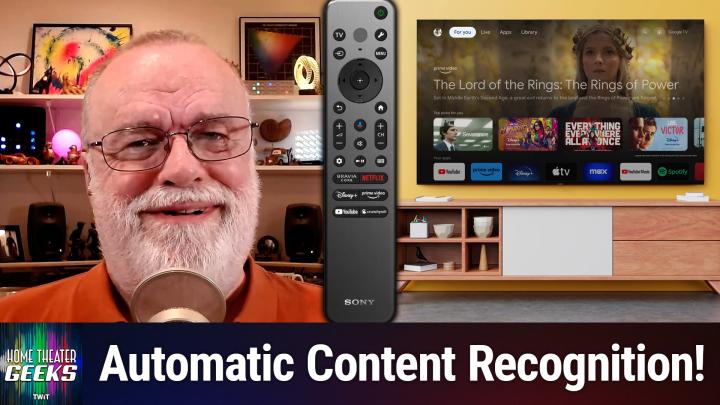
Home Theater Geeks 495 Transcript
Please be advised this transcript is AI-generated and may not be word for word. Time codes refer to the approximate times in the ad-supported version of the show.
00:00 - Scott Wilkinson (Host)
In this episode of Home Theater Geeks, I talk about automatic content recognition and how to disable it. Stick around.
00:11 - Leo Laporte (Announcement)
Podcasts you love From people you trust. This is TWIT.
00:31 - Scott Wilkinson (Host)
Hey there, scott Wilkinson. Here, the home theater geek. In this episode, I'm going to talk about a function that is found on most modern TVs called ACR, or automatic content recognition, or automatic content recognition. I ran across an article not too long ago on ZDNet by editor Chris Bayer, and the article is called how to Disable ACR on your TV and why it Makes Such a Big Difference Doing so. We'll include the link in the show notes.
01:03
Of course, you can check out that article. It describes this function called ACR, which monitors what you watch and that lets manufacturers identify what you watch and then send you targeted ads send you targeted ads. Now, acr can potentially monitor content from the TV apps, of course, within the TV, but also from external devices. It captures screenshots and cross-references them with a database, very large media database. Now, according to eMarketer, in this article it says in 2022, advertisers spent $18.6 billion on smart TV ads, so there's a strong motivation for doing this Now. According to an article in the Markup, acr captures up to 7,200 images per hour. That's about two per second. Now this can reveal connections between what you watch and your personal information, including email address, ip address, even your street address. Now, of course, the most disturbing thing about this is the potential for abuse, including security risks and even identity theft. So this article on ZDNet describes how to disable this function in your TVs, in a variety of brands too. It goes through Samsung, sony, lg, hisense, tcl and other Roku-based TVs.
03:03
Now the procedure as outlined in in this article is not simple or intuitive. It's as if the manufacturers don't want you to find it and turn it off, so that gives me a good reason to maybe want to turn it off. Um, so I tried the procedure that they specified for Sony TVs on my Sony 77-inch A95L, which is my current TV, and I have to say there were some inconsistencies between what was in the process, or the procedure that the article laid out, and what I actually found in my menu system. So I'm going to show you the procedure here in a graphic. It's just a list of what to do step by step, which is really good. They have this not only for Sony, but for Samsung and other TVs, as I mentioned.
04:02
But I'm going to point out a few inconsistencies. For example, it says press the home button. Now you can do that and you can eventually get to settings, but it's a lot easier to press the tool button on the remote. That gets you to a place where you can get to settings a lot quicker. And then it says go to settings and go to initial setup. Well, initial setup was not easily found in my menu system. I went to system instead, and that made it a lot easier instead, and that was made it a lot easier.
04:47
Um, and going to system takes you to a screen that lets you enable or disable various parameters, including Samba interactive TV, which is Sony's the name. Sony gives it's ACR, um, so you can, you can, uh, enable or disable Samba interactive TV separately. You can enable or disable ad personalization, analytics and measurement, third-party licensing, and there's also a switch for accept all. Well, I turned them all off. And when you just, in fact, when you disable Samba Samba, I suppose, tv TV that deselects everything. So then you hit save and exit and that part of it's done.
05:33
Notice, there's three procedures here altogether. The second one allows for enhanced privacy by disabling ad personalization. Well, I already did that in the last process, and so this whole process, steps one through four. The second process in this list here is not separate. In my Sony TV, it's included in that first process. Then it says, as an extra step, you can entirely disable the Samba Services Manager, which is embedded in the firmware of certain Sony Bravia TVs as a third-party interactive app. So go to Settings, select Apps, select Samba Service Manager. Well, that's not in my menu and force stop is not in my menu. Once I get to the Samba services manager, which is actually labeled TV in my menu, choose clear cache and select force stop. Well, I don't have a force stop, I only have an OK and cancel. So it doesn't even let me do this. So I did everything I could.
06:54
But what my experience points out that I think is really important to understand is the difficulty in trying to provide a step-by-step procedure for any modern TV. They're so complicated and different model years can easily have different menu structures. Even firmware updates to a given TV could easily alter the menu structure. Uh, the markup, which is another article about this subject. Uh, disabling ACR uh is available as well, and I'll put that link in the show notes also. Uh, and it's from 2023. So the and it has procedures like this in it as well, and they may very well not match what you see when you try to do them in your TV.
07:50
Still, I recommend disabling ACR. In any event, for the reasons I talked about earlier, you want to maintain some privacy. You don't want manufacturers and advertisers looking at what you watch I don't. So I think it's a good idea to disable it. So I would start with the procedures in the ZDNet article, or even the markup article, and take your time to sort of figure out well, where is it different, where is this procedure different from what I'm actually seeing on my TV? So that's a bit of advice.
08:35
And it's not simple, it's not intuitive. They don't want it to be, obviously. So be stalwart about it. Be stalwart about it, be resolute and find your way through that menu system to disable this ACR, and I think you'll be better off for it. Now, if you have a question for me, send it along to htg at twittv and I'll answer as many as I can right here on the show. And, as you know, twit now provides all of its programs for free on YouTube, but with ads. Speaking of ads, if you want to go ad free, all you have to do is join the club. Go to twittv, slash club twit to join today.
09:32 - Leo Laporte (Announcement)
Until next time, geek out, get tech news at your pace with TWIT TV's perfect pair of shows For quick, focused insights. Tech News Weekly brings you essential interviews with the journalists breaking today's biggest stories. But maybe you need more. That's why I'm here. Dive deep with me on this Week in Tech, your first podcast of the week and the last word in tech. Industry. Insiders dissect everything from AI to privacy to cybersecurity in tech's most influential and longest running roundtable discussion. Short or long, streamlined or comprehensive, twittv keeps you well informed. Subscribe to both shows wherever you get your podcasts, and head over to our website. Twittv keeps you well informed. Subscribe to both shows wherever you get your podcasts, and head over to our website, twittv, for even more independent tech journalism.