Hands-On Windows 188 transcript
Please be advised that this transcript is AI-generated and may not be word-for-word. Time codes refer to the approximate times in the ad-free version of the show.
Paul Thurrott [00:00:00]:
Coming up next on Hands on Windows, we're going to look at a promise Microsoft made recently to create more native apps for Windows 11. What does that even mean? Podcasts you love from people you trust. This is twit. Hello, everybody, and welcome back to Hands on Windows. I'm Paul Thrott and this week is a follow up to the previous couple of episodes where we looked at how Microsoft is going to fix Windows 11, 20, 26, address the pain points. In the last episode, I talked about some of the things they never address. So it's not clear if they're going to fix any of those problems. But since this big announcement from Microsoft, various Microsoft employees who are working on Windows have started engaging with the public on Twitter or X or other social media platforms and answering questions and asking questions, trying to get feedback, et cetera.
Paul Thurrott [00:00:56]:
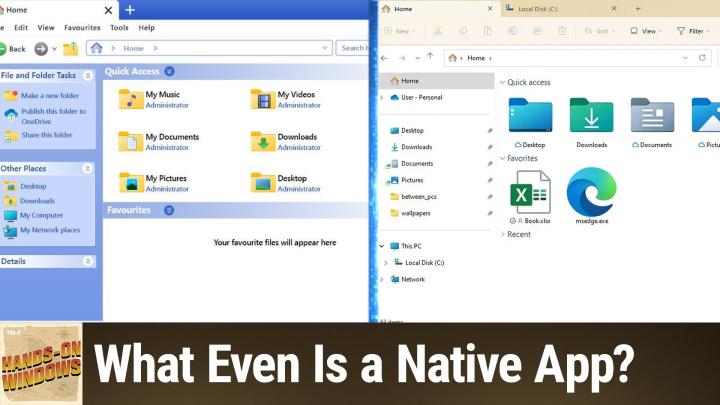
And one of the interesting things that's come up, which will not be interesting if you're a mainstream user, but if you're an enthusiast at all, go back in time at all with Windows, you may know that there are various ways to create apps in Windows. And as we move forward into 2026 now, there's probably half a dozen or more different ways that you as a developer can create apps. And there's this notion of native apps, which are apps written specifically to Windows. There are cross platform apps which could take the form of web apps or apps written to other frameworks. And then there are modern apps that are recently created apps that have new user interfaces that make Sense in Windows 11, which could be native or could be hybrid, or could be a newer framework type of thing. So to make sense of this, I went back and looked for some scratch screenshots from some old versions of Windows. And while there's a bunch of stuff going on here, I thought this is an interesting way to think about it. So what you see Here is Windows 2000, right? This is the old classic Windows UI.
Paul Thurrott [00:02:05]:
So this UI debuted in Windows 95, went through all the subsequent 9X releases. It was an NT4 and then Windows 2000, which was going to be NT5. You can see it's all, you know, squared off and floating Windows, you know, if you drag, if you were to drag these windows around, they would, you would see the window as it dragged. It would be an outline like back in the old days. But the technology used to create any apps that might run in the system is what we used to call, but Win32, the kind of native app platform for 32 and 64 bit versions of Windows. And then the technology that would draw the screen was something called GDI Graphic Device Interface. It's just a part of the Windows API. If you compare this shot to one of Windows xp, which came out just a year, year and a half later, same basic image, right? It's a start menu, right? A my computer window and an about.
Paul Thurrott [00:03:01]:
Well, this is not an about window, but it's essentially the same thing. And you can see that this thing is different looking and there is a different technology rendering this that. By this time I think we'd moved to something called gdi. But it's still bitmap graphics. We have got curved corners in the windows, right? And at this time you would still write apps to this native win32 API. And it was shortly after this happened that we got. Net and Windows forums and then Longhorn and Vista and the Windows Presentation Foundation. All this stuff has happened since.
Paul Thurrott [00:03:35]:
But this is very interesting to me because to me, Windows XP is to Windows 2000 as Windows 11 is to Windows 10, right? Windows 10 had this kind of squared off UI. We had gone through a period of time. We did a lot of transparency. We took that away in Windows 10, basically, and we got went back to the squared off thing and then we get to Windows XP or now Windows 11, and now we've got curved windows. It's prettier, you know, it's kind of more modern looking, et cetera. So what is, what does this mean for apps and what does it mean to even create. Net apps today for Windows now, to most people it means nothing. It doesn't really mean anything.
Paul Thurrott [00:04:17]:
But I, you know, I've made the case, for example, that some of the core app experiences in Windows 11 today, for example, Copilot being the poster child for this, are web apps, right? This is completely, this is 100% a web app. It's all that it is. It looks okay. I mean, it looks fine. It looks normal enough next to other apps, but it is a web app. You know, Clipchamp, the video editor that ships in Windows 11, is a web app. It's literally a website. You could access it from the Chrome web browser on a Mac or in Chromebook, it doesn't matter.
Paul Thurrott [00:04:52]:
The new Outlook, which I'm not going to run because I hate outlook, but 100% web app. So I don't see that changing. I'm a little confused that Microsoft would even make this promise. But what I wanted to do in this episode was show you five apps that are common, Windows that are native, that are modern and still need to be fixed in many ways. Okay, so the first example is Notepad. Now Notepad is interesting because Notepad goes back to the earliest days of Windows. The version that's in Windows 11 today is essentially the version that shipped first in the original version of NT back in 1993. Although there were apps like this before that.
Paul Thurrott [00:05:40]:
It was as we 2021, I think it was. When Windows 11 first shipped, it still looked like the old version of Notepad. And then they started making it pretty, right? So you see now it supports multiple tabs, it's got this markdown support. This is a markdown document. So you can see formatting, kind of light formatting is how Microsoft describes this in the document. It has these AI based writing tools. There's a lot more going on here. It has a really pretty and modern looking settings interface.
Paul Thurrott [00:06:11]:
But the thing is, this is literally the same app that it's always been or at least has been for over 20 years. It's just that they put this kind of, we would call this lipstick on a pig back in the day, but kind of this modern UI on top of it. In some previous episode I talked about how you can actually go back to the classic version of Notepad to some degree if you want to. In Windows 11, you may recall if you go into apps and advanced app settings and app aliases, if you go down to Windows, I'm sorry, to Notepad and turn that alias off and then you have to go find the original exe, but I know where that is, so I can find that pretty quick. Find Notepad. Now when I run that, you see this, Here it is, you know, it's got curved corners, but this is the old version of Notepad. It's still hiding in there, right? It's kind of interesting. So if you want this, for some reason that's available.
Paul Thurrott [00:07:03]:
I don't, but it is there. So technically what this is, this is native and it's modern, but it's really a hybrid app, right? Because it's got the old Win32 base and then it has this new, it's called WinUI 3, the latest version of the Microsoft UX stuff on top of it. And this is in this case, I would say for the most part you don't suffer too much because they've done this stuff. The only thing you can't turn off are the tabs. If you go into settings, you can turn off the markdown formatting. You can turn off using tabs by default, right? It still has the tabs, but you can turn off how that Works. There's a session state management functionality with recent files built in which you can turn off. You can turn off recent files, you can turn off spell check auto, you know, you can turn off everything basically turn off Copilot and when you go back you still have the tab, right? And if I, I did a control and there it's still a tab, but you lose some of the junk and it's fine.
Paul Thurrott [00:08:03]:
And to me this is, this is fine. I think this is, to me, this is one of the more successful examples. Paint is another example. This thing has been around literally. I think it was called PC Paintbrush in 1985 or whatever. Another example of a classic Win32 desktop application. But it's been given this kind of Win30 or sorry, Win UI front end. So this not really a ribbon looking thing at the top, it's really just a toolbar.
Paul Thurrott [00:08:27]:
In fact, they just call it a toolbar even though it looks like a ribbon. Is all winui3 and all the controls and things, the dialogs are all modern. If I bring up the image property dialog, this is the new style, modern looking thing. So just like Notepad, this is a legacy native Win32 app, but it's also a hybrid app now in Windows 11 because they put this stuff on top of it. And I think this is an interesting path forward for existing apps where you want to bring it forward into the modern era, but you also want it to look right in Windows 11. And I think they've done an okay job with that, I would say. I mean there's obviously there's all kinds of new features in here as well. We talked about this, you know, layers and projects and remove background, etc.
Paul Thurrott [00:09:12]:
All the copilot features and everything. So which by the way will be going away but we'll, we'll see what that looks like. So that one's pretty successful. So Notepad, Paint, both what I would call, they're modern but they're, they're hybrid apps at heart in their lowest level. These are classic win32 apps. And now we'll run into something that's completely different. So the Photos app, which is launched on a different screen. Let me bring it over here is.
Paul Thurrott [00:09:40]:
What am I doing? Yeah, sure, yeah, you're only seeing screenshots here, but this is a 100% modern app. This is a win32 app. It has, it's a, it's a. Honestly, for when, I'm sorry, a WinUI app. It's for that type of thing. It's actually Kind of interesting because there's a lot of functionality in here. We've looked at this app a bunch, but when you go, and depending on the type of computer you have, you'll have different options here for enhancing the resolution, you know, doing different things with the background or restyle in this case, sorry, background, et cetera, et cetera. Really powerful app, modern, but it's 100% WinUI 3.
Paul Thurrott [00:10:20]:
Is that native? Actually, no. And it depends on how. I don't know. Pedantic you want to be about this. On one end of the scale, you could make the argument that the only truly native app is one written in machine language, which is zeros and ones. Assembly language above that is an abstraction, if you will, of machine language C and C, the apps we would use to write things like Notepad or Paint back in the day, which have now been modernized, are native, I guess, to some degree. But once you start adding. Net or different frameworks on top of it, it's a thing on a thing on a thing.
Paul Thurrott [00:10:54]:
I'm not really sure that this is native, but the one thing I am sure of is when Microsoft says they're going to start making native apps for Windows 11, what they're really talking about is this kind of an app. They're not going to start writing C and C again. They're going to be doing it in the Windows app SDK, which is how you write a win 30. Sorry, these names are too similar. A Win UI app when UI3 in this case. So I. If you look at this app, if you look at the Media Player app, That's also Windows 11, very similar. These are modern apps, native.
Paul Thurrott [00:11:25]:
Ish. You know, not based on web technologies at least, but I wouldn't. Native is kind of a tough term, but I think this is actually the type of app that they're looking for. And there's a lot that goes on in this app depending on if you have a Copilot plus PC or whatever, but that's sort of beside the point. The poster child in many ways for Windows 11 and the problems and promises we see there with like UX and user interface and so forth, is File Explorer. This is one that keeps coming up. So in the last episode I talked about how I go in and specifically turn off the display of these things because it slows it down so much. I'll turn that on now and pause and then I will run that thing again and you can see it takes a second to come up.
Paul Thurrott [00:12:11]:
The strategies for dealing with that today are, well, turn those things Off. But then you could also do things like, well, maybe don't load this view at all, because this view and this sidebar, the navigation bar and this toolbar and the address bar and all the stuff at the top are winui three front ends to what was and still is under the covers, a classic Win32 app, again dating back to the original version of NT in 1993. Explorer EXE, it's the same app. They've changed the name a little bit over the years, but now when you bring this thing up, you can see like if you go just to this PC view, what we used to call my computer, or computer, depending on the era, it comes right up. And so I feel like part of the problem is all the stuff it's doing. They promised to fix that. That was one of the things two episodes ago we talked about. But it's very interesting to me that this happens.
Paul Thurrott [00:13:06]:
One thing if you didn't catch this too, this options dialog right here on this computer is not dark mode like the rest of the system. Now this is something they've actually fixed. I think this PC must just have not gotten this update. But they're working on a bunch of low level UIs. Not low level, I'm sorry, high level UIs actually, but less frequently used UIs like this run dialog, which is also part of File Explorer on this computer, is still not styled in the dark mode. So they're going to fix those kind of things and they're going to work on the performance. But to me, the performance issue is the new stuff. And that's kind of strange because, you know, we talked about this in a previous, previous episode, but you can use a utility like Explorer Patcher and go back to a previous version of File Explorer.
Paul Thurrott [00:13:50]:
You know, the version that first shipped with Windows 11, the version that shipped with Windows 10, and then one older version. I remember if it's seven or eight, but all of those things run much faster than this version of the app. So there's a lot of work to be done here. And yet this thing is a modern app, right? And it's a hybrid app because it's got pieces of win 32 from back in the day, all the low end stuff, and then it's got this front end when you want to i3 stuff. So we'll see what happens. The final one, and this is a lot like Paint is Settings, Settings is a replacement or a wannabe replacement for something called Control Panel. Control Panel is a good example of an old school ui, right? This is the. The way we used to handle system settings, right.
Paul Thurrott [00:14:38]:
We could go go into this and find the app that we want to uninstall. This is kind of the old way of doing it. If you want to see more of this kind of ui, right click on the Start menu. A bunch of these things that are in here are this old school. Here's one that debuted with Windows Vista, Windows Mobility center. People probably don't even know this exists anymore. But these are two examples of old ui. These are native apps, by the way.
Paul Thurrott [00:15:01]:
They run great. Whether or not they're easy to use or friendly to look at or however you want to say. That is, I guess, up to the individual. But these things are not modern apps. File. I'm sorry, The Settings app is a modern app and this is, you know, something we've gone back and forth on a bunch with regards to its utility and how well it works. There was a big change from Windows 10 going into Windows 11, and I believe they backported it to 10. But, you know, it's a.
Paul Thurrott [00:15:32]:
It's a. Your basic navigation pane. You get individual pages for specific features. You can go back, you know, standard navigation, et cetera, et cetera. There are still some things in Control Panel that aren't yet in Settings. Some enthusiasts are very concerned that we fix that someday. I don't really see the big deal, honestly. I don't find myself having to go into Control Panel very often.
Paul Thurrott [00:15:55]:
But there are modern features in here. Right. And so we would have talked about this at some point, but it can do natural language searching. Right. And there's a couple things here that are interesting. You can inline, depending on what it is actually change between light and dark mode, because that's what I searched for. Or in many cases you go and just find some interface, like for whatever it might be. So this is, you know, if you think I just got rid of it.
Paul Thurrott [00:16:23]:
But if you think back to Control Panel, when there weren't as many options in Windows, you could do different things. They've actually taken away feet. There was a way before to just list this stuff out alphabetically, not categories, but that's gone now. They've actually taken away a lot of the features that are in here. Right. But there's no real sense of. This is like a File Explorer type view. You can search.
Paul Thurrott [00:16:48]:
So I could say something. I gotta make something up here, like clock. And by the way, that was pretty quick, I just want to say. But there's no, you know, there's no intelligence to this per se. But it works. It works fine. Whereas this thing may be a little top heavy, a little UI heavy. There's a ton of options in here, which is weird because there's tons of options that aren't in here as well.
Paul Thurrott [00:17:12]:
But this to me, like the Photos app, like the Media Player app, is an example of a thoroughly modern app that is, I assume, is when 30, when UI 3. Excuse me. And an example of the type of thing that Microsoft is talking about making for the future. Right? It's not a web app like Clip Champ, but a native. Native ish. Modern app. And that's the thing I, when I Microsoft says native. And Microsoft will tell you that when, when UI3 or when the Windows app SDK are native, I don't, I try not to be overly pedantic, but I don't actually think that's native.
Paul Thurrott [00:17:51]:
It's modern. The performance is probably better than a typical web app. But you know, as File Explorer shows us, there's still performance problems, so we'll see how they handle that. So as this year goes forward, we'll see what happens. We'll see if Microsoft replaces or updates any of the apps in Windows 11. And as part of this promise to fix Windows 11, I File Explorer will definitely be part of it. There'll be some changes in Windows Update, but that's not necessarily about this app. It's just those are other updates.
Paul Thurrott [00:18:22]:
So we'll see. But I think when you hear native, if you are, if you are part of this conversation or you are interested in this, I think the word that Microsoft should be using is modern, not native. And I think the reason they chose native is because it excludes web apps, even though web apps honestly can take advantage of native features too. There's nothing really that special about it, but I think they're trying to please some enthusiasts who are not too happy about the whole web app thing. So we'll see how it goes. Anyway, there's five modern apps in Windows 11, you know all of them, but I think they're examples of the way forward for other apps that might come down the road in Windows 11 as well. Alrighty. Well, thank you for watching.
Paul Thurrott [00:19:08]:
Hopefully this was useful for you. We'll have a new episode of Hands on Windows every Thursday. Thursday. You can find out more at Twittalk tv. Ho. Thank you so much. Thank you especially to our Club Twit members. We love you.