Hands-On Windows 182 Transcript
Please be advised that this transcript is AI-generated and may not be word-for-word. Time codes refer to the approximate times in the ad-supported version of the show.
Paul Thurrott [00:00:00]:
Coming up next on Hands on Windows, we're going to take a look at a major update to my favorite Windows 11 utility.
TWIT.tv [00:00:06]:
Podcasts you love from people you trust. This is TWiT.
Paul Thurrott [00:00:16]:
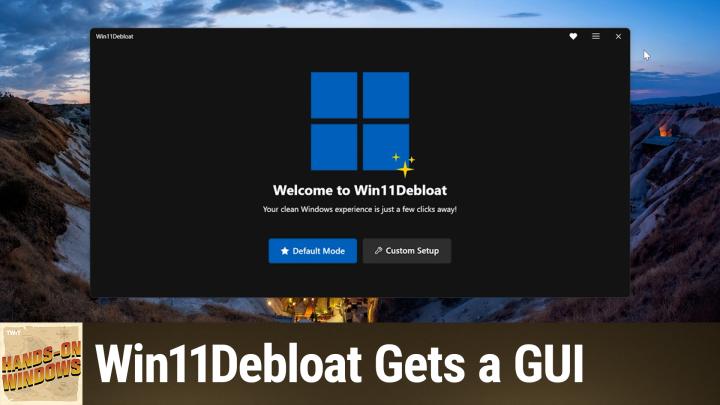
Hello everybody and welcome back to Hands on Windows. I'm Paul Thurrott, and this week we're going to take a look at an update to Win11 Debloat, which is one of those great utilities I've mentioned in the past for kind of deinsuredifying Windows. In fact, what came out of this is I ended up writing a book about deinsuredifying Windows called Deinsuredify Windows 11, which I'm not trying to sell you on exactly, but we've discussed a lot of the topics in this book on this show, right? We've gone through a bunch of the utilities that I mentioned in this book, like Tiny11Builder, which you can use to create a really clean install of Windows 11 if you want to start fresh. Or Win11 Debloat, which is a great way to clean an existing Windows 11 install. But since the last time we talked about this, the author of Win11 Debloat has issued a major update that I think will be quite appealing to people, especially if you're not super happy using command line utilities and so forth. You remember that back when we first talked about it, it was completely text-based, right? And it's still a PowerShell script behind the scenes, but it's easier to run and there's a GUI now. And so I'm on the Win11Deploy site. This is on GitHub.
Paul Thurrott [00:01:34]:
It has a picture of the UI there. But if you scroll down, he has this really handy way to get this script running remotely. And so what you have to do is start a terminal window but run it with admin privileges like so. And I don't really have to make this any bigger because it's going to download and unpack the zip file that includes the.exe, and then the.exe is going to run. And there it is. So unfortunately, this thing does not— let me see if I can get it as big as it can be, but it won't really fill the screen. It's kind of an awkward app in some ways, but, but again, much friendlier than it used to be. So there are two modes now.
Paul Thurrott [00:02:17]:
There's the default mode, which I do not recommend, and then a custom setup, which we'll look at in a minute. So if you go to default mode, what you're going to get here is the scripts or the apps recommend or desired configuration, right? So he's removing a lot of applications, disabling telemetry, disabling widgets, etc. You can see the list here. It's a lot of stuff. It's only being applied to the current user. That's good, except for the apps, which are being applied to all users. I'm not sure about that one. And he has auto-selected this option down here for the restore point, which actually does make sense.
Paul Thurrott [00:02:50]:
However, let me back out of that. I do not recommend that. So I'm going to run that one more time because I think the real power here isn't just stripping everything out of Windows, because at that point you might find that you need some of it back, but rather to just strip the stuff out that you want to get rid of, right? And so we'll look at that in one moment.
Leo Laporte [00:03:13]:
This episode of Hands on Windows brought to you by my Thinkst Canary. There it is. Looks like a, I don't know, a USB drive, external USB drive. And sure enough, it does have a USB connector, but maybe the giveaway is it's also got an Ethernet connector because this is not what it looks like. It's a honeypot. It is designed to get hackers to hack on them, and that way they'll announce themselves. And really, this is super important for your security. How do you know If somebody has breached your perimeter defenses and is inside the network, worming around, exfiltrating information, planting time bombs, how would you know? Hackers are pretty wily.
TWIT.tv [00:03:53]:
They cover their tracks. Most companies on average discover that they've been breached 91 days after the breach. That's 3 months a bad guy has full access to everything on your network. That should give you chills, right? Well, that's why you need, and that's why we use these great Thinkst canaries. They're honeypots. That can impersonate anything. In fact, it's really easy to set up a ThinkScanary. You can deploy it in minutes.
TWIT.tv [00:04:21]:
Now, this one is a Synology NAS, but it could be a Windows server, a SharePoint server, a Linux box. It could be a Christmas tree of services all lit up, or just a few carefully selected services to tempt the wily hacker. It could even be, I mean, it could be almost anything, a SCADA device. The other thing it does that I love is it also lets you create files, an unlimited number of files, lures if you will, tripwires that you can spread everywhere around your network, even on your cloud. I have on our Google Drive, for instance, something that looks exactly like a spreadsheet that says payroll information. Oh man, there's no way a bad guy can resist this. But when they try to open those files, you will immediately get an alert and you get it the way you want it. Same thing if they try to access your fake SSH server in your think-scenario, you can get an alert alert via text message, Slack, email.
TWIT.tv [00:05:14]:
Uh, it supports webhooks, so you could be Discord, Telegram, whatever you want. They even have an API so you can build it into your own software. But the point is, you won't get an alert unless somebody's doing something bad. Only the alerts that matter. Just choose a profile for your Think's Canary device, register it with the hosted console for monitoring and notifications, then sit back and relax because an attacker who's breached your network cannot resist attacking your ThingsCanary or those lure files. Even malicious insiders just have to let themselves be known by accessing your ThingsCanary. What happened to us— in fact, it's the only time it ever happened. We've been pretty good with our security, I'm happy to say.
TWIT.tv [00:05:56]:
This is one of those devices you don't want to hear from, because if you hear from it, you know you've got a problem. But better to know than not know, right? The only time it ever happened to us One of our team had put— it was for a review unit of an NAS device from a company who shall remain nameless— that went out and pinged every port in the network. I immediately got an alert. It said it's coming from this IP address. We tracked it down and we disconnected it, threw the device out. Now, that turned out not to be a big security issue, but it was good to know before it became a big security issue. That's why you need a Things Canary. A big bank might have hundreds.
TWIT.tv [00:06:35]:
You certainly should have one for every segment on your network. Small business like ours, maybe just a handful. Find out, go to canary.tools/twit. If you just need a handful, 5 of them, $7,500 a year, you get 5 Things Canaries, your own hosted console, you get upgrades, you get support, you get maintenance. And if you use the code TWIT in the how did you hear about us box, you'll get 10% off the price. And not just for the first year, but for as long as you own your Things Canaries. 10% off. That's pretty good.
TWIT.tv [00:07:07]:
Also, here's good news. You can always return your ThinkScanary with their 2-month money-back guarantee for a full refund. So there's absolutely no risk. I should tell you that next month will be the 10th year of our partnership with ThinkScanary. 10 years they've been advertising on our shows, and that refund has not ever, ever, ever, not once been claimed. And I know why. I, I can't live without our ThinksCanaries. You will feel the same way.
TWIT.tv [00:07:35]:
Visit canary.tools/twit. Don't forget the offer code TWIT in the How Did You Hear About Us box. canary.tools/twit. We thank them so much for supporting Paul and Hands On Windows. Now back to the show.
Paul Thurrott [00:07:50]:
Okay, so if you go through the custom setup for Win 11 to BloatNow, there'll be two main screens. There's this app removal screen and then a system tweak screen we'll look at later. As before, recommend only showing the installed apps. I'm not really clear where he gets that list of apps to potentially uninstall, but I think it makes a lot more sense just to see what's on the system itself. And so you might go through here. I'm not going to do too, too much here because this is actually pretty clean, but I'll just select something so something does happen. You'll notice that you can remove Microsoft Edge. Which I'm not going to do here because I'm actually using it at this time.
Paul Thurrott [00:08:31]:
Despite what it says here, you can do this anywhere. You can remove this, it works fine. It does work fine. You can also remove OneDrive, although OneDrive is one of those apps that you can remove from the native UI. So normally I would select a lot more apps here, but you get the idea. I'll just select the one. This is where the real magic happens. So in the System Tweaks screen, there's a lot going on.
Paul Thurrott [00:08:51]:
Of course, strongly recommend going through all of this, but I would pretty much just say yes to all of this stuff under privacy and suggested content, right? Um, the big thing here, and this is something you could do with a registry or a group policy hack, is actually disabling telemetry, right? Not making it do less, which is built into the UI, but actually disabling it. So this— that's huge. We're going to look at some AI stuff here in a future episode, but Again, I strongly recommend going through this. I would also look at everything here in Windows Update, right? You don't want— necessarily want, you might want, but I don't want the computer to just automatically restart every single time there's an update, right? I want to be told about that. I want to be given the opportunity to do it myself. I don't want to lose any data, obviously, although Windows is pretty good about that stuff. And then you could just go through this, right? Obviously, hide recommended section of the Start menu. You might want to disable Bing Search.
Paul Thurrott [00:09:52]:
I'm not even sure if I have that installed. I've already removed that actually, so it's not going to do anything, but you can disable whatever you want to disable here. So this is, you know, this is pretty straightforward. This is actually really nice. And then you get to the screen and now it's going to tell you what it's going to do, which is great. It's going to tell you where it's going to apply these changes. Typically you would want it to be the current user. If you have a computer with multiple users, you may not want to remove the apps for everybody.
Paul Thurrott [00:10:20]:
You might want to just do that for the current user account, your user account. That's up to you, of course. But when you get down to the bottom here, strongly recommend creating a system restore point and also restarting Windows Explorer, the process. If you're making any changes to Explorer based on that previous screen, you might not see some of them unless you reboot or restart Explorer. It will do that for you. I'm not going to do that right now, but I do normally. Have that option chosen. So from there, you apply and bam, that's done.
Paul Thurrott [00:10:56]:
Now, the only wrinkle here is if you choose to uninstall Windows Explorer— sorry, Microsoft Edge. Close, Paul. And you don't live in the EEA, the European Economic Area, it will give you a dialog that says the normal uninstall didn't work. Do you want us to force uninstall? It says it's not recommended, but I have done that on multiple systems. I've never had a problem. It works. It does the job. We can close Explorer.
Paul Thurrott [00:11:24]:
Now, as far as me showing you changes from what I just did, that's going to be difficult because I've already cleaned this system before. But you get the idea. And this is a way to— you have the system, it might be a little messy. You might have things installed and things going on that you didn't want or didn't anticipate or whatever. And this is a really nice way to just make those, you know, the cleanup changes after the fact, which I think is what most people are looking for. Obviously, if you don't mind starting over from scratch, you might use a tool like Tiny11Builder and get that super clean version of Windows from the get-go. But when you do that, you have to— you might have to install a handful of apps, right? That one will get rid of Edge, it will get rid of OneDrive, etc. So you might find you have to go into the store and maybe install a couple of apps, but I recommend using Windows 11 Debloat.
Paul Thurrott [00:12:12]:
And if you, again, if you are not a big fan of terminal or command line applications, I get it. But this is just a simple copy paste. You have to run it as admin. Boom, you're done. It's fantastic. I mean, this thing just works great. So I hope you found this useful. We're going to look at some AI removal techniques in the next episode.
Paul Thurrott [00:12:34]:
Kind of building off that de-enshirtification theme that we started here today. But Win11Debloat is, you know, one of many utilities that do this kind of thing. Of course, it's my favorite. It's the one that works the best in my opinion. I hope you like it. I think you should give it a try. And we will have a new episode of Hands on Windows every Thursday. Thank you for watching.
Paul Thurrott [00:12:55]:
Thank you especially to our Club Twit members. You can find out more about this show at twit.tv/how, and you can find out more about Club Twit at twit.tv/clubtwit.
TWIT.tv [00:13:07]:
Thanks.
Paul Thurrott [00:13:07]:
See you next week.
TWIT.tv [00:13:09]:
Hey there, it's Leo Laporte, host of so many shows on the Twit Network.
Leo Laporte [00:13:14]:
Thinking about advertising in 2026? We host a network of the most trusted shows in tech, each featuring authentic Postured ads delivered by Micah Sargent, my co-host. Host, and of course me, our listeners don't just hear our ads, they really believe in them because we've established a relationship with them. They trust us. According to TWiT fans, they've purchased several items advertised on the TWiT Network because they trust our team's expertise in the latest technology. If TWiT supports it, they know they can trust it. In fact, 88% of our audience has made a purchase because of a TWiT ad. Over 90% help make IT and tech buying decisions at their companies. These are the people you want to talk to.
Leo Laporte [00:13:57]:
Ask David Coover. He's a senior strategist at ThreatLocker. David said, TWiT's hosts are some of the most respected voices in technology and cybersecurity, and their audience reflects that same level of expertise and engagement. It's the engagement that really makes a difference to us. With every campaign, you're going to get measurable results. You get presence on our show episodes. Episode pages. In fact, we even have links right there in the RSS feed descriptions.
Leo Laporte [00:14:21]:
Plus, our team will support you every step of the way. So if you're ready to reach the most influential audience in tech, email us partner@twit.tv or head to twit.tv/advertise. I'm looking forward to telling our qualified audience about your great product.