Hands-On Windows 180 transcript
Please be advised this transcript is AI-generated and may not be word for word. Time codes refer to the approximate times in the ad-supported version of the show.
Paul Thurrott [00:00:00]:
Coming up next on Hands on Windows, we're going to look at a text editor. No, not Notepad, a different text editor.
TWIT.tv [00:00:08]:
Podcasts you love from people you trust. This is TWiT.
Paul Thurrott [00:00:18]:
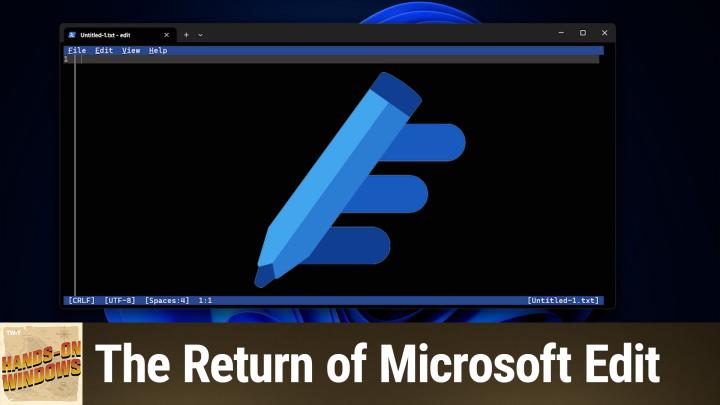
Hello everybody, I'm Paul Thurrott. Welcome back to Hands on Windows. This week we're going to take a look at a new text editor, a new-ish text editor called Microsoft Edit. If you are following Windows 11, which I assume you are if you're watching this show, but you may have heard there's a bunch of controversy around Notepad, the text editor that's been built into Windows for, you know, 40 years. Microsoft added tabs to it, which I don't think bothered too many people, but then they added the markdown stuff. They added all this Copilot stuff, this, you know, superfluous UI about, you know, what's happening and this, you know, Microsoft account sign-in so you can get to your AI credit balance. Yeah, yeah, yeah. Okay.
Paul Thurrott [00:00:55]:
I actually, I'm actually okay with basically all of the additions to Notepad personally, but I've seen the complaints and we did an episode some months ago where I showed you how you can use that app alias capability to get back to the older version, the kind of Win32 desktop version of Notepad. But since I want to say probably last May, so, or May 2025, Microsoft has released another text editor for Windows. They're going to build it into Windows 11. I've been checking. I just installed one of the latest dev builds. That's why you see that text down there in the corner. But it's not in this build, so it's coming someday, they say. This is an— this is free.
Paul Thurrott [00:01:37]:
It is made by Microsoft, of course. It's a CLI app, meaning a command line interface. So it's a text-based app. It works in Windows, of course. It also works in Linux, interestingly. So if you want to download it from the web, you can do that and run it in Linux if you're, you know, somehow you're a Linux guy and you love Microsoft software. But like I said, it's coming to Windows 11. I think it's honestly pretty glorious.
Paul Thurrott [00:02:00]:
So we'll see. But you can download Edit today from the GitHub website.
TWIT.tv [00:02:08]:
Hey, Paul. Hey, everybody. This episode of Hands on Windows is brought to you by my new close personal friends, ThreatLocker. ThreatLocker's zero-trust platform takes a proactive— and these are the three words you care about— deny by default approach. That means it's blocking every unauthorized action unless you explicitly say, yeah, you could do that. You can't, which protects you from both known and unknown threats. Modern attacks hide these days inside endpoints, attacker-controlled virtual machines. These guys are sneaky.
TWIT.tv [00:02:39]:
Sandbox environments, VM-based malware, They're invisible to traditional antivirus software, but guess what? ThreatLocker Zero Trust prevents those VM-based attacks before they can launch. ThreatLocker's innovative ring fencing constrains tools and remote management utilities so attackers cannot weaponize them for lateral movement or mass encryption. ThreatLocker works in every industry, provides 24/7 US-based support. It's just the best. They support Windows and Mac environments, and they enable comprehensive visibility and control. Just ask Emirates Flight Catering, a global leader in the food industry, over 13,000 employees. They use ThreatLocker. ThreatLocker gave Emirates full control of apps and endpoints, improved compliance, and delivered seamless security with strong IT support.
TWIT.tv [00:03:29]:
The CISO of Emirates Flight Catering said this, quote, "The capabilities, the support, and the best part of ThreatLocker is how easily it integrates with almost any solution." Other tools take time to integrate, but with ThreatLocker, it's seamless. That's one of the key reasons we use it. It's incredibly helpful to me as a CISO.
Paul Thurrott [00:03:49]:
End quote.
Leo Laporte [00:03:49]:
I talked to so many people at their Zero Trust World last week that, that said the same thing. ThreatLocker is a miracle. Trusted by global enterprises that just can't afford to be down for one minute, like JetBlue, Heathrow Airport, the Indianapolis Colts, the Port of Vancouver. They all use ThreatLocker. ThreatLocker consistently receives high honors and industry recognition, a G2 High Performer and Best Support for Enterprise Summer 2025. PeerSpot ranked ThreatLocker number 1 in application control and GetApps Best Functionality and Features Award in 2025. And that's just scratching the surface. Get unprecedented protection quickly, easily, and cost-effectively with ThreatLocker.
Leo Laporte [00:04:29]:
Visit threadlocker.com/twit. You'll get a free 30-day trial and you can learn more about how ThreatLocker can help mitigate unknown threats and ensure compliance. That's threatlocker.com/twit. Thank you, ThreatLocker, for supporting Hands On Windows. Now back to Paul.
Paul Thurrott [00:04:48]:
Um, and so this is the website for it. So it's just github.com/Microsoft/Edit. Um, little tricky to find the download, but it's here. Um, download the zip and you, uh, can install it and run this thing. And so the way that you do this normally is you run a terminal window and you type edit, right? And what's cool about this— well, there's many things that are cool about this, honestly, but there's nothing here yet. So, but if you are an old-school Windows user like I am and you go back far enough and you remember MS-DOS, you may have used Microsoft Editor like this in the past. You might have used one as a programmer, you know, for something like QuickC or Borland Turbo C++ or whatever. Of course, those things were basically, I mean, eventually they evolved, but they were primarily and originally solely text-based and keyboard-based.
Paul Thurrott [00:05:41]:
This one actually works with the mouse, right? And so you can kind of click around and there's menus and things like that. And that's pretty cool. But the thing I like about it the most is it adapts to this window. So if I resize this thing, it resizes with it. If I maximize it, it resizes with it, obviously. If I bump up the text, so I'm hitting Ctrl+V, sorry, Ctrl++, the plus sign there, right? And then you can actually see it a little bit better. So to give you an idea of some of the capabilities, because it's a fairly basic keyboard, it works with keyboard shortcuts, right? So I could go to File and then Open File, but you can see here it says Ctrl+0, so I'll type— sorry, Ctrl+O. I can type that and it dumps me in my user folder, right? So right now on this computer, what I have is things in OneDrive, so unfortunately I have to click in here a little bit, but that will take a second.
Paul Thurrott [00:06:41]:
That's okay, we can get there, and I'll just go to my to-do. So these are Markdown files, but Markdown is text, right? It's plain text. So I can open that with this, no problem. And you can see all the text is just running off the side, which is not exactly what I want, but this thing has word wrap, right? And so this is an unfinished— this is a review in progress that I'm writing for an iPhone, but you can kind of see where it's at and you can get an idea of what this thing looks like, right? And you can see also that it handles the word wrap with these dots here. So this is all this is all one line to this text file. To us visually, it's forming like a paragraph with word wrap, but it's the 9th line. This is a space of the 10th line and then space for the next line. You can do things like Ctrl+N and to start a new file.
Paul Thurrott [00:07:31]:
So this is a text document. I'll just type something here. This is some more text. Et cetera. If I do Ctrl+S, it's going to try to save this thing. I actually don't want to save it there, but I will anyway, just to make the point. But it's a text file, and I can just enter and save. And so you can see it has that name up here in the tab.
Paul Thurrott [00:07:58]:
And it also does find and replace. Let me go back. Well, actually, I should say there's a kind of a power user feature in here., where even though I had a document open, but then I started a new document, the other document's still in the editor. And so instead, it's not Ctrl+T or it's not Ctrl+Tab for some reason, but if I type Ctrl+P, I get this kind of Alt+Tab-like interface for the various documents that are open right now in the editor. So I can select that thing that was previously loaded and go right back to where we were., and then I can go Ctrl+P again and go back, you know, to the other one, obviously, right? Um, Ctrl+F, find, um, and then you can use the mouse here to do some of the options. Um, Ctrl— nope, sorry, uh, Ctrl+R is replace, right? They don't really— Ctrl+H is the more typical, um, one for that, but it gives you a way to enter a word, and then I don't want to screw up my document, but you get the idea. We can only do a whole word instead of a partial word, and we could do a replace all if we want. So it works with the mouse.
Paul Thurrott [00:09:07]:
Pretty nice. So I really like this thing, and as I've been using it, I, I don't know, maybe I don't— maybe it's just because I'm getting older or something, but I, I want to use this. Um, the, the trouble is by default there's no way to launch this from Explorer., right? So I'm going to close this window and I'm going to go to that same folder, right? So that's the folder we were just in. You can see the iPhone review file. What I'd like to do is right-click and say Open With and then choose that app. Now you can't do that by default, but actually I, I added it. And the trick is you have to know where the app is. And so in this case, I happen to know because I looked it up.
Paul Thurrott [00:09:52]:
It's in the System32 folder inside of the Windows folder, right? So let me get past the E's there, and then you can see, doo ba doo ba doo, right here. There it is. So that's the app. So once you know where that thing is, you could right-click on a file like this and say Open With and choose another app. More apps and choose an app. And like I said, it's in the— this folder, and then we go to System32. We go down— well, we got to go past there to hit— go, yeah, go past the E's, and then there's Edit. Okay, now I don't want to do this all the time necessarily, but you might.
Paul Thurrott [00:10:40]:
For now, I'll just say just once, and then it actually opens in the It opens like you would expect, right? Now it's gone back to the original settings and all that stuff, but pretty cool. And I believe now that I've done that, I should be able to see Edit Netlist. Yeah, there you go. So that's pretty cool. There are other things it doesn't quite do. If you were, if you are old enough or have been around long enough to remember any of the text-based formatting stuff we might have done in a program like Word, WordPerfect, for example, I think, I'm sure Microsoft Word did this as well. They would actually show you formatting in the document. This supports literally just basic text.
Paul Thurrott [00:11:19]:
So there's no way to do bold or italics or anything like that. I think that'd be kind of fun if they could figure that out. I don't see why they couldn't. But, you know, between the Open With and just the basic functionality of it, it's super lightweight. This is kilobytes in size, not megabytes. It's tiny. It's going to be included in Windows. Like I said, it's just there.
Paul Thurrott [00:11:37]:
Or will soon just be there. And it's a cool app. I really like it. So I hope you like it too. There's something very calming and focused about it, especially when you bring it up like in a full-screen interface like this, you know. Of course, now I'm stuck in that folder again, so I'm not going to find anything to open here, but probably not going to find anything. It will not behave nicely if I try to open a PNG file, I can tell you that. But a cool app nonetheless.
Paul Thurrott [00:12:06]:
So hopefully you found this interesting and informative. Maybe we'll get a couple of converts to Microsoft Edit. Either way, thank you so much for watching. We'll have a new episode of Hands on Windows every Thursday. You can find out more about the show at twit.tv/how. And again, thank you for watching. Thank you especially to our Club Twit members. We love you.
Paul Thurrott [00:12:26]:
You can learn more about that program if you're not a member at twit.tv/clubtwit. Thanks.
TWIT.tv [00:12:32]:
See you next week. Hey everybody, Leo Laporte here, and I'm gonna bug you one more time to join Club Twit. If you're not already a member, I want to encourage you to support what we do here at Twit. You know, 25% of our operating costs comes from membership in the club. That's a huge portion, and it's growing all the time. That means we can do more, we can have more fun. You get a lot of benefits— ad-free versions of all the shows, you get access to the Club Twit Discord and special programming like the keynotes from Apple and Google and Microsoft and others that we don't stream otherwise in public. Please join the club if you haven't done it yet.
TWIT.tv [00:13:14]:
We'd love to have you.
Paul Thurrott [00:13:15]:
Find out more at twit.tv/clubtwit. Thank you so much.