Hands-On Windows 171 transcript
Please be advised this transcript is AI-generated and may not be word for word. Time codes refer to the approximate times in the ad-supported version of the show.
Paul Thurrott [00:00:00]:
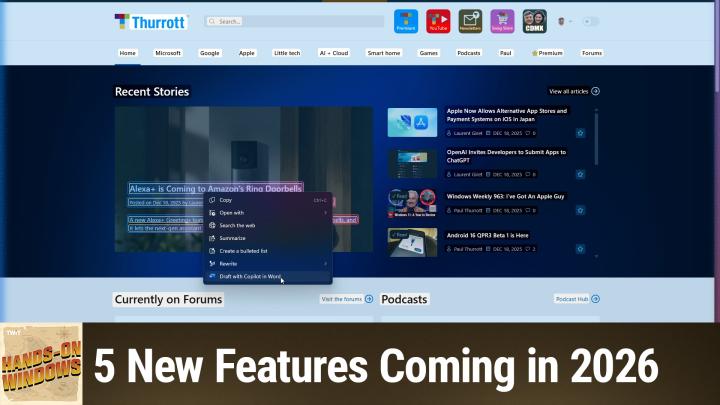
Coming up next on Hands on Windows, we're going to take a look at five new Windows 11 features for the new year.
TWIT.tv [00:00:08]:
Podcasts you love from people you trust. This is Twit.
Paul Thurrott [00:00:18]:
Hello, everybody, and welcome back to Hands on Windows. I'm Paul Thurat. Happy New Year. I believe the last episode we did was, you know, my top five features for 2025, five features that Microsoft added to Windows 11. We did a bit on the last of the penultimate episode of Windows Weekly last year around the same topic. I discussed more features at that point, but you know, the top five features. So this train never ends, it keeps rolling. Microsoft is releasing new features through the Windows Insider program.
Paul Thurrott [00:00:50]:
They're going to make their way into stable, as I call it. And some of these are features we might have discussed, but I don't believe we've actually seen, at least on this podcast. And there's a lot more of them than what I'm going to discuss here. But these should be new in the sense that you might not have them yet when you see this recording or they will just be about to come out. It's going to be right around the same time. So, you know, we'll see how this goes. But you know the drill. And with Windows, unfortunately these days, you know, features get rolled out semi arbitrarily.
Paul Thurrott [00:01:24]:
Okay, the first one is one that I cannot wait to disable, and I will disable it after I'm done describing it. But it's something called the drag trace. So if you follow Windows 11 and all the updates we've been talking about, you know that one of the areas of Windows that Microsoft has worked on repeatedly is Share. Windows Share, right? And so if you grab a file like this, right click, you can click Share and you get the Share dialog. And this will change a little bit depending on whether or not you're in a OneDrive folder or just a normal system folder, you can access nearby sharing from here, whatever computers and devices are on on your network, it's fine. Microsoft didn't think this was good enough. And so they've added a feature called Drag Tray. So if you're familiar with Snap, you know that as you move the window around, because I've disabled that feature, because I hate that one too.
Paul Thurrott [00:02:12]:
But let me go into multitasking. Let me just put that one back on. I always turn this thing off because it makes me. It makes me crazy. But if you move this thing around, you get that little hint up at the top, right? So you drag it there and then you get the snap layouts and you can choose which layout you want. Right. And so I disable that personally. But you may like that, at least you've seen it, you understand it.
Paul Thurrott [00:02:34]:
And so drag tray works the same way, but for files. Right. And so if I drag a file around, you get that same kind of drop down and it says drop here and you can pull it up there and then it will have some list of apps that should be apps that are compatible with this type of file. So this is an image file. This isn't a great selection of choices, but it is what it is. I don't even know what this will do. I can't imagine that will do anything. I'm afraid to even click on it.
Paul Thurrott [00:02:59]:
But you can also just go to more options and drop on that. And if you do, you get to the standard file Share dialogue. Right? So nice. All right, so that's fine. And I hate that. And I am not going to disable it. And so this isn't a non obvious place. In fact, a lot of these features, as I think about this, that we're going to talk about, the settings for these are in kind of strange places in some cases.
Paul Thurrott [00:03:22]:
So if you go into the Settings app and then system there is a nearby sharing item and it's up at the top of here and so you can just turn it off there. Now if I go back to this file that's not appearing anymore and that's. That is what I want. So I'm going to leave that like that. But maybe this is a feature that will help you use Share. We'll see. We had mentioned this and I'm not sure if I was able to demo it. I know I wanted to do a file transfer to kind of show what that would look like.
Paul Thurrott [00:03:51]:
But Windows has supported a dark Mode Since Windows 10, where they've improved it over the years a little bit here and there. One of the big sticking points has been File Explorer because there are these dialogues that pop up that would still be the light mode dialogue instead of the dark mode dialog. Right. So they fixed this. And the way I'm going to show you this is I'll go into, I have a link to my NAS, which has movie files on it. So they're kind of big files. So we can just kind of let that happen. But I will drag this to the desktop and when I do, you'll see that this file transfer dialog is now dark mode, right.
Paul Thurrott [00:04:28]:
Which is new. So that's great. So you don't get that white burst of light, you know, in the dark, when you have dark mode going. The other one that's like, this is the Properties dialog or the Folder Options dialog. Right. So this is another example of a dialog and File Explorer that used to be in light mode, but now it's in dark mode. So you can finally see that it's working very well. It's nice.
Paul Thurrott [00:04:50]:
So that's good. And feature number three is actually a set of features. This is going to be a little hard to show on this screen, but let me. Let me do it this way. So I need to bring over just a window from the side here, and then I'll just go, I guess, to my own websites. Flashing a lot. That's fun. And, yeah, so we have some combination of graphics and text here.
Paul Thurrott [00:05:17]:
So this is a good option for this kind of thing. So if click to do. If you have a Copilot plus PC, I think this might be one of the top two features. Maybe hold down the Windows key and you get this kind of purple pink effect. I let go and then I can click on things. And when I do that, I get different options based on what it is I'm selecting. So I actually have multiple screens here. It's selecting things all over the place.
Paul Thurrott [00:05:41]:
It's kind of strange, but a couple of changes since the last time we looked at that one. This little toolbar here at the top is vastly simplified and much nicer. You have selection choices up here. So if you want to select it as a rectangle or a freeform shape or whatever, you can choose not to use this. There's a tutorial now. So if you've never used this feature, it is one of those things you almost have to kind of look into, because it's not really super obvious that you can do this. You can run a tutorial, and it. Well, it will run that automatically, but.
Paul Thurrott [00:06:09]:
So you can learn how it works. But if you haven't seen it in a while or you forget how it works, you can just access that tutorial there. There's also been some changes in the types of things you can do. So these. These are essentially actions. The big one for text is this integration with Copilot in Word. This is kind of an interesting gray area because Word is not part of Windows 11, but it's almost always installed along with the rest of Office on most Windows 11 PCs. A lot of people who use Windows have a Microsoft 365 account or subscription, but a lot of people don't.
Paul Thurrott [00:06:46]:
And one of the changes we don't really talk about this too much on this podcast, but outside of Windows, Microsoft is bringing more AI features to the Office applications as well. And they don't all require a subscription. Right. And so even if you don't have one or you're not paying for it, you'll get some capabilities through Microsoft 365. So they're starting to add what I'm going to call Microsoft 365 app actions into Windows because of this combination of things is something that people do a lot. And there are actions for images as well. This is. Oh, just work there.
Paul Thurrott [00:07:19]:
Literally every time I've tested this today, it didn't work. Okay, so there we go. So this one hasn't changed too much. But the interesting thing here is one, you get more actions directly and also the most common actions. This is true for text as well right at the top now. So copy, share, save as and then open with this common to the two. And that's kind of a nice thing because as people use this, they provided the feedback like, you know, it'd be kind of nice if we could do that kind of thing. Alright, so I'm going to get out of that and then let me open up the Settings app, which we'll be going back to again and again.
Paul Thurrott [00:07:52]:
And this is tied to, like I said, this app Actions feature. We probably did look at this at one point. It's starting to get a little more interesting. But if you go into app actions here, what you'll see as I expand these are all of those actions that you'll see when you right click on things in Click to do and actually elsewhere as well in Windows 11. So click to do is copilot plus PC specific. And looking at these features, a lot of these are as well. But drafts with copilot Word for example is and summarized with copilot or examples of features that don't require a copilot PC. It will work with any Windows 11 PC.
Paul Thurrott [00:08:31]:
So interesting. And we'll get back to my top five right after this message.
Leo Laporte [00:08:39]:
This episode of Hands on Windows brought to you by Threat Locker. I talk about Threat Locker all the time on Windows Weekly. You remember, right? Threat Locker is that zero trust platform that takes the proactive. And this is the key. Deny by default approach. Deny by default blocks every unauthorized action unless you explicitly say yes, it can't run. And that protects you from everything known and unknown. Threats Modern attacks hide inside endpoints, attacker controlled virtual machines, sandbox environments.
Leo Laporte [00:09:08]:
Bad guys are malicious, they're evil, they're. They're clever VM based malware. They do that to avoid traditional antivirus software. But guess what? Threat locker 0 trust it's not fooled it prevents VM based attacks before they can launch critical vulnerabilities in everyday tools that your employees use. Even seemingly harmless apps can be a gateway for attackers. You want an example? 7 Zip Threat Locker recently detailed how 7 zips symbolic link extraction bug. I think we talked about this on security now allow arbitrary code execution and all administrators had to do any account that had you know access was extract a maliciously formed zip downloads automatically 7 zip launches it extracts and you're pwned with Threat Locker even approved tools can't become threat vectors. Threat Locker works in every industry 24.
Leo Laporte [00:10:01]:
7 US based support PCs of course, Macs even and you'll get comprehensive visibility and control which is great for compliance. Trusted by Global enterprises like JetBlue, Heathrow Airport, the Indianapolis Colts, the Port of Vancouver, Threat Locker consistently receives high honors in industry recognition. It's G2's high performer and best support for enterprise. For summer 2025, Peerspot ranked it number one in application control. Get unprecedented protection quickly, easily and cost effectively with ThreatLocker. Visit threatlocker.com TWIT get a free 30 day trial. Learn more about how ThreatLocker can help mitigate unknown threats and ensure compliance. That's threatlocker.com TWIT and for a limited time you can use the code ZTWIT26.
Leo Laporte [00:10:45]:
Why? You'll save $200 off registration as Zero Trust World 2026 join Steve Gibson and me at Zero Trust World this spring and get 200 bucks off with ZTW TWIT26 you'll get access to all sessions. You get hands on hacking labs. You get even get meals. There's an after party. We'll be there in costume. It's the most interactive hands on cybersecurity learning event of the year. It's coming up March 4th through the 6th in Orlando. You get $200 off.
Leo Laporte [00:11:14]:
We'd love to see you out there. Be sure to register with the code ztwit26 yes, thank you threat locker threatlocker.com twit now back to Paul.
Paul Thurrott [00:11:27]:
Number four on the list is Widgets. Widgets is a feature I don't actually use that much. I usually keep it down here in the tray or the taskbar just to have the weather. Although right now it's showing some kind of a notification. But they've been talking about this for the better part of last year. It's finally starting to roll out. This computer that I have, I'm using today is the only one I have so far that has this. But this is the new widgets, if you will.
Paul Thurrott [00:11:52]:
The big change is that they separated the widgets from this Discover feed, which is all these terrible news stories which we'll look at in a moment. And actually we're looking at it right now. So let me go back to widgets. So the default view is actually widgets. Oh, it's because I think it had the notification there. So normally this is the default view. This is just widgets. The way this was before is widgets and the feed were next to each other.
Paul Thurrott [00:12:13]:
Now they're on two separate displays. This, to me, I think, is more like what people expect when they open something called widgets. They're widgets. Right? And you can add widgets like before. You can do all the stuff you can do before, but now it's on a single screen. And if I go into Settings. Yeah, no, it's okay. So you can have other feeds.
Paul Thurrott [00:12:31]:
There aren't any that I'm aware of. Or as they're not calling them dashboards, I like to turn off notifications and also the hover feature, although you can see notifications are still happening, which is a little irritating, but. But it's nice to display. So to me, this has made this thing useful. So whether I don't get the. I don't want to mouse over and make it come up by mistake, but if I do want to look at it, it goes into widgets, which of course is completely different than the last time we looked at it for some reason. But, you know, Windows. So there you go, the other one, and this one, I think is going to be particularly important for people who are developers, power users, or people just want to have more advanced features in Windows.
Paul Thurrott [00:13:12]:
I'm hoping to see this evolve a little bit. But once again, go into the Settings app. If you scroll down, there is a new advanced area, or page, I guess. And this used to be. These things used to be in different areas. Right. There's some cool new features that are pretty brand new to Windows 11 as well, which I'm going to get to at least two of those. There's some features that used to be in other apps.
Paul Thurrott [00:13:35]:
And so Microsoft had an app called devhome, mostly for developers, as this name suggests. But one of the things you can do is create a dev drive. And the dev drive uses rfs, the resilient file system. It's super fast, especially if you have A lot of small files. So it's really good for developers creating apps, but it's good for anybody. And this is kind of a neat thing because it's just built into the Settings app, which is, to me is where it should be. Oops, I've gone to the wrong thing. Let me get back out of that and go back to Advanced.
Paul Thurrott [00:14:04]:
If I could get to it, I guess I'll go to it manually. So the two things in here that I think are going to be important for a lot of people, the first one is End Task. I've enabled it already. I love this feature. And the way this works is, let's say I'll just run an app here, get the most back, so you can just kind of see it. So let's say Notepad here is crashed and it's not working properly. I don't know why I can't get it to stop. You know, the old way would be to run Task Manager.
Paul Thurrott [00:14:32]:
However you do that, locate Notepad in this list, you know, maybe hold down the control key so it stops changing whatever it is, and just find, you know, just kill it that way, right? So I could right click and say End task here. But what this option, I just checked it or has already checked is it adds it right to the right click menu on the Taskbar. So if I right click here, you can see there's a new option here for End Task. And it's not so much that apps are crashing all the time. This is bad, but it's it. When things do go wrong, you want to get that thing done quickly and get it out of the way. And this is a much faster way. Sometimes, you know, maybe something else is glitching.
Paul Thurrott [00:15:10]:
You can't quite figure out a way to bring up Task Man. Like that's just an easier way to do that. So to me, that's fantastic. I just really like that feature. So I always enable that on my PCs. This virtual workspace stuff here, so this is Remote Desktop, but also, you know, Sandbox, Hyper V, all these other, you know, if you have containers, if you're a developer, you're doing Docker type stuff, you're going to have options in here for that. This is another example of things that used to be in a Control Panel type interface, but I can get all this stuff going right in here. So that's really nice.
Paul Thurrott [00:15:41]:
And some terminal options. I don't know why this wasn't changed. I used Windows Terminal, not the old command line. Love that. But if you are a command line user, I Strongly recommend enabling Sudo. And Sudo comes from the Unix world and this is a way to run a command of whatever kind with a, with an elevation of privileges. Right? And so typically if I just run Terminal, I'm doing whatever I'm doing here at standard user permission level. If I wanted to be an admin for the entire window for the entire session typed in admin, I could go to Terminal and right click it and say run as administrator.
Paul Thurrott [00:16:24]:
But now every single thing that I do in Terminal is running as an administrator. What Sudo does is allow you to run a single command as an admin is very important. So keep that thing on a non embed privileges. Nothing bad will happen. If you know what you're doing and you want to do that one thing, just turn that thing on. To me this is very smart. I always have developer mode on because I create apps, I write apps in Visual Studio. You need to have that thing enabled.
Paul Thurrott [00:16:50]:
That's probably not for most people, but it's worth just looking through this. I have a feeling this, this thing is going to expand pretty dramatically over time as Microsoft keeps improving Windows because they can't help themselves. Right? Alright, so that's five. I do actually have a couple other things I just want to talk about real quick. A couple of bonus features, if you will. This is one we probably spoke about, but I hadn't seen until fairly recently, which is if you go into mobile devices settings, the way that this used to work was that if I wanted to add a device or configure one of the existing devices, it would happen in a pop up window. And now what happens is it all is in line inside of Settings. You don't have.
Paul Thurrott [00:17:30]:
It's not opening windows, you don't lose track of where you're at. It just goes in and out right from here. So that's pretty cool. That to me is really neat. Also in the system setting system area of Settings there is an AI components page. This has been here for a while. I'm going to say mid 2025ish. If you look at these, these are kind of the top level.
Paul Thurrott [00:17:54]:
Small machine models, small language models, SLMs that come on a copilot plus PC. The list has actually grown over time. In fact this is not the full list. There's over 40 of them, but these are the big ones and that's been there for a while. But down here we're starting to see the beginnings of the future, right, which is going to be this agentic OS that Microsoft's talking about. We're going to have agents running in Windows that are going to go off and do things in the background and then come back and report when they're done. Maybe they buy something for you when it's on sale or whatever it might be. So they're just starting to put the UI here.
Paul Thurrott [00:18:27]:
This is disabled by default and will be forever, I guess. But you can enable us if you want to get going with this. There's nothing to do today, but if you think about the types of things you would install in Windows or that Windows might have come with itself, obviously there's the system itself, the operating system. So those are the system components. There are apps, apps that come with Windows or apps that you installed, those are installed apps. And then you have these separate lists of things and so you can manage them in whatever way. For example, I just walked out of there so I could go to the wrong thing. Let me just find where it was there.
Paul Thurrott [00:19:04]:
Sorry. If you go into apps, for example, one of the things you would do here is maybe come over and say, actually I don't need this app, so I'm going to uninstall it, right? This kind of a standard management thing. So this agents section is going to be like one of those. And so right now there's nothing here, but at some point we're going to have these co pilot agents, I'm sure, things like that. And we'll be able to manage them from here. You can turn them, just leave them off, turn them on, manage how they work, etc. So this is something to look forward to for 2026. There's always going to be more, but this is the beginning of the new year.
Paul Thurrott [00:19:37]:
There's some big stuff happening. There'll be more. Like I said, there's always more. So hopefully you found this useful and possibly entertaining. We'll have a new episode of Hands on Windows every Thursday. You can learn more at Twitter tv. Ho w. Thank you so much for watching.
Paul Thurrott [00:19:54]:
Thank you especially to our Love Twitter. Love you. You're not a member. Please consider it. You can learn more about that program at Twitt tv. Love. Sweet. Thank you.