Hands-On Windows 165 transcript
Please be advised this transcript is AI-generated and may not be word for word. Time codes refer to the approximate times in the ad-supported version of the show.
Paul Thurrott [00:00:00]:
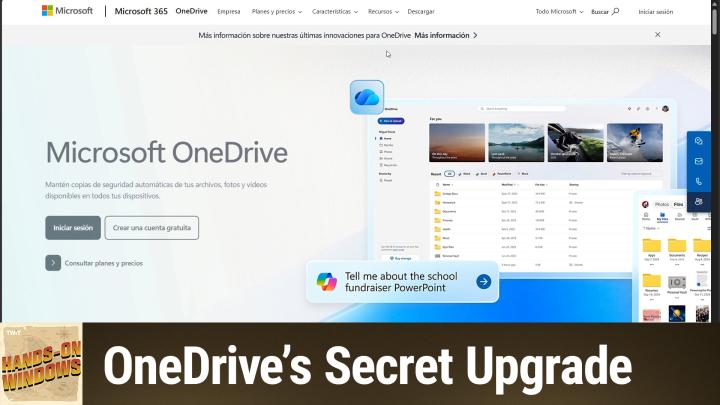
Coming up next on Hands on Windows, we're going to take a look at a brand new OneDrive app that Microsoft says is coming next year, but is actually here right now.
TWIT.tv [00:00:11]:
Podcasts you love from people you trust. This is Twit.
Paul Thurrott [00:00:21]:
Hello everybody and welcome back to Hands on Windows. I'm Paul Throt and there was a big OneDrive event in October 2025. I think they basically have one of these every year. Like previous events, they talked about some things that were for businesses and a bunch of things that were for consumers. And to me, the biggest thing was the announcement of a completely new OneDrive app for Windows which might be changing a lot of different parts of Windows actually because we have File Explorer integration today. Of course we have the standalone app as we know it today. We also have kind of a photos on your phone integration thing in the phone link app that is tied into OneDrive in some way. So we'll see what happens.
Paul Thurrott [00:01:04]:
But the first thing that they talked about was this OneDrive on the web. And so let me bring that up. This is available today. So if you're a OneDrive user, you could just go do this right now. Let me just make sure it's not auto dark moding me here. And this is, this is going to parallel the interface you'll see later in the Windows app. So this is the OneDrive on the web. It's prettier.
Paul Thurrott [00:01:33]:
There are photos and files toggles at the top. So those are the two main interfaces. If you go over to the file the photos interface, sorry, you'll see these kind of choices at the top. So these are the recent photos I took which are a mix of me having fun in Mexico City and doing work, you know, with various devices and so forth. But nothing too interesting there. But they have some nice bits in here like this moments interface which will show you what happened on this day but in different years in the past, you know. So I got see my heady here in Mexico City today, a year ago, and then these other kind of memory type things that we have as we scroll down. So these are all just different things from the past, in this case the distant past.
Paul Thurrott [00:02:17]:
But yeah, so you know, cool. So OneDrive is kind of pivoting on the photo stuff to be a better interface for that kind of stuff. But then you've got the standard things, you know, albums that they auto create for you people, which I've only put a couple people in so far, but you can name everybody like you would at any service. And then favorites here, which I have Which I have none. So the one thing I do want to highlight here though is a new. Some new capabilities in line here. So if you use OneDrive at all and you use the web interface, you probably know that you can go in here and view office documents using the web versions of the apps. You can share files from here, which is what this is here.
Paul Thurrott [00:02:58]:
You can click this menu and get other options such as downloading and so forth. And that's been around for a while, but they're adding these copilot capabilities. So eventually we're going to have a big copilot button down here in the corner. But one thing we do have now is if it's. If you own the file and it's something it can work with. Like this is a Word document from almost 20 years ago. You can do things with it from here. So summarize, create a FAQ and ask a question, which is kind of interesting.
Paul Thurrott [00:03:26]:
So I'll just do summarize. This will examine this file up in the cloud and then as it, as it goes here, it will eventually pop out. Little summary. So this is a thing that I wrote in 2006 about user account control, which was data debuting in the time in Windows Vista. So you can go from there, you can just kind of continue the chat, etc. So you know, deep one or copilot integration in there. Interestingly, it's also in the share bit here. So the share interface is changing a little bit because this little copilot guy here, and this allows you to generate a summary of the document you're sharing with someone for the person you're sharing it with.
Paul Thurrott [00:04:06]:
Right? So they'll get an email that will say, hey, Paul is sharing this file with you. And then this will be the summary. So kind of a useful little thing, but it's a nice little inline feature. It's pretty cool. Tied to this. They've updated the mobile app as well. So for this I brought up my Samsung phone because I can do this screen sharing deal here. And this follows the UI I just showed you on the web.
Paul Thurrott [00:04:31]:
For some reason the photos interface is not dark, but you get the same two interfaces as before. In fact, you get the same document I just loaded. Right? That's still at the top. The copilot stuff is not actually there yet. It's not in share either. I suspect that is coming. And then of course, because you take photos on your phone, most people do, right? This is a great interface for this particular device and you get all the same stuff I just showed you So I can, I think, let me do it on my phone. It'll be a little more natural here if I could.
Paul Thurrott [00:05:04]:
Yeah, I'm using other goes. You can scroll back through each of the days and then see photos from that day, but from previous years. Right. That's pretty cool. And then again, the same basic things we saw before in the web interface. Okay, so that's cool. But of course, what we're mostly concerned with here is Windows and the. The big change you may or may not notice that has already been implemented.
Paul Thurrott [00:05:34]:
So by the time you see this video, you'll. Is that this little icon here for OneDrive is in fact new. So that's exciting. Microsoft is revamping all of their Office and Microsoft 365 icons for the cloud era, the AI era, whatever. And now we have a new icon. So the app itself is like it's been. So this is not particularly interesting. And let's take a small break here and we'll be right back.
Mikah Sargent [00:05:57]:
Are you ready to grow in 2026? Let me tell you why advertising on Twitter is the way to make that happen. I'm Micah Sargent. I'm the host of Tech News Weekly and several other shows on the network. And if you've ever listened to our shows, then you know what makes what we do different. It's trust. When we introduce a new partner on the show, the audience knows we believe in what they offer because we're only taking on partners that will actually benefit our audience. And they know that when I'm waxing ecstatic about your product or service, I'm doing so with authenticity. Some other reasons why you should join the network? It's all about the numbers.
Micah Sargent [00:06:31]:
88%. That's the number of listeners who've made a purchase based on a twit ad. 90%. Those are the people who are involved in their company's tech and IT decisions. Oh, and by the way, 99% is the number of people who listen to most or all of the episode. Every host read ad we offer is authentic, it's unique, it's embedded permanently. So that means that your brand is going to get exposure and even after your campaign concludes. Because yes, our nerds, our listeners, our viewers, they go back and check out the stuff we've done in the past.
Micah Sargent [00:07:07]:
Every ad is simulcast across our social platforms. It's always available in both audio and video formats. So if you want your brand woven into conversations with tech experts and the world's most tech savvy audience, I mean, where else are you going to turn except right here at TWiT. So let's make 2026 your most substantial reach yet. Get in touch with us. Email partnerWIT TV or visit TWiT TV Advertise.
Paul Thurrott [00:07:36]:
One of the things that they talked about at this big announcement event was a complete overhaul of the OneDrive experience in Windows. And they previewed a version of the OneDrive app that they said would not be available until 2026. But actually, there's a really good chance that you have this on your computer right now. If you're running the latest build, stable build of Windows 1124H2, 25H2, you should have this. It's in a kind of a weird location, but if you go into your user account folder and then you have to. I've already done it here, so you can see it, but I've expanded it through app data, all one word, which is a hidden folder, and then local. I don't know why that's not going away. There we go.
Paul Thurrott [00:08:20]:
And then go down to Microsoft and then go down to OneDrive. And in this folder there's this app, and that's the OneDrive app you see here. But there's also this thing called OneDrive app. So OneDrive exe. OneDrive app exe. If you don't see this here, the other place you could look for it is in one of the Program Files folders, right? So on this computer, there's a Program Files Folder and an x86 version. It would be the same thing. It would go look for OneDrive.
Paul Thurrott [00:08:51]:
And I don't. I don't actually have it there in those locations, but I do have it here. And so when you run this, you're going to see something that actually is automatically familiar or suddenly familiar, rather, because we just looked at it. So this is the same interface that we see on the web. If you think about how you might do something a little bit like this today, you would probably go into the gallery view, right? And so the gallery is fine for what it is, but it's literally only this one view of the five that you see here. So I suspect that this will go away and this app will replace at least that part of it. So it does all the things you would expect. You can go into moments and get that thing we just looked at, right? Exactly the same as on the other devices or other locations.
Paul Thurrott [00:09:39]:
You know, gallery albums, people, same two people, right? No favorites yet, et cetera. But there are also some interesting capabilities here that are AI based, and I'll say cloud based in the Sense that these are not things that are running on your computer. Right. And so I did this earlier here, but I'm going to go down and find another one. So if I go back in history, so I have all these folders or these pictures rather from a million years ago. So before I was born, let me find some when I was actually alive. So maybe the late 60s, early 70s or something. Let's see if I can get something in here.
Paul Thurrott [00:10:18]:
I guess it doesn't really matter. I'm not sure why I'm doing this. But let me just get that down here. I'll try to get it, download, maybe it'll scroll up. So I'll scroll through all these old photos and let me just find one. That here's a sad picture of a dog, you know, I'm going to spend time finding the right photo. All right, so you could tell this is a scan of an old photo. This is Easter, it looks like.
Paul Thurrott [00:10:41]:
And there are edit capabilities here. These are built into the web, this web underlying web app. And if you go and look at this, you'll see something that's familiar if you've used the photo app in Windows Photos app rather. But the big difference is that actually that's not the right way to run that. I just want to run something side by side so you can see it if I open this thing in Photos and edit. Right? The core experiences here, crop adjustment, filter and markup are pretty much what you see here, right? The first four here, the other five or six are AI capabilities in this case because I have a Copilot plus PC. So for example, one of them is a feature I really, really like. And this is good for old photos, which is super resolution.
Paul Thurrott [00:11:31]:
So I could take this thing, which is low res and say, well, I want to make this roughly 4k and I'm not going to do that to this image. But we'll show you the difference. The thing that's weird about this feature, and I would have shown this in an earlier episode of the show, is when you do the before, after. To me, I don't see any quality difference. And that's why this new cloud based way of editing is particularly interesting. So instead of choosing Edit, you can choose this thing here which is Edit with Designer. Designer is designer.Microsoft.com. this is Microsoft's AI front end for all of its image generation, image manipulation, type stuff, right.
Paul Thurrott [00:12:12]:
And so there's a bunch of really cool capabilities over here. You can remove individual objects, blur the background, you know, change the color, et cetera, et Cetera and this, these things work. I mean, there's not really much to remove here, but let's give it a shot and oh, I did the wrong one actually. So I want to remove object. Let's remove the background. Right. So I'm going to just cancel that one out. But there's like a.
Paul Thurrott [00:12:36]:
Yeah, erase. This is like erased object, I believe. So in this case, what I can do is by default select objects like these parts of the windows and I could delete them like that or I can use a brush and then I can make this kind of a bigger brush and go over here and just kind of paint over it and it will start selecting what it sees as the borders of the object. Right. And we'll see how that does. But, you know, do this, eventually removing the window, honestly, is not really what I was looking for. And there's a little, there's a little more work to do there. But you know, you could picture removing this yellow stain or whatever, but I'll just cancel out of that to me.
Paul Thurrott [00:13:23]:
Bring that back up. I mentioned the. It's a super resolution in the Windows Photos app here. There's something called Upscale. And this will run for a little while. This actually takes, it's not going to take a minute, but it takes many seconds and it's going to do essentially what I did in the Photos app. But as I hope you will see, as I've seen when I've done this in the past, you can actually see in a. It's not just bumping up the resolution of the image, it's actually adding clarity.
Paul Thurrott [00:13:55]:
So if it's an older scan of a photo that maybe the scan was lousy or low res or the image itself was kind of blurry, it will actually do work to improve the, the quality of the image, which is really useful. While it's doing this, I'll just say that, you know, Microsoft Designer works for free to some degree and eventually you'll, you know, have to pay if you have a Microsoft 365 subscription and you're the account holder. That's what this is here. You're using up AI credits every time you do this. And so you get a bunch of those. I've never once hit that limit. But this is using those, you know, this is not local. Right.
Paul Thurrott [00:14:35]:
Like the, the other one. All right, so here we have the old image which is, you know, 1800, whatever, by 2000, whatever. The new one is higher as it says. And if you kind of look, you can see it. Like if you look at The I'm pointing at the screen, you can't see my finger. But if you look at the small boy on the left, that is my brother Jonathan. His face is really blurry in the original and then really crisp and clear right there. And this is an awesome use for AI.
Paul Thurrott [00:15:00]:
Bringing back older photos like this is really kind of incredible. So I have some other edits I could do in here. There's a lot here, but this is just a really neat capability. So you can do this most, you know, for the most part now in fact, from the Photos app in Windows, you could open an image in Designer and access some of these tools. So some of this is here now, some of it is coming in the future. But pretty, pretty interesting. And this is, you know, even though, and I close the app, but even though the, the app itself is basically a shell around the, the new OneDrive website, it's a much richer experience than, you know, the, the gallery view and File Explorer, which never made any sense to me. So having all of that stuff in one place.
Paul Thurrott [00:15:49]:
If you use OneDrive to back up your photos from your phone and then you're managing them there and you want to edit photos, et cetera, you might have imported a bunch of older photos. Just some really good capabilities there. So that's good. As is the case with a lot of things these days, more coming soon. You know, we talked about some of the new copilot capabilities in the last episode. Some of that stuff is coming in the future. Same thing here. So we're going to get three sets of agents, AI agents in OneDrive.
Paul Thurrott [00:16:15]:
There's going to be a Photos agent which will let you use natural language search to find photos, you know, build albums, you know, share photos, etc. There's going to be custom agents that you can build yourself. You can ground them, you know, kind of a AI term there in a folder of files so you can ask questions. So if you have a folder that represents an event or a year, you could say, hey, what were the big events of this year based on these photos? And then they could give you that summary, etc. You know, summarize photos and then if you're paying For a Microsoft 365 subscription, there'll be a Microsoft 365 researcher agent as well. This is the reasoning agent that can do multiple complex multi step tasks, etc. So these are things we'll look at in the future. The mobile app version of OneDrive is going to get AI editing and that's going to be very similar to Stuff I just showed you from Designer.
Paul Thurrott [00:17:06]:
Microsoft is going to stack photos. This is something you see in a lot of photo services. I think Google and probably Apple does this where if you have multiple full pictures, rather the same thing where you just click, click, click, click, it will put them in a stack and then it will choose the best one, hopefully for the top, and you can kind of change what that one is. It will automatically remove blurry photos if you wanted to, etc. Cleanup photos, that kind of thing. And then they're going to add a chat style interface just to the search box at the top. So which actually is at the bottom, but they're saying it's at the top, but where you can ask your questions about photos and have a conversation. You know, maybe you have a full.
Paul Thurrott [00:17:48]:
You could have a photo, it could be new, it could be old. What's that building in the background? You know, where, where, where was this photo taken? Or you know, when does this photo appear to have been taken, that kind of thing. So they're really working to turn OneDrive into, you know, what it should be, frankly, which is like a great place not just to store your photos, back them up, but also to manage them and edit them and share them and all that stuff. So pretty exciting. So some's here now, some of it's here now. Like I said, you can sneak your way and find that app and just use it now. It's going to improve a lot, obviously and then, you know, more is coming in the future. Alrighty.
Paul Thurrott [00:18:26]:
Hopefully you found this useful. Thank you so much for watching. Thank you especially to our Club Twit members. We love you. If you're not a member of Club Twit, please consider joining. You can learn more about that at TWIT tv Club Twit. And we will have new episodes of Hands On Windows every Thursday. Get to learn more about the show at TWiT TV.
Paul Thurrott [00:18:50]:
HRW. Thank you.