Hands-On Windows 164 transcript
Please be advised this transcript is AI-generated and may not be word for word. Time codes refer to the approximate times in the ad-supported version of the show.
Paul Thurrott [00:00:00]:
Coming up next on Hands on Windows, we're going to look at the new AI PC, which is not the old AI PC. It's actually every PC as long as it's compatible with Windows 11.
Copilot [00:00:12]:
Podcasts you love from people you trust.
Paul Thurrott [00:00:17]:
This is Twit. Hello everybody and welcome back to Hands on Windows. I'm Paul Thurut. This week we're going to look at what Microsoft is now calling an AI PC, which is a term we've used before intel used it to coin PCs that had certain class of MPUs. Of course we have copilot plus PCs, which are even better MPUs but are also AI PCs. But now with Microsoft bringing more and more copilot and other AI capabilities throughout Windows 11, what they're doing is kind of transitioning the system so that all PCs that can run Windows 11 will essentially be AI PCs because there's so much AI functionality going on there. So we will see how that goes. So there's a bunch of new stuff.
Paul Thurrott [00:01:05]:
Some is available now, some is coming in the future. Of course, that's the nature of this stuff. But I'll show you what I can show you. I think we've only talked about one of these things before and that's Copilot Vision. But we'll go through some of that quickly because there is some new capability there as well. So the first thing is the key phrase, you know, from using other AI agents or chatbots and previous generation personal digital assistants. You can say something and it wakes it up and then you start interacting. Right.
Paul Thurrott [00:01:36]:
And so we had that with Cortana back in the day. Cortana came and went and I think we briefly did have it with Copilot, but now we have it now it's formally part of the system and so we'll give this a shot. Hey copilot.
Copilot [00:01:52]:
Hey there, Paul. What's on your mind today?
Paul Thurrott [00:01:55]:
Okay, goodbye. So that interface that came up on the desktop, that's the Copilot Vision mode, if you will it really fine tuned kind of a thing. The idea there of course is that you're speaking to it and so it will wake up and listen to you when you say the key phrase. And then you can say goodbye like I did to get rid of it. There's a close button there you could do as well if you have a Copilot key on your keyboard. It supports a long press now so you can configure that to a couple of different things and settings for the app. But one of those things is to have it come up in that mode. So this time I'll just press that key and it should just do the same thing.
Copilot [00:02:34]:
Hey, Paul.
Paul Thurrott [00:02:35]:
Hey. Okay, goodbye. All right, now, because this has come up yet again, I will actually leave this on screen. So that brings Copilot Voice kind of the forefront. A lot of people are doing this, right? They're walking around with their phones, they're talking to AI. They're having a kind of a back and forth. And, you know, for those people who say, well, I'm never going to really talk to my computer, I think the thing to understand is that natural language gives you a lot of nuance, but it also gives you the chance to just kind of babble, frankly, which is something that's hard to do when you're typing. So when you're typing a complex action that you want the AI to do, it's easy to kind of babble through it.
Paul Thurrott [00:03:18]:
You know, I know this sounds strange, but in the sense that, you know, a Google search or other web search, you try to be terse. You want to be verbose with AI. And honestly, the best way to do that is to talk. It's much easier than typing. So we'll see. All right. So, hey, Copilot. Okay, it's already running good.
Paul Thurrott [00:03:37]:
I got to be careful here because obviously it's just going to keep launching is okay. One of those new features. So Copilot Vision, at the time that we would have spoken about this on the show. So probably a couple months ago, several episodes ago, whatever it was, was still in preview. Now it is generally available. Everyone has it. And that means you should be able to do things like, I don't come up on that. It's not coming up there.
Paul Thurrott [00:03:59]:
But you can share any app with Copilot. You can share the full desktop. So anything you're doing on the desktop, and then you have your interactions with the AI based on what's going on in the screen. And so you can kind of see that through the sole drop down here. So this particular computer has three screens right now, because I'm recording. But you can also see the individual apps that are running. And I could share that app with Copilot and then have whatever interactions I might want to have about whatever's going on there. Okay, but we already talked about that bit of it.
Paul Thurrott [00:04:32]:
One of the expansions has been the introduction of something called Highlights. And this is apps that are made to be compatible with Copilot in either direction. So Microsoft could do it through Copilot, or the app maker could do it through the app show me how to do certain things. Right. And so you could combine these capabilities with voice. You could just say it so the app's running and you could say, hey, see, I don't want to say it out loud, but show me how to. Whatever the task is, it is you're trying to do. So I'm going to try to do that right now, and I'll do that with an image file.
Paul Thurrott [00:05:04]:
So I typically use a different app to open images, but I will open this in photos. So we get this up on the forefront. So, and now what I want to do is share this app. I could share the screen, but I'll share the app with Copilot if I could find it. Yes. And then share here. And now I can ask Copilot questions. Right.
Paul Thurrott [00:05:33]:
Show me how to improve the lighting of this picture.
Copilot [00:05:37]:
To improve the lighting in that picture using Microsoft Photos, click on the Edit button at the top left. Then use the adjustments menu to alter brightness, contrast and exposure.
Paul Thurrott [00:05:49]:
Okay. Now, unfortunately, this doesn't list which one is adjustments, but it's one of these. Yeah, there you go. So in this case, what it did was, I'm just going to turn him off for now. Oh, and go back to the app here. So what it did was it, it told me how to do it right. And so I, I followed the step, I clicked the edit button, I went into this edit mode, I found the adjustment menu, and then here, sure enough for those things, obviously the next level here, as apps become more programmatic, would be for me to tell it to optimize the lighting or make it darker or make it lighter or turn it into a vignette or whatever the effect is I'm looking for. So that's kind of where it's heading, but you can see kind of the beginning of what that might look like as we go forward.
Paul Thurrott [00:06:30]:
So that's kind of. It's interesting. That's probably a good place for a quick break. We'll be right back.
Leo Laporte [00:06:35]:
Hey, everybody. Leo laporte here, and I'm going to bug you one more time to join Club Twit. If you're not already a member, I want to encourage you to support what we do here at Twit. You know, 25% of our operating costs comes from membership in the club. That's a huge portion, and it's growing all the time. That means we can do more, we can have more fun. You get a lot of benefits, ad free versions of all the shows. You get access to the Club Twit, Discord and special programming like the keynotes from Apple and Google and Microsoft and others that we don't stream otherwise in public.
Leo Laporte [00:07:14]:
Please join the club. If you haven't done it yet, we'd love to have you find out more at TWIT TV Club. Twit and thank you so much.
Paul Thurrott [00:07:23]:
One feature that's not available yet, at least in the computers I'm using, is full app context in Word, Excel and PowerPoint. So this is outside of a Microsoft 365 subscription. You can use these apps in kind of a limited way without a subscription. And now you can get some Copilot capabilities as well. And so the idea there is you share a file that maybe is in Microsoft Word, ask it to summarize it, ask it to rewrite it, that kind of thing. So very common. But again, the interesting thing here is you could just do that with your voice. So you're working on a PowerPoint presentation, a spreadsheet, whatever it might be, you can share it with copilot and then ask it questions, ask it to do things, et cetera, et cetera.
Paul Thurrott [00:08:02]:
And then the one that's a little further out that I think is really interesting too, is just called text in, text out. And so right now, Copilot Vision is voice based, but they're going to add the ability for those who want to type to be able to do that as well. So it's kind of going in the opposite direction of a lot of the other stuff. So this is one of the newer capabilities where it was designed primarily with voice, but as they tested it, they realized a lot of people were saying, hey, I'm actually pretty used to typing a prompt and typing with Copilot. That's how I want it interact. It's a computer, it's not a phone. And they're going to add that capability as well. So that's not here today, but that, that is coming.
Paul Thurrott [00:08:41]:
Okay, so we have the. Hey, copilot. I don't want to say it aloud. Copilot Vision, which we had talked about before. I knew that was going to happen. It's popped up again. Yep. It's very excited to talk to me.
Paul Thurrott [00:08:52]:
I can. I like. These things always are. The next one is called Copilot Connectors. And like actually all these features, you have to opt into that as well. And I mentioned the settings interface earlier. But you know, among the many, many, many settings in here, right at the top, I think I don't see it for some reason, but there is the ability to connect to other services. And so out of the box.
Paul Thurrott [00:09:22]:
As of October 2025, they're supporting Microsoft and Google Consumer productivity services. And what that means is OneDrive and Google Drive for storage, meaning your files and your documents and so forth. Outlook and Google Gmail and Google Calendar. So your contacts, your email and your calendar, your schedule. Right. You have to opt in, like I said, if it's, you know, you have to sign in, do all that stuff, of course. And from there you can ask it questions. It's just kind of connected on the back.
Paul Thurrott [00:09:50]:
It's not really doing anything. But it will use the context of the question that you ask to query that back end data source, essentially. Right. With the information, depending on what it is. So you could ask, for example, what is the email address for a contact, that kind of thing. Now, testing this today, I've had much better luck typing than speaking. So this part I'm just going to. I'm just going to type.
Paul Thurrott [00:10:19]:
So for example, I could say something like, I don't want to do an email thing just in case I violate someone's privacy here, but you know, do I have any important emails that I have to deal with immediately, that kind of thing. Now in this case, I have connected it to Gmail, not to Olik, so it's not going to ask me which service I want to use, I would assume. And then we'll see what happens here. And that didn't work. Yeah. So this particular computer, I think the connector bit isn't there yet. I was doing this on a different computer and the way that this worked at that time was it showed a list of my upcoming, or rather a list of recent email, and then it pulled out the ones that looked important. So I obviously in my email I have, you know, newsletters and ads and things.
Paul Thurrott [00:11:07]:
And then I have actual important email. So there's an email about a meeting I'm having with Lenovo in a couple of months or whatever, you know, that kind of stuff come up. So. So that's kind of interesting. There's also a settings integration. This is settings, meaning Windows settings. And we'll see based on this not working, we'll have to see. So, you know, can I make my screen easier to read? And yeah, so it's giving me advice here.
Paul Thurrott [00:11:38]:
So this is another one of those things where. Okay, I. It's showing me how. That's whatever. I think we might have discussed this, but on copilot plus PCs you have a capability where you could say, you know, make my screen clearer, perhaps. See if this comes up with anything. It does not. That's interesting.
Paul Thurrott [00:12:02]:
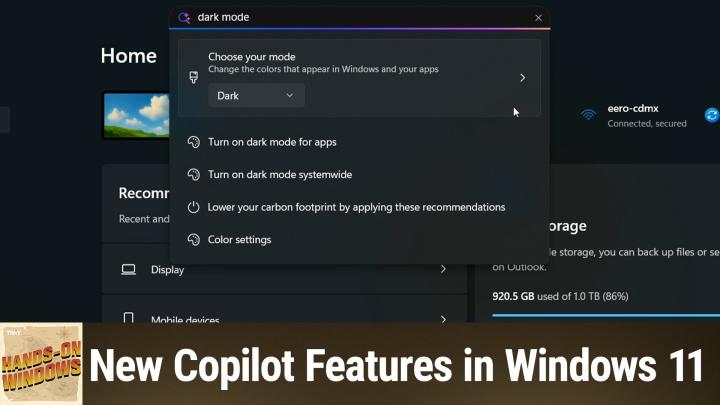
Easier to read. Yeah, I'm really striking out here. Well, the way that this should be working is it will do what Copilot did and direct you where to go, but also in line. You can often see things like little buttons and things you can click on to actually make that thing happen. So I'll try one more just in case. But okay, yeah, here's an example. So I just type dark mode so I can from this fly out, just do the switch between the two modes, right. And then they have links to other parts and settings.
Paul Thurrott [00:12:34]:
If I were to ask this thing here, you know, how do I enable dark mode? Right. In Windows, it would probably just give me. Yeah, gives me instructions. Right. So the settings app capability is for Copilot plus PC. So it's additional. It's better. Right.
Paul Thurrott [00:12:53]:
But now they have this basic capability in Copilot as well. So it's not horrible. It will probably improve, frankly, over time, but it is getting there. One of the things that Microsoft was promoting during this announcement surprised me a little bit. It's what they're describing as their app, but it's actually a third party app. I don't know if they bought the company or something, but it's called Manus. And actually that's not what. I don't want to type that in there.
Paul Thurrott [00:13:19]:
So I've installed the app and it looks like other chatbots. Right. And so this is a familiar interface. You can sign in with your Microsoft account, you can sign in with your Google account, Apple account, desktop, different ways to do it. There's a lot going on here as AI moves into this kind of agentic era. This thing supports standard. This will probably say Chatbot or this says adapt. So this one's chat.
Paul Thurrott [00:13:44]:
That's the old, you know, the normal interface. The agentic capabilities, the agent based capabilities is the new thing. And then adaptive means it will look at the question and determine which of those things to do. If you just ask it for a fact, it will just give you the fact. If you ask it to go off and do something, it will probably engage with an agent at that point. So I've not actually used this app on this computer. I was playing with it earlier on a different computer. But the thing that's interesting to me here are all these built in templates.
Paul Thurrott [00:14:15]:
And so in some ways this reminds me of the perplexity AI interface if you've ever used that. But they. This is really worth going through. It's kind of interesting. And if you want to do a Like a. Make a presentation. They have power or power. I don't know if they're PowerPoint, but they're.
Paul Thurrott [00:14:31]:
They probably are PowerPoint. But presentation templates that are really, you know, high quality and nice and a lot of nice starting points here. And on the desktop version you get a few features you wouldn't see on mobile because they wouldn't necessarily make sense on mobile. But this thing can create games and JavaScript and HTML etc. It's. It's actually pretty cool. So. Okay, but why is Microsoft promoting this thing? Right? It's.
Paul Thurrott [00:14:56]:
You can use it for free, but of course you'll use up whatever credits and they want you to pay for the service. You can do that if you want. It's another AI interface. Why would we have this in addition to Copilot? That's actually a little bit unclear. You have to install it from the store. It's not just in Windows, but this is integrating with or will be integrating with File Explorer. So it is not yet now. But the way that this should work.
Paul Thurrott [00:15:21]:
Let me see if I can get it to do it off of a file, which I think I have saved there. But yeah, so I don't even have AI actions on this computer. A lot of one of the things that's coming to Windows 11 PCs is an additional menu, sort of like this open with menu for AI actions. And that would be things like the thing I was talking about earlier where you could remove the background using paint or you know, blur the background using photos or whatever. And so Manus is going to integrate with this capability and allow you to do those actions that are available in the app without really having the app. And it would just work on the back end. So that's going to be kind of interesting because eventually all of our apps are going to start becoming more and more programmatic and then agents will be able to work with them and with online services, obviously with data we have in the cloud or data we have on the computer, etc. So that's kind of interesting.
Paul Thurrott [00:16:15]:
So one of the capabilities here would be use this image file or I could select multiple files and say use this to generate a professional looking website or something. Just throw up the basics of the website, just using some images. Right. So that's very interesting. Another one I know I don't have is zoom integration and click to do. So click to do. Is this capability. Actually maybe it would be better if I had something that made sense on screen.
Paul Thurrott [00:16:44]:
This was a. An image I had shown in a previous episode where There's a bunch of stuff going on here. So you hold down the window, you know the Windows key and click and it evaluates what it sees here. And then you get these different capabilities, right? And actually it's kind of interesting because there's not a lot this, again, this is, this computer. I just wasn't. It wasn't really set up before the show, but there's a lot more going on here. So one of the things you could do here, say turn this into a chart inside of Microsoft Word or inside of Microsoft Excel, turn this into a PowerPoint slide or whatever, that kind of thing. So there will be an integration here.
Paul Thurrott [00:17:25]:
If there's an email address on the screen, you could Windows key, click it and it will say create, create a meeting with this person in Zoom and then Zoom will send them an invite to a meeting. Right. So you get the idea it's happening in real time, but it's really snowballing. A lot of stuff coming down the pike. So further out, in addition to the text in, text out, and a couple of features that aren't on this computer, but I do actually still have on another computer, this search box is going to change into something called Ask Copilot. It's going to look exactly the same. So it's basically going to be search as it is today with search highlights, but with Copilot. Right.
Paul Thurrott [00:18:09]:
And so based on what you type, it will either launch through Copilot and do a Copilot interaction of whatever kind, or it will do a search. And that search could be for files in your desktop, it could be something on the web, etc. Etc. So this will be turning. It will probably, I think it says instead of search, it will say Ask Copilot or whatever. But it's basically the integration of search as we know it in Windows with Copilot. Of course, I mentioned the Copilot actions thing. This is going to be, this is going to be a big one.
Paul Thurrott [00:18:38]:
It's going to roll out slowly. There's obviously security and privacy concerns here because Copilot Actions are the native agent capability that Microsoft is building into Windows. Right. And so this integrates with this cross platform technology that works across multiple AI agents from OpenAI to Google to everyone else. Everyone has basically standardized on this interaction type and it will allow you to interact or it will allow the agent, I should say, to interact and take actions on local files that are in Windows. And so in the same way that you might fire up an agent in the near distant future and say, you know, find the best price on this smart speaker and then if it's under this price, buy it for me at AM wherever and here's my credit card. You know, you would be able to do things like that locally against the files in your computer. And the reason that's actually kind of interesting to me is that even though it's happening locally on your computer, this is a cloud capability.
Paul Thurrott [00:19:37]:
It's not running locally like it would on a Copilot plus PC. So we already have a limited set of actions we can do with local files if you have that kind of computer. But this is going to use the full power of the cloud based Copilot AI models to do things on your behalf in the background. So what are those things? So, you know, sort through the photos of an event and if you find duplicates, get rid of those. If some of them are blurry, get rid of those or whatever. Show me the best ones. Extract text or images from a PDF file and then the whole natural language interaction. Because these things all come together.
Paul Thurrott [00:20:12]:
We're using copilot voice to describe, like I was saying, Babel, if you want. Here are the things I need. I'm looking for everything I ever wrote about this topic and it will find those things on the computer or through, you know, OneDrive, which is technically on your computer. So a lot going on. Some of this stuff we'll have to revisit, right, because some of it was not on this computer, but also because more is coming and it's always evolving and I suspect within the next several episodes we'll be looking at it again. So here we go. Hopefully you found this useful. Thank you so much for watching.
Paul Thurrott [00:20:49]:
We'll have a new episode of Hands on Windows every Thursday and find out more at TWiT TV. H O W thank you so much to our club Twitch subscribers, Especially if you're not a subscriber, please consider supporting the network and all the content creators there. You can find out more about that at Twitch tv. Club Twit. Thank you. See you next.
Paul Thurrott [00:21:22]:
Time.