Hands-On Windows 156 Transcript
Please be advised that this transcript is AI-generated and may not be word-for-word. Time codes refer to the approximate times in the ad-supported version of the show.
Paul Thurrott [00:00:00]:
Coming up next on Hands on Windows, we're going to take a look at Copilot mode in Microsoft Edge and whether it competes in any way with some of the new AI browsers that we're seeing.
TWIT.tv [00:00:13]:
Podcasts you love from people you trust. This is Twit.
Paul Thurrott [00:00:22]:
Hello everybody, and welcome back to Hands on Windows. I'm Paul Thurat and this week we're going to take a look, a look at a new feature in Microsoft Edge called Copilot Mode. Now, we just did, I think, three episodes about Microsoft Edge fairly recently, Pros, cons, different ways to configure it and so forth. But now we've got this new thing coming. So this is Microsoft's early response to some of the first AI powered web browsers that we're seeing out in the world. Things like Neo and Neon actually, and DIA and comment from perplexity, etc. Because it's from Microsoft, it's a slightly more conservative approach to AI in the browser, but I guess that's to be expected. So basically this new feature impacts two things.
Paul Thurrott [00:01:07]:
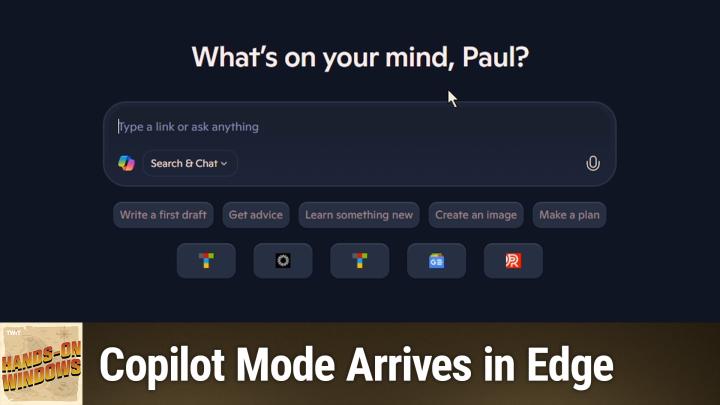
One is this new tab page that we're looking at here, which is the standard new tab page that I've kind of cut down some of the junk on. And then the other is the Copilot button up here and how that works. Right. And so if you think about Microsoft Edge today and you want to use Copilot for some reason, this opens up into a sidebar, right, as you see here. So you will be offered Copilot mode the first time you upgrade Edge to a version that supports it. I've disabled it so you can kind of see what that looks like. But the way to turn it on is just to go into Settings, AI innovations, and then just turn it on. And when you do that, the new tab page changes.
Paul Thurrott [00:01:48]:
So this is the dark mode version of it. In light mode, it's more of that kind of light tan copiloty kind of look and feel, but there you go. So this in its own way is actually already an improvement, right? Because the default new tab page in Microsoft Edge is pretty busy. I toned it down like I said. But I also typically use a third party extension as a new tab experience. And when you enable this mode, it actually overwrites that. So it disabled that extension in my case, and it will for you, whatever one you happen to be using. So there's this and this is what it looks like.
Paul Thurrott [00:02:23]:
You know, you've got this kind of Copilot chat experience. It has a few suggestions here and then it has these quick links to sites that have used a lot. This is not particularly configurable. If you go up into settings here, you can turn it on and off. So either want that on or you want it off. There's no way to go into an individual one and say, well, I don't want this, or add a new one. You know, maybe that's something that changes over time. I think it's fair to say this is going to get a little more full featured and convoluted as we go, but this is what we've got right now.
Paul Thurrott [00:02:57]:
The other big change is the copilot button moved. So I know that doesn't sound like a huge change, but the overall experience is also different. So in addition to not being over here in the corner when you click it by default, actually you will get this thing which is kind of a quick action view or a quick link view. And it's not movable, you know, you can't drag it around, you can't resize it, you really can't do anything with it. And I kind of prefer the old side pane approach, frankly, because it sits side by side with the page you're viewing. So if I were to go to my site, for example, and load an article because I might want to interact with it for whatever reason, let me find one that's reasonable in length and let's see, maybe this one because it's an AI browser story. So when you bring up Copilot here, you know, one of the things you might want to do with this is, you know, create a summary of this page like we have here, which is fine. It works well enough.
Paul Thurrott [00:04:01]:
It's. It's okay. But it is also over the article itself. So if you prefer that old style, you can pin it. And that's what I had done before, actually. So if you like to have this side by side, and I do actually kind of prefer this, you can get that experience back. So that's good. I'm going to put it back the way it was, just to give you the default experience, but okay, so that's kind of interesting.
Paul Thurrott [00:04:24]:
Also some keyboard shortcuts involved here. So let's see if I can remember this correctly. In previous to copilot mode, it was control shift comma. But now there's a new, simpler keyboard shortcut that will be easy to remember, which is just alt C. So it does the same thing. You don't see me typing the keyboard shortcut, but alt C Copilot, right? That's kind of a simple one and that brings that thing up in a simpler way. So as far as the UI change, whatever, it's still the same copilot experience. It's just in a different place, slightly different ui, et cetera, et cetera.
Paul Thurrott [00:05:00]:
It's fine. There's just a few other changes that are interesting and then there's some new functionality. And I think this is the area where it's really going to expand a lot. I don't want to suggest that this is innovative, but in the past when you did new tab in Edge, so Control T, if you started typing, you would be typing in the address bar. And by default now when you do new tab to this experience, you can see I'm typing in the chat box, right? And at first this was a little alarming to me, but actually you can just type Control L or probably Alt D to get back to it, right? Which is, are the standard shortcuts for accessing the, that thing, you know, the address bar. So if you intend to use the address bar normally, like I might and just type, you know, website address like I just did, that still works, but you can also just do it from the chat box. So it's, it's a little smart in the sense that if I just type something like throt.com there it will go to the website, but if I type something that's clearly a query when you know this will already have happened by the time you see this video. But when will Apple announce new iPhones? This will actually launch a chat session, right? And in this case they're summarizing information that comes from the web, etc.
Paul Thurrott [00:06:18]:
As they would a lot of Bing stuff in here. But you know, this works like, you know, like Copilot always has. So that's, that's fine. But this is going to get more powerful, right? And so there are voice navigation features which I don't think are that great, frankly. And before I click on this, just to warn you, you can use this to cause the browser to navigate around. So you could say things like select the address bar, go to this link or select the link, etc. So in my case that's not particularly useful. Obviously from an accessibility point of view that might be very useful.
Paul Thurrott [00:06:54]:
But to me this is more about kind of a hands free mode. So maybe you're cooking and you're maybe doing something or the recipe or you're just casually doing something and you have it over there on the side and you just want to talk to it, right? I do think it's good for Things like reading, you know, the summary thing. So instead of typing, you know, or clicking on, give me a summary of this page. Say, hey, could you just give me a summary of this page or this PDF document or this web or video. It does that kind of thing, right? So it's a way to kind of access that. But the, the way that this starts to get more powerful and this is going to be fairly basic, but is if you're doing something like shopping. So maybe you're. I'm going to put this in dark mode so it doesn't kill anybody.
Paul Thurrott [00:07:34]:
Eyes here. So maybe I go to this, the Amazon site and I type in the name of a speaker and I bring that up, and so here's the speaker. And it costs whatever it costs, and that's what it is. And then, you know, you're doing this type of, you know, research, like you might do, like, I want to buy a new Mars speaker, but I'm not really sure which one I want. And I'll just make this super simple because we're just trying to give an example here. But we have these two pages now, now that have each have some Sonos speaker, in this case loaded. And then from that tab or any tab, or from here, using this little interface or the main tab interface, I could actually reference these tabs and say, you know, can you compare the speaker? And then you do an ention. And so if you've used any Microsoft products like Teams or Outlook, you'll know that they do this kind of thing.
Paul Thurrott [00:08:30]:
And you could say, like the Amazon. So whatever the name of it is, and it is totally not doing that. But what this will do typically is pull from the tabs that match what I typed there and then give you whatever you ask for, in this case, a comparison. And so here you get like a nice chart of the two speakers. And so it's kind of grounding the query or the answer to the query in the tabs that I reference. So it's a nice way to kind of hone it down. So instead of just saying, could you just do this thing? It's could you do this thing against those particular tabs, right? And so this is a really, really basic way of kind of interacting with a web page in an almost programmatic way, right? Rather than just loading it and saying, hey, what am I looking at? You say, hey, these things are loaded. Could you tell me more about it? And then it does what it does, and you can go from there.
Paul Thurrott [00:09:23]:
It's a chat, right? And so you can keep going and Ask it more questions or follow ups, et cetera. So that's kind of interesting. The other thing that this is supposed to do, and this is where I've actually failed, so I'm not going to bother doing this. In fact, there's a version of this where you do it with your voice. So it could fail twice. But you could also say, I want to. Maybe this is the speaker I want to buy. It's a little expensive.
Paul Thurrott [00:09:45]:
I'd like it to be less than $150. And so either typing a query or with your voice, using the Copilot voice feature, you could say create a shopping tracker and then it will try to go and do that. Now I'm probably not going to try to do this live because it's failed so badly on me before. One of the problems is it actually controls the browser and then goes and clicks and fills in boxes and things like that, which is fine for now. I mean, eventually this will just happen on the back end. But a lot of those tracker sites have captchas, right? And so it can't get through the captchas. It asks you to get through the captchas, but it can tell it's really not a human. So there's no way through for this moment in time.
Paul Thurrott [00:10:27]:
This is something I'm sure they'll fix. It is AI after all. And of course, you know, browsers, a lot of browsers, certainly Edge, have this kind of functionality built in. So this is really just a front end to something that's already there. But the, the thing that is happening behind the scenes here that's actually pretty exciting is there is this concept of what Microsoft calls actions, in this case app actions. These could be things in Windows 11, right, where it's controlling features in individual apps. It could be things on the web like we're doing here in the browser where it's going to control online services. And so right now it's at the screen scrape level in the sense that it's just controlling what you can see and what it knows about.
Paul Thurrott [00:11:08]:
But over time, as the web becomes more programmatic, that's going to become more powerful. So that's where it is now. So this is not particularly innovative. Like I said, it's not disruptive in any way. You can go back at any time. If I go back to Settings and just turn this off and I go to a new tab, I'm back to that old experience. This is back where it was before you get the sidebar instead of that little quick link experience. It's fine.
Paul Thurrott [00:11:39]:
So it's still considered experimental. It's something you can toggle on and off. I feel like this is something that will eventually will just be the browser, but I also think that it's going to have to be a lot more powerful before it can really kind of go mainstream. So it's something to check out and experiment with. It's something to pay attention to because I think it's going to improve over time pretty dramatically and then we'll see. And so if you've seen anything like DIA or Comment especially, those are much more powerful AI powered browsers than Edge is right now. But you know Microsoft, they kind of know what they're doing with AI, so they'll probably get it there. So this will keep changing and it's like I said, it's just something to keep an eye on.
Paul Thurrott [00:12:22]:
So I hope you found this mildly interesting. It's still early days on Copilot mode for Microsoft Edge, but I do, like I said, I do think it's going to get there. So thank you so much for watching this episode. We appreciate it. We encourage you to check out Club Twit. Become a member and you can get ad free versions of our videos and support our channels. Support all the creators, support the company. You can learn more about that at TWiT TV Club TWiT and you can find a new episode of Hands On Windows every Thursday and you can learn more about that@TwitTalk TV.
Paul Thurrott [00:13:01]:
How thank you. I'll see you next week.
TWIT.tv [00:13:04]:
Hey, thanks for tuning in to Twit, your tech hub for intelligent, thoughtful conversations. If you want to take your experience to the next level and support what we do here at TWiT, say goodbye to ads and say hello to Club Twit. With Club Twit, you unlock all our shows ad free. You also get exclusive members only content. We do a lot of great programming just for the club members. You also get behind the scenes access with our Twit plus bonus feed and live video streams while we're recording. And don't forget the fantastic members Only discord. It's where passionate tech fans like you and me hang out, swap ideas and connect directly with all of our hosts.
TWIT.tv [00:13:43]:
It's my favorite social network. I think you'll like it too. Club Twit. It's not just a subscription, it's how you support what we do and become part of the Twit family. Your membership directly supports the network, helping us stay independent and keep making the shows you love. If you're ready to upgrade your tech podcast experience, head to Twit TV Club Twit and join us today. Thanks for being here and I'll see you in the club.