Hands-On Windows 151 transcript
Please be advised this transcript is AI-generated and may not be word for word. Time codes refer to the approximate times in the ad-supported version of the show.
0:00:00 - Paul Thurrott
Coming up next on Hands-On Windows, I'm going to take a look at the things you should do to configure Microsoft Edge correctly if you are going to use this browser. Podcasts you love From people you trust. This is Twit. Hello everybody and welcome back to Hands-On Windows. I'm Paul Thrott. Hello everybody and welcome back to Hands-On Windows. I'm Paul Thrott.
Last week, we looked at Microsoft Edge and some of the reasons I've sort of come around to using this browser a lot more than I used to. In fact, I'm actually starting to really like it. But we have talked in the past about how problematic Edge can be. It is kind of a vector for those bad behaviors that we see in Windows 11. And that's a problem whether you're gonna use Edge or not, and so in this episode, what I'd like to talk about is a more detailed list or the different ways that you should configure Edge and Windows so that it works for you and not for Microsoft, right? So we looked at this. Let me just go back to our like this, unbelievably horrible home screen. It's just. It's just brutal. The faster we get rid of this, the better, but for now, we'll deal with this mess.
The very first thing you have to do is install the right extensions, and there's all kinds of extensions. We all have whatever needs we have, but in this case, just for security and privacy, the two that I recommend. There are alternatives and other choices, but Privacy Badger and Adblock Plus, and the reason is these will collectively block all of the tracking that occurs through the browser. So if you go to the Cover your Tracks I wrote Covery there, but cover website this is from the EFF this will examine your browser and see whether or not it's safe to browse the web with this browser. And if you were to run this in a default install of Edge or you could do it in an incognito window, what you would discover is that this thing is possibly the most unsafe way to browse the web that there is. It does nothing to prevent any form of tracking, despite whatever it might say in the user interface. So it takes a little while. But Unique Fingerprint, and then we are blocking tracking ads and invisible trackers, and so these are things like you know, little single pixel, invisible. Well, ping probably image whatever that companies are using to track your progress as you browse on the web. So, whatever browse you're using, make sure you look at the site and if it doesn't come up like this, think about getting some additional extensions to protect yourself further. So that's the big one.
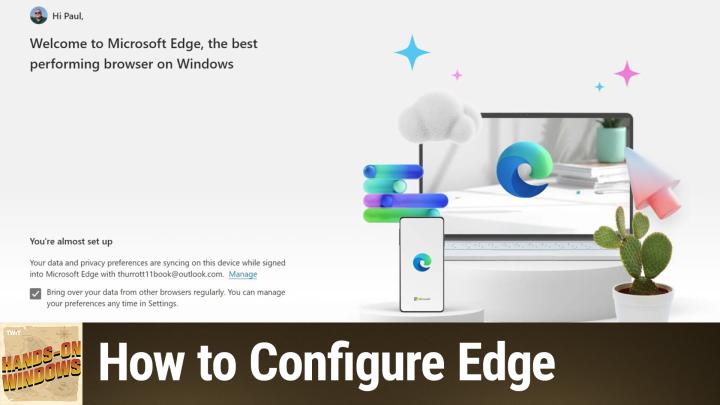
There are these screens that come up the first time you run Edge. If it's been long enough, you probably don't remember them, but in essence, what it's trying to do is convince you to allow Microsoft to track you even further than Edge does by default, and it wants to siphon data from other browsers, specifically Google Chrome, in an effort to get you to a switch to Edge, but also to help track your behavior when you're not using Edge. Right, it's like this insidious, terrible thing. People might click through those and just say yes, because the language, which is basically dark patterns, makes it seem like it's the right thing to do, but it is not the right thing to do. So there's two big things that you need to do to disable or make sure you're not being tracked in an additional way. So the first one is to go into this interface and then privacy and right down here I've already done this. So it says allow Microsoft to save your browsing activity, including history, usage, favorites, et cetera, et cetera. I think this has a clickable link. Yeah, if you go and look at this, this is terrible. You don't want this on, so make sure this is off. That's one of the big ones. And then the other one is the Chrome settings sync. This one's weird because I don't actually think you can find it in the UI, but if you type in Chrome, if you search for Chrome, you'll get this option. It says import browser data from Google Chrome on each launch. What that means is that every time you reboot the computer or you close Edge and rerun Edge, it will actually sync with your Google account and get all of your activity so that Microsoft can use it as it does the activities it's tracked you with directly Unbelievable right. So just make sure that's off as well.
A lot of these are going to be features that I have configured correctly on this thing, because I would never use this browser otherwise. I have discussed and will now fix this terrible homepage. So this is the new tab screen and it's got all this MSN, microsoft, whatever. This is news garbage, whatever. You can configure this. In the previous episode I did configure the browser Chrome and the background and all that, so it's got this kind of custom look to it. But from this screen you can do things like I'll leave click links on, but I will get rid of the content. That's already much better. You can go through here and just kind of clean it up so it has this kind of basic look to it. That's fine. But it's actually better, I think, to use a third-party new tab page replacement, right? Momentum is the big one that most people know about. I use something called Bonjour with two R's. It's available in the Edge store, it's available in the Chrome store, etc. So now when I go to the new tab, what I get is this thing that I've set up and so they've got. This is kind of blurred out in this particular case, but often really attractive looking backgrounds. You know weather time and the links that I want. It's wonderful. It's got this configuration interface I really like so I can export it, import it into other instances if it didn't sync properly or whatever. So strongly recommend that kind of thing just to kind of get rid of the junk.
Obviously, you're probably not going to want to use Bing. They hide this really well. They move this UI around. I got to think about this for a second. Yeah, it's in here. So yeah, it's like in the weirdest possible place. But you click through and by default, all of your search terms that you put up into the address bar go to Bing. If you want to change that, you can change it. Change it to Google or whatever you want to change that. You can change it. Change it to Google or whatever you want. I'll just change it to Google for now, meaning that when I go up here and I type in something like I don't know I keep typing Apple, but I'll type in Apple I'll get a Google search result right Instead of a Bing search result.
Smart Microsoft Edge, like many browsers, has its own password management solution. It's currently in something called Microsoft Wallet. This message at the top is telling you that's going away as kind of a brand. But they have a password manager. It looks at your accounts and sees if any have been compromised, et cetera, et cetera. You can sync this to mobile, which is good for autofill, but to do that, you basically have to install the Edge mobile app, which you might not want to do, even if you are using Edge on desktop.
I use other browsers on mobile, but strongly recommend not using the built-in password manager in any platform or web browser. So third-party password managers are going to be more portable. They'll work with passkeys. They'll work with 2FA authenticator codes. They have far more features, a lot of good choices. 1password is kind of the big one, but Bitwarden, dashlane, protonpass, which is the one I use, which is this little guy up here. So when I go in here I want to make sure that it's not doing autofill. You uncheck the things you have to uncheck here so that Edge is not trying to fight with whatever you're using. And now when I want to use, when I need a password or need to sign into a site or whatever it might be, it will be ProtonPass in my case that comes up. So it works really, really well, works great on mobile, works great in other browsers. It's whatever. But you know, 1password, whatever, those are all very good as well.
This next one is a little I'm going to call it subjective, but there are some default settings in Edge that I'm not a big fan of. One of them is a feature called Sleeping Tabs. This is something actually most browsers do to some degree. I disable it by default or I just just disable it. It's enabled by default, but when this is enabled it will put tabs that you're not looking at to sleep in the background and they'll kind of gray out or just fade a little bit visually, but then when you go back to them they have to reload like as if you weren't using them. My standard screen in any browser let me see if I can bring this up easily is going to look a little more like this and if I can get it over there, and what that means is that I have a lot of tabs open all the time. So when I switch to all these different social media accounts, for example, or my email account, whatever it is, I want that to work instantly, not five seconds later in every case. So I just disabled sleeping types tabs. That's me.
The other big one and this is unique to microsoft edge is something you have to configure windows. So if you go to system and then multitasking, you will see that by default, edge kind of insinuates itself into the Alt-Tab functionality in Windows. So I'm going to hold down Alt and hit Tab. You can see all the windows that are running. There's two instances of Edge. It actually would give you up to three Edge tabs in there.
Now these are, in fact, two separate windows, but if I had if I was I'd recently used a bunch of tabs like this Apple tab, I think it's one as well. It treats them as if they were apps. I don't like that. So my take on this is I just turn this off. Now you may feel differently. You might want to have you know the 20 most recent tabs. Some people really like that, but I prefer the browser to be its own thing and not each tab to be its own thing. So that's just my preference. And then the other one is well, there's actually, I guess, technically, three more. These are kind of optional, in one case very recent, and I'm trying to find security here. Sorry, privacy, do-ba-do-ba-do, yep, security.
So there are some, like I said, fairly recent new features in Edge that are kind of interesting. This one is not enabled by default. I did enable it here. It's a scareware blocker. It's currently in preview, but what it does is it uses AI to detect potential attacks, right, like scams like oh, your security software is out of date, you should click here and subscribe, whatever that kind of thing. So they're using AI on that. There is this enhance your security on the web feature, which is again just an additional bit of protection against a variety of online threats. The reason this is off by default is because it has to send a little bit of supposedly anonymous data to Microsoft servers in the cloud to do its work, and so they don't want to enable that by default because people would freak out. But that is something you could enable if you're looking for the best security possible. I actually just leave that one off, because I don't really experience too much in the way of weirdness when it comes to that kind of thing.
And then the third one is they call it Microsoft Edge Secure Network. It's a VPN, and so I don't have it up here on the toolbar by default, but usually and you would if you haven't oops, if you haven't configured it otherwise there is an interface that includes this so you can get to it a little more quickly. But this is a security feature that you don't want to leave on all the time. Right, this is something you would use occasionally, and if you look at the fine print down here, it says you get five gigabytes of free VPN per month on Microsoft. There's no way to pay to get more, so this is just kind of a little freebie they throw in. On Microsoft, there's no way to pay to get more, so this is just kind of a little freebie they throw in.
It's the type of thing maybe you're doing something you're not sure about, maybe you're on a public Wi-Fi and you want to hit your banking site or whatever it might be. You can turn on the VPN. You'll get that icon up there. I'm just not going to do that, but that's something you could just enable on the fly. So that's most of it. I mean, beyond that, it's the appearance stuff we talked about. I'll just put this back actually in the default and I guess now I'm stuck with that image forever. But that's fine, because I have a different new tab page. It's okay.
But if you are going to use this browser, obviously step through all of the settings. There's probably 1100 of them, but you know you should look at those things where maybe I would have said, well, I don't want that, but you might want that, right, and so it's worth going through um, the entire settings interface, which we don't have time for. But those are the big ones for me. So I think that's pretty much most of what I do, and then I have my little custom experience Right. So to me this helps Edge work the way I want it to work, and I think it could help a lot of you as well.
Now, if this hasn't convinced you, I get it. I mean, most people use Google Chrome. Of course, there are essentially better browsers out there as well Brave Firefox, opera, vivaldi, arc and Odea. There's a lot of choices. So if you're not going to use Microsoft Edge, if this hasn't convinced you in the slightest, then next week we will go through the list of things you need to do to configure Windows to prevent Edge from just running in the background, because there's all this stuff going on with Edge, where it's going to try to pop up and do things for you, even when you said no to it. So we'll do that next week, okay, so hopefully this was interesting and educational to some degree.
Thank you so much for watching, and we'll be back every Thursday with a new episode of Hands-On Windows. You can learn more at twittv slash h-o-w. Thank you so much for watching. Thank you especially to our Club Twit members. We love you. If you're not a member, please go to club rather twittv slash, club twit to learn more. Support the company, support all the people making this content. We really appreciate it. See you next week.