Hands-On Tech 292 Transcript
Please be advised that this transcript is AI-generated and may not be word-for-word. Time codes refer to the approximate times in the ad-free version of the show.
Mikah Sargent [00:00:00]:
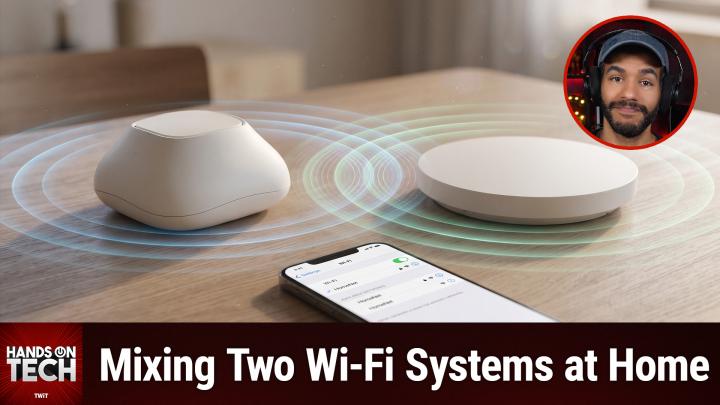
Coming up on Hands-On Tech, can 2 different brands of Wi-Fi gear share one network without fighting over your phone? Stay tuned. Hello and welcome to Hands-On Tech. I am Mikah Sargent, and today we are taking a look at a listener question that I will answer for you. And today's question comes in from Bruce. Now, I wanna warn you all, it's a little nerdy, but that just means we've got more to dig into. So let's hear what the question is. Bruce writes in, hello, Mikah, I just watched your podcast referenced above, excellent by the way, and have a question.
Mikah Sargent [00:00:48]:
This was an earlier episode about Wi-Fi and mesh networking. Bruce goes on to say, and have a question regarding my personal setup, which differs slightly from the one or the other nature of the question the listener wrote in about. My setup. I just moved into a new house. When I moved in, I brought with me an existing ASUS AX6600 XT8 mesh system with a main router and 2 nodes, which I have used for my internet and Wi-Fi throughout the house. The house has pre-wired Cat6 Ethernet throughout, and so I have set up the ASUS mesh system with wired backhaul to free up the most bandwidth possible. This house was a newly built house, which came with 2 Araknis AN520API access points pre-installed, one on the main floor and one on the lower floor. My understanding is that they have their own proprietary mesh type of roaming capability between the APs.
Mikah Sargent [00:01:48]:
They are currently connected to my ASUS's default gateway. However, they currently broadcast their own SSID separate from the ASUS's SSID. To date, I have not really used the Araknis APs at all. I would like to incorporate the Araknis APs into my Wi-Fi setup but want to have only one single SSID. This would give me plenty of coverage, frankly somewhat overlapping given the size of my house, which is 4,200 square feet. I know that I can set the Araknis's SSID to be the same as my ASUS SSID. The question is this: since the Araknis APs are not compatible with ASUS's AiMesh system— I believe they use one called Oversea— how should I manage— and that's O-V-R-C— how should I manage the handoff of devices from one node AP to the next? I can set different channels for RAKNUS APs that are near an ASUS node and even reduce transmission power to keep devices from hanging on to distant APs. Or should I instead set the ASUS nodes to access point mode? The AX6600 has this capacity or this capability.
Mikah Sargent [00:02:59]:
I'm wondering if, given that I'm using a wired backhaul for their mesh system, there is any speed advantage or, quote, handing off, unquote, advantage between the 2 systems to setting them to AP mode instead. Any advice you could give on this setup would be most appreciated. Bruce. Whoo. So quite a lot to dig into there, right? And Bruce, let's kind of start with the, the short answer. And so, you know, when it comes to this, what is the best way to get all of this set up and have it at the best capability possible for each of these devices. So 2 Wi-Fi systems, one network name. Your phone or your laptop, it's important to understand, decides when to switch access points, even inside a one-brand mesh network.
Mikah Sargent [00:03:54]:
Okay? The network is not responsible for making that decision. What the network can do is sort of nudge a device or kick it loose. Okay, so there's no AI mesh to Araknis, uh, setting to find. Your first instinct was the correct instinct, okay, that the same name, password, and security on every access point is the right thing to do. Then separate channels And lower power on the Araknis APs and skip AP mode, believe it or not. Uh, this is, you know, as I was digging into this, kind of trying to figure out what advice to give precisely here, it would need another router in front of your XT8. And given that you already have wired backhaul, your nodes already work like access points. So there's no built-in speed gain from it.
Mikah Sargent [00:04:59]:
And we got to dig into the, the first kind of understanding about the mesh setup on each of these devices. Oversee, which you talked about, is not actually a mesh system. Oversee is— SnapOne is a company that has— it's SnapOne's cloud platform for people who are doing installs. So it lets a pro remotely manage, remotely configure, remotely troubleshoot the devices on the network. That's what Oversea does. Araknis's actual roaming feature, its own, is called Fast Roaming, and it's not proprietary. SnapOne says it uses the standard IEEE 802.11r and 802.11k. Okay.
Mikah Sargent [00:05:59]:
So that is not a proprietary method for doing the mesh networking between devices. Snap One on fast roaming with other brands' gear, Snap One says, well, we don't guarantee compatibility with any other brands. So that is something that you do need to bear in mind that, you know, they're not going to offer you support or anything like that to try to get this working. They don't guarantee that compatibility. So don't expect AiMesh and Araknis to sort of coordinate on how things are set up. But the good thing is they don't really need to. That said, the hardware, regardless of all of this, it's worth using. The fact that you have these in, in the house, the AN520AP1 or I Mark 1, excuse me, Mark 1, that's a Wi-Fi 6 access point.
Mikah Sargent [00:06:50]:
It's 2x2 dual band, 3,000 megabits per second combined, 160 MHz support. It's got a 2.5 gig Power over Ethernet port plus a separate gigabit data port. Yeah, let's go ahead and make use of this hardware if we've got it. But there are a few things that you need to bear in mind before you make these changes. For power, SnapOne says that these devices need 802.3at, that's 30 watts of Power over Ethernet. That's on 802.3. On 802.3af, which is 15 watts, they power up and they broadcast an SSID with minimal throughput. So you want 3AT, which is 30 watts, not 3AF, which is 15 watts, to get the best possible power.
Mikah Sargent [00:07:46]:
For login, the builder's installer may have set the admin password and may still have the APs in their own Oversea account. So be sure to ask them for the login and to release your APs from Oversea. That's a big, big part of this. You can also start fresh with a factory reset. If you hold reset on them for more than 20 seconds, the LED should blink red. Then allow 2 to 4 minutes for everything to kind of restart. It wipes everything, and then the default login is supposed to be arachnus and arachnus for each of the username and the password. Now going into how this is all set up and asking or answering the questions about the networking, let's take a look at how this will work.
Mikah Sargent [00:08:36]:
First and foremost, remember that nothing hands your device off. Your device is what picks the next access point. The network can nudge it. It can also kick it. But where it goes next, like which access point it connects to, is not something that the network gets to control. It's something that the device itself makes a decision about. So Apple says devices, quote, are responsible for maintaining their 802.11 connection and And that includes deciding when to roam. Now, Apple does publish its own numbers for this.
Mikah Sargent [00:09:16]:
Other brands, you know, set their own, but for iPhone and iPad, they hang on until the signal drops past -70 dBm, and then they start scanning. For Macs, it's -75 dBm. To make the jump, they want an AP on the same network that's clearly stronger, so 8 dB stronger for an iPhone. that's sending data, 12 dB when idle, 12 dB for a Mac. And I've got links in the show notes to the exact Wi-Fi roaming specs that the company has. And nothing in that decision will check a logo, okay? It's not looking for a brand. So an Araknis AP that has the same network name, that's just another candidate for it to potentially go to. Whenever it comes to what the access points can do, They can assist in the process of how the phone makes the call.
Mikah Sargent [00:10:11]:
They can list nearby APs so they can say like, hey, here are some other options that are available. It can suggest a better one and say, hey, you know, this is, this is the option that you should use. It can speed up the reconnect or it can kick a weak device loose before the phone itself makes the decision to leave that network, but the device still decides where to land. There are some open standards, but the thing to bear in mind is that each system is going to coordinate only its own gear. So AiMesh is going to manage the ASUS units and FastRoaming is what links the Araknis APs. Now, that said, when we talked about making the passwords match, it doesn't put the 2 brands in the same 802.11r group. Which is part of the, you know, roaming and switching between these devices. So understand that a hop, uh, is, you know, expect what— when you're doing ASUS to Araknis, that the hop is going to be an ordinary reconnect.
Mikah Sargent [00:11:24]:
It's not this sort of quick, uh, as quick as you get whenever it's within, right? Even ASUS gives the device the last word. It says take a device off AI mesh roaming and it will do self-roaming to a better mesh node. So it doesn't matter, uh, in the end which part of this system is, as you see it, in control, because ultimately the device is choosing where it's deciding to go. So what we need to do In the end is just make these 2 systems look like one to outside devices. Your phone roams between access points so long as it believes that they are one network. So every AP has to match in these specific places that we're going to dig into. Making them look like one is not just a matter of adjusting the SSID. There are multiple aspects to this.
Mikah Sargent [00:12:28]:
But it does start with the same network name on every AP, on every band as well. Same spelling, same capitalization. Apple says for this to work, make sure that all routers on your network use the same name for every band they support. And we'll also have more links here. Arachna says set interface to both, so the name goes out on 2.4 and 5 GHz. Next, Same password. Yes. Next, and this is important, people think if they set the password and it's the same, then we're good.
Mikah Sargent [00:13:04]:
It's not just that. It also needs to be the same type of security. Okay? Each brand in this case, and this is unfortunate, calls it something different, but the one that you want is this. On the ASUS, it's called WPA2/WPA3 Personal, and that is on Araknis WPA3 SAE Mixed. By the way, Apple calls it WPA2/WPA3 Traditional, so they're all over the place on what it's actually called. The mixed mode already lets WPA2-only gadgets join. Uh, if one still won't, Then you will need to fall back to ASUS WPA2 Personal, which for Araknis is WPA2-PSK. Very frustrating that this is how this is set up and that they are called something different on each device, but that is part of it.
Mikah Sargent [00:14:07]:
And then one more aspect that's going to make sure that both— well, that all of your devices assume that they're connecting to the same network is Keeping the ASUS as the only router. The Araknis APs plug into its network so that way a device keeps the same address when it hops brands. That means leaving the Araknis network untagged— don't add a VLAN ID so it lands on that same network— and then skip the Araknis guest network. Don't use that as well. Uh, SnapOne says that each AP runs its own DHCP DHCP server for it, so that would get messy. There'd be way too much going on. Once roaming works without it, turn on fast roaming between those 2 Araknis APs. That's in Settings, Wireless, Wireless Networks, and then Fast Roaming, and test it again at that point.
Mikah Sargent [00:15:05]:
If a printer, if a smart home gadget, if any of those won't connect, then turn it back off because Snap One lists older printers and some IoT devices as devices that don't behave well in this instance. And then how do we go about— once you've set that up, you've got everything locked in, you've got the ASUS being the only one responsible for handing out addresses. Now we want to switch to or figure out steering. So how do we set up the steering of where the devices choose to connect? Well, this is where your instinct, Bruce, was dead on. First, channels. Yes, uh, give each Araknis AP a channel the nearest ASUS unit isn't using. So Apple actually has advice about this. If you have multiple routers, configure each to use a different channel, especially if they're close to each other.
Mikah Sargent [00:16:07]:
2.4 GHz has only 3 non-overlapping channels. Those are at 20 MHz, 1, 6, and 11. So with 5 APs, some will end up needing to share channels. On 5 GHz, a wide channel spans several channel numbers, so pick blocks that don't overlap. Don't just pick different numbers. Check what the ASUS unit picked from the Araknis itself. Okay, so if you go into Advanced and then you go to Site Survey— again, I told you this is going to get really nerdy— it lists nearby networks with their channel and signal as heard from where the AP hangs, which is cool. Um, and there's even more that I'm not going to get into because again, it gets very nerdy, but you just need to in the end pick that channel in Settings.
Mikah Sargent [00:16:59]:
Wireless radio settings, operating channel. Auto is the default, and if site survey showed that it landed somewhere clear, then you're good to go. What about power? Well, too much and your phone will keep holding on to a far-off AP, going after one, then, you know, trying to stick to it. But if you set it at too little power, then you get gaps in your mesh. So you want just enough to overlap and hand off. It's hard to kind of figure out, honestly. Honestly, um, to turn the power down though, you go Advanced, Wireless Settings, Radio Settings, Transmit Power. Uh, it starts out by shipping at full, which is 100%, obviously, uh, and you can decrease it from there.
Mikah Sargent [00:17:46]:
Snap One says set this value as low as possible for adequate coverage to get the maximum wireless speed and data throughput. It's very difficult to figure out how to get this set up exactly. But if you're willing to play around with it, you'll get there. And it works because as you walk away from a quieter AP and your phone crosses it, uh, its, uh, -70 dBm line sooner, then it goes looking for other APs and picks up one that is stronger and, you know, has the, has the speeds and the throughput that you're looking for. Mm-hmm. Moving along, make sure that you change one AP at a time. And then if like a really great way to kind of test how well this is working is a video call, place a video call to someone or even just, you know, another device somewhere and walk through each of the, you know, rooms in the house, each of the floors in the house. And that can help you figure out how well it's handing off between devices after you've set everything exactly as you want it.
Mikah Sargent [00:18:59]:
All right, the one thing to bear in mind is that regardless of the different brands of AP that you have, this is something that will work across them. So it's called Roaming Assistant, and in it the ASUS disconnects a device once its signal drops below a threshold. Yay! That's exactly what we're looking for here. First and foremost, You can set that up by going to Wireless and then Professional, and then you pick a band that you want to change, and then Roaming Assistant, and then Enable. And then you need to repeat it for each band. Uh, -70 dBm, that's the default. ASUS built it for setups with multiple access points where devices cling to the main router, and so that -70 dBm is how well the ASUS hears your device, it's not the same reading as your phone's -70. So bear that in mind that this is from the router's— well, from the AP's perspective, as opposed to how your phone is rating how well it hears the AP.
Mikah Sargent [00:20:18]:
And then, uh, ASUS says that the device will connect to a stronger signal An Araknis AP counts as part of this, so it doesn't really matter in this case. It can also land right back on the same ASUS. So if this happens, if you've got Roaming Assistant turned on, then bear in mind that it may not be a nudge that fully gets you to the next spot. It can nudge it off and then lock it back on. I think it's a good idea to keep it near the default. If you push it to -60, Uh, and the device gets bumped even when there's nowhere better to go, you know, you're not getting the results that you're after. And it works in one direction only, okay? The Araknis manual lists no matching setting, so nothing nudges devices off the Araknis APs. And that is something that's just going to be on the ASUS side of things.
Mikah Sargent [00:21:20]:
ASUS says, you know, Hey, get off of here. But the Araknis, if it gets connected to those, there's nothing saying, hey, get off of here. And so that's why it's important to, in the Araknis settings, change the power setting so that the phone can make the choice. Something else to bear in mind, and sometimes people miss this, more access points It doesn't always mean, and sometimes regularly means, that you're not getting more speed out of it. You know, is there— you should ask the question, is there a spot the ASUS doesn't already cover well? Uh, you said that it was frankly somewhat overlapping, right? So some overlap is what lets a phone hand off, but if you have too much on the same channel, well, that can start to cause issues with your network. APs on the same channel within range of each other take turns, and Snap One says that high power can actually cause interference with other access points in close range on the same channel. That's what you don't want, is that interference taking place and messing up your network. 5 APs on 2.4 GHz, that's 3 clean channels with some sharing some overlap in between them.
Mikah Sargent [00:22:48]:
Uh, you do have some options. Put the Araknis APs to work only where the ASUS is weakest and put them at low power. Great place for those to exist. You can also decide to switch off their 2.4 GHz radios and then just have them serve as 5 GHz only. And then if the ASUS already covers every room, it's okay to just go ahead and leave those Araknis APs off. It's understandable to want to make use of them, but they may not be right for your setup. And so simply unplugging the cable that feeds each one is enough to turn those off since those are power over Ethernet. So you don't have to get up there and mess around with them.
Mikah Sargent [00:23:33]:
You can just do it at, you know, wherever your home base is. So let's go back to continuing to answer your questions. AP mode is not going to make it faster. No, no built-in high-speed gain, no help with the Araknis handoff. AP mode, it's not a per-node switch. It's set on the main XT8, and it applies to the whole AiMesh system, which of course keeps working in AP mode. So it's meant for a mesh that sits behind another router. ASUS says the router in front has to run DHCP and hand out every address.
Mikah Sargent [00:24:21]:
So because of the way that the network is set up and who is in charge of, uh, kind of handing out the keys, And the, the addresses rather, that's at issue here in order to make this, you know, run faster. In fact, your main XT8 is your router today, so AP mode means adding another router in front, and then the nodes would use the same Ethernet cable they use now. Uh, with wired backhaul, your nodes already hand the traffic straight to the cable, uh, which is exactly what what you would get in an access point, as, uh, you know, having one of these set to an access point mode. And then AP mode also won't suddenly make the ASUS devices talk to Araknis. So your phone is the one that's still deciding which, uh, which hop makes sense. So when you're thinking about what AP mode is, it pulls the 2 nodes out of AiMesh and sets each one up as a standalone access point, a little bit kind of like the Araknis Right now. That gives each unit its own settings page for channel, for power. This may be— if we're trying to think of like how this would be helpful, if you wanted to hand plan every channel, this would be a reason to use AP mode.
Mikah Sargent [00:25:44]:
But it also means that you don't get the single dashboard use and then AiMesh's roaming that helps whenever it's switching between your ASUS units. Lastly, I want to mention, uh, one switch within AiMesh that will help free up a band. Uh, so after you've run the cable and gotten that all figured out, this is the next step. It's in AiMesh system settings, Ethernet backhaul mode. Uh, for ASUS, this is for a tri-band system, the 5G 2-band, which used to be a dedicated backhaul by default. It's now opened to end devices. What? This is really cool. Um, if you cable every node to the router or another node first, then this is the system that you would want to toggle on.
Mikah Sargent [00:26:49]:
Otherwise, ASUS warns that a node might lose its uplink connection. What happens if you do have this turned on? The trade-off is that with backhaul connection priority set to Ethernet first, ASUS says that a node switches to wireless if the cable fails. This mode counts on every cable. We'll link in the show notes to this as well. Lastly, here on the XT8, 5 GHz 2 is the 4x4 radio, so that's up to 4,804 megabits per second. Uh, which is, you know, the one that you'd want. It's the biggest of the 3. That said, set your expectation here.
Mikah Sargent [00:27:31]:
Uh, that is the radio's top rate. That's not necessarily going to give you, uh, the results that you're after. Most phones, most laptops, they have 2 antennas and they connect, you know, at a fraction of that value. And the XT8's LAN ports are gigabit, so a node wired to the main unit has a 1 gigabit per second link back to it. And then in the end, you gain room, right? A 3rd band for your devices, which will spread out the load. That is, um, the big payoff that you get if you decide to go wired. So having that built in, I think, is, uh, potentially a nice Um, and, you know, a nice, a nice benefit to, to the trade-off that you would otherwise have there. Oh, I know things got really nerdy there, but it was an opportunity to dig in and really look at the devices, look at their setup.
Mikah Sargent [00:28:36]:
And obviously that means that it's time to come to an answer here in the end. What is the bottom line for this? I think that It's okay, uh, to keep AiMesh turned on. I think it's a good idea to tune the Araknis. Your phone, remember, not either system decides when to switch. So 2 brands, they can share one network just as long as the devices on them look identical. We set that up with the same name, the same password, the same security. You had the instinct and it was correct. Separate channels and lower power on the Araknis APs, plus ASUS's roaming And then of course letting those serve as the means of steering.
Mikah Sargent [00:29:23]:
Skipping out on AP mode, it needs another router in front of the XT8, and with wired backhaul, it isn't faster. You've already got it set up with wired backhaul, so we're good to go. And then lastly, you can check Ethernet backhaul mode. That is the switch that opens the XT8's biggest radio. to the rest of your devices as well. Thank you so much for writing in with that complicated but delightfully, uh, detailed question. I really appreciate it, Bruce. And thank all of you for tuning in to this week's episode of Hands-On Tech.
Mikah Sargent [00:30:03]:
It's been a pleasure bringing you this show, and I'll be back next week with another. Goodbye everyone!