Hands-On Tech 264 Transcript
Please be advised that this transcript is AI-generated and may not be word-for-word. Time codes refer to the approximate times in the ad-free version of the show.
Mikah Sargent [00:00:00]:
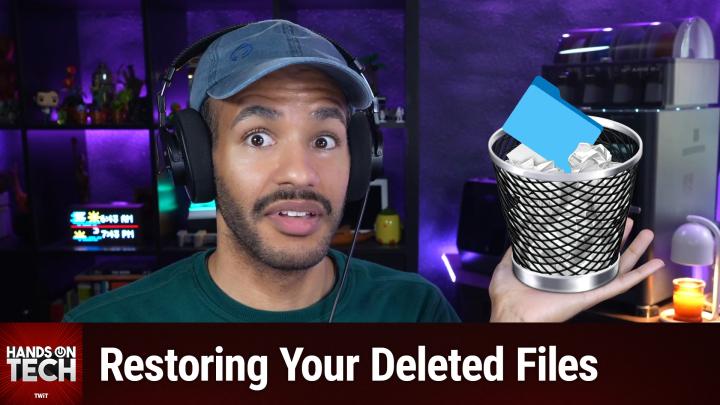
A simple question with, well, a detailed answer. That's what's coming up on this episode of Hands-On Tech. Can you recover files that have been permanently deleted? Stay tuned. Hello and welcome to Hands-On Tech. I am Mikah Sargent in my singing mode, and this is the show where I take your tech questions and do my best to answer them, sometimes with an accent. This week's question comes in from Sheila. And Sheila has asked a very simple question with not a lot of detail.
Mikah Sargent [00:00:46]:
But the good thing is this simple question is one that I've had, that I'm sure you've had. I'm sure people have asked you. Can you rescue a file that has been deleted permanently? Well, Sheila, it is quite possible. Oftentimes you can, but your chances depend entirely on how long ago you deleted the file and what has happened on your machine since you deleted the file. We're going to kind of take this step by step. And if you. If you watch the show every week, you will have heard my little sermon a couple of weeks ago. I think about how we as tech troubleshooters are like scientists running experiments to try to figure out what's going on.
Mikah Sargent [00:01:41]:
And this is the same kind of thing. There are multiple experiments that we can do. But think about it like having a budget, right? The budget in this case is desire to complete a project. It is, you know, the activation energy. And so we like to start out with the easy things first before we go with the more difficult things that are a little bit more involved or a little bit more costly. I'm not saying this to you because I think you haven't done this, and I am not saying this to you because I think you are a fool. You are not a fool. I am not a fool, and yet I have made this mistake.
Mikah Sargent [00:02:28]:
The first thing that you want to do is check the trash or the recycling bin. You'd be surprised how many times I forget that I can recover a file I recently deleted by heading into my little trash or my little recycling bin. When you delete a file on your Mac or your PC, unless you've set up some special setting, it doesn't actually go anywhere right away. It just gets moved to the trash or the recycling bin. And so you can, of course, think of it like the analog. The analog analog, if you will, which is, of course, tossing something into the trash can. It's in there and no one has come to take it out yet. So if you again, haven't set up something that says, when I delete my file, delete it completely.
Mikah Sargent [00:03:19]:
That's the first place you can go. I have something set up to where after I think 30 days, it empties my trash. But leading up to that point, I could still get my file back from there. So your first step, open up the trash, the recycling bin, find the file, restore it. On a Mac, you can right click the file and follow the steps to restore it. On Windows, you can right click and choose Restore. And then it goes right back where it was. You can also just drag and drop it.
Mikah Sargent [00:03:48]:
And then it's where you need it to be. But you have checked the trash. The file isn't in the trash. Uh oh, what do we do? Well, it is now our time to better understand what, what deleting a file actually means on a PC, right? When you delete a file and then you empty the trash of the recycling bin, your computer doesn't automatically scrub that data off the drive. Again, I say with the caveats that there are people who have set up special scripts and special settings that make this a little bit different. But by default, your computer doesn't scrub that data off of the drive. What it does is remove what's called a pointer. It's a reference that tells the system that you know this is where the file is on the disk.
Mikah Sargent [00:04:49]:
And by disk we mean the drive, right? So it's, it's almost like a shortcut or an alias to that actual file, that actual data that's somewhere else. It's just a little sort of representation, if you will, of that file. So when you delete it and you remove it from the trash recycling bin, the reference to that data is deleted. The actual data, it's still sitting there. The thing is that the operating system now considers that space available for new data. So if it needs to, it knows you deleted that file. And therefore that space of data on the drive can be used for something else. It's kind of like ripping a page out of, out of a, like, let me see, how to, how to put this.
Mikah Sargent [00:05:50]:
It's like if you had a chapter book and you just removed the chapter title from the table of contents, right? You took it at exacto knife and you cut out the reference to the file in the table of contents. But if you were to scroll through the, if you were to flip through the chapter book, that chapter is still there, right? You just don't have the reference to it. I don't know. I don't know. That sort of works. Maybe that helps some of you. But here, here's the thing to understand about it is that even though you have deleted the file and you have removed it from the recycling bin or the trash, the data is still there. And so the sooner you act, the better your chances because the system will not have overwritten that data.
Mikah Sargent [00:06:43]:
But the longer you keep using the machine after you have deleted and emptied, the more likely that space is going to get overwritten with new data. And once it's overwritten, bye, it's gone. Bye. So bear that in mind. The longer you wait, the more likely it is that your data is going to be gone. There are of course some built in recovery options on both Mac and on macOS and on Windows. So before we go to the third party tools, both Mac and Windows do have built in features. I thank you Virk.
Mikah Sargent [00:07:21]:
I use Time Machine on my Mac and on Windows there is the option to use File History. So let's talk about these with Time Machine. If you've been backing up using Time Machine, then you can browse back through your backups and pull the file out. You open the folder where the file used to live, you launch Time Machine, you scroll back through the timeline and wow, there's the file. It's still there. On Windows with File History, if it's enabled, which you should have it enabled, you can right click the folder where the file was, select Restore Previous Versions, and then browse through those earlier snapshots. Windows also has a feature called Previous Versions that's tied to System Restore. And so that can also sometimes help if the File History option is not helping you.
Mikah Sargent [00:08:11]:
Let's say you, you looked in your Recycling Bin, you did not have Time Machine and it wasn't there. I mean, you didn't have Time Machine turned on, or you did have Time Machine turned on and Time Machine errors out. Because that is something that happens with Time Machine. It's really annoying. Or on Windows you're trying to use File History and you remember, oh yeah, cousin Linda told me I should turn that on and I completely forgot to do that and I haven't turned it on yet, but I'm going to turn it on now. Yeah. If you're listening to this and you don't have these tools turned on, if you don't have Time Machine running, if you don't have File History turned on, turn those off. In any case, if you don't, what do we do? Well, don't you worry friend, because there are third party software options that you can use.
Mikah Sargent [00:08:57]:
It's funny that there's one that was mentioned in the chat that is on my list. So let's talk about what we do. Here are some of the tools. There's a tool called Disk Drill and Disk Drill is a pretty popular option. It's available on both Mac and Windows and it lets you recover files from your machines. It's made by a company called Clever Files and again it does data recovery for Windows and macOS. It's super approachable and I think that's why a lot of people use it. There's also a free option that's made for Windows and it's made by a company that makes another tool that I've talked about on the show before, CC Cleaner.
Mikah Sargent [00:09:49]:
This tool is called Recuva R E C U V A and this was the tool that was also mentioned in the Discord Chat. Recuva Free Windows only and now I know. Recommended by Burke as well for recovering files on your Windows machine. And then there's also a tool called PhotoRec. It's free and open source and despite being called PhotoRec meaning like photo Recovery, it is a file recovery system works on both platforms. Unfortunately it's more of a command line tool, so not as user friendly, but if that's the way that you like to do things, it's an option for you. So between Recover if you're on Windows or Disk Drill if you're on macOS, these plus Photorec are some tools that you can use. What happened? Maybe you're wondering like why are these tools even needed? If we've got these sort of first part, what can they do that the first party tools can't? Well, these tools work by scanning the drive for data that's still physically present but is no longer indexed by the file system.
Mikah Sargent [00:10:56]:
So again, these tools do. You don't look at the table of contents where you've cut out the reference. They go directly to the chapters and flip through until they find all of the chapters and then they compare it with a table of contents and go oh, these are the ones that they cut out of the table of contents. Here's the stuff that we found for you. There is one problem with all of this and it has to do with modern PCs, modern Macs that we did not have back in the day as much this issue. We didn't have as much because modern machines typically come with SSDs solid state drives instead of good old spinning drives, or we called them disks where it was much more efficient at the time to again delete a pointer but let the data remain and then overwrite it as needed. When you Needed to put a lot of power into spinning the disks and making changes. You didn't want to go through the process of removing that data when it's much easier to just overwrite the data, right? So that led to file recovery being a lot more likely to happen.
Mikah Sargent [00:12:36]:
Before we had solid state drives, but now that we have SSDs in many modern Macs and PCs, SSDs use a process called trim. And trim is a sort of built in feature, built in functionality that goes through and deletes data blocks that have data that is no longer referenced in order to maintain performance. So deleted data could hang out for weeks or months on a hard disk. But on modern SSDs that's not the case. An SSD can end up wiping that data after deletion. It doesn't mean that recovery is completely impossible. It could still happen, but the window becomes much, much smaller. Now what do we do? If we have used the first party tools, we've checked the recycling bin, we've used the third party tools, and, and they're not recovering a file.
Mikah Sargent [00:13:49]:
If the file is truly critical, you know, irreplaceable photos, important business documents, then this is perhaps where we would turn to a data recovery service like DriveSavers, which we've talked about before. Ontrack I believe, is another one. Sometimes they can work miracles. They've got specialized equipment, they work on these drives directly. The problem is hundreds to thousands of dollars of cost and hundreds. Let me be clear, I did not say hundreds of thousands. Hundreds to thousands of dollars of cost for these recovery services. So if everything else fails, and these are files that are incredibly important and it's not just an opportunity to go, I've learned my lesson.
Mikah Sargent [00:14:36]:
I will always have recovery on from now on. Well, then this is where you might turn. Be aware that they may not be able to recover the file either. But it is a possibility, frankly, as we know, the best recovery plan is the one that you set up before you need it. So turn on listening right now, please. For the love of all that is good in this world. Turn on time machine. Turn on file history, Use a cloud backup service.
Mikah Sargent [00:15:06]:
I personally use Backblaze. I believe they've been a sponsor on the network in the past, but aren't currently. I was a user of them before I ever even joined the company. I love Backblaze for keeping both of my Macs backed up via cloud, but I also have other cloud options. Icloud is backing up many of my files. I've got Dropbox as well. I take it take backup very seriously and I think you should too. Recovery is sometimes possible, but it's never guaranteed.
Mikah Sargent [00:15:42]:
If you have these backups in place, then you don't really need to worry about this. It's like one thing that you can take off of the stress buttons in your brain before we say goodbye today, I did have a good note that came in from Jed. This is for especially for parents and guardians out there. Jed writes in with the following Jed says, I've noticed that after updating my children's iPads, many settings get reset to their defaults. The most important ones I found are under store purchases and downloads, installing apps, deleting apps, and in app purchases. All went from don't allow back to allow after an update. Since I also have ask to buy turned on. They haven't been able to make any purchases, but it's worth double checking all settings after every update since you might think something is blocked when it actually isn't and a charge could slip through.
Mikah Sargent [00:16:42]:
This second part is also very important. Next are the places kids can chat. The school issues Chromebooks, which I tried to decline but was overruled. The kids are using Google Sheets and collaborating on private documents to chat with each other both in the classroom and at home. I've heard. I think there was like a New York Times story about using Google Docs to chat, but it's important to note this is happening in the wild. Then this is the part that stood out, stood out to me from Jed. Jed wrote, the more concerning area is YouTube comments.
Mikah Sargent [00:17:19]:
My son was using the comments section as a chat room. I discovered he had started a YouTube channel without my knowledge. I put a stop to it as soon as I found out. Went in and set his age to his real age and YouTube blocked that channel from him. My worry now is that the next time he'll just hide it better and I won't find out. I hope this helps anyone out there. They are starting this very young. It was third or fourth grade when I found out about the Google Sheets situation at school.
Mikah Sargent [00:17:50]:
So just be aware of that if you're a parent or guardian. I never. I had certainly heard about the Google Sheets thing. I had not thought about using YouTube comments as a means of chatting with other people. You know, I remember all everybody I know says this. Everybody's ever had a PC or a Mac has said this. But it's like I remember having so much more knowledge about this stuff than my parents and just yeah, I think about how you really have to be aware of so many things to understand all of the ways that these tools could be used in ways that you would not expect them to be used, or that you have asked that they be used or commanded that they have be that they be used. So just be just be aware.
Mikah Sargent [00:18:47]:
And thank you, Jed, for writing in. Thank you as well to the wonderful Linda who wrote in with that great question. I said Linda. I definitely meant Sheila. Is Sheila not just the Australian version of Linda? I think it is. In any case, thank you so much for writing in with your questions. Hot Twit TV is how you get in touch. And I look forward to hearing from you so I can answer your tech questions next month on Hands-On Tech.
Mikah Sargent [00:19:18]:
Bye bye, everybody.