Hands-On Tech 250 Transcript
Please be advised this transcript is AI-generated and may not be word for word. Time codes refer to the approximate times in the ad-supported version of the show.
Mikah Sargent [00:00:00]:
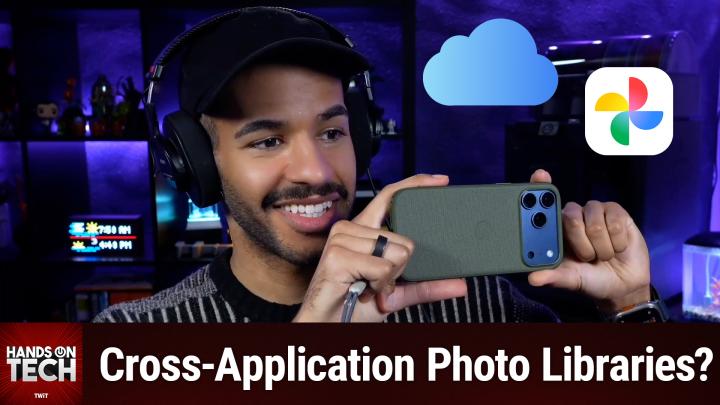
Coming up on Hands-On Tech, let's take a look at syncing photos between services. Stay tuned. Hello and welcome to Hands-On Tech. My name is Mikah Sargent and today we are taking a look at another question. That's right. This is the show where I take your tech questions and I answer them because that's my job. That's what I'm supposed to do.
Mikah Sargent [00:00:30]:
That's what the show's all about. So this week's question comes in from George, who writes, I have photos stored both in iCloud and in Google Photos. Is there a way to sync the two libraries together? Well, yes. Here's, here's the real truth of it all. As much as these companies are required in, in certain locales to provide the ability for you to take your data from them and move it to another place, which is called data portability, they aren't incentivized to work well with each other in such a way that you can kind of use them both interchangeably. And so this actually is a pretty common challenge. Like, this is something that I hear people talk about because they have either moved From Android to iOS, from iOS to Android, or they have a family member who's on Android and they're on iOS and they want to check. There are many, many reasons why this might be the case, George.
Mikah Sargent [00:01:42]:
And so it kind of depends on how hands on you want to get. So let's first talk about kind of the simple solution. And it's the solution that I use when it comes to having photos in Google Photos. And in Apple's iCloud Photos, you basically use your iPhone or your iPad as a bridge between these two services. Okay? And so with your iPhone, with your iPad, you first of all make sure that you have iCloud photos enabled, which I imagine you do. You know, you tap on your name in the banner, you choose iCloud, you choose photos, make sure that's toggled on. And then you, you get the Google Photos app and you install it on your device. You log in with your Google account, and then you make sure that backup and sync is turned on with it.
Mikah Sargent [00:02:31]:
When you have both of these going, the photos that you take with your phone will of course, if it's an iPhone, will of course appear in iCloud photos because you have that turned on and it's built in. And the basic, you know, it's the default for the system first party, but, but it will also let Google Photos sync. And here's what's great with the introduction of the latest version of iOS, Apple has now provided photo library apps like Google Photos, in this case, to be able to sync photos in the background in a new way that wasn't possible before. So before it was a way, the way that you had to do it was you had to keep the Google Photos app open. And let me be clear, this is something that a developer needs to implement to make possible. But the way that it's worked up to this point, you have to go in and open the Google Photos app every once in a while and kind of have it running actively in memory in order for it to sync your photos. But with the new way of things, an app that does the photo syncing can sort of tell the system, hey, let me stay awake here, I got stuff to do. And so in the background, it's able to keep your photos going and syncing with it.
Mikah Sargent [00:03:53]:
Now, with this backup and sync active on both services, your iCloud photos and your Google Photos, it's not quite the sync that I think you're after, the sync of it all, you are, in doing so, able to automatically upload your photos to both libraries. Right? But it's not a sync and merge of the libraries. So if you delete a photo in the iCloud photos app, that's not going to then sync over to the Google Photos app and delete it there as well. The photos apps have to be managed independently in many ways, and there are some edits that may also not kind of make their way between the two services. So bear in mind that if you're just looking for a way to make sure that you've got photos in both places, and with much of the kind of basic editing done, you know, the cropping and that kind of a thing, then this is a way to be able to have it work with both iCloud photos and that sync turned on and then Google Photos with backup and sync turned on. Now, if you're wanting a more complex but arguably kind of closer to what you're after solution, then you're going to need a third party desktop tool. And there are a couple of options that I will recommend here for you. Specifically, there's a third party option that I've recommended in the past to people with sort of network attached storage or some like home server option.
Mikah Sargent [00:05:48]:
And it's called image I M M I C H. I don't think that's the solution for you here. For you, the two solutions start with first, PhotoSync. PhotoSync S Y N C All one word available for iOS, it's for Android, it's for Mac, it's for Windows, it's for Linux, it's for everything. And it will transfer photos between iCloud, between Google Photos and other cloud services. So it works with a lot of cloud services. It'll do bulk trans of your existing libraries. So let's say you've sort of established your library in Google Photos up to this point and you want things in iCloud photos or vice versa, that's what this can do.
Mikah Sargent [00:06:26]:
And then it also does a great job of preserving the metadata across services. So sometimes doing a transfer, when you export photos from Google Photos, it might lose some of that metadata or it exports it in a way that another service can't read. Exactly. This is going to take care of all of that for you. Now understand that it is not free. Photosync does cost. In fact, the services that I'm mentioning have some price involved, but it makes sense because these services need to talk to the services that you're using and their servers. It's very involved.
Mikah Sargent [00:07:05]:
So prices around like four to six bucks, which is not bad. And these are one time purchases for the pro version of Photosync. But it will work across your various platforms. So you can open it up on your Windows PC, you can open it up on your Mac. If you have that, you can open it up on your iPhone, you can open all these places and use it as that sort of one library of truth that then the others are kind of based on. The other option is a previous sponsor on the network. That's myleo, my L I O which we've talked a lot about before. And it is again this central kind of hub that has your photo library.
Mikah Sargent [00:07:52]:
That is basically what it does is it is this, it's, it's the way to look at all the places where your photos are. So if you have them in iCloud, if you have them in Google Photos, if you have them in local storage, if you have them on a network attached server, if you, wherever they are, this thing's going to keep them organized, it's going to keep them synced. It does have that, I forgot, it does have that free tier. So there is a free tier. But if you're wanting to use some of these advanced features and be able to sort of pull from these multiple services, that is going to cost. So you'll want to look into that as well. So I think it's kind of a, kind of going down the line. Right.
Mikah Sargent [00:08:36]:
For you, George, start with using the iPhone or the iPad as a bridge and see if that's enough for you before you start to get into the more complex solution, which requires a lot more work on your part and also sort of a shift in thinking in a way as well. Because the big caveat here is that there's no tool currently that provides live automatic two way sync between iCloud and Google Photos. Again, they're not wanting to talk to each other like that. They don't want you to do that. That's not the point of these services. They want you to go, I choose you, I choose you. It's very much a Pokemon situation. Although I would argue Pokemon probably don't want to be chosen, if I'm being honest.
Mikah Sargent [00:09:25]:
Come out and fight for me. Anyway, that's a whole other show, not this show. But I think that when it comes to this, you need to understand that you're not going to get this sort of perfect sync between platforms and you almost just need to choose which one you want to go with. So if you have photos stored both in iCloud and in Google Photos, consider moving all of them from one over to the other and then from focusing on that one going forward or moving all of them from the other and going to the other one and focus on that one going forward. But George, do what I do, which is I have my Apple Photos library as my true one photo place. I use Google Photos as a secondary backup. Oh, it's technically a tertiary backup, but that's beside the point. So once I've got everything set up, I don't really care if things are syncing and, you know, whatever between it.
Mikah Sargent [00:10:36]:
I just want a place where my photos are stored, another place where my photos are stored. And then there's also something to be said for Google Photos search functionality where sometimes if I can't find something with Apple Photos, I'll head over to photos.google.com and I can find what I'm looking for. So there are reasons to use, you know, one or the other. But I think just get all of your photos into one, either through the method that I talked about, the simple one between iPhone and iPad, or if you really want to make sure everything's working exactly as you want, Photosync or Mylio are options to make sure that they all make their way to where they're supposed to go. And again, just bear in mind that a lot of times what's happening here is they're only talking to each other as much as they're required to. Hey, so we're in the final stretch of the 2026 audience survey. And I don't know if you know this, but every time one of you fills out the survey, it gets a couple of degrees warmer here. We could use it if you haven't filled it out.
Mikah Sargent [00:11:40]:
This is the moment the survey closes on January 31st. So head to twit.tv/survey26, because your feedback actually helps us improve every single one of our shows. Thanks so much for taking the time. Wait. Honestly, a few of you must have done it. It's getting a little warmer in here. Thank you. twit.tv/survey26.
Mikah Sargent [00:11:59]:
All right, as I've mentioned in the past, there are times where people write in with their feedback about previous episodes. You can email me Hot TV with your questions, but you can also email me with your answers to questions that have come up on the show before. Love to from how from people who've either solved this problem because they've had it themselves or came up with something while they were listening. Whatever it happens to be love, love, love to hear from you in that way. This week I have a couple of follow up moments from folks who were responding to a question we received last month where someone was asking sort of is there an Apple device that we wish Apple would make again? Or is. I think originally the question was like what was it? Should Apple bring back? You know what, I got to go back and look, John, because I want to make sure to get this right because I think what happened was it was a question that I turned into a bigger question for our listeners now that I'm thinking about it. And originally when I read this, I thought it was simply a question.
Mikah Sargent [00:13:19]:
So let's see. So the question that the listener wrote in with, oh yes, here it is. It was a question from Michael. Michael asked, do you think Apple will ever create what will be an updated ipod classic which could be updated to be a home ecosystem device? And then kind of talked about how they felt like if Apple did this it would just change everything and it would be a great business strategy for them. And so I talked a little bit about that. But then I also talked, I asked, hey, what would you love Apple to make again? Because I mentioned that I wanted to make an airport the Apple router. Again, Sandra wrote in, or excuse me, Sandra wrote in to say totes agree, would love a new Apple router. Second wish is that they would bring to market security cameras, including wireless options.
Mikah Sargent [00:14:16]:
I would definitely be on board with an Apple branded security camera because you know it's going to have great optics. By that I mean optical quality, I don't mean optics in the PR sense of the word. And that it's going to be privacy protecting. And those are the two things that I can oh, it'll look good. Those are the three things that I can definitely say about it. The rest of it I don't know, you know, the connectivity of it all, but certainly it would be something I would try and hope would be would be pretty great. The second response comes in from Rich, who also was answering the Apple wishes question and Rich says, I would love to see an updated Newton with all the modern conveniences but the old 2100 form factor. While there are ways to get some of the same experiences with current tech, it's not as magical as what Newton had.
Mikah Sargent [00:15:19]:
I still have every single model ever produced and even ran for a time, the emulator on a Samsung with pen. Ultimately, the current Newton offerings are too limited to be useful daily. In my opinion, either having Apple create a modern version or releasing the source code publicly could move this forward. You know, this isn't the first time where I've heard people say they would love to see the return of the Newton and given the prevalence at this point of the little devices that people have, little tablets that people have that they're writing with. Right. The Kindle Scribe and some of the other options that are out there. Is this the time for the return of the Newton? Perhaps it is. Thank you for your answers on that though.
Mikah Sargent [00:16:10]:
It's fun to hear from you as well. There are lots of jokey moments in the chat as answers, but also some good ones, including Wadfan, who would love it if Time Capsule made its return. 100% I would love Time Capsule to make its return. For people who don't know, it was a way to. It was a router, it was like an Apple Airport, but it was also a little hard drive where you could make sure your Mac stayed backed up. And so it was a time machine backup that was just connected to your router, the Airport Express. Also with the Airport Express we talked about how it had a little audio option. So it was kind of like wireless audio streaming before the modern means of doing so.
Mikah Sargent [00:17:01]:
So yeah, there are some fun things that used to exist there. In any case, thank you for your responses to that. If you have questions for me for future episodes of Hands-On Tech, you know how to get in touch hotel, you know, I need to have a little button. I'm gonna. I should make a little button and it just pops up on the screen. Maybe it makes a sound too. hot@twit.tv is how you get in touch and I'd love to hear from you. Thank you so much for tuning into this week's episode of Hands-On Tech.
Mikah Sargent [00:17:31]:
I'll be back next week. Oh, before actually, before I go, if you, if you come across at any point a wacky Gizmo Gadget, interesting Gizmo gadget, whatever it happens to be, send those to me as well. hot@twit.tv. In 2026, I want to do more video reviews on Hands-On Tech as well. I want to go hands on with the tech before it gets to you and I provide support to you and then we'll also keep peppering it in with the answers to your questions. So this show is always meant to be a hybrid of both and I kind of want to start things out with some fun. As much as I want it to be, you know, very useful devices. I also think it'll be fun to do some fun tech stuff.
Mikah Sargent [00:18:24]:
So yeah, be sure to get in touch hot@twit.tv with your links to that. Goodbye everybody. I'll catch you again next week. It.