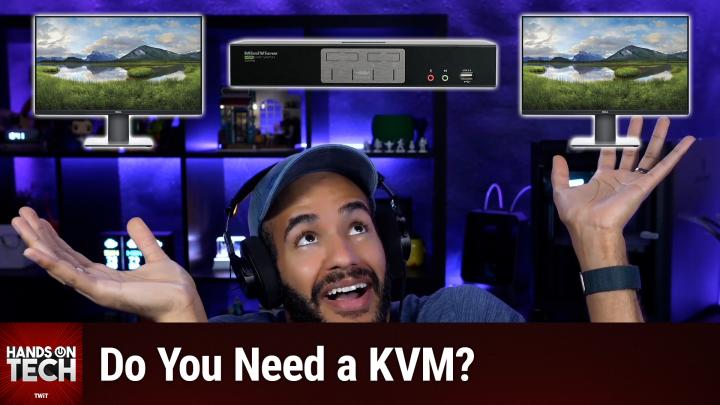
Hands-On Tech 231 Transcript
Please be advised this transcript is AI-generated and may not be word for word. Time codes refer to the approximate times in the ad-supported version of the show.
Mikah Sargent [00:00:00]:
Coming up on Hands-On Tech, let's take a look at using a KVM with two laptops. Stay tuned. Hello and welcome to Hands-On Tech. I am Micah Sargent, and today we are answering, I think, a very interesting tech question. That is my goal here, to take your tech questions and answer them on Hands-On Tech. This week's question comes in from Robert, who writes, I hope you're doing well. I am doing well, thank you.
Mikah Sargent [00:00:34]:
Robert, I have a quick question for you. Well, it didn't end up being a quick question, but thank you. I've got two MacBook Pros, one for work and one for personal use, and an Anker dock that helps me set up a triple monitor display along with my keyboard and mouse. Right now, switching between my laptops feels a bit like a NASCAR pit stop. I have to unplug my work computer from the dock, plug in my personal one, and then switch my Bluetooth keyboard and mouse. Do you think I could add a KVM switch to make this process easier? It would be awesome to switch devices with just the push of a button. Just like my speedy pit stops. Thanks a bunch.
Mikah Sargent [00:01:09]:
Looking forward to your thoughts. Well, Robert, I love this question and I've got a lot of thoughts about it. And it starts with doing a little conversation here about KVMs. Let's talk about kind of the pros and cons of using a KVM before we get into the nitty gritty details. First of all, pros, the switching between devices with just the press of a button is very nice. Not having to worry about running a cable this way. Running, oh, no, now I've got it tangled up. Now it's no, not having to worry about.
Mikah Sargent [00:01:44]:
That is fantastic for people who use KVMs. They are big proponents of KVMs. And talk about the magic of a KVM. I think something that people don't think a lot about but should think about or consider reduced wear on the ports. You know when you're constantly unplugging and plugging back in the USB C or Thunderbolt port over and over and over again between two devices and you know, you're kind of, oh, it's oh. And you slide it in and it kind of scrapes. I mean, yes, these things are built to be plugged and unplugged multiple times, but that doesn't mean that they don't take some wear over time. And a KVM eliminates that concern.
Mikah Sargent [00:02:27]:
The only wear that's happening is there are those buttons. Also. Love it. A cleaner desk setup. One set of cables running to the KVM, less cable clutter, more organized workspace and the consistency of your peripherals that your keyboard and your mouse are going to stay connected to the KVM so you don't have to do that annoying thing of Bluetooth pairing between the devices and switching back and forth between them. But here are some cons that you need to consider. You may have some bandwidth limitations. KVMs often struggle with high refresh rates, 4K plus resolutions, especially if you're working with multiple monitors.
Mikah Sargent [00:03:10]:
And since you're running triple displays, Lord have mercy, that's going to be crucial to bear in mind. You're going to probably your jaw's probably going to hit the ground when we get to my recommendations and I start talking about prices for what you are looking for. Specifically, there are some compatibility quirks and they're specific to macOS. And one of the reasons why I have mostly avoided KVMs in any of my previous workflows or work setups is because I hear about these nightmarish experiences of trying to switch between devices and just everything not working properly. Some KVM's just don't play nicely with macOS. Features like Wake from sleep or more importantly, specific display arrangements. Having it reset every single time could be very annoying. It's added complexity.
Mikah Sargent [00:04:04]:
So you are introducing another device that you know, maybe it fails, maybe it adds some issues that you weren't prepared for. So that's where you gotta spend more money for better quality. It really is a put your money where your mouth is situation. You get what you pay for situation. Good KVMs that support multiple 4k displays aren't cheap and you're gonna find out that that's the case at least $200 often much more. And lower quality KVMs can introduce input lag or even display artifacts in I was looking at specific for macOS. What are some of the issues that people see? And again, what I'm reading and understanding is that spending more money is going to reduce the chance of this happening, but does not completely eliminate the chance of this happening. So it's just something to bear in mind.
Mikah Sargent [00:05:08]:
So let's talk about what you can do with your triple monitor setup between your two MacBooks. My first suggestion coming in at a cool $750 is the Level 1 TX KVM. This features DisplayPort 1.4, supports up to 4K at 144Hz or 8K at 30Hz, works very well with MacBooks from what I was able to tell. And it is a power user device at $750. It better be a power user device so you can have this multi monitor setup and two PCs or two. Well I guess technically a Mac, its own version of a PC. They are two personal computers connected to it, again $750, so a little bit expensive. And bear in mind that if you're doing this, you're going to want to switch in any case from Bluetooth peripherals to either a wireless mouse and keyboard that has a USB antenna as opposed to or USB interface I guess, as opposed to something that plugs in.
Mikah Sargent [00:06:32]:
So if you want to keep it wireless, not having to plug in your mouse directly and your keyboard directly, the way to keep it wireless is something like what Logitech offers in many of its models, which is that little USB that you plug into the side of the computer to provide that wireless functionality. The next suggestion I have for you is the IOGear GCS 1944. This is a dual monitor support so you will have to direct connect the third. So bear that in mind that it's not going to provide. But see I'm trying to. This is the hard part, trying to find something that works well with the Mac that already is very picky, especially when it comes to displays that doesn't have some of these issues that we've seen before and that provides as many monitors as possible without costing $2 trillion. So this one is $300. The IOGear GCS 1944.
Mikah Sargent [00:07:38]:
And again, bear in mind dual monitor support, not triple monitor support, but may be what you're looking for for everything else. The last one, I thought it would be interesting to task AI with its research functionality. That's that thing where it will go out and look at what the Internet says and pull it all together and so it reads, you know, hundreds of websites which I don't have the time to do and compile all of that information together to try to figure out a good option for whatever thing you pose it with. And so I said I'm looking for the best macOS compatible KVM that provides for this situation. And I was able to find something that is a dual laptop specific KVM. This comes from Startech.com that's the name of the brand. It's on Amazon. But the Startech.com dual laptop USB C KVM docking station that is specific to your needs for this dual laptop situation.
Mikah Sargent [00:08:58]:
It uses DisplayPort technology as opposed to HDMI. Almost all of these are going to have DisplayPort instead of HDMI because of the way the DisplayPort works and it allows for better multi monitor support and comes in at about $300. Now you'll notice that there is a what appears at first to be a triple monitor option. That triple monitor option though is not a KVM but instead is a docking solution. So don't get confused there. This is the one that is a KVM. So again $300 to have this functionality, but it again is just a dual monitor solution, not a triple monitor solution. So 300 to $750 for some KVM options.
Mikah Sargent [00:09:57]:
Here's what I would like to suggest instead. Instead of going the KVM route, have you considered using a USB switch? Because what you could do is keep your existing dock set up with this wonderful anchor dock and use that USB switch which has two the specific one that I have shared in the show notes is from Cable Matters. Cable Matters is a great company and since you're just plugging in your laptop via the one port, plug one laptop into one of this USB C switches, plug the other laptop into the other USB C switch and then plug the other end of the switch into the Anker dock and then use this to switch between the two docking between the two docked laptops. The connectivity would be there. So that might be a great way to go about having both of these laptops work. And the good news is this thing's only it's very small on my screen so I can't this thing is only 60 bucks versus the much more expensive KVMs that you would have otherwise. What you would do is on your Anker dock. Again, you're going to need to if you want to do this and not worry about the Bluetooth shuffle between laptops.
Mikah Sargent [00:11:36]:
You need to have some sort of peripherals that are either wired completely or have that little antenna that it can use to pick up on your you know, your movements from your keyboard and your mouse. That's what I recommend using a USB dongle or wired if you have to. I don't I'm not a big fan of wired but but a USB dongle plugged into the dock and then just use this USB C switch to switch between the two laptops. I think that's a at the very least give it a shot at what did I say $60. That's a much easier test investment to make that can always be returned if it doesn't work for you before you go for these much more expensive options that have yes, a lot more functionality and are purpose built for for this. But I think that this USB C switch might be your answer given that you've already got this expensive dock that provides the functionality that you were looking for otherwise. So yeah, let's hear how that goes. I would love to hear how that goes for you.
Mikah Sargent [00:12:53]:
Robert. Thank you for writing in with this question. It was really fun to not only because I've avoided KVM's like the plague because of the experiences that I've heard from people having on macOS. So it was fun to have to dig back into this in the first place, but then also tasking the deep research functionality to see what it came up with. And I was pleased with the results given the fantastic reviews that StarTech's, KVM's and docking stations have received in the past. The I'll be honest that the name kind of made me go I don't know about this, but it's great. It seems to be a really good option. So that is something to look into.
Mikah Sargent [00:13:42]:
And again, I can't wait to hear how this works out for you and if you have figured out an option for you. So please let me know. hot@twit.tv is how you get in touch Hey, I would love, love, love if you joined us in a special place. The special place is Club TWiT. twit.tv/clubtwit is where you go to sign up when you join our club. We've got monthly and yearly plans available to you again at that special link twitter tv club twit. You can join for $10 per month or $120 per year. And when you do, you get a lot of great stuff.
Mikah Sargent [00:14:27]:
You get every single one of our shows, including this one, ad free. It's just the content. None of the ads. In fact, you get your special little these feeds are unique to you. They say your name in them even. And so when you go and you get these free or these feeds that are ad free, you are able to, you know, get them right there in your podcast player as soon as they're available. You also gain access to our members only video feeds. So that means our club Twitch shows like Hands On Apple, the other show that I do, Hands-On Tech, which is this show, Hands on Windows home theater geeks, iOS today, this week in Space and the untitled Linux show plus access to our TWiT+ bonus feeds which include behind the scenes stuff, My Crafting Corner, Stacy's Book Club, the AI User Group, and access to the members only Discord Server which is a fun place to go to chat with your fellow Club Twit members and also those of us here at TWiT.
Mikah Sargent [00:15:25]:
Lots of conversation today in the club Twit Discord, which we love. And I'm going to be running a D and D campaign or an adventure, I shouldn't say campaign an adventure soon with contributors and hosts for our club members. So if you like Dungeons and Dragons you gotta join the club. It would be great to have you there. And by the way, it does start with a 14 day free trial so you can check it out see if it's for you. I think you'll end up sticking around Twit TV Club Twit. That's how you get into the club and I am looking forward to saying hello to you there. Thank you so much for tuning in to this week's episode of Hands-On Tech.
Mikah Sargent [00:16:09]:
I'll be back next month with more, so be sure to write us hot@twit.tv. Get in touch, let us know the questions you have. And of course love, love love follow up as well, so be sure to write in I did receive some follow up that I'll have to talk about next month. A lot of people apparently want to have their emails read to them while they're driving and so I received quite a bit of follow up about different ways that people are making it possible for them to read email or to hear their emails read to them while they're driving. Based on a question we received last month about that. Thanks everybody for tuning in. Catch you again in September. Bye bye.
Leo Laporte [00:16:56]:
No matter how much spare time you have, TWiT.TV has the perfect tech news format for your schedule. Stay up to date with everything happening in tech and get tech news your way with TWiT.TV. Start your week with this Week in Tech for an in depth, comprehensive dive into the top stories every week and for a midweek boost, Tech News Weekly brings you concise, quick updates with the journalists breaking the news. Whether you need just the nuts and bolts or want the full analysis, stay informed with twit.tv's perfect pairing of tech news programs.