Hands-On Apple 233 Transcript
Please be advised that this transcript is AI-generated and may not be word-for-word. Time codes refer to the approximate times in the ad-free version of the show.
Mikah Sargent [00:00:00]:
Quick question. How many times a day do you look at your Apple Watch? Probably dozens right now. Second question, when is the last time you actually customized what's on that screen? Honestly, for a lot of people, the answer is never. That's whatever it was when I set it up. And that's a shame, because this is one of the most viewed screens in all of Apple's ecosystem, viewed throughout the day for anyone with an Apple Watch. And it's endlessly customizable. So today we're going to fix that default face problem by showing you how to build faces that actually surface the stuff you care about. Set up a little rotation so the right face is there when you need it.
Mikah Sargent [00:00:37]:
Stay tuned for this episode of Hands on Apple podcasts you love from people you trust. This is twit. Welcome to Hands on Apple. I am Maika Sargent and today we are taking a look at Apple Watch face customization. Now, there are a few ways to go about customizing your Apple Watch face. You can do so on the watch itself, but honestly, I think the easiest way to go about customizing your Apple Watch in the Watch app for the Apple Watch. So on your iPhone, open that watch app, you can tap that face gallery button at the bottom of the screen and bo scroll through every available face organized by category. You get health and fitness, you get photos.
Mikah Sargent [00:01:36]:
You get the tool faces, the data rich faces. There are faces that are specifically designed for the Apple Watch that you have so many different options. Dress. If you're trying to be playful, let's tap on that. And then at any point, if you want one of these faces, you can tap get and that face will be installed on your Apple Watch. From there, all I have to do to use one of these faces is tap on it and then I can choose add to watch. It's as simple as that to do the customizations. Now, why would we want to do it here? Well, the bigger screen on your iPhone makes it much easier to see what you're doing, especially when you're assigning complications.
Mikah Sargent [00:02:19]:
So for anything beyond a quick tweak, you want to reach for the phone, unless you don't have one, in which case you've got to do it there on the watch. And another thing though, of note, not every single face works on every watch. Some are actually exclusive. So Waypoint is one that runs on the Apple Watch Ultra. So if you don't have the Ultra, you aren't able to use Waypoint. And there are of course, the Hermes faces that only work on Hermes watches. So if you See a face in like a Apple Watch review video or something like that. Chances are the reason why you don't have access to it is because you don't have the right watch model for it.
Mikah Sargent [00:03:00]:
So let's kind of dig in next to what you can do when you're switching faces and a little quick tip on some of the settings therein. But we are going to talk a little bit about switching watch faces. Now here's something that's interesting. Currently by default to switch a face when you're on the Apple Watch and I'm going to show you what's on my Apple Watch by tapping the side button three times and choosing Apple Watch Mirroring. This lets me bring up my Apple Watch on my phone and in doing so I will be able to show you what is there. You can also enable this feature on your phone using the accessibility features. And what's great about it is it works the same or it works much the same way as the actual Apple Watch itself. And so you are able to use use it there.
Mikah Sargent [00:03:57]:
So there's something that I want to cover because there used to be a different default solution that has changed over time. It used to be the case that in order to switch your watch face, what you would do is you could just swipe left and right on the watch face and it would let you choose between them. So for those of you who've used Apple Watches for a long time, you probably remember that this unfortunately has changed to where in order to switch your watch face. And I'm showing you my Apple Watch here on the phone by pressing the side button three times to activate the accessibility controls and choosing Apple Watch Mirroring, you can set this up as well. And the cool thing about it is for the most part, the interactions with the on screen version of your watch are the same as the version on your wrist. So to change watch faces, you tap and hold on the face and then up pops a view that lets you swipe between the different faces. Now, you'll notice that because we're doing it over airplane mirroring, the interactions are a little slower, but it lets you make changes, reorganize them as it's showing there and I can then swipe on my Apple Watch itself to show the different versions. So we'll switch that back to the main one.
Mikah Sargent [00:05:16]:
If you like it that way. All you need to do is on your watch you go into settings, you choose clock and then you enable swipe to switch watch face. So if I click that side button, I scroll down, I can Choose Settings here, scrolling through until we get to Settings. There we go. We'll tap on that Find Clock on this screen. And then within clock, you'll see swipe to switch watch face. And that is because mine is toggled on, because I do like to use that method for switching between watch faces, but at any time you can turn that off if you don't like that. The order that your faces appear when you swipe is the order that they are in your collection.
Mikah Sargent [00:06:23]:
So in the Watch app, if you want to change those, then you can go into your faces and choose Edit and change them however you need to. You can also, as you saw earlier, press and hold while you're in that watch face view to move and drag them between those faces. Now, moving along, we have to talk about complications. Complications are those little widgets that you get that you can add to your face to show information at a glance. And this is where a face goes, I think, from decorative to useful. Different faces are going to support a different number of complications, maybe no complications, all the way up to eight complications, depending on the design. Faces like Modular and Infograph have quite a bit, whereas those minimalist faces are going to have one or two, if that. And then complications are going to live in specific slots.
Mikah Sargent [00:07:25]:
They live in the corner of the watch face, which we'll switch back to this view. So you can see that they can, whoops, live in the corner of the watch face. Let me actually do our Apple Watch mirroring just so you can see how mine is set up here with the different activities in all of the corners of the screen. And here's the idea. This is, this is, I think, an important tip. The temptation, as was my temptation, is to fill every single nook and cranny with a complication. But a face with eight complications can be quite a bit, as you can see, you don't necessarily have to fill all of them up. You can choose which to fill.
Mikah Sargent [00:08:15]:
You can say, you know, what do I want to know? Without having to open an app and use that as the means to determine what you actually want. So maybe it's weather, maybe it's the date, maybe it's your next calendar event. Maybe you want to know the battery life. I never recommend having that one, but the battery life, pick three or four that actually matter and then leave the rest empty. That negative space makes it easier to see what's actually there and what's important and lets you get rid of, you know, any of the rest. I think complications that can be worth considering. Weather the Current temperature conditions, perhaps your next calendar event activity rings, a timer, battery percentage, perhaps even a shortcut to a frequently used app. So you can see that I have the just press record app on here and third party apps can offer complications too.
Mikah Sargent [00:09:05]:
That middle complication on my on my current modular ultra face is actually a complication from Fantastical, the calendar app to show me my information there. So it's really nice to be able to kind of decide on what works for you depending on the sort of mood that you're in. So if I swipe between these different faces, I've got a photos face, I've got an activity face, I have a really nice sort of low, low info face. I can quickly see the digital time, the analog time and the date and just leave it at that. And then one kind of fun face with no other complications on it, just a visual performance. I like the the faces, the sort of wide breadth of options that I've given myself here and wide breadth of interests. And depending on what you might have, you could have a work face and a fitness face. You could also have a personal or evening face and then set up that collection and swipe between them as the day goes on.
Mikah Sargent [00:10:17]:
It's very easy to then switch between these different versions of, you know, how your day goes. And what's great is you can actually go forth to make it so that those faces are synced to your focus modes, which we've talked about in previous episodes. So to learn more about that, head to my hands on Apple coverage and you can check out those other options. Moving along here, the last thing that I want to mention is that after you've built a face, you can see that I've set the bezel, the style, what happens during night mode and whether it changes, as well as my different complications. Once I've got that set, I can choose set as current watch face to send it essentially an update to my Apple watch, or I can remove it if I don't want it. But the best part is Apple added the ability to share a watch face. So I can tap that in the top right corner and share that out with someone else. Very easy to do.
Mikah Sargent [00:11:19]:
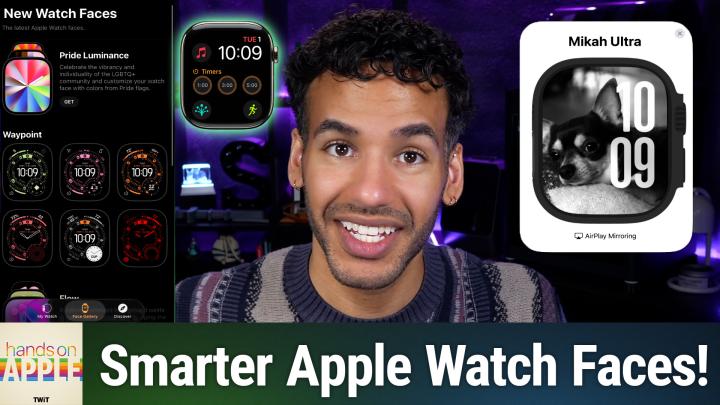
So if you've built a face that you love, or if a friend has built a face they love, or you have built a face for a friend, or you your friend sees the face and wants it for them, they can do that as well and you can easily share it with them so they're able to open it on their watch. I should also mention that in WatchOS 26 we saw the introduction of new faces. They're kind of built around Apple's liquid glass design. So Flow, and I think it's called Exacto Graph is another new face. And so these just look fun and can provide a little bit more detail. So in the case here we'll switch over. In the case of X Actograph, this watch face separates hours, minutes and seconds onto separate dials so you can easily keep track of that. And Flow, which is a colorful abstract background that responds to movement.
Mikah Sargent [00:12:14]:
So you get Liquid Glass and then the Pride Luminance face this year is also in this section. I may have to try out that example Exacto Graph for sure. It is a really nice precise face. Last but not least, I want to give you a little bit of homework before our next episode. If you'd like to see how things are going in your understanding of watch faces, well open the face gallery in the Watch app and browse it. You might find a face you didn't know existed. Build at least two faces for me, one productivity focused one, one personal and then put them, you know, put real thought into how they are created. What complications you use, three or four useful ones you don't need to do.
Mikah Sargent [00:13:06]:
Eight complications you can if you want, then enable or disable that swipe to switch watch face setting because it'll either work the way you want it or not work the way you want it and accidentally get switches that maybe you didn't like. And of course don't forget to turn the digital crown on your face because when you swipe up you'll be able to access Smart Stack which lets you see quick information without needing to sort of add complications therein. Your watch face the most glanced at screen you own? Well, maybe. I certainly look at mine a lot throughout the day, even when I'm not looking at my phone. So it's worth a few minutes to make it actually work for you. Build a small rotation, be disciplined about complications, lean on your smart stack and your complicated choices for that overflow. Switch faces as your day changes. It's a small bit of set setup that pays off every single time you raise your wrist.
Mikah Sargent [00:14:01]:
Give it a week and then you'll be wondering why you sat on the default face for so long. Thanks so much for tuning in to this week's episode of Hands on Apple. I'll catch you again next week for another episode. Bye bye.