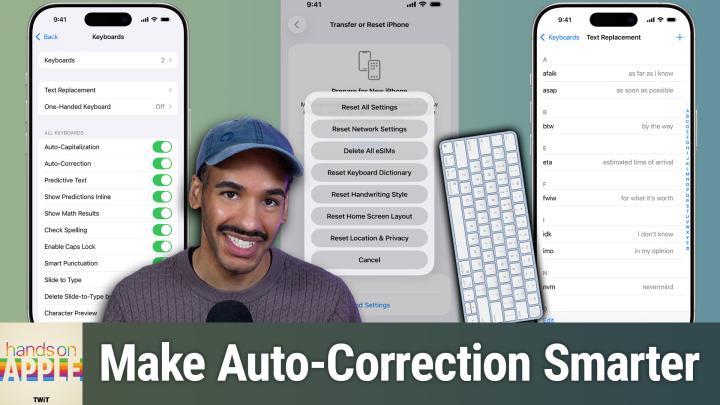
Hands-On Apple 225 transcript
Please be advised that this transcript is AI-generated and may not be word-for-word. Time codes refer to the approximate times in the ad-free version of the show.
Mikah Sargent [00:00:00]:
Coming up on Hands on Apple. It's time to fix autocorrect. Finally, stay tuned, podcasts you love from people you trust. This is Twit. Hello and welcome to Hands on Apple. I am Micah Sargent and today we are taking a look at a very important feature. We've all been there. You type a perfectly normal word and your iPhone decides you meant something else entirely.
Mikah Sargent [00:00:38]:
So you correct it and then it corrects you back, and then you correct it again harder this time, like that's going to help. And then autocorrect has decided that it is going to correct you again. Autocorrect has been on our devices for almost two decades and it still feels like a coin flip sometimes. But here's the thing, there's actually a lot you can do to make it better behave and there's a built in feature sitting right next to it that most people completely ignore. So let's fix both of those today. So first and foremost we got to talk about how autocorrect actually works. You know, before we get into how to improve it, what we need to do to fix it, it helps to understand kind of what's going on under the hood. So what do we need to know about Autocorrect? First and foremost, autocorrect on your iPhone and your iPad, as far as we know, uses a combination of a built in dictionary plus your personal typing history.
Mikah Sargent [00:01:34]:
And as of iOS 17, it uses a transformer language model that runs on device. Now that last part is actually a pretty big deal. I remember when it was announced with iOS17 and people were pretty excited. Apple moved from a simpler predictive model to something that's a little bit closer to how these large language models have that we that we use today. Which is why autocorrect in iOS 17 and later, noticeably better for some anyway at understanding what you meant based on the full sentence, not just the individual words. So instead of just kind of going what's this word? And what comes after, there's a little more context involved. Right now on the Mac, autocorrect does exist, but it does behave a little bit differently depending on the app. So it's most aggressive, most active in apps that use Apple's native text system.
Mikah Sargent [00:02:22]:
So that's going to be Notes, Mail Messages, TextEdit and other apps that go ahead and use the default, but it's going to be less present or perhaps even absent in third party apps that handle their own text input. So is Autocorrect a learning system? Yeah, we talked about that. Your device keeps a local dictionary of the words that you type frequently. And that's why Autocorrect does get better over time. It starts to learn your vocabulary that includes names, includes slang abbreviations that you use regularly, and kind of holds onto those. Now, this is important. When you reject a correction by tapping on that little X that's in that suggestion bubble that pops, pops up or retyping the word, you're actually training it. So one rejection is a bit of a signal.
Mikah Sargent [00:03:07]:
But if you keep hitting the X and rejecting, rejecting, rejecting, you are saying, this is a big signal. Hey, you got to stop doing this. So one rejection doesn't necessarily mean that it's going to change things, but if you keep telling it no, it's wrong, eventually it's going to stop correcting that word. Now, this learning, and I think this is an important aspect of this, it is per device. It does live locally, so it's not syncing across your devices via icloud. There's another feature that does, and we'll talk about that soon. But that's why Autocorrect might behave differently on your iPhone than it does on your iPad. So what can we do to actually make Autocorrect smarter? Well, first and foremost, the, the most important thing that you can do is when Autocorrect suggests something wrong.
Mikah Sargent [00:03:57]:
Don't just backspace and retype what you're doing. Tap that little X on the prediction bubble to actually tell autocorrect no, you're wrong about this suggestion. This will send a clearer signal to the system. And it's just then just kind of going back and overwriting the word. Right? A lot of people, it's been my experience, don't really realize that that little X is doing something more meaningful than, than deleting and retyping. Also, iOS 17 and later has these gray inline predictions that you can accept by tapping the spacebar. So as you're typing, you'll see little bits of text that show up and it will kind of suggest what it wants to you. You hit spacebar to lock it in.
Mikah Sargent [00:04:36]:
These are context aware. Sometimes they're good. So if you've been ignoring them, if you found them distracting, perhaps you give them a shot. Try it out, see if it's helpful, and you may even find yourself typing significantly less. Now, now, let's talk about what we do. If Autocorrect isn't working for you and it's learned a bunch of garbage, perhaps it's learned misspellings, a bunch of inside jokes that you regret or that have changed over Time typos that became real words, you can reset your keyboard's dictionary. So the way that you do that we'll head over to iOS to take a look is we go into Settings, we tap on General, we scroll all the way down to transfer or reset iPhone, we choose Reset. And then in this screen we choose Reset Keyboard Dictionary.
Mikah Sargent [00:05:26]:
Now, it's important to note that this will completely wipe your personal learned words. You will start fresh and it won't affect what we're going to talk about soon, which are text replacements. But this is an all or nothing choice. You can't just selectively unlearn a single word or kind of go in and look at what the dictionary has learned. No, no, no, no, no. Once it's done, it's done. It's a whole dictionary or nothing. And of course that can be kind of annoying to have to deal with.
Mikah Sargent [00:05:54]:
Want to do is head into Settings, General and keyboard, because here in this page there are a lot of toggles that you might want to review. First and foremost is Character preview. So what happens is as you're typing, a little character will pop up above the key showing you that you've that you're what you're typing. Haptic feedback of course provides that little BZ as you're typing to sort of give you that feeling, oh, I am typing. And then sound, if you have have the sound on your phone turned on. But let's talk about all of the keyboards. Auto capitalization, as you might imagine, is going to capitalize words based on sentence rules. Autocorrection, if you have that turned off, autocorrection is not going to autocorrect.
Mikah Sargent [00:06:43]:
Predictive text and show predictions in line are two features that are kind of tied together. Predictive text is that little gray bar above any sentence that you're typing. That or rather above the keyboard that has some, some suggestions some options for you for what you might type next. Show predictions in line. That's that feature where you hit spacebar to select a word. I have it turned off. I like having predictive text, but I don't like it to show up as I'm typing. So that's just my choice there.
Mikah Sargent [00:07:12]:
Show math results. That is if you type in different math equations, you're all you are able to see the results there. Check spelling will check your spelling along the way and underline misspelled words. Enable caps lock lets you double tap the shift key to all caps. Your keyboard Smart punctuation takes what are basically the inch and foot markers and some others and turns them into the actual punctuation. So for the case of again, inch and foot markers, it will turn those into real typographical quotes and apostrophes. The slide to type option lets you move your thumb along the keyboard or whatever finger you want to use to slide to type. Otherwise I'm going to swipe to type delete.
Mikah Sargent [00:08:04]:
Slide to type by word lets you remove word by word by word while you have slide to type on. And then one of my favorites, the dot shortcut or the period shortcut. This says if you double tap the space bar, it will add a period to the. Well actually it inserts a period followed by a space. So I type and then I hit space space and then it puts a period at the end of the sentence. So I like to use that. Dictation, of course lets you use dictation. We've had an episode on that, so we won't be talking about that today.
Mikah Sargent [00:08:40]:
And auto punctuation says that while dictation is enabled, it will automatically add punctuation. I have found it annoying and therefore I go in and change it to not do that punctuation automatically because I don't want it to do it. And then lastly, whether you are able to use emoji as stickers, if you can tap and drag an emoji and drop it somewhere like it's a sticker on the Mac, you need to go into system settings, keyboard, input sources, and then edit. That is where you will find the autocorrect spelling and capitalization options. Honestly, they are kind of buried a couple layers deep. Now we need to talk about limitations. Right? So autocorrect, honestly, it has gotten better, but there are still some things it just doesn't handle well. First and foremost, if you do bilingual or multilingual typing.
Mikah Sargent [00:09:38]:
So if you're typing in more than one language, well, autocorrect can get a little confused, especially when switching mid conversation. So adding multiple keyboards is actually going to help. But just be aware that you have to manually switch between them by tapping the globe icon. And it doesn't always detect those language switches its own. So there we'll go into the settings, we'll go into general, we'll tap on keyboard and then in keyboards you can see I have the English US keyboard, I have the emoji keyboard and I have the English text expander keyboard. If I choose add new keyboard, I can then go in and find other languages. So perhaps I speak. Let's go with UK English.
Mikah Sargent [00:10:20]:
That's an option here that I could change it to and that will help. What about with names, with jargon, with niche vocabulary? Well, Autocorrect really doesn't have great answers for names it doesn't know. Sometimes technical terminology can confuse it. Brand names with unusual capitalization. Jargon, as you type will learn what you are typing, but it does take time, it takes training. And unless you use something called text replacement, which we're going to talk about soon, there's also no way to manually add words to the dictionary. And honestly, this is one of the things that I have a complaint about the most, is that you can't just highlight a word and say, add that to my dictionary like you can in many word processing apps. You can't tell Autocorrect this is a real word, stop changing it.
Mikah Sargent [00:11:11]:
And so your only options are just to keep rejecting the correction until it gives up or create a text replacement, which again, we'll talk about in a minute. So honestly, it's something I wish that Apple would address. And then there's also no way to selectively unteach a word. So if you accidentally taught Autocorrect a misspelling, you have to do that keyboard dictionary reset, because going in and removing that single learned word is not possible. Frustrating. So what do we do outside of continue the process over and over again until it finally clicks in? You might want to use text replacement. Now, we've talked about text replacement before, but just as a reminder, it is a feature that I think is a little bit underrated, and it's one that you may not realize is there in order to use text replacements, you're basically setting up little shortcuts of words or phrases that you want to type. So let's take a look at my text replacement screen again.
Mikah Sargent [00:12:10]:
We're in the keyboards menu. We'll choose text replacement and you can see that they are sorted alphabetically. On the left is the word or phrase that I type in. On the right is what Autocorrect will change it to based on that word or phrase. So AAPL will do. The Apple symbol HHA for me turns into Chinese characters that also mean haha. ILY turns into I love you. If I type in K Kirby, it does the Kirby dance.
Mikah Sargent [00:12:46]:
OMW is on almost everybody's phone. By default. It means on my way. If I were to type in the word ph, then it will change it to fuh properly spelled instead of just P H O on the keyboard. Pokemon. I used to have to type that all the time with the work that I did. And so changing it from Pokemon to the actual properly accented Pokemon was something as well. And then you'll notice that on my screen, there's a lowercase sergeant followed by a lowercase sergeant.
Mikah Sargent [00:13:17]:
This is the tip. If you have something that keeps changing by way of autocorrect that you don't want it to change, you can add a text replacement. So I found that every time I would type in sergeant with a lowercase s, it always wanted to autocorrect it to an uppercase s because it knows that's my first name and therefore, excuse me, my last name, and therefore wanted it to be capitalized and thought it should be. So I said if I type in sargent with a lowercase s, that is what it should be. So if you have a text reply, if you have a word or a phrase that you wish would just stay how it is, hit the plus sign, type in that phrase. Let's say the phrase is, I don't know, Crayola, but you do it with a lowercase, even though it's a brand and you got sick of autocorrect changing it to uppercase Crayola. Now, by telling it if I type in lowercase Crayola, make sure that lowercase Crayola is what shows up. Don't try to suggest something else.
Mikah Sargent [00:14:23]:
This is all I want. And here's the cool thing. These text replacements actually sync across all of your devices. So you set it up on your iPhone, it's going to appear on your Mac and on your iPad. This is all one of the few things that has to do with the keyboard that does sync. And so it's quite nice that we do have that available to us. Let's talk about some things that you could set up in this. Something that I like to do is have my email address set up.
Mikah Sargent [00:14:50]:
So I type in because of twit, and that will automatically autocorrect to my Twit email. I type in, that turns into my Gmail, my personal Gmail, and then I have a few others that are set up as well. I think me turns into my Apple address. My physical address is semicolon add. So anytime someone asks me for my address, I don't have to type it all the way out. I just type in semicolon add and it autocorrects or suggests my address as an option. I also have one, as you saw for Kirby, I've got the Shrugie emoticon, which is S Shrug. And you can also set up some boilerplate text.
Mikah Sargent [00:15:37]:
Of course, that's not going to be as good you sometimes don't have the option to put as much text into the phrase part, which is where the text replacement takes place. And so it's not going to be, you know, multiple paragraphs, but you can do quite a bit. Understand that. Text replacement, plain text only, no rich text, no images, anything like that. It's text and text. There is a character limit, as I mentioned on that phrase field, so you can't do huge paragraphs. That's not going to work. And honestly, with no ability to kind of like organize your entries, if you get a big list, you do kind of gotta scroll through or use the search icon or the search feature to find what you're looking for.
Mikah Sargent [00:16:27]:
And it's also important to understand that you may want to only choose a few text replacements. Having like hundreds of them and not knowing, remembering that they're there and that you can use them may be not worth it. And of course, having to go through and delete those entries one at a time. You'll note that there's no if I hit the edit icon in the top edit button in the top right corner, it doesn't give me the ability to select multiple, but instead makes me delete them one at a time. So let's kind of wrap things up here first and foremost with your actionable steps to help to improve on Autocorrect. Go into Settings, General Keyboard. Review those toggles. Make sure that autocorrect and predictive text and inline predictions are all set to how you want them to be.
Mikah Sargent [00:17:21]:
Start intentionally and regularly tapping that X button to reject bad corrections instead of just overriding by deleting and writing what you want. Try setting up maybe five text replacements right now. You could do your email address, your home address, your phone number, and a couple of names or phrases that Autocorrect keeps getting wrong. I think you'll be surprised when you do and you go, oh, this option was here for me all along. I'm going to use this all the time. And if autocorrect has been driving you up the wall for a while now, you can consider that nuclear option of resetting the keyboard dictionary and starting fresh. And don't forget to give those inline predictions a real chance if you've been dismissing them because they have improved. They absolutely have.
Mikah Sargent [00:18:02]:
That said, autocorrect is not perfect, and Apple hasn't given us some of those basic controls that I frankly would like us to have, like adding a word to the dictionary or removing a single learned word. But between the improved language model in iOS 17 and I imagine will continue to improve. Intentional correction rejection, Solid set of text replacements. Honestly, you can get your keyboard working with you instead of against you, so it just takes a few minutes of setup. A little bit of a habit change. Once you do, I've certainly found that it's worth it. Thank you so much for tuning in to this week's episode of Hands on Apple. I have been and will continue to be Micah Sargent.
Mikah Sargent [00:18:45]:
You can email me micahwit TV to get in touch and I will see you again next week. Bye Bye.