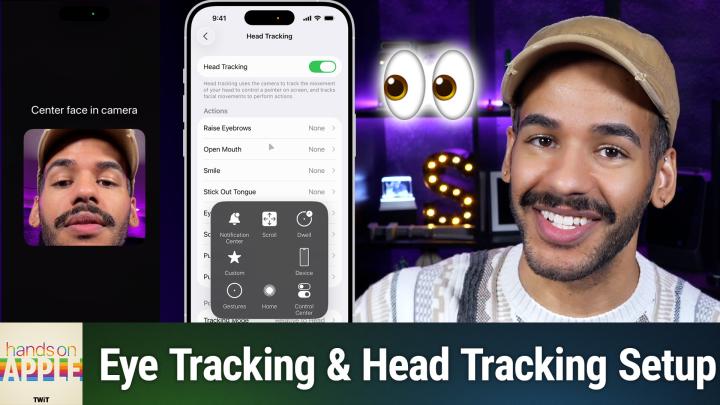
Hands-On Apple 208 transcript
Please be advised this transcript is AI-generated and may not be word for word. Time codes refer to the approximate times in the ad-supported version of the show.
Mikah Sargent [00:00:00]:
Coming up on Hands on Apple, let's take a look at eye tracking control on your iOS device. Stay tuned. Podcasts you love from people you trust. This is Twit. Hello and welcome. Or welcome back to Hands on Apple. I am Micah Sargent, and today we're taking a look at a set of features that will allow you to use your eye movement to actually control your iPhone. Now, this is a feature that, you know, many people probably don't need to use, but if for any reason you find yourself needing to use it or if you want to, well, this is how you go about setting it up.
Mikah Sargent [00:00:49]:
Now, this is a feature that I recently saw. I was scrolling through, I want to say Instagram, and I saw someone talking about setting this up and sort of pushing it as this feature that, you know, oh, cool, new way to do this or do that. As I always talk about accessibility features, I think it's important to remember that these aren't hidden features that are tucked away and for you to find for excitement, but instead are features that can empower you and other users to make use of their devices in ways that they may not otherwise be able to. So let's head over to iOS and take a look. Now, I have a special setup here. I'm going to talk about that in a moment because you actually do need to have your iPhone within one foot here. Let me adjust things a little bit within one foot of your face and on a stable surface. So let me get the iPhone rolling here and we'll switch over.
Mikah Sargent [00:01:46]:
Now, in order to access eye tracking, we'll go into the Settings app, we'll scroll down to accessibility, and we will scroll down to physical and motor. Within this section, you can see that there's voice control, eye tracking, and head tracking. And to today we're taking a look at eye tracking. Now with this, it says eye tracking allows you to control your device using just your eyes. IPhone should be on a stable surface about one foot away from your face. And that is exactly what we have. So with this, before we actually do the setup for this, I just want to kind of talk about the features here. The first part is smoothing.
Mikah Sargent [00:02:24]:
And so this lets you change kind of how the pointer that you have on the screen based on your eye movement will move across the screen. More smoothing means it kind of glides along. Less smoothing means it's more directly tracked to how your eyes are moving. Snap to item will, of course, kind of move that pointer to nearby items. Zoom on keyboard keys will let you kind of more easily see the different keyboard Keys as you're typing something out. Auto hide will, as you imagine, kind of hide things out of the way as needed. Dwell control is a way for you to kind of perform specific actions on parts of the screen by keeping your attention there. So your dwell, essentially you're dwelling on that area and so then you can kind of do the action and then show face.
Mikah Sargent [00:03:14]:
Guidance is just helpful in determining what you need to do to properly make eye tracking work. So let's open up eye tracking by turning it on. We'll toggle it on. And the first part of the process is to actually complete the training. So this says move away from the camera. So I am. There we go moving my face down a little bit. And now it says follow the dot with your eyes as it moves around the screen.
Mikah Sargent [00:03:44]:
So we will do that. And it is moving around on the screen, changing color a little bit. The circle is appearing in different colors and it is moving to different parts of the screen. Up across the top, down near the bottom and sort of bottom center as well. And as this moves around, I'm just moving my eyes to focus on that spot. And then what's happening is the built in sensors on the front of the iPhone are tracking my eye movement to determine where things need to move. Now as you can see, as I can see, I'm moving my eye around to go to different parts of the screen. Now if I stay on one of those spots for too long, it will enable that area.
Mikah Sargent [00:04:39]:
So I'm looking down near the bottom kind of going up. If I move back down to the bottom and over to the right, I need to try to get. There we go. Oh, almost. I'm trying to get my eyes to focus or trying to get the screen to focus on this section on the right here, which is a little button that lets you control how different parts of the screen work. And what I'm trying to get to is scroll. Now, as you can see, this isn't super accurate. And so we might go ahead and turn this off so you can see I'm trying to move my eyes over to the.
Mikah Sargent [00:05:47]:
Yes. And you may find that you need to retrain it if you run into issues. So now I've turned off eye tracking. What we can do from that point is turn it back on and complete the process again, centering my face in the camera and tilting my head down just a hair. And we'll complete this process again and see if it improves. We're going to follow the dot on the screen without me moving my head as much. And this is where it's important to have your phone on a stable surface. So I actually have a sort of tripod setup going with the phone in a very firm tripod such that it does not move or jostle at all, especially during this setup part where it is needing to look at how my eyes actually move around on the screen.
Mikah Sargent [00:06:54]:
And typically for people who are making use of this feature, they I can already see a bit of an improvement, which is good. Their head is not likely to move very much and so because of that it becomes easier for them to perform eye tracking. So there we go. I was able to turn it off that time with my eyes Are you ready to grow in 2026? Let me tell you why advertising on Twitter is the way to make that happen. I'm Micah Sargent. I'm the host of Tech News Weekly and several other shows on the network. And if you've ever listened to our shows, then you know what makes what we do different. It's trust.
Mikah Sargent [00:08:00]:
When we introduce a new partner on the show, the audience knows we believe in what they offer because we're only taking on partners that will actually benefit our audience. And they know that when I'm waxing ecstatic about your product or service, I'm doing so with authenticity. Some other reasons why you should join the network? It's all about the numbers. 88%. That's the number of listeners who've made a purchase based on a twit ad. 90%. Those are the people who are involved in their company's tech and IT decisions. Oh, and by the way, 99% is the number of people who listen to most or all of the episode.
Mikah Sargent [00:08:36]:
Every host read ad we offer is authentic. It's unique, it's embedded permanently. So that means that your brand is going to get exposure even after your campaign concludes. Because yes, our nerds, our listeners, our viewers, they go back and check out the stuff we've done in the past. Every ad is simulcast across our social platforms. It's always available in both audio and video formats. So if you want your brand woven into conversations with tech experts and the world's most tech savvy audience, I mean, where else are you going to turn except right here at TWIT? So let's make 2026 your most substantial reach yet. Get in touch with us.
Mikah Sargent [00:09:17]:
Email PartnerWIT TV or visit TWiT TV. Advertisement this is a feature that may be of use to you. That may not, but it is something that you are able to do. Let me show you really quickly. The head tracking features on iOS as well. Just so you can see, with head tracking, it actually tracks different movement points and will look at how you are moving your expression. So raising your eyebrows, opening your mouth, smiling, sticking out your tongue, blinking your eyes, scrunching your nose, puckering your lips to the right or puckering them to the left will also do things. And with it, it is able to use that to determine specific actions.
Mikah Sargent [00:10:08]:
So a smile, for example, could open a specific menu, launch your camera, do a double tap, take you back to the home screen. So on top of just doing head tracking, it's also doing specific facial features that will add more actions to it. So let's turn on head tracking. And you can see as I move my head up or down, it goes to different parts of the screen. And if I keep it in one spot, then it will allow me to select that spot. So I was able to then turn off head tracking. Very easy. That is kind of one other option for you if you find that eye tracking is not working.
Mikah Sargent [00:10:51]:
And then the last feature that we won't talk about today is voice control, which lets you, as you might imagine, use your voice to do more control of your iPhone. So that is a look at setting up and using eye tracking and then setting up and using head tracking on iOS. It was inspired today by the episode of iOS today that we covered that we recorded today about accessibility. These are just some of the many accessibility features available to you, with more specific ways of making that connection. Thank you so much for tuning in to this week's episode of Hands on Apple. I'll be back next week with another episode, but until then, it's time to say goodbye and I'll see you again soon.