Hands-On Apple 205 transcript
Please be advised this transcript is AI-generated and may not be word for word. Time codes refer to the approximate times in the ad-supported version of the show.
Mikah Sargent [00:00:00]:
Coming up on Hands on Apple. As promised, it's time to take a look at the next set of features for Spotlight. This time, all about actions. Stay tuned. Podcasts you love from people you trust. This is Twit. Welcome, welcome, welcome to Hands on Apple. I am Micah Sargent and today we are continuing our wonderful tour through the new Spotlight options and features in macOS Tahoe.
Mikah Sargent [00:00:40]:
This time we are taking a look at the actions that you are able to use or take within the operating system. So let's head over to macOS and take a look. All right, here we are on macOS and as I said, we've been working with Spotlight for a few episodes at this point and the way that we access Spotlight is by holding down the command key and tapping on the space bar. That's one way to access Spotlight. We can also use the Spotlight icon in our menu bar. If it is present in your menu bar, that's a setting that you can change. Now we have looked at multiple features regarding Spotlight. We've taken a look at Spotlight search and Spotlight browsing.
Mikah Sargent [00:01:26]:
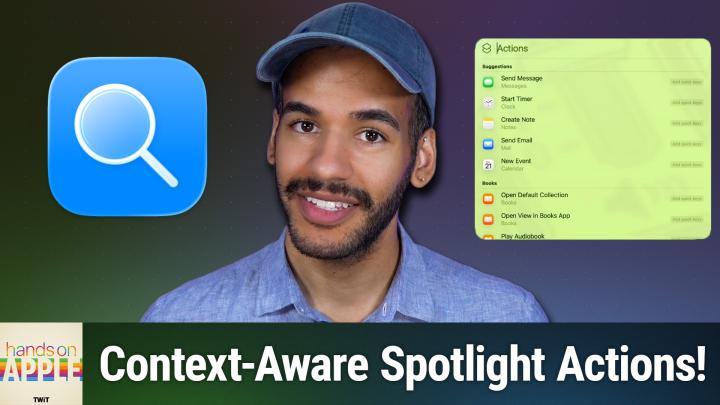
Today we're looking at Actions. These are little, little, well, actions. Little things that you can do on your Mac across all sorts of apps. And so let's take a look. When we hold down Command and hit space, the way to access Actions by default is by moving the arrow key, by tapping the arrow key, the right arrow key, until we get to Actions, which is the third option with Spotlight. Now the other way to get to it is by once again holding Command, hitting Spacebar, and then tapping Command 3. That will take us to Actions directly. So you can keep Command held down, hit the space bar and then hit three to get there right away.
Mikah Sargent [00:02:11]:
Within the Actions part of Spotlight, you will see some basic options. Now, just like the other features in Spotlight, these are also personalized and are based on your interactions with apps and what recent apps you've been using. So you can can see up at the top some basic options like sending a message, starting a timer, creating a note, sending an email, or creating a new calendar event. And you'll see that to the right of each of these suggestions is something that says add quick keys. Now we're going to talk about that in just a moment, but first I want to kind of show you some of the different features that are available here. So these actions are based on the apps that you have installed on your Mac. So you may see third party actions show up here as well. Because I have the Books app from Mac, from Apple, I am able to do things like play an audiobook or search in books.
Mikah Sargent [00:03:05]:
With the calculator. I can format numbers or just get a random number if I want to. I can create an alarm. In the clock app, I have the third party app drafts, so I can get a draft or open a draft. I have the third party app do, so I can create new reminders and do I have the third party app that is Microsoft Word. I can create a document or open a document, so on and so forth. And each of these have an option that says add quick keys. You'll also see options for special special actions that you can create in order to complete certain tasks, like generating a hash, getting the name of an emoji, getting network details, being able to create a GIF or a PDF, recognize music, replace text.
Mikah Sargent [00:04:03]:
The list just goes on and on and on. Because actions are basically all of the different settings options that you have on your Mac and many of the base tasks that you're able to do in different apps. And the cool thing is it's actually contextually aware based on the app that you have at a given time. So if, for example, I have the Photos app open and I hold down command hit space and then hit three, then these actions can actually change based on the app that's in the background. So let me show you what I mean by that. If I'm in the Photos app, there are lots of different options that I have in the menu bar, like exporting a photo or under let's go with View we have hide face names. Now let's say you remember that that's the feature that you are wanting or the setting that you're wanting to use, but you don't quite remember where it is in your menu. Hold down command, hit space and start typing in hide.
Mikah Sargent [00:05:05]:
And you'll see that now Spotlight is actually searching for actions in the menu bar for this specific app. I can immediately see hide face names, hide others, hide photos, hide recently viewed and shared hide sidebar Hide this pet and it shows this came from the Photos app and and shows you which part of the Photos app it's in. So this is photo or excuse me, which part of the menu bar it's in. So this feature or option hide face names is under View Photos View. If I were to look in Window keyword Manager, for example, see if we type in keyword and so you can see I had to type in more in order to be able to get it. But there are. It's going to look through that menu bar and try to find those settings that are available there and provide that awareness based on what you've done. Now it's also contextually aware, which means that along with being able to understand the app that you're working with, it can also look at text that you've copied and use that information.
Mikah Sargent [00:06:09]:
The text that you've copied is just one example, but whatever you might have going on, it will use that information to better provide different actions that you might want to do. So I believe let's just open up a text edit document here and I will start typing some text text into this text edit document. I can copy that I can move into. Let's actually open up the Notes app and I will hold down. Let me do a new one here. I'll hold down command hit space and it knows that I've got that text. I can look at the different options here under actions and because it knows that the Notes app is what I have open, I can automatically open a note, add a specific file to a new note, append that text that I just copied to a new note, or look at some other stuff like again sending a message, starting a timer and depending on what you're doing, you may see that text as a suggestion for what you are working on. So if you for example had a specific date on your clipboard, then that could be a bit of text that ends up being something where you'll see Spotlight suggest that you want to add it as a date in your or an event in your calendar.
Mikah Sargent [00:07:38]:
Now let's finally take a look at Quick Keys. So we've been over how it is more contextually aware. You can see because I was in the Notes app, it automatically suggested these options to me. If I was in the Photos app, hit Command Space and Command 3 then it may it did not in this case, but it may suggest some photos options for you as again it showed in that Notes app. But what's a common thing you might do from your Mac? You might send an email if you enjoyed this. Well, there's something else you might like if you want the big picture on what's happening in tech, subscribe to this Week in Tech. Leo Laporte and the Panel bring you the stories shaping the industry every Sunday. Well, one thing you could do here is create a quick key shortcut for sending an email.
Mikah Sargent [00:08:29]:
What this does is it lets you get to this specific action even faster. So what you would do is hold down command hit space and then without having to hold down, keep command held down and hit three and then look for send email. Let's just give it se. So I've typed in SE in the Quick Keys section. And now if I escape out of that and I go to Spotlight and I type in se, the first thing it shows me is that email option. Send message with subject to recipients right there available to me. I can then hold down command, hit spacebar, hold down command, hit 3. Let's find another one.
Mikah Sargent [00:09:11]:
In this case, I want to do one that is tied to Finder. So I am going to do one for Connect to Server. Let's call it cs. Now if I escape out of that and I go back to Spotlight, command space cs, boom. It shows me that Connect to Server is the first option and it uses what is locally on my Mac and the behaviors that I've had in the past to also figure out what server I might be trying to connect to. So it quickly makes that available to me as well. I'll hit Escape again. Let's do one more just for fun.
Mikah Sargent [00:09:50]:
Command space, command three and I'm going to scroll until I get to. Okay, so there's IA Writer. Let's go with. We could do run a shell script. That could be fun, but I want to do something little different. So let's go with oh, print documents pd. So I will hit Escape. Hit Escape just so we're out of Spotlight.
Mikah Sargent [00:10:17]:
Hold on. Command, hit space, hit pd. And then what happens if I hit return on this? Well, you need to select the document that you want to put in here. So you could start to type in that document that you have, but you could also click and drag it. You can do multiple documents by hitting the plus icon and then the printer. It lets you choose which printer from which you're trying to print. And so you can add that as well. So from just Spotlight, if you can believe it, you could have Print document PDF for example, and be able to, without needing to even take your hands off of the keyboard, print right there from Spotlight.
Mikah Sargent [00:11:06]:
Very powerful that it is able to do. So now, of course it didn't find a result because in this case I don't have a file called printdocument PDF. But if you did, then it would be able to do that. You could also, for example, if we have a document like this, command space and let me remove all of that, but now let me do PD and hit Enter and you can see that it knows that in Finder I currently have this PDF selected so I can hit Enter and be able to send that document specifically to the printer. And now in this case, it did not work because I did not select a printer, but you get the idea. All of that right from Spotlight without needing to do anything else. So that, dear friends, is a look at Spotlight actions. All part of the new and improved, much more powerful Spotlight in macOS Tahoe.
Mikah Sargent [00:12:09]:
Thanks so much for tuning in to this week's episode of Hands on Apple. I'll be back next week with another episode. Loads more to cover, so stay tuned. Bye bye.