Hands-On Apple 203 transcript
Please be advised this transcript is AI-generated and may not be word for word. Time codes refer to the approximate times in the ad-supported version of the show.
Mikah Sargent [00:00:00]:
Coming up on Hands on Apple, let's take a look at a feature that I know many of you will love, some of you will hate, and the others of you will actually secretly love, but not talk about. Stay tuned for this episode of Hands on Apple podcasts you love from people you trust. This is twit. Welcome back to Hands on Apple. I am Micah Sargent and today I want to talk about some new features that have made their way to iOS, iPadOS and Mac OS 26. And it has to do with a little bit of Apple intelligence specific to emoji, and that is Genmoji. Yes, Genmoji have received an update in the latest versions of Apple's software that give you a few more features when it comes to creating your own emoji. Now let's head over to macOS so we can talk about this.
Mikah Sargent [00:01:05]:
Here we are on macOS and I am in a message in the messages app because that is where you will interact with Genmoji. And you know, I don't know about you, but for me, Genmoji tend To be the 1 Apple Intelligence feature that I do sometimes find myself using. When it comes to other Apple intelligence features, I don't play around with them all that much. Image playground, for example, not a lot there that works for me in terms of something that I would want to use and share with other people, but make little emoji that can be fun. And so I want to talk about those latest features. First and foremost. Let's figure out how we get to Genmoji. Well, in your Messages app and of course this works on iOS and iPadOS as well.
Mikah Sargent [00:01:46]:
You click the little plus icon or tap the little plus icon next to your messages area and you choose Genmoji. From here you will see the little Genmoji tab pop up and I remind you that Genmoji are generated like locally on device. So this isn't something that's being sent off to the cloud to be created and then returned to you. This will be created with the chip in your device for it. So the first new feature that is part of Genmoji is a combination feature. So in the past when you wanted to create a Genmoji, you could, you know, give a description and say I want to a carrot wearing a top hat. And it would use the training that's it's a specific training model that has been trained on the look of emoji, Apple's emoji specifically. And then will make something that is what you've described while still matching or attempting to match the overall look and feel of emoji.
Mikah Sargent [00:02:47]:
In this case, we're going to hit the plus icon in the right. In the bottom right hand corner. That is a. It shows an emoji smiling and then a plus kind of @ the edge of the face. This let you choose emoji. So let's say I was having a conversation and it was. I was talking about being afraid of a storm. So the first thing I'm going to do is look up the lightning bolt icon and we'll choose that.
Mikah Sargent [00:03:19]:
And then we're going to hit plus one more time and we're going to choose that little monkey with its eyes covered. This, of course, is the See no Evil monkey. But in this case, it's often used to kind of hide your face in shame or hide your face in fear or overall just not want to look at something that you don't want to see. So it is a little bit See no Evil. So I'll click on that. Now, Genmoji, this specific mode of Genmoji knows that what you're asking for is the combination of these two emoji that you want. The See no Evil monkey combined with the lightning bolts. Now, the first option, not what I was looking for and in fact shows the lightning bolt over the top of the monkey.
Mikah Sargent [00:04:02]:
The second one is a little freaky. It shows the monkey itself but replaced with a smiley. The third one also not giving us what we want. The fourth one also not giving us what we want. We can keep hitting next to try to choose other options. None of them are quite right. So instead I'm going to remove the lightning bolt and I am going to add the plus icon and choose whoops and type in storm. And now I can see the lightning bolt cloud and we'll see what happens here.
Mikah Sargent [00:04:36]:
Perhaps the model can kind of recognize that we have a cloud and a storm. It's still not. Wow, not quite what I want. But we did get a really interesting image of a monkey that somehow its body has wrapped around in a circle. And it's like an Ouroboros monkey with a. It's. It. You know what? It's magnificent.
Mikah Sargent [00:04:57]:
It's not what I was looking for. And this is the good thing too, is that you can take some emoji and then also add a description to it. So in this case, I might try to. Let's see, I'm just gonna use the word fearful and hit enter and see what happens. We'll see what happens whenever it comes to this. So that's a little bit more what I was looking for. Now at least the monkey looks fear. There are clouds above it, there's a lightning bolt below it.
Mikah Sargent [00:05:32]:
And you know what? It's not what I was looking for at all. But that's what you get whenever you are using Genmoji to try to create something. Instead, what I'm going to do is I'm going to use the option that Apple provides in its own. Its own sort of rundown of the new features. So it says you can even combine emoji and genmoji with text descriptions. So if you're inviting your friends over to karaoke night, you can mix a woman emoji. So look that up. Whoops.
Mikah Sargent [00:06:04]:
I want to not do that. I want to choose the plus icon to select a woman. And so we will select. I just want sort of the standard gal, so there's a woman. And then I want just that on its own. Then I want it says you can select a woman emoji with a microphone emoji. So then we'll select microphone, and then it says, and this is the important part, because this is where you can add text with a microphone emoji and add a sequined jacket. So what we've done here is we have taken the combination of two emoji, plus a text phrase, which in this case is sequined jacket.
Mikah Sargent [00:06:55]:
And that's much better. So now we can add this emoji and use that in our messages. If we go back to that main screen there, we've got our new woman with a sequined jacket that for some reason, of course, is not showing up. And we love when the betas or the new software is giving us issues. There we go. So now you can see, here's our little emoji with the woman showing up. All right, if you're looking for more Apple coverage, can I invite you to check out MacBreak Weekly? Every Tuesday, they dig into everything happening with the iPhone, with iPad, with Mac, and so much more. Another thing that you're able to do now with Genmoji is you can change things like hairstyle and facial hair for the Genmoji inspired by people from your Photos library.
Mikah Sargent [00:07:49]:
So what you will do in this case is we'll hit the plus icon, we'll choose Genmoji, and we will select a Genmoji. So I'll hit the little plus icon to select the very smiling smiley face and then select a person. And if you have your Photos library with people included in it, in this section, you will see people here that you have told the system about. So, for example, as the Photos app starts to recognize faces in your library, it can start to kind of map out a profile of that person and then use that information to adjust the genmoji. So because this is the test account that I have, there aren't people in my Photos library that I'm able to select from. But in yours, you would go down and you would click on the little icon that shows a person next to the describe a Genmoji area. And then from there you can select a person and that will add it to the mix and let you create a new smiling genmoji. The last thing I'll mention is that there are now options for expressions.
Mikah Sargent [00:09:04]:
So you can make your genmoji of people. You can make characters that look happy look shocked. Other kind of methods and modes. So we've got themes, but now we've got expressions. So why don't we take an emoji, which, remember, we'll need to go back to that main screen. We'll hit plus and let's do. I want to do something weird. As if some of the stuff we've seen already isn't weird weird.
Mikah Sargent [00:09:30]:
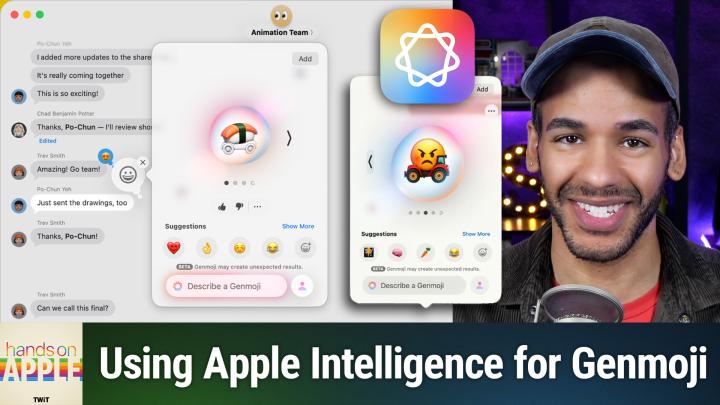
Let's take this. I think this is like the radioactive sign. And we're going to make the radioactive sign seem angry. An angry radioactive sign. And, well, there's no radioactivity to that, but perhaps. Nope, not really interested in. Okay, I've got an idea. Instead of the radioactive sign, let's do an object.
Mikah Sargent [00:09:58]:
We will do a tractor, and we'll see if we can't make an angry tractor white. Yay. There we go. We've got a red tractor with the wheel and the hubcap. On the wheel is an angry emoji. The second one is silly, given that it has just taken a giant red angry face and put it behind the tractor. But I do like the first one, so I think it's a win with that first one where the hubcap is replaced with an angry image. And that's what we're going to do for our angry Tractor look.
Mikah Sargent [00:10:38]:
Sometimes this stuff is going to give you odd results. Sometimes it will not give you a result that you want at all. That's kind of part of the experience of using this generative AI system. In any case, Genmoji, one of the many, many options that and features that have been updated in this latest version of macOS again in iOS as well, iPadOS as well. So be sure to stick around for more there. But next week we will return to our series covering the updates to Spotlight in macOS. Stay tuned. Bye Bye.
Mikah Sargent [00:11:24]:
It.