Hands-On Apple 201 transcript
Please be advised this transcript is AI-generated and may not be word for word. Time codes refer to the approximate times in the ad-supported version of the show.
Mikah Sargent [00:00:00]:
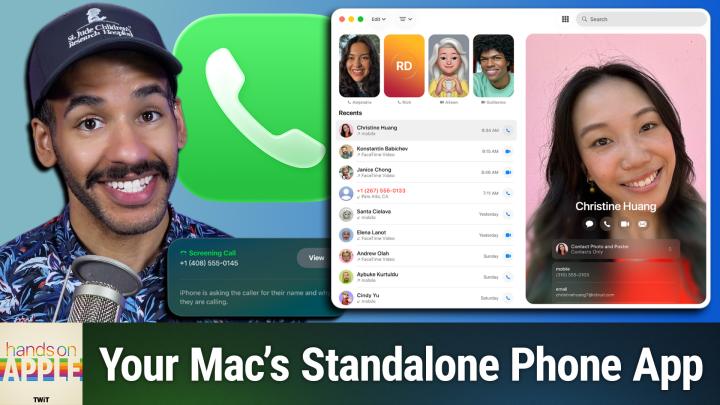
Did you know there's a new app for macOS Tahoe? Well, there is. Stay tuned to learn more about it. Podcasts you love from people you trust. This is Twit. Welcome to Hands On Apple. I am Micah Sargent, and today I want to tell you about an app that Apple has added to macOS Tahoe. It's the phone app. That's right, your Mac.
Mikah Sargent [00:00:33]:
Well, it's been able to make calls for a while, but Apple went ahead and separated out the phone app into its own situation separate from FaceTime. So let's head over to macOS to take a look. All right, here we are on macOS. And the first thing to understand is that when you are looking to use the phone app and place a call, you need to set up a few things. Because depending on who you're talking to, and if you're using it as a phone, meaning that you're not making a FaceTime call, you do need to make sure of these following things. First, that your Mac and your phone have WI Fi turned on and are connected to the same network. You also need to make sure that you're signed into the same Apple account on both the Mac and the iPhone. You also need to make sure that you've set up your iPhone to allow phone calls on the Mac.
Mikah Sargent [00:01:23]:
So that is a feature that is available within the Settings app. So you go into the Settings app and you tap apps, you tap phone, you scroll down and choose calls on other devices and turn on allow calls on other devices. After you've done that, you also need to, and this is the important thing, make sure that on both devices you are signed into FaceTime and have your phone number turned on in FaceTime settings on both devices. So if you don't have that turned on whenever you open the phone app, you won't be able to use the phone app to its full extent. But once you've done that, let's take a look at kind of how this works, what you can do with it. First and foremost, you do have the dial option in the top right hand corner. So you could type in a phone number here and hit call and it can call that phone number. Now, again, if you're calling a phone and you're not using FaceTime, your Mac is going to use your WiFi connection to make your phone actually do the dialing and then relay all of that to the Mac.
Mikah Sargent [00:02:25]:
So it will use the microphone, it will use whatever it have, whatever input tools you have on your Mac as your means of communicating, but it's actually happening via the phone. If you're placing a FaceTime call, be it audio or video, then it can just use the Mac itself. So in the case of this Mac, which is currently logged in with my Micah Twit account, I don't have a phone number and phone tied to this, so I can only do FaceTime calls. We're going to take a look at those, but first I want to go up into the settings. If we click on phone in the top left in the menu bar and we go to Settings, here are some of the things that we can do. First and foremost here it shows that I'm logged into this Apple account. You can set a ringtone for the phone calls and then the location, which of course for me is the United States. Under the calls option.
Mikah Sargent [00:03:10]:
You do have some great features here. Hold assist detection, which will go ahead and listen when you've been placed on hold on a call and then notify you when it's time to pick up. So if you call support services and they say, can we place you on hold? Or maybe it starts with you being on hold, you don't want to have to sit there and wait for that to be over. No, in this case you can and step away and have your Mac say, boop, they're ready, they're ready to talk to you. You can also set up a feature called Live Voicemail. And what this does is basically when somebody calls and they go to voicemail, you can start to see what the voicemail is going to be even before the call has come to a close. So in this case you kind of get an early voicemail and go, oh, actually that is a person I want to talk to. Let's talk to them instead of letting it go the rest of the way to voicemail.
Mikah Sargent [00:04:02]:
Kos also has a built in screening of unknown callers option. So if the person is not in your contacts list, then they can be screened. And what that does is you have two options. You can have it ask the reason for calling. So what happens here is that these numbers will be asked to provide more information. It will answer for you essentially and say why are you calling? And you'll be able to see that information. Or you can simply have it silence unknown calls. So instead they'll be silenced, sent to voicemail entirely, and then displayed in the recents list.
Mikah Sargent [00:04:36]:
That means it's not going to give you that preview of what they might be calling about. And it's not going to give you that information saying, hey, this person will give the other person that's calling you. Hey, this person will answer, but we want to know why you're calling. And then the last option here is call filtering, which lets it be separated so that you have this special unknown callers section that's different from the people that you know that are showing up in your missed calls list. The last area lets you block FaceTime address. And if you do have a phone number attached, phone numbers that you don't want giving you calls, that's the settings. Now let's take a look at what we can do with the phone app in terms of calls. And the way that I'm going to do this is by using the FaceTime audio option here to call me me, not twit me.
Mikah Sargent [00:05:28]:
So we'll place a call by hitting the phone call button and I will wait for this to pop up. I answer the call on phone. I'm going to go ahead and hit the mute button so that we don't see that. And here in the top right hand corner, I have my settings for this call. Now I can easily, because this is a FaceTime audio call, ask to change this to a FaceTime video call, which will activate the webcam. I can mute the microphone so that the person on the other end can't hear what I'm saying. That's how it is on the other side. And then here with the three dots, my favorite, we have some options.
Mikah Sargent [00:06:05]:
We can add other people to the call. We can choose call details, which will bring up the contact information for this specific person. We can click Call Recording, which will actually transcribe the call and then summarize it. We'll come back to that because I want to show you that feature. We can do live translation, which is in beta. And what it will do is as you speak, your voice and your language will be translated to the person on the other end who is talking to you in their language as well. So live translation can kind of work both ways, giving you the ability to communicate with someone in their native language. Hold Assist, which is what we talked about before, this is if it doesn't automatically detect that you are trying to go on hold, clicking this will turn on and it says you'll be notified to pick up the call.
Mikah Sargent [00:06:51]:
At that point I would get a notification and then I could hit the green icon to resume the call. And then last is in this case screen sharing, because Again, it's a FaceTime audio call that could become a FaceTime video call. We can do screen sharing. Let me show you though the call recording option. If we click on this, you'll see a countdown. Three, two, one. And I hear this call is being recorded. The person on the other end hears this call is being recorded.
Mikah Sargent [00:07:19]:
And then it launches the Notes app and begins to record this call and will transcribe the call after the fact so that all gets popped into there. And at any time we're done recording the call, we can hit Stop. This call is no longer being. And on my phone and my Mac, in the phone app and on that side of the phone, I could hear that, yes, the call is no longer being recorded. I can click here and see. We've got the audio that's been added to the Notes app, but we've also got a preview of the transcript of the Notes app. Now let's hit those three dots and I'll show you Live translation. Live translation says I want you to change it from in my case.
Mikah Sargent [00:08:09]:
So this is for the person on the other end of the phone. Let's say they speak Spanish. I want you to translate that to English or vice versa. So in this case, I would set that up. It does the first time need to download these languages. So this might be something that you set up ahead of time. And then once those have been downloaded, you can choose Start Translation and it will begin to translate between those two languages with the other person on the other end of the call. Now, we've seen this feature in beta.
Mikah Sargent [00:08:41]:
It's a little bit different from what we've seen from Google, for example, that tries to also match the voice and timbre or timbre of both people. In this case, it does not work that same way. So that's something to be mindful of, that it will kind of neutralize the voice for the sake of properly translating between the two parties. Now, we're going to cancel here because we don't need to go into that. In fact, I'm not going to be able to speak Spanish into one of the phones and not this way. But that is a look at how a phone call looks on the Mac. When you are using the new phone app for macOS. The last thing I'll show you is that you do have some options.
Mikah Sargent [00:09:26]:
Clicking Edit lets you take a recent call and add that person to favorites. And there's a filtering option that we talked about before, the filter between calls you've placed missed calls, voicemail and unknown callers. So you can use all of those to kind of separate how everything is set up up in the menu bar. We also have a video option, and this is mostly for. Even though it shows video. This is mostly for setting your microphone options, so making sure that you are using the microphone that you expect to use and the output that you expect to use as be it the speakers or if you're wearing AirPods, then having the call placed that way. So arguably a pretty powerful phone app, a full featured phone app for macOS that separates the phone app from FaceTime, which is something that I'm honestly happy about because I have tried. I actually do like to place calls from my Mac using my phone as the relay for the purpose of having a great microphone, having my computer in front of me.
Mikah Sargent [00:10:37]:
So if I'm calling for support or something I can look things up very easily and so I really like using my Mac for that. But when it was part of FaceTime it would be kind of complicated at times to dial the number and get it to actually relay through the phone. Now that it's its own app, I find that it's a little bit easier to use and a little bit more obvious to the system that that's what you're trying to do. So that is a look at the new phone app and macOS Tahoe and that is your episode of Hands On Apple. Thanks so much for tuning in. I'll be again next week with another episode. Bye bye.
Leo Laporte [00:11:15]:
No matter how much spare time you have, TWiT TV has the perfect tech news format for your schedule. Stay up to date with everything happening in tech and get tech news your way with TWiT TV. Start your week with this Week in Tech for an in depth, comprehensive dive into the top stories every week. And for a midweek boost, Tech News Weekly brings you concise, quick updates with the journalists breaking the news. Whether you need just the nuts and bolts or want the full analysis, stay informed with TWiT TV's perfect pairing of tech news programs.