Hands-On Apple 200 transcript
Please be advised this transcript is AI-generated and may not be word for word. Time codes refer to the approximate times in the ad-supported version of the show.
Mikah Sargent [00:00:00]:
Coming up on hands on Apple, iOS 26 is here, so let's take a look at one of the features you're likely to see first. Stay tuned. Podcasts you love from people you trust. This is Twit. Welcome back to Hands on Apple. I am Micah Sargent, and as you probably know, you can hit that update button on your iPhone now. Yes. IOS 26, iPadOS 26 plus, the whole suite of 26 updates is now available to you.
Mikah Sargent [00:00:43]:
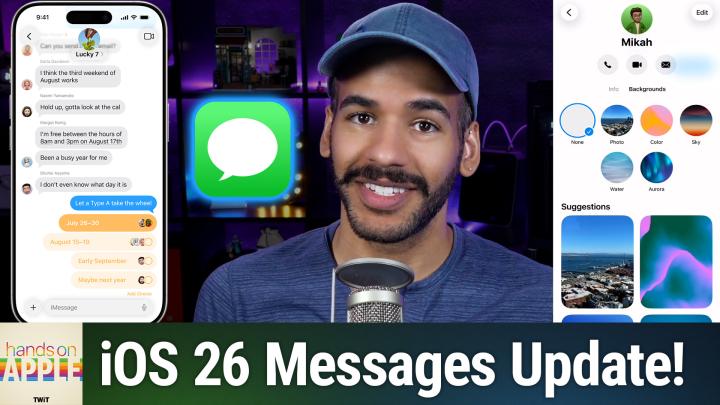
And I wanted to take a look at. You know, there are going to be a lot of features that we'll talk about on Hands on Apple, a lot of new stuff to dive into, to check out and to fully understand. But when I thought about one of the first places that you're likely to sort of interact with the system and a place that you might want to make a change, it is in the Messages app. There have been a few updates there. And look, everybody's using their phone to send messages, right? So let's take a look at what has changed there. All right, so here we are in iOS 26, and the first thing we're going to do is launch the Messages app. From the Messages app, I'm going to tap on this message exchange that I have technically with myself. This is that Micah Twit account.
Mikah Sargent [00:01:26]:
And what we're going to do is look at the top of the message. You can see that it has the person's name. In many cases, it will show their face and there's a little arrow that points to the right. Again, not the arrow in the top left corner, the back arrow, but the little arrow that points to the right that is next to the name. If we tap on that area, it brings up the information about that person. Now, this first page is the info page, and it has contact information about this person. So it's a really great way to edit your contacts without having to hop all the way into the Contact app. There is, of course, though, a shortcut that lets you actually hop into the contact if you want to.
Mikah Sargent [00:02:05]:
So show in Contacts is right there. Now, from this page, you can choose to hide alerts, meaning that new messages from this person won't show up, and send read receipts. So in this case, if the person on the other end is looking, they can see when I have seen a message. Now, from this page, you can also hit the edit button in the top right corner. And that lets you make some changes to this contact. So you don't actually have to hop into the Contacts app for that either. Up at the top, we've Got shortcuts that allow us to quickly place a call, Quickly place a FaceTime call, or quickly send an email. And those will update based on the information that you have about this contact.
Mikah Sargent [00:02:44]:
Now you can go ahead and try and call this phone number. It's not connected to anything at this point, so I'm not worried about showing it. And of course this address is where we used to work at the studio. So what I want to show you though, the new thing is that now there are backgrounds for your messages. If we tap on the backgrounds option, we can see that there are some different things we can do as a background for the message. You can select a photo. So this can be any photo that you have in your photo library. You can select a color option and Apple will pop up and show you the different color options available.
Mikah Sargent [00:03:22]:
There's mango, there's ice, there's plum, there's deep sea, there's green apple, there's cherry, there's bubblegum, there's tangerine, magenta, lime, silver, carbon, stone. And at any point, if you want to, you can tap in the bottom left hand corner to change the darker color. Tap in the bottom right hand corner to change the lighter color and create your own. I'll hit X. We'll go to sky and there are some options here. Dusk, haze, sunset, clear, sunrise and dawn. We'll go to water. We've got light water and dark water and then aurora.
Mikah Sargent [00:04:04]:
There's a green aurora, a purple aurora and a pink aurora. Lastly, I'll tap on photo and this lets you choose a featured photo as we have here. So we'll just go with that because it is the featured option and it will select that. We've got some options. We can change it from natural to black and white to duotone to color wash, similar to what we have in lock screen options. And I really like that black and white. So I'm going to tap the checkbox, the check a box, the checkbox to have that lock in. And now if I hit back here in my conversation, I can see now that I have changed the background of this imessage so I can send a message.
Mikah Sargent [00:04:47]:
Just checking in once again and you'll see that that background stays back there. And the new kind of look and feel of iOS 26 with the liquid glass sort of adjusts itself around what you have on screen so I can easily tap and kind of see the glass peeking through with the photo that I took from Coit Tower in San Francisco. Now another cool messages feature. Very excited to see this come to Messages. It used to require a third party app to do. But what's a common thing you need to do with a group of friends? Make a decision. Where are you gonna go to eat? Where are you going to go to, you know, have some beverages? Well, it used to be you'd send a message to say, hey everybody, download an app and we'll all get into a poll together. Now that's built in.
Mikah Sargent [00:05:42]:
If we tap the plus icon in the bottom left hand corner to bring up the different imessage apps and we can tap polls, which is again now built in. So I can say let's go with Applebee's Chili's and Outback Steakhouse. Not Outbreak. Oh dear Steakhouse. Not Out Beak Out Back Steakhouse. And as I add an option, it does give me the option to then add one more Taco Bell and it can continue to add those other choices. I'll say where are we eating? Question mark and hit send. Then you can add choices on if you'd like.
Mikah Sargent [00:06:34]:
But I can make a selection. I choose Chili's. As people make selections, their options will appear here and it will begin to kind of collect and show you what the choice is. I would not actually choose Chili's. I would choose none of the options here. So you can make those changes as you want. And also I love that we can tap and hold and choose poll details and it shows you what different people have voted for. Now it's a little confused here because I am on both sides of this.
Mikah Sargent [00:07:03]:
So it's showing that I currently have not made a vote and I have also made a vote. But that is again because I am just texting with myself now. I want to take a quick look in the settings menu for messages. So we'll go to settings, we'll scroll down until we get to apps and then we'll scroll down until we select messages again. You can just access that by using the search functionality in the top. And here we can set up something that I find to be very important. If we scroll down to the unknown senders option, we have a new thing that says screen Unknown Senders. If we turn that on, what it does is it hides these notifications so you won't get a little pop up saying, hey, you got a message from someone.
Mikah Sargent [00:07:53]:
But on top of that it puts it in a special list called the Unknown Senders list. So if you're getting lots of messages from different campaigns trying to get your attention, this is a great way to move those along. And then it does have the option to allow Notifications for what are considered time sensitive notifications. Now one of these is a verification code and I do recommend turning this on that will allow it so that if you have not received a message from this before, but you've set up SMS verification codes with an online service, this is a great way to make sure that you still get those and that they don't just kind of miss you and you're not seeing them. So I have this turned on. That's been helpful so far as I've used this feature. It keeps those good notifications coming through and available to us. If we go back to messages and we go back to this main page now on the right hand side I've got in the top right hand corner a filter button.
Mikah Sargent [00:08:53]:
If we tap on the filter button you can see we've got filtering between messages, unknown senders, what you and iOS determine as spam and then recently deleted. And you can always tap on Manage Filtering to go back into this filtering option. So from there you can easily go through and see what your, you know, what changes you need to make. Now a couple of other changes here you'll see Conversation backgrounds is able to be toggled on and off. If we toggle that off and we go back, then we go to our message. Now you'll see that beautiful background we set up is turned off. I'm gonna turn that back on and now you can see it again. And then the Start with Photos visible option basically makes it so that photos that are sent will be visible.
Mikah Sargent [00:09:43]:
But if you want to, you can turn that feature off as well. Lastly, Show Contact Photos is something that you will be familiar with which just lets it show the person's contact photo there at the top. So that hasn't changed in terms of the settings, but it is a feature that you might want to have enabled for this kind of new look and feel to really kind of bring home this new way of doing things. Now as I mentioned, there's a lot in iOS 26 and macOS, Tahoe and ipados 26 that we'll be covering over the coming weeks. So be sure to tune in every week to Hands On Apple to stay up to date with what's new as you kind of dig in yourself and begin to discover the new features. Thank you so much for tuning in today. I'll catch you again next week for another episode of Hands on Apple. Bye bye.
Leo Laporte [00:10:39]:
Hey, thanks for tuning in to twit your tech hub for intelligent, thoughtful conversations. If you want to take your experience to the next level and support what we do here at Twit. Say goodbye to ads and say hello to Club Twit. With Club Twit you unlock all our shows ad free. You also get exclusive Members Only content. We do a lot of great programming just for the club members. You also get behind the scenes access with our Twit plus bonus feed and live video streams while we're recording. And don't forget the fantastic Members Only discord.
Leo Laporte [00:11:11]:
It's where passionate tech fans like you and me hang out, swap ideas and connect directly with all the of our hosts. It's my favorite social network. I think you'll like it too. Club Twit. It's not just a subscription, it's how you support what we do and become part of the Twit family. Your membership directly supports the network, helping us stay independent and keep making the shows you love. If you're ready to upgrade your tech podcast experience, head to TWiT TV club TWiT and join us today. Thanks for being here and I'll see you in the club.
Mikah Sargent [00:11:43]:
Sam.