Hands-On Apple 193 transcript
Please be advised this transcript is AI-generated and may not be word for word. Time codes refer to the approximate times in the ad-supported version of the show.
00:00 - Mikah Sargent (Host)
Sound the alarms. The public beta is here. So, coming up on Hands-On Apple, let's take a look at how to enroll in the public beta. Stay tuned.
00:11 - Leo (Announcement)
Podcasts you love From people you trust. This is Twit.
00:31 - Mikah Sargent (Host)
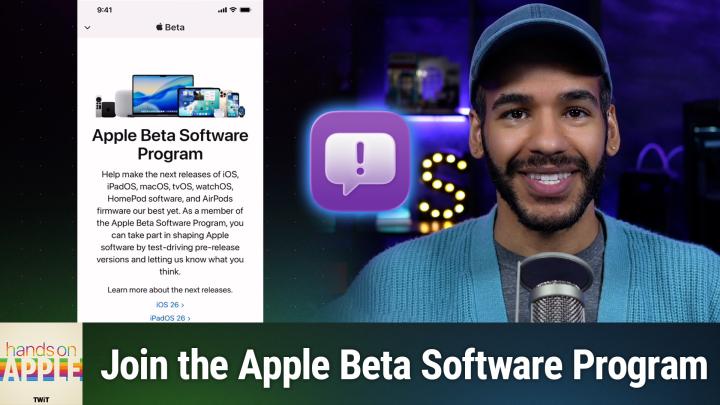
Welcome back to Hands-On Apple. I am Micah Sargent and, as is always my way, I am talking about public betas. Yes, it is that time, because Apple has just released the new versions of macOS, ios, ipados, etc. And with that comes your opportunity to join the beta and help figure out the future of the software. So we're going to take a look at how we enroll in the public beta and how we go about making use of it, and even unenrolling if you get tired of being part of the beta train. So let's head over to iOS and take a look. All right, here we are on iOS and you can see I've launched Safari.
01:09
Our first step is to go to a very important page betaapplecom. You're going to go to this page and you will see that this is the Apple Beta software program. Now, this is for the public, not for developers, and in order to become a person who's enrolled, you need to choose sign up from here. We'll ask you to sign in with your account face ID authentication. Sometimes you'll need to type in your password, could be, uh, you needing to type in a pin code, whatever it is that will pop up Then. Then you come to an agreement. The agreement is basically telling you. Well, it's telling you a lot of things, but one of the things it's saying is hey, this is beta software, it belongs to Apple. Don't do things with it. You should not do. You can always export it as a PDF or view it as a PDF to save later. And of course, we're going to choose agree Now, once we've agreed. Agree Now, once we've agreed, we are part of the beta. But we need to start by enrolling our device. So, under gets let me go back here on this page that you come to, which, if you go to betaapplecom from this point forward, this is the first page you will see. Under get started, you will choose enroll your iOS device. Then it's going to say hey, are you sure that you want to install and be part of the beta? And yes, you do.
02:30
Now, if you're running iOS 16.4 or later, the beta update process is much simpler. If you're running iOS 16.3 or earlier, you will need to download a special configuration profile which Apple will walk you through. It starts by telling you back up your device. So, of course, do that. But then you'll choose to open up a special page. Now I'm going to go back out just because I want to show you. Once you've signed in and agreed to be part of the beta, you'll go to general. You'll go to software updates and you'll see, underneath automatic updates, a new option that says beta updates. From here, you, as a member of the public beta, will see iOS 26 public beta and perhaps iOS 18 public beta. The developer beta options will not appear for you unless you're a developer. You'll choose, in this case, ios 26 public beta and hit back and immediately up will pop your option to install the beta, which gives you access to that.
03:27
Now, as is always the case, the most important aspect of this is, of course, you being able to provide feedback. There is a special app that Apple puts onto your phone when you become a member of the beta and download the beta, and that is called Feedback Assistant. You sign in with your Apple account and it lets the app kind of capture these special files called diagnostic files, which basically look at the last few things that you did that led to whatever's going wrong with the phone. You can do a screenshot, of course, to be able to have immediate feedback presented. So you can say, oh, this looks weird or this isn't working how I expected, and you show a screenshot to do that and then you can send it through to Apple after filling out the form. Now, that's the most important thing. That's the whole point of doing the beta. You are attempting to help improve the software by finding issues that you experience while you're using it. Now you'll notice that there's also a special little bit of information if you're reading through with me and this is a kind of cool thing where, if you're running into an issue and you need to capture diagnostic files those are those files that I talked about earlier that help Apple's developers kind of learn what went wrong by pressing volume up, volume down in the side button for one to 1.5 seconds, you'll feel a short vibration and those diagnostic files will be captured and you'll have a notification that pops up that lets you send off those diagnostic files immediately. So that's very helpful to Apple during the beta process.
05:06
Now, this, of course, works across iOS, ipados. It's the same thing. So if you are attempting to install it on an iPad, it's very easy to do. Once again, you would enroll the iPad and then you'll find it in those settings and then from there with tvOS it's a little bit more complicated, but if you enroll the Apple TV, then from there with newer Apple TVs, it's much easier to be able to just have it automatically installed. Macos also involves enrolling your Mac. You will see kind of a new thing pop up, a new prompt pop up and your software update section within settings will have the ability to install Tahoe.
05:54
Now what if you no longer want to be part of the public beta? You've decided that you are not interested. Well, the first thing that you want to do is go in and stop receiving beta updates. So you'll go into once again general. You'll go into software update and under, once we have this load under beta updates, choose off what this will do Under beta updates. Choose off. What this will do is it will no longer feed you any new versions of the public beta and instead will make it so that the next time a public version of iOS is released, a non-beta version of iOS is released, then that will be the next update that you get and you can install that. If you want to restore a prior release, you'll need to use your backup to do so, but this is the way to kind of let it sit as it is and then go from there.
06:55
Now if you want to leave the Apple beta software program. This is a little bit more involved. So what you'll want to do is go to betaapplecom and then from here you want to go to a page that has unenroll-your-device, your hyphen device. This page and we'll choose iOS has an option down at the bottom. How do I leave the Apple beta software program? Well, turn off the beta update serving in your settings and then simply tap the link leave Apple Beta Software Program and then tap it again to confirm. From there you'll be removed from the public beta and the next time you go into settings you should see that disappear as an option.
07:56
I think the most important thing to understand when it comes to the public beta is you are testing the software, so you are going to run into issues with the software. You may experience crashes, you may experience apps not working as you expect. Just be prepared for that. Be prepared that that is a possibility. If you're ready for that to happen, then I think the public beta is going to be potentially a good experience for you as you give it a go. Of course, if you have any questions about iOS 26, ipados 26, macos, tahoe, as we creep further into the summer and head into the fall, I will begin to cover more of what's in the next release of Apple's operating systems. So I may just get to your specific topic, and if I don't, of course you can email me Micah at twittv or HOA at twittv to get in touch. Thanks so much for tuning in this week to Hands on Apple. I'll be back again next week with another episode. Bye-bye.
08:56 - Leo (Announcement)
Hey, thanks for tuning in to Twit, your tech hub for intelligent, thoughtful conversations. If you want to take your experience to the next level and support what we do here at Twit, say goodbye to ads and say hello to Club Twit. With Club Twit, you unlock all our shows ad-free. You also get exclusive members-only content. We do a lot of great programming just for the club members. You also get behind-the-scenes access with our TwitPlus bonus feed and live video streams while we're recording. And don't forget the fantastic members only discord. It's where passionate tech fans like you and me hang out, swap ideas and connect directly with all of our hosts. It's my favorite social network. I think you'll like it too. Club Twit it's not just a subscription. It's how you support what we do and become part of the Twit family. Your membership directly supports the network, helping us stay independent and keep making the shows you love. If you're ready to upgrade your tech podcast experience, head to twittv, slash clubtwit and join us today. Thanks for being here and I'll see you in the club.