Windows 11 Start Menu Update: What’s Changed and How It Affects You
AI-generated, human-reviewed.
The New Windows 11 Start Menu: Complete Overview and Practical Tips
The latest update to Windows 11 introduces a redesigned Start menu, bringing notable changes in layout, customization, and integration features for all users—not just those with Copilot+ PCs. On Hands-On Windows, Paul Thurrott highlighted the key updates and shared practical advice for optimizing the Start menu experience.
What's New: Windows 11 Start Menu Overhaul
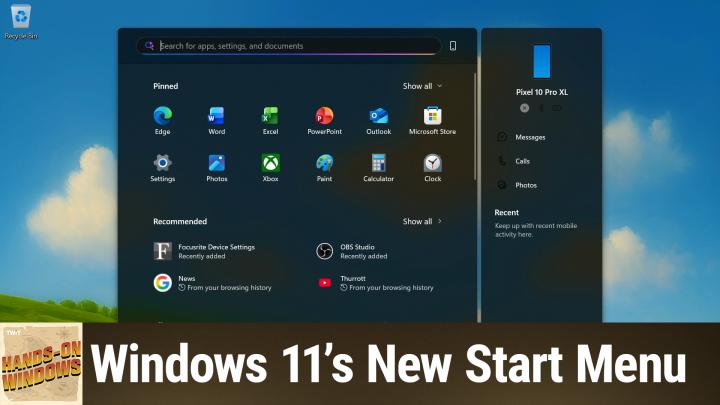
The main change is the introduction of a third section on the Start menu home page—the new "All apps" view, now brought up front alongside the pins and recommended items. Users can switch between three distinct layouts: Category view (auto-grouped by type, similar to iPhone's app library), List view (alphabetical, like the old Start menu), and Grid view (alphabetical icons).
Another visible addition is instant toggling of the mobile device sidebar (the "Phone Link" panel) directly within the Start menu, making access to synced mobile data simpler for those who use Phone Link. This sidebar can now be toggled on or off without diving into settings.
Notably, the Start menu is now more scalable—if you use high-resolution or multiple monitors, the menu expands to show more icons and content, improving usability across device setups.
Customization: How to Personalize the Start Menu
Pinning apps: Users can still pin favorite apps, and the layout is easily adjustable to show more or fewer pinned items using a new "show more/show less" toggle, instead of the previous "All" button.
Recommended section: This area now displays items beyond recent files or app installs—it includes results from your browsing history for faster access.
All apps section: Switch between the Category, List, or Grid view to match your workflow. Your last selected view will persist until changed.
Folders and shortcuts: System folder shortcuts (like Settings or Downloads) can be added near the Power button for quick access, though arbitrary folders are not supported.
Account notifications: Annoyed by prompts to buy OneDrive or back up your account? These notifications are still present but can be disabled for a cleaner experience.
Practical Tips: Making the Most of the New Start Menu
- Switch views for easier navigation: If you miss the older Start menu, change to List or Grid view. Category view automatically sorts apps, which can help if you have many.
- Toggle the Phone Link panel: If you regularly share data between your PC and phone, keep the mobile sidebar enabled for quick access. Otherwise, turn it off for a cleaner look.
- Boost productivity: Pin your most-used apps and consider adding the Settings and File Explorer shortcuts at the bottom for rapid navigation.
- Manage notifications: Disable account-related pop-ups to avoid distractions.
- Adapt to screen size: The Start menu now adapts to larger screens, so docked laptops or high-res monitors reveal more content and options.
Key Takeaways
The refreshed Start menu in Windows 11 is more customizable, user-friendly, and better integrated with mobile devices. Users benefit from quicker access to apps, documents, and mobile data, as well as scalable design across different devices. Most features apply to both 24H2 and 25H2 versions—Microsoft now rolls out updates independently, so version numbers matter less than having the latest features.
Paul Thurrott found that while the core interface remains familiar to longtime Windows users, the visual changes and real-time controls (like view toggles and phone panel management) make a noticeable impact on daily use. If you mostly launch apps by typing, these updates may be less useful, but for users relying on visual navigation, the improvements stand out.
What This Means for You
- If your device recently updated to Windows 11 25H2 (or even 24H2), you likely have the new Start menu already—look for the new third section and customization options.
- Make use of the different views for faster app access, especially if you prefer classification by type or alphabetical listings.
- Take control of which panels and notifications appear by toggling them directly in the Start menu.
The Bottom Line
The new Windows 11 Start menu offers a smoother, more flexible experience for all users—whether for productivity or integrating your PC and mobile life. Explore the settings to personalize your workflow, and keep your OS updated to take advantage of future enhancements.
Want more hands-on Windows tips? Subscribe for weekly episodes:
https://twit.tv/shows/hands-on-windows/episodes/169