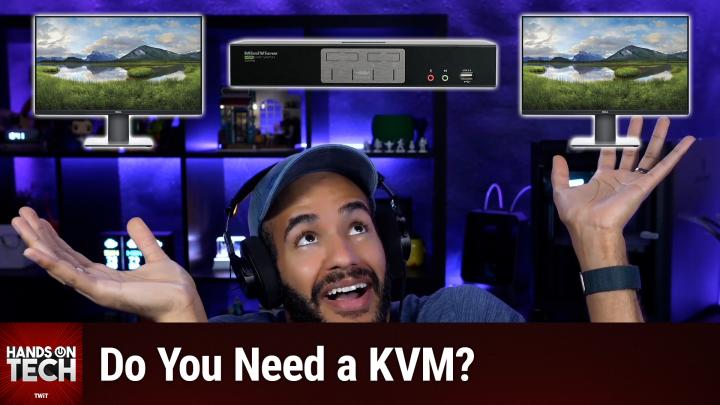
When Should You Get a KVM?
AI-generated, human-reviewed.
Switching your keyboard, mouse, and monitors between two laptops doesn't have to mean expensive gadgets or tangled cables. On Hands-On Tech, host Mikah Sargent compared KVM switches and USB switches for dual-laptop setups—particularly for users with complex, multi-monitor docks—and found that a simple USB switch can often be the smarter, cheaper choice.
Why This Matters Now
Modern professionals often juggle separate laptops for work and personal use—and seamless switching is crucial for productivity. While KVM switches promise a “one-button” solution, not every KVM is created equal. High prices, macOS quirks, and compatibility issues mean that sometimes, less is more.
What Are KVMs and USB Switches?
A KVM (Keyboard, Video, Mouse) switch lets you use one set of peripherals and monitors across multiple computers, switching inputs with a button press. Ideal in theory, KVMs can be pricey—especially if you want to support multiple high-res monitors, like three 4K displays.
A USB switch is a smaller, simpler device. It lets you share USB devices (including your dock, keyboard, and mouse) between two computers—often with one button press, for as little as $60.
Review: Pros & Cons of KVM Switches
Pros
- One-button switching for all connected displays, keyboard, and mouse
- Reduces port wear: no constant plugging/unplugging
- Keeps your desk organized, with less cable clutter
Cons
- High-quality KVMs for multi-monitor setups (especially Mac) are expensive ($300–$750+)
- Many KVMs struggle with high refresh rates or 4K+ resolutions across multiple monitors
- macOS compatibility can be iffy: wake-from-sleep, monitor arrangement, and display artifacts are common pain points
- Even premium KVMs may still have quirks
High-End KVM Examples:
- Level 1 TX KVM: Full triple display support, 4K/144Hz or 8K/30Hz, ~$750
- IOGear GCS1944: Dual-monitor support, ~$300 (third monitor requires direct connection)
- StarTech.com Dual Laptop USB-C KVM Docking Station: Dual-laptop focus, dual-monitor support, ~$300
Why a USB Switch Might Be All You Need
Mikah Sargent suggested that for most users already using a quality docking station, a basic USB switch can replicate the convenience of a KVM at a fraction of the price.
How It Works:
- Connect each laptop to the USB switch.
- Plug the switch into your dock (such as Anker).
- Connect your keyboard and mouse to the dock using a USB dongle or wired connection (avoid Bluetooth for reliability).
- With a button press, toggle which laptop connects to the dock and peripherals.
Example:
- Cable Matters USB-C Switch: ~$60, small footprint
Limitations:
- Only shares USB peripherals (not video); your existing dock must handle the video side.
- Still best with wireless peripherals that use a USB receiver.
Who Should Use a KVM vs. a USB Switch?
Go With a KVM If:
- You absolutely need triple-monitor support directly from one switch
- Your workflow demands the simplest, all-in-one hardware toggle
- You’re prepared to budget $300–$750+
Consider a USB Switch If:
- You already have a multi-monitor dock (like an Anker) set up
- Your laptops mainly use USB-C for docking
- You’re looking to streamline switching for under $100
- Your peripherals plug in via USB dongle or are wired
Key Takeaways
- Triple-monitor MacBook setups are tricky. High-end KVMs are expensive, finicky, and often max out at two monitors.
- USB switches offer a low-cost, low-hassle alternative for most dual-laptop workspaces, as long as you have a capable dock.
- Bluetooth switching is unreliable; use a USB dongle or wired peripherals for the best experience.
The Bottom Line
If you’re struggling with cable chaos while swapping laptops at your desk, try a USB switch before spending hundreds on a KVM. You might find that it's all you need, especially if your dock already does the heavy lifting for displays and other connections.
Want more tips like this? Catch the full episode and practical advice by subscribing at: https://twit.tv/shows/hands-on-tech/episodes/231