Step-by-Step: Making Windows 11 Faster by Removing Bloatware
AI-generated, human-reviewed.
Want to improve your Windows 11 experience by removing unnecessary apps and minimizing system clutter? Win11Debloat just got a major update, offering an easier and more user-friendly way to customize and clean your PC—no advanced tech skills required.
On Hands-On Windows, Paul Thurrott highlighted the practical benefits of Win11Debloat’s newest version, which introduces a graphical interface and lets anyone fine-tune what stays on their Windows 11 system.
Why This Matters: Faster, Privacy-Enhanced Windows 11
Windows 11 often includes pre-installed apps and features that many users never need, slowing down performance and adding distractions. Cleaning up these extras—known as "bloatware"—can free up resources and improve privacy, but traditional methods demanded command-line expertise. The updated Win11Debloat makes this process accessible to everyone, letting you customize your setup quickly and safely.
What's New: Win11Debloat’s GUI and Simplified Use
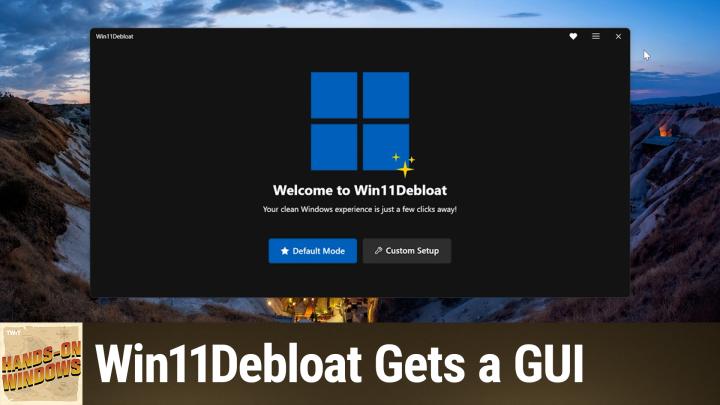
The latest update to Win11Debloat moves beyond its old text-based, PowerShell-only setup. Now, you can launch the app with administrative privileges and access a clear, graphical interface right from GitHub. This new approach means:
- No need to master the command line
- Simple app removal with checkboxes
- Friendly options for privacy tweaks and system settings
The program is still a PowerShell script under the hood but runs as a downloadable .exe file, making setup straightforward.
Quick Summary: How to Use Win11Debloat
- Download from GitHub and run the app as administrator.
- Choose between "Default" and "Custom" modes. Avoid the “Default” mode—custom mode gives full control.
- In the App Removal section, select only the apps you truly want gone. See what's actually installed for targeted removal.
- The System Tweaks section lets you disable telemetry (data sent to Microsoft), automatic restarts, Bing search, and suggested content.
- Always create a system restore point before applying major changes and consider restarting Windows Explorer if prompted.
Pros & Cons
Pros
- User-friendly GUI: No more intimidating command lines.
- App-specific removal: Delete only what you don’t want.
- Privacy features: Strong options to disable telemetry and suggested content.
- Restore point creation: Recover easily if needed.
Cons
- Doesn’t fill the screen completely (GUI size is limited).
- “Default” mode can remove too many things—custom mode is safer and more flexible.
- Some operations (such as uninstalling Microsoft Edge) require extra steps outside the EEA, but usually work fine.
Who Should Use Win11Debloat?
This tool is ideal for anyone running Windows 11 who:
- Wants to remove pre-installed apps and features for a cleaner, faster experience
- Prefers not to use command-line utilities
- Values privacy and control over Microsoft’s telemetry and suggested content
If you’re tech-savvy and want a completely fresh start, options like Tiny11Builder exist—but for most users, Win11Debloat is the simplest and safest path.
Key Takeaways
- The latest Win11Debloat update brings a GUI, making PC optimization accessible to all Windows 11 users.
- Custom removal is the recommended way to avoid deleting important features.
- Strong privacy tweaks—like disabling telemetry—are built in and easy to apply.
- Always use a system restore point before making major changes.
The Bottom Line
If your Windows 11 PC feels cluttered or slow, or you want more privacy, the latest Win11Debloat is a practical solution. Thanks to its new graphical interface, anyone can customize their setup and remove bloatware. Paul Thurrott found it reliable for both basic and advanced cleaning—give it a try before considering a full system reinstall.
Subscribe for weekly tips: https://twit.tv/shows/hands-on-windows/episodes/182