Shield Your Data: Ultimate Guide to Securing Edge
AI-written, human-edited.
Part 2: Transforming Microsoft Edge into Your Privacy Fortress
Locking Down Your Settings
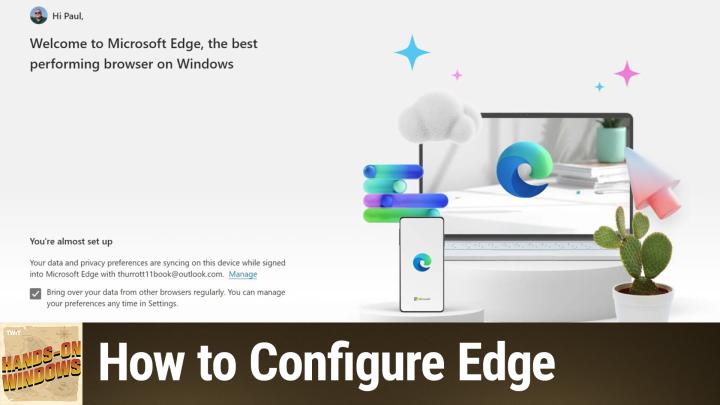
Paul Thurrott kicks things off by showing how to flip Edge from a data buffet into a private retreat. He walks you through switching off Microsoft's behavior-tracking features and killing the Chrome-sync sneaky import. Next, he points you to must-have add-ons—Privacy Badger and Adblock Plus—that stand guard against the trackers hungry for your clicks. Each time you open a tab, he suggests Momentum or Bonjour as fresh new-tab replacements for a clean slate.
Fine-Tuning Features for Security
Once the basics are covered, it's time to tweak Edge's built-in tools. Paul highlights how to disable the Alt-Tab tab previews so your open pages don't spill into your task switcher. He also spotlights Edge Secure Network VPN, which tucks you under a 5 GB monthly data cloak whenever you're on sketchy public Wi-Fi. And if you want to go further, he compares Chrome, Brave, and Firefox so you can pick the browser that best fits your privacy needs.
Backing the Community That Makes It Possible
This episode wraps up with a shout-out to the Club TWiT members whose support keeps Hands-On Windows alive and kicking. If you've found value in these privacy hacks and want more episodes that put you in control of your tech, head over to twit.tv/clubtwit. Your support fuels the tips, tricks, and guides you rely on every Thursday—so thanks for keeping the show going strong!
Become a subscriber and never miss an episode: Hands-On Windows