New OneDrive App for Windows: What’s Changed and How to Get It Now
AI-generated, human-reviewed.
The New OneDrive App for Windows: Features, AI Editing, and How to Access It Today
Microsoft is rolling out a major update to the OneDrive app for Windows, featuring a refreshed interface, advanced photo management options, and integrated AI-powered editing tools. Paul Thurrott on Hands-On Windows found that, despite official announcements pegging 2026 as the arrival date, many users can access this new app right now. Here’s what’s different, why it matters, and how you can get started.
What’s New in the OneDrive App
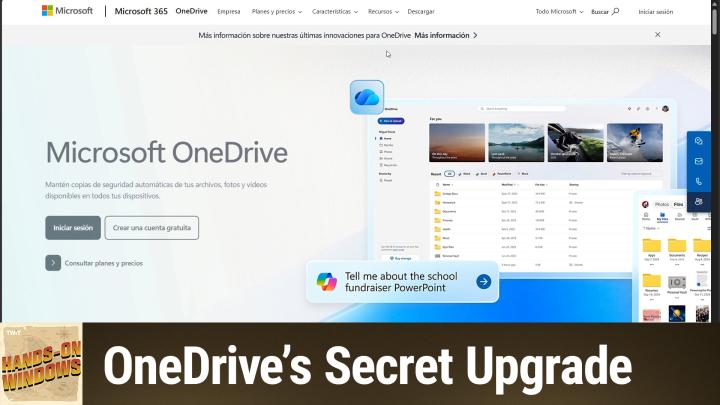
The redesigned OneDrive app brings a modern look and streamlined navigation, matching the recent updates to OneDrive on the web. The focus is clear: making file and photo management not only easier, but also smarter.
- Dual interface: Easily switch between ‘Photos’ and ‘Files’ views, optimized for the most common tasks.
- Moments & Albums: The photos interface now displays recent images and organizes them into auto-generated albums, ‘People’ tags, and favorites. The new ‘Moments’ feature lets you revisit memories by date across different years.
- AI Integration: Copilot-powered features allow users to summarize documents, generate FAQs, and receive document summaries when sharing files.
On Hands-On Windows, Paul Thurrott demonstrated how these updates provide a more unified experience across web, mobile, and now Windows desktop apps.
AI-Powered Photo Editing and Organization
One of the standout additions is the integration of Microsoft Designer—the company’s AI-driven image toolkit—directly into OneDrive. This boosts the photo editing experience beyond basic adjustments.
- AI Editing Tools: Options include super resolution (upscaling low-quality scans), object removal, background blurring, and color adjustments. These features run on Microsoft’s cloud, using AI credits included in Microsoft 365 subscriptions.
- Natural Language Search: Upcoming features will let users search for photos, create albums, and share images simply by typing natural language commands, thanks to AI-driven ‘agents’.
These tools mean that even old, blurry photos can get a new lease on life, while organizing and sharing becomes far less tedious.
How to Try the New OneDrive App Now
Although Microsoft says the new OneDrive app is coming in 2026, Paul Thurrott found it already available on recent builds of Windows 11 (24H2/25H2).
To check if you have access:
- Navigate to your user account folder (C:\Users[YOURNAME])
- Go to AppData > Local > Microsoft > OneDrive
- Look for ‘OneDriveApp.exe’ and run it
Alternatively, check in your Program Files or Program Files (x86) directories for the same executable.
You’ll get the new interface and features immediately if you’re on the latest Windows version.
Key Takeaways
- The new OneDrive app brings a cleaner interface and advanced photo tools to Windows users well before the planned launch.
- AI-powered editing, summarizing, and search tools are now integral to the experience, making organization and sharing easier.
- Users on Windows 11’s most recent stable releases can access the app by locating and running the new executable, even if it’s not yet officially promoted.
- Mobile and web versions are also receiving updates, including similar photo management and (soon) AI editing capabilities.
What This Means for You
This update makes OneDrive a legitimate alternative to popular photo management services like Google Photos and Apple Photos, especially for users who back up and manage images across multiple devices. If you use OneDrive for document and photo storage, now’s the time to explore these new features and streamline your workflows.
The Bottom Line
Microsoft’s revamped OneDrive app for Windows brings powerful, practical enhancements for everyday users—including surprise early access to a suite of AI tools. Don’t wait: check your system today and take advantage of smarter photo management, streamlined sharing, and more, well ahead of the official launch.
Ready to see more reviews, first looks, and practical Windows tips? Subscribe and never miss an episode:
https://twit.tv/shows/hands-on-windows/episodes/165