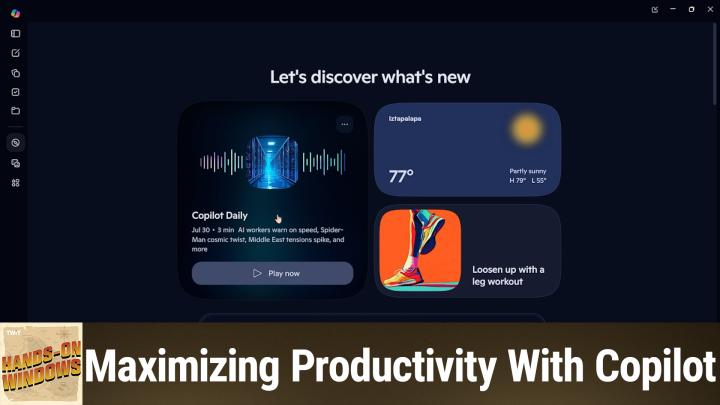
Is Microsoft Copilot Worth Using on Windows 11? Key Features and Benefits Explained
AI-generated, human-reviewed.
Microsoft Copilot is now deeply integrated into Windows 11, offering much more than just basic AI chat. Whether you’re a student, professional, or casual user, there are practical and sometimes surprising capabilities that make Copilot worth a second look—even if you skipped it at launch.
On Hands-On Windows, Paul Thurrott highlighted his findings after digging back into Copilot while updating his Windows 11 Field Guide. The result: Copilot’s feature set has grown, its free tier is robust, and some study and productivity tools now rival (or beat) popular alternatives like ChatGPT or Claude.
Copilot in Windows 11: Quick Summary
Copilot is Microsoft’s AI-powered assistant built into Windows 11. It now works as both a chat interface and a tool for tasks such as document analysis, writing assistance, study help, and image generation. The experience varies depending on whether you have Windows 11 Home or Pro, and whether you’re a Microsoft 365 subscriber:
- Windows 11 Home: Consumer Copilot (free version with solid features)
- Windows 11 Pro/with 365 subscription: Microsoft 365 Copilot (adds business features and broader usage limits)
- Requirements: Microsoft account needed for nearly all features; Copilot app can be installed or uninstalled as needed
Key Features & How to Use Them
Multiple Ways to Launch Copilot
You can start Copilot from the Start menu, pin it to your taskbar, or use keyboard shortcuts like Alt+Space or Win+C. Some new PCs even have a dedicated Copilot key.
Conversational Interface
Copilot isn’t just for single questions. It keeps context within ongoing conversations, so you can follow up, dig deeper, or revisit previous chats and documents easily.
Free Features That Stand Out
Paul Thurrott found the free Copilot features to be surprisingly capable:
- Smart Model Mode: Automatically chooses the right AI backend for your request.
- Document & Web Analysis: Upload PDFs, summarize articles, or even generate study guides and quizzes from content.
- Writing Assistance: Get help drafting emails, blog posts, or outlines. Choose from practical, technical, creative, or other writing tones.
- Conversational Search: Ask simple or complex questions and get well-formatted, source-cited answers.
- Image Generation: Use Imagine, a template-driven tool to create or restyle images for fun or presentations.
Premium and Subscriber-Only Perks
If you have a Microsoft 365 Personal or Family subscription, you get:
- Higher usage limits
- Access to some exclusive features
- Support for multiple users in family plans
- Advanced project and productivity tools
Copilot as a Study and Productivity Tool
A standout discovery: Copilot’s built-in study utilities. You can generate:
- Summaries and document briefings (great for research or exam prep)
- Interactive quizzes and flashcards (ideal for learning or self-testing)
- Presentation-style overviews (for pitches or quick reviews)
- Pages collections that bundle related resources
Paul Thurrott especially called out the study tools—available even at the free level—as a major value add, and a pleasant surprise on re-evaluation.
What This Means for You
- Don’t dismiss Copilot based on early versions. The toolset has expanded, and many features are easy to use and quite powerful without a subscription.
- Try the document and web analysis features. If you’re a student, researcher, or productivity-focused user, summarizing or quizzing on custom content is now just a couple of clicks away.
- Consider Microsoft 365 if you need more. Power users and families can benefit from higher usage limits and additional tools, but almost everyone can get practical value from the free app.
- Compare with ChatGPT and Claude. According to Paul, Copilot’s capable enough for everyday tasks—especially since it’s baked into Windows 11 and costs nothing extra to try.
The Bottom Line
Microsoft Copilot in Windows 11 is no longer just a novelty. Its conversational AI, document analysis, and content creation features now rival top third-party AI assistants—and the study tools may be uniquely useful. If you’re on Windows 11, it’s worth exploring what Copilot can do for your workflow, learning, or creativity—especially since it’s free to start.
Ready to get more from your Windows PC with Copilot?
Subscribe for more tips at: https://twit.tv/shows/hands-on-windows/episodes/203