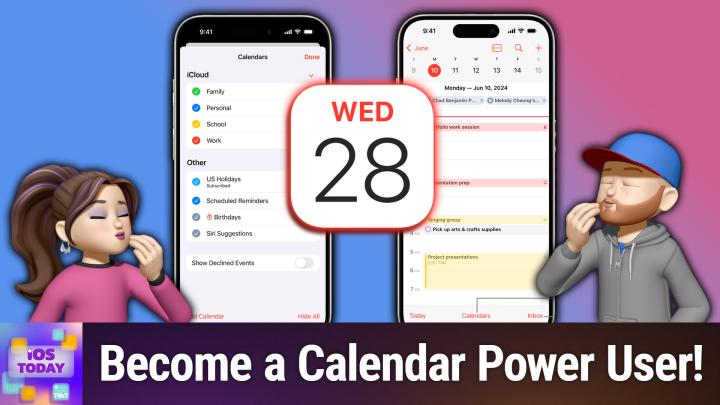
Managing Calendars on iOS: Best Practices, Tips, and Hidden Features
AI-generated, human-reviewed.
If you rely on your iPhone, iPad, or any Apple device to keep your schedule straight, knowing how to fully use the Calendar app can save you time, prevent missed appointments, and boost your organization. On iOS Today, Rosemary Orchard and Dan Moren shared the latest calendar features, practical organization strategies, and essential tips for making the most out of your iOS calendar—whether for personal life, work, or family.
Quick Summary
Apple’s Calendar app on iOS, iPadOS, and other platforms has steadily introduced new capabilities—including reminders integration, time zone support, advanced sharing, and calendar subscriptions. Mastering these can make calendar management seamless, especially as our schedules become more complex.
iOS Today’s discussion focused on:
- Navigating the updated Calendar UI (including iOS 26 changes)
- Integrating Reminders and travel times
- Managing multiple and shared calendars
- Using time zones for accurate scheduling
- Leveraging calendar subscriptions for holidays and events
Organizing Your Calendar the Smart Way
Multiple Calendars for Clear Separation
Both hosts agreed: using separate calendars (work, personal, family, shared) is a must. Color coding helps keep track of what’s what, and sharing individual calendars with family or collaborators avoids oversharing (your boss doesn’t need to see your soccer games, and vice versa).
Pro tip: Assign unique colors to distinctive calendars and only share necessary ones with others to preserve privacy.
Reminders Integration: Stay on Top of To-Dos
Since iOS 18, you can now display Reminders within your Calendar. This gives a true holistic view of your day, immediately flagging why your schedule may look light if you have a backlog of tasks.
How to apply: Toggle Reminders on in the Calendar app and schedule tasks just as you would events for an instant overview.
Travel Time, Time Zones & Event Details
Adding travel time to events ensures your appointments reflect both commitment length and necessary commute, reducing the risk of running late. When scheduling across time zones, especially for remote work or podcasts, set the event’s time zone—Apple Calendar will convert it automatically.
The Calendar app also now allows:
- Adding locations to events, letting you base travel time on real addresses (helpful with Apple Maps)
- Attaching files or URLs for quick access to necessary info
- Inviting others, who can then accept or decline, streamlining group meetings or parties
Subscribe to External Calendars
For holidays, school calendars, or work schedules, you can subscribe to public iCal (.ics) calendars. These stay up to date automatically—no more manually adding holidays or term dates.
How to apply: Add a calendar subscription via the Calendar app’s settings with a URL to sync updates automatically.
Filtering and Focus Modes
With Focus Modes on iOS, you can filter which calendars appear based on what you’re doing (work, driving, podcasting, etc.)—though with limitations. Some external apps, like Fantastical, may offer more advanced calendar set management if native options prove restrictive.
Key Takeaways
- Use multiple calendars for clarity—color-code, and share them selectively.
- Integrate Reminders into your Calendar for a true day overview.
- Set travel times and time zones for accurate, stress-free scheduling, especially with remote commitments or travel.
- Add locations, attachments, and invitees for richer event information and better coordination.
- Subscribe to public calendars (holidays, school) to ensure your schedule stays accurate without manual updates.
- Widgets can place next-event info right on your lockscreen for instant awareness.
- Third-party apps like Fantastical offer advanced features if built-in controls fall short.
What This Means for You
Staying on top of your schedule is easier than ever if you leverage these Calendar features. Whether you’re juggling multiple jobs, shuttling kids between activities, or just trying to fit in social commitments, these tools ensure nothing slips through the cracks.
If you or your family are still sharing a single calendar, consider splitting your events into relevant categories for less clutter and fewer scheduling mix-ups.
The Bottom Line
iOS Calendar is far more than a basic datebook. By using multiple calendars, reminders integration, subscriptions, and sharing features, you can manage life’s complexity with less stress.
For those who need extra capabilities—like specialized calendar sets or event merging—apps like Fantastical are strong alternatives.
Ready to overhaul your digital calendar? Open your Calendar app, try out these features, and see how much smoother your planning can be.
For more tips and in-depth discussion, listen to the full episode: https://twit.tv/shows/ios-today/episodes/769