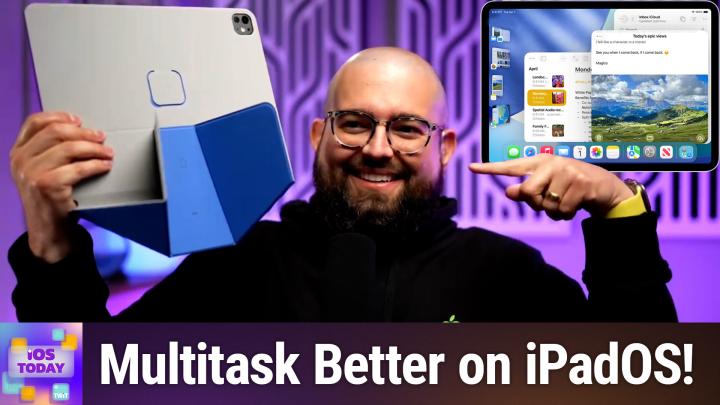
iPad Multitasking in 2026
AI-generated, human-reviewed.
Efficient multitasking can turn your iPad into a true productivity powerhouse. This guide covers the latest Stage Manager features, Split View/Slide Over improvements, and automation workflow optimizations so you can sharpen your iPad experience with practical tips from iOS Today.
Why iPad Multitasking Matters in 2026
iPadOS 26 continues to evolve, blending desktop-like flexibility with the iPad’s touch-first design. With Stage Manager, Split View, and automation triggers, you can finally streamline your digital workspace—whether you’re editing podcasts, managing documents, or toggling between creative tasks.
On iOS Today, Rosemary Orchard and Stephen Robles shared real-world advice for getting the most out of the iPad’s multitasking features, especially with larger screens and keyboard/trackpad setups.
The Current State of iPad Multitasking
Stage Manager lets you run multiple apps in resizable windows—much like Mac desktops (“spaces”)—creating tailored “stages” for each type of work (e.g., productivity, social media, or automation building).
Split View and Slide Over are now back in iPadOS 26.2, letting you snap two apps side-by-side or float a compact app window on top for fast access—offering flexibility depending on your workflow and device.
Key upgrades and quirks:
- Magic Keyboard & Trackpad enhance window management, letting you quickly command-tab between stages.
- Automation triggers (e.g., “Set Stage Manager”) allow you to toggle multitasking modes based on which app you open or workflow you’re in.
- External Display support is present but less relevant for users who already have robust desktop setups.
- The new close, minimize, and maximize window controls at the top-left corner of app windows bring the interface closer to macOS, easing the learning curve for new multitaskers.
Setting Up Your Ideal Workspace
- Use the Magic Keyboard for rapid window switching and keyboard commands.
- Group similar apps into dedicated stages (e.g., all social apps on one stage, productivity tools on another).
- Command-tab within a stage to quickly cycle between app windows.
- Drag new apps from the dock into the current workspace to open them in-place (instead of switching to a new stage).
- If you prefer full-screen apps for distraction-free focus (as with Ferrite podcast editing), toggle Stage Manager off via Control Center.
Example Workflow:
- Stephen Robles described using Shortcuts, Circle (community app), and Bear Notes together—all visible and instantly clickable.
- When pulling in content from Safari, drag the app into the existing stage instead of launching it from the dock to preserve workspace context.
- For podcast editing in Ferrite, keep Stage Manager off for full-screen simplicity and rely on Universal Control for drag-and-drop between Mac and iPad.
Automating Your Multitasking
- Use Shortcuts to toggle Stage Manager on/off when opening specific apps (like turning it off before editing in Ferrite).
- Set up battery notifications for low or high charge using Pushcut (third-party) to stay ahead of power issues—even across multiple devices.
- Take advantage of new automation triggers tied directly to multitasking features (connecting displays, switching stages) for more dynamic setups.
How to set a basic automation:
- Open Shortcuts, create a new automation for when an app (e.g., Ferrite) is opened.
- Add the Set Stage Manager action to enable or disable multitasking mode automatically.
- Optionally, add battery reminders using Pushcut so you never get caught off-guard when working away from your desk.
Pros & Cons
Pros
- More powerful, flexible workspace management for complex workflows.
- Easier transitions from Mac to iPad thanks to familiar windowing controls.
- Automations save time and mental friction for routine tasks.
Cons
- Still some quirks when bringing apps into stages (docking behavior can be inconsistent).
- Multitasking on smaller iPads (e.g., iPad Mini) is limited by physical screen size, even if Stage Manager is available.
- Split View and Slide Over have returned, but older-style splitting without Stage Manager isn’t fully restored yet.
The Proper Padding
- With proper setup, iPad multitasking can closely resemble a Mac-like workflow, letting power users accomplish much more without switching devices.
- Toggling Stage Manager by automation or manually remains necessary for focus-heavy tasks versus casual browsing or document editing.
- Expect ongoing quirks as adapting to iPadOS’ evolving behavior is part of the process.
iPadOS 26’s multitasking tools, especially Stage Manager, Split View, and Shortcuts automations, offer genuine productivity gains for anyone willing to dig into the features. Users will benefit most when combining a Magic Keyboard, thoughtful window grouping, and personalized automations. For screen-limited models (like the iPad Mini), multitasking is best reserved for occasional use, while power users on the iPad Pro with a keyboard will see the biggest payoff.
Subscribe for more tips and hands-on episodes: https://twit.tv/shows/ios-today/episodes/788