How to Use Store CLI in Windows 11: A Guide for App Management
AI-generated, human-reviewed.
If you want an efficient way to install, update, and discover apps on Windows 11, Microsoft offers two main command line tools: Winget and the new Store CLI. Understanding their differences can help you choose the right one for your needs and streamline your app management.
Why Microsoft Store CLI Matters Now
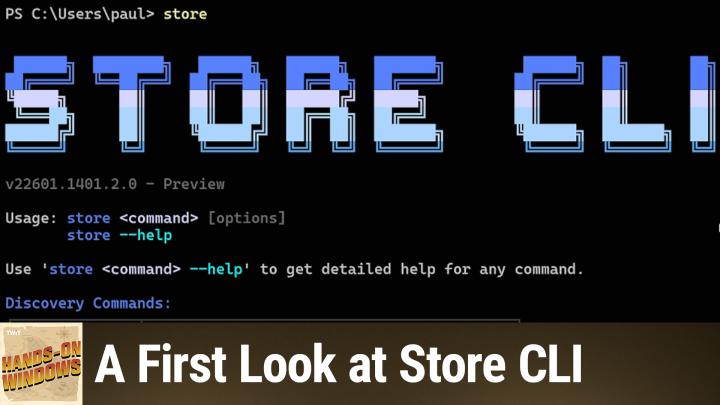
Store CLI is a newly integrated command line interface in Windows 11, dedicated solely to managing Microsoft Store apps. While Winget (Windows Package Manager) has long enabled users to access both Store apps and curated web apps, Store CLI brings a more polished, Store-focused approach that even introduces discovery features that hint at integration with AI agents.
On Hands-On Windows, Paul Thurrott highlighted the sudden arrival of Store CLI, how it overlaps with Winget, and where it introduces new value for both regular users and developers.
Store CLI vs. Winget: Key Differences
Winget provides a robust way to install apps from both the Microsoft Store and select web packages. It’s ideal for batch installations and supports a wide array of software, including apps not listed in the Store.
Store CLI, on the other hand, focuses only on Microsoft Store apps. It features a visually improved, user-friendly console output, making app discovery and updates simpler. Key differences include:
- Repository Scope: Winget handles Store and web-sourced apps, while Store CLI is limited to Store apps only.
- User Experience: Store CLI offers a semi-graphical, nicely formatted text interface. Commands and parameters are displayed more clearly for easier use.
- App Discovery: Store CLI’s enhanced discovery tools allow filtered searches (e.g., “top free music apps”), drill-down by category, and a “similar” command to find alternatives (great for users searching for apps like Photoshop).
- Updates: Store CLI lets you update individual apps or all Store apps at once, with a simple interactive prompt that continues updates in the background.
Practical Tips: When and How to Use Each
When to Use Store CLI:
- If you primarily install and manage apps from the Microsoft Store.
- When you want to easily browse categories or find free alternatives inside the Store.
- If you prefer a more interactive, visually clear command line interface.
When to Use Winget:
- If you need to install both Store and web-based apps.
- For automated batch installs during fresh Windows setups.
- If your workflow depends on scripting and requires non-Store software.
How to Access Store CLI:
On Windows 11 with the Microsoft Store app installed, simply open the Terminal and type store to access its menu. Run commands like store search [appname], store update, or explore with store browse apps top free for quick access to popular software.
Notable Features & First Impressions
Paul Thurrott found Store CLI’s discovery abilities especially interesting, suggesting its interface and features may be designed with future AI integrations in mind. For example:
- Searching for "Chrome" with Store CLI will show alternative browsers, since Chrome itself isn’t in the Store.
- The “similar” command can help you discover alternatives to popular paid/pro apps—e.g., searching for “Photoshop” returns a list of both Adobe and free image editors.
- Filters allow you to narrow searches by category or price, making it easier to find what you need quickly.
Key Takeaways
- Store CLI is best for Microsoft Store-only app discovery and management.
- Winget remains necessary if you rely on non-Store apps or batch scripts covering a broader range of software.
- Store CLI’s user experience and discovery tools make finding alternatives and browsing categories much easier.
- There is functional overlap, so consider which approach fits your workflow.
The Bottom Line
If you’re a Windows 11 user managing primarily Store apps, try Store CLI for a faster, friendlier experience, especially for discovery. Power users with broader needs should keep using Winget. Microsoft hasn’t announced plans to merge or deprecate either tool, so using both as needed will give you the most flexibility.
For hands-on demonstrations and more expert tips, subscribe to Hands-On Windows at https://twit.tv/shows/hands-on-windows/episodes/181.