How to Use Copilot Mode in Microsoft Edge: Features, Pros, and Early Impressions
AI-generated, human-reviewed.
Microsoft Edge Copilot Mode: Should You Make the Switch?
Microsoft has launched Copilot Mode in Edge—a new AI-powered feature that revamps the new tab page, adds chat-based browsing, and automates actions for users. While still experimental, Copilot Mode gives Edge users a taste of how AI is changing web browsing. Here’s what you need to know to decide if it’s worth trying now.
What Is Copilot Mode in Microsoft Edge?
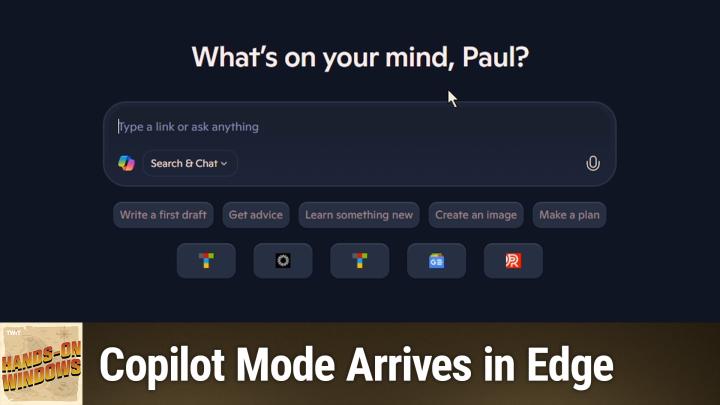
Copilot Mode is Microsoft’s response to rising competition from dedicated AI browsers like Norton’s Neo, Opera’s Neon, and Perplexity’s Comet. Instead of launching a separate browser, Copilot Mode layers new AI features into the familiar Edge interface.
Key changes include:
- A redesigned new tab page centered around Copilot chat
- The Copilot button moved for quicker access
- AI-powered summaries and comparisons of web content
- Voice and chat controls to perform actions or distill information
Paul Thurrott explored Copilot Mode on Hands-On Windows, highlighting what works, what’s lacking, and how it compares to other AI browsers.
What’s New: Features and First Impressions
- AI-Driven New Tab: Enabling Copilot Mode transforms your new tab page into a workspace focused on suggestions, recent quick links, and a prominent Copilot chat box.
- Integrated Sidebar and Quick Panel: The Copilot chat can overlay the page or be pinned as a sidebar, so you can summarize articles, ask questions, or compare products without navigating away.
- Improved Keyboard Shortcuts: Launch Copilot with Alt+C—a streamlined shortcut compared to previous versions.
- Contextual Actions: Copilot can create summaries of current pages, answer queries, compare products across open tabs, and even attempt to set price trackers on shopping sites.
- Voice Navigation (Early Stage): Use voice commands like "Summarize this page" or basic navigation steps—a boost for accessibility or hands-free browsing.
Pros & Cons
Pros:
- Integrates AI tools directly into Edge, no extra software needed.
- Clean new tab experience for Copilot users.
- Summarizes, compares, and interacts with content across tabs.
- Voice and chat inputs for hands-free use.
Cons:
- Disables any third-party new tab extensions when enabled.
- Limited customization of quick links and suggestions.
- Voice navigation and automated actions still unreliable—often blocked by captchas or inconsistent results.
- Some UI elements are non-resizable and less flexible than before.
Key Differences: Edge Copilot vs. Dedicated AI Browsers
- Approach: Edge Copilot integrates AI into a mainstream browser, while tools like Neo, Neon, and Perplexity build ground-up AI experiences.
- Features: Dedicated AI browsers often offer deeper integrations, smarter content understanding, and more control over the browsing experience.
- Stability: Microsoft’s implementation is more conservative and experimental, aiming to update as the technology matures.
Who Should Try Copilot Mode Now?
On Hands-On Windows, Paul Thurrott found Copilot Mode best suited for users who:
- Want quick access to AI summaries or web Q&A.
- Prefer a “hands-free” or chat-based browsing experience.
- Like trying early, experimental features before they go mainstream.
- Don’t rely heavily on custom new tab extensions.
If you’re already using AI browsers and need advanced tools, you may find Copilot Mode limited for now.
What This Means for You
If you use Microsoft Edge, Copilot Mode offers a low-friction way to experiment with AI browsing—without changing your workflow or installing a new browser. Expect growing pains: some features can be clunky, especially voice navigation and automated site actions, but Microsoft is expected to roll out major improvements. This experimental mode signals where mainstream browsers are heading—toward more integrated, task-focused AI.
The Bottom Line
Edge Copilot Mode is a promising, if basic, peek into AI-assisted browsing. If you’re curious, enable it via Settings > AI innovations in Edge (on supported versions), but don’t expect a fully polished experience yet. For now, it’s best as an experiment for power users—but keep an eye out as Microsoft continues to close the gap with dedicated AI browsers.
Catch the full episode for more hands-on insights: https://twit.tv/shows/hands-on-windows/episodes/156