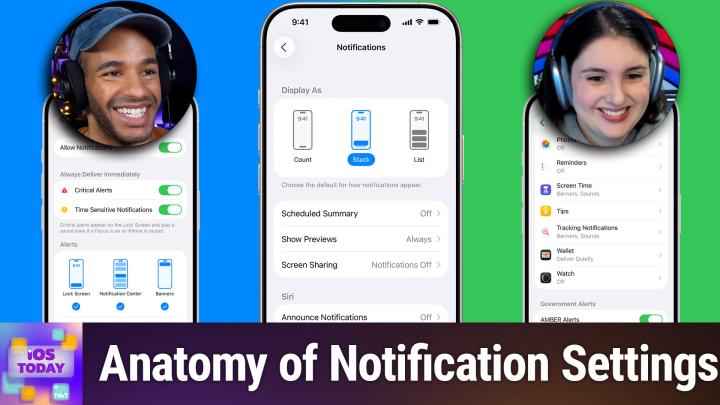
How to Take Control of iOS Notifications for a More Productive Day
AI-generated, human-reviewed.
If your iPhone or iPad feels like it's constantly interrupting you, learning how to manage notifications can help you reclaim your attention and increase productivity. On iOS Today, Mikah Sargent and Rosemary Orchard shared their experience and step-by-step advice for optimizing iOS notification settings, including time-sensitive alerts, notification summaries, privacy previews, badges, and app-specific options.
Why Notification Management Matters Right Now
With the increasing number of apps and devices, notifications can quickly become a source of distraction and privacy concern. Proper configuration ensures that you get the information you need without missing important reminders or being bombarded by irrelevant alerts. Recent iOS updates have introduced new ways to customize notifications, giving you more control than ever.
What You Can Do with iOS Notifications
- Turn notifications on/off by app in Settings.
- Fine-tune alert delivery: immediate, scheduled summary, or time-sensitive.
- Choose where alerts appear: lock screen, notification center, or as banners.
- Customize badge, sound, and Siri announcement preferences.
- Manage previews for privacy & select when details are shown.
- Enable scheduled notification summaries to receive non-essential alerts at set times.
- Adjust notification grouping: automatic, by app, or by time.
How to Apply This: Step-by-Step
- Open Settings > Notifications
Navigate to the main Notifications section to see all available controls. - Select an App
Tap any listed app to access its unique notification settings. - Customize Delivery
Choose between immediate delivery, scheduled summaries, or time-sensitive alerts.- Immediate Delivery: Alerts appear as soon as sent.
- Scheduled Summary: Non-urgent notifications are grouped and delivered at specific times.
- Time-Sensitive: Important notifications override focus modes and always alert you.
- Set Alerts Locations
Decide if notifications show on lock screen, in notification center, or as temporary/persistent banners. - Tune Privacy Previews
- When Unlocked: Only reveals details after authentication.
- Always/Never: Show or hide notification details regardless of lock state.
- Use the Swiping Shortcut
Swipe right on a notification to access quick options—mute, turn off time-sensitive, or configure settings in-app. - Schedule Notification Summaries
Helpful for batching less-important alerts (news, social, shopping apps) into 1-3 check-in points daily. - Manage Badge/App Icon Alerts
Disable badges if you don’t want red circles nagging you on your home screen. - Announce Notifications with Siri
Enable for supported earbuds, like AirPods, especially handy while multitasking. - Check for Account-Specific Settings
Some apps (e.g., Reddit, Teams) require configuration per account.
Take Note!
- Time-sensitive notifications keep essential alerts at the top, while others are deferred.
- Scheduled summaries allow proactive control over non-urgent notifications—increasing focus and reducing interruptions.
- Privacy previews make sure sensitive info stays hidden on your lock screen unless authenticated.
- App-specific tweaks let you shape notification behavior per app, including muting, badge removal, or changing default grouping.
- Notification management supports both productivity and privacy.
On iOS Today, Rosemary Orchard recommended experimenting with settings to find your perfect balance. She highlighted how even overlooked features can make a big difference for daily device use. Take a few minutes to review your Notification settings on each device. Decide which apps are critical for real-time alerts, and batch the rest. This approach can decrease stress, increase productivity, and protect your privacy, especially in public or work situations. If you regularly screen share or use your device in meetings, consider disabling previews to safeguard sensitive information.
Customizing iOS notification settings is straightforward and makes a tangible impact on your daily life. Set up scheduled summaries to reduce interruptions, tweak badges and banners per app for clarity, and use privacy previews to control what’s visible on your lock screen. Try these steps for a more focused and personalized iOS experience.
Subscribe for more tips and expert reviews: https://twit.tv/shows/ios-today/episodes/794