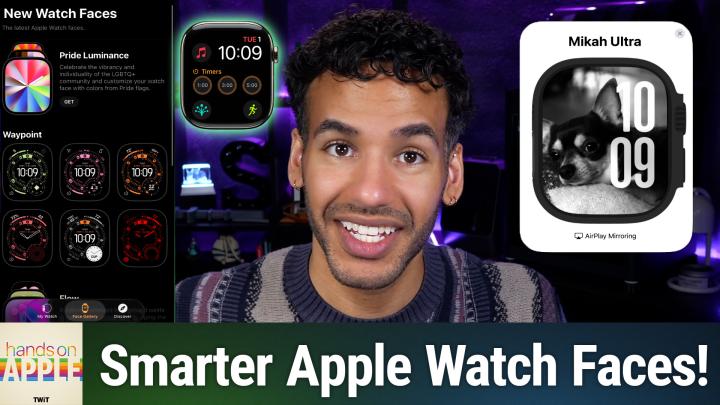
How to Personalize Your Apple Watch Face
AI-generated, human-reviewed.
The Apple Watch face is your most-viewed screen, yet many users never tweak it beyond the default. On Hands-On Apple, Mikah Sargent highlighted simple ways to customize, organize, and make the right information accessible every time you check your watch.
Why Customizing Your Apple Watch Face Matters
Apple Watch users check their device dozens of times a day. If your watch face still looks the way it did at setup, you’re missing out on the chance to surface essential info (weather, calendar, activity, and more) right where you need it most.
Customizing your watch face ensures every glance gives you the details you actually want, boosting productivity and making your watch work smarter for you.
How to Customize Your Apple Watch Face
While you can edit your watch face directly on your Apple Watch, the Watch app on your iPhone provides a bigger screen and easier controls for setting up a face and assigning complications.
- Open the Watch app on your iPhone
- Tap Face Gallery at the bottom to view available faces by category (Health, Fitness, Photos, Data-rich, and more)
- Tap Get on any face to add it to your Apple Watch
- Tap on the face, then choose Add to Watch to install
Certain faces, like Waypoint (Apple Watch Ultra only) and Hermès faces (exclusive to Hermès editions), are model-specific and may not be available for all Apple Watch users.
Assign and Organize Complications
Complications are mini-widgets that display real-time information (weather, activity, calendar, timer, battery, third-party app info) right on your watch face. Different faces support varying numbers of complications (some up to eight, others just one or two).
Mikah Sargent recommends:
- Only filling the complication slots with the info you actually need—a cluttered face can make key details hard to spot.
- Prioritizing complications like current weather, next calendar event, activity rings, shortcut to a favorite app, or a timer.
- Leaving some areas empty for better readability.
Switch and Organize Watch Faces
Switching faces is easier than ever:
- Tap and hold your current face on the watch, then swipe left or right to change faces.
- To enable/disable easy swiping:
Go to Settings > Clock > Swipe to Switch Watch Face on your Apple Watch.
Reorder your faces both on the watch and in the Watch app by using the Edit option. Keep your most-used faces upfront for quick access.
Link Watch Faces to Focus Modes
You can automatically switch watch faces as you change Focus modes (like Work or Personal). This means you see relevant info for each part of your day. Check previous Hands-On Apple episodes for a full walkthrough on linking Focus modes to watch faces.
Practical Examples: Types of Faces to Build
Mikah Sargent suggests creating at least two faces:
- Productivity Face: Calendar, reminders, and weather for your workday.
- Personal Face: Activity, photos, playful design, or minimalist setup for evenings and weekends.
Consider rotating through several faces as your day changes. Use only 3-4 meaningful complications per face to avoid clutter.
What’s New in WatchOS 10
The latest update brings faces featuring Apple’s liquid glass design:
- Flow: Abstract background that responds to movement
- Exactograph: Separate dials for hour, minute, and second for a precise, easy-to-read display
- Pride Luminance: New, vibrant colorways
Share a Custom Face
When you design a watch face you love, you can easily share it with friends. Just tap the share button in the top right of the Watch app’s face editor and send.
Learning Face to Face
- The Apple Watch face can and should be regularly updated to reflect your needs.
- Use the Watch app for easier editing, and focus on adding only essential complications.
- Switch faces as your day changes, and link to Focus modes for seamless transitions.
- Take advantage of new watch faces in watchOS 10.
- Sharing watch faces is simple! Let your friends in on your favorite setups.
Spending a few minutes customizing your Apple Watch face pays off every day. The more intentional your setup, the more useful your most-viewed device becomes. Give it a week, and your wrist—and your routine—will thank you.
Subscribe for more actionable Apple tips:
https://twit.tv/shows/hands-on-apple/episodes/233