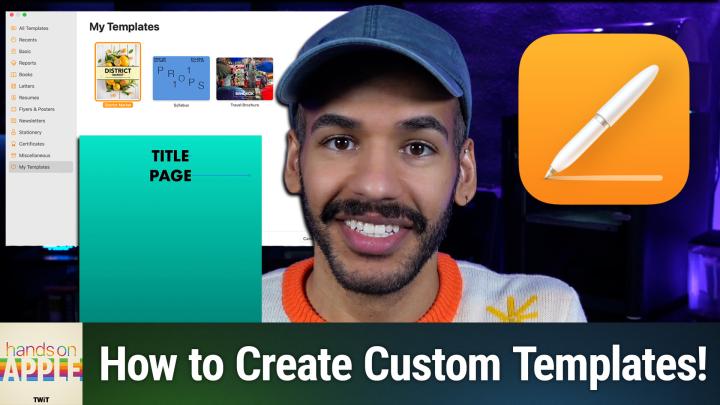
How to Create Custom Templates in Apple Pages
AI-generated, human-reviewed.
Designing your own templates in Apple Pages can transform the way you work, letting you create reusable layouts for everything from newsletters to recipe cards. On Hands-On Apple, Mikah Sargent walked through how anyone can start from scratch or modify existing templates, making document creation faster and more consistent.
Quick Summary
If you regularly produce similar documents in Pages, custom templates save you from repetitive formatting and setup. This guide covers everything from launching Pages and editing styles, to saving, sharing, and deleting templates—so you only spend effort once.
How to Create or Modify a Pages Template
Start by opening the Pages app on your Mac. You can either choose an existing template (like Simple Newsletter) and tweak its styles, or select a blank template for full customization.
- Modify Existing Templates:
Select a template, edit text styles (font, size, formatting), insert placeholders for images or text, and go to File > Save as Template when finished. - Create Templates from Scratch:
Choose the blank document, set document layout via the toolbar > Document (orientation, margins, headers/footers), add sections as needed, and define styles for headings and body text. Use Format > Advanced to set placeholder text or media placeholders for images. - Organize Elements:
Customize further by adding tables, charts, or bookmarks (for easy navigation, like PDF bookmarks).
Using Placeholders for Faster Customization
Mikah recommends using the Define as Placeholder Text and Define as Media Placeholder features. These allow you (or anyone using your template) to easily swap out sample text and images, preserving the intended formatting and structure with minimal effort.
Sharing, Renaming, and Deleting Templates
From the template chooser screen, right-click on any template you’ve created. You can:
- Rename templates for easy organization.
- Share templates with others as .template files.
- Delete templates when you no longer need them.
This keeps your workspace uncluttered and lets teams or family members use standardized document styles.
The Whole Page
- Creating templates in Pages ensures consistent formatting and speeds up repetitive tasks.
- Both new and existing templates can be tailored and saved for future use.
- Use placeholder text and images so templates are easy to update each time.
- Templates are easily managed (renamed, shared, deleted) from the main chooser screen.
Whether you want beautifully formatted newsletters, professional business cards, or organized recipe cards, custom templates let you work more efficiently and avoid costly subscriptions. If you collaborate, sharing templates keeps everyone on the same page—literally. Custom templates in Pages are simple to set up and make document creation faster for individuals, families, and businesses. Try creating your own to save time and add a personal touch, without needing extra apps or purchases.
Subscribe to Hands-On Apple for more practical Apple tips: https://twit.tv/shows/hands-on-apple/episodes/215