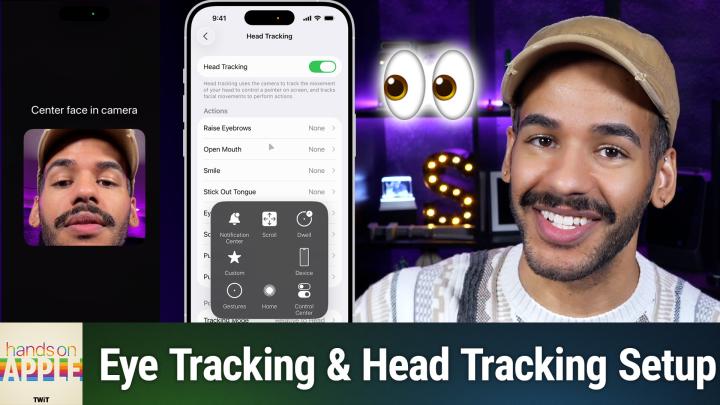
How to Control Your iPhone With Eye Tracking
AI-generated, human-reviewed.
Apple’s latest accessibility features for iOS now let you control your iPhone using only your eye movement or head gestures. Mikah Sargent from Hands-On Apple tested these tools firsthand, demonstrating their setup and sharing practical advice on their accuracy, best use cases, and what to expect.
What It Does and Why It Matters
The Eye Tracking feature allows users to navigate their iPhone interface by looking at specific areas of the screen. This capability is designed primarily for those with mobility challenges or anyone seeking hands-free device control.
Eye tracking uses the front camera to follow eye movement, moving the pointer across the screen based on where you look. This can help users open apps, tap buttons, and interact with their phone without using their hands.
How to Set Up Eye Tracking on Your iPhone
On the show, Mikah Sargent explained the steps for enabling eye tracking:
- Open the Settings app.
- Go to Accessibility > Physical and Motor.
- Tap Eye Tracking and turn it on.
- Position your iPhone on a stable surface about one foot away from your face.
- Complete the training by following a moving dot with your eyes.
Pro Tip: A stable tripod or stand is recommended for best results. Accuracy improves when your head remains still during setup and use.
Customizing Eye Tracking Settings
You can fine-tune eye tracking for comfort and precision by adjusting options such as:
- Smoothing: Controls how fluidly the pointer moves in response to your eyes.
- Snap to Item: Moves the pointer to nearby interactive items automatically.
- Zoom on Keyboard Keys: Enlarges keys for easier typing.
- Auto Hide: Removes on-screen clutter as needed.
- Dwell Control: Lets you perform actions by focusing on a spot for a set time.
Guidance is provided throughout setup to ensure correct usage and positioning.
Eye Tracking Accuracy
During real-world testing, Mikah Sargent found that eye tracking is a powerful accessibility tool, but its accuracy can vary:
- Precise device placement and minimal head movement are essential.
- The setup may require retraining for optimal results.
- Tracking can sometimes be imprecise, especially for smaller buttons or quick actions.
- Stability during setup and use significantly improves performance.
The feature is most suited for users who can keep their head still and phone at the recommended distance, such as those using a device stand or wheelchair attachment.
Head Tracking: An Alternative for Hands-Free Control
If eye tracking doesn’t suit your needs, iOS also offers head tracking—which follows head movement and facial expressions (such as smiling, raising eyebrows, or blinking) to perform actions. Mikah Sargent demonstrated that head tracking can be more responsive for some users and supports gesture-based commands for extra flexibility.
Key Points
- Eye Tracking empowers hands-free iPhone control for accessibility.
- Setup requires stable positioning and precise calibration.
- Accuracy improves with minimal head movement and retraining when needed.
- Users who struggle with eye tracking can try head tracking or voice control as alternatives.
- These features can significantly benefit those with mobility impairments or anyone seeking touchless device interaction.
Apple’s eye and head tracking features in iOS break new ground in accessibility, giving users innovative ways to operate iPhones hands-free. For best results, use a stable mount and retrain the system as needed. While accuracy can be hit-or-miss, especially for fine tasks, these new tools are invaluable for those who need or want alternative input methods.
Ready to explore more Apple tips? Subscribe to Hands-On Apple for weekly episodes: https://twit.tv/shows/hands-on-apple/episodes/208