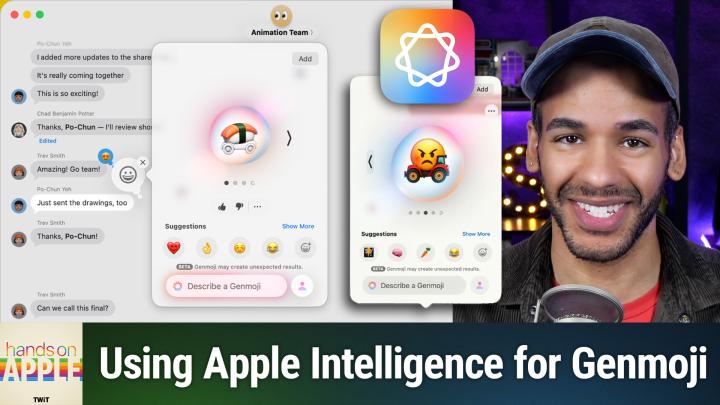
Genmoji Explained: Make Personalized Emoji With AI in Messages
AI-generated, human-reviewed.
Apple’s Genmoji is now more powerful than ever, letting you create unique emojis by combining existing ones, adding descriptive text, and layering on personalized expressions, all processed right on your device. On Hands-On Apple, host Mikah Sargent highlights the newest Genmoji features found in iOS 26, iPadOS 26, and macOS 26, offering practical ways to get creative and personalize your digital conversations. Here’s everything you need to know to get started or make the most of Genmoji.
What’s New With Genmoji?
Apple’s latest updates bring several enhancements to Genmoji, including:
- Emoji Combination: Easily merge two or more emojis to create hybrid, original designs.
- Text Descriptions: Add a phrase or description to better guide Genmoji creation.
- Personalization via Photos: For users with an organized Photos library, Genmoji can reflect hairstyles and facial features of people you tag.
- Expression Variety: Tailor Genmoji characters with custom expressions such as happy, shocked, or angry.
All these features are available in Messages across macOS, iOS, and iPadOS—no cloud required, as everything is processed on-device for privacy and speed.
How to Create Genmoji – Step-by-Step
- Access Genmoji in Messages:
Open the Messages app, click or tap the “+” icon near your message field, and select Genmoji from the menu. - Combine Emojis:
Tap the emoji-plus icon inside Genmoji to select multiple emojis. For example, try combining a “lightning bolt” with the “see-no-evil monkey” for creative effects. - Add Text Descriptions:
You can further guide Genmoji by entering descriptive words, such as “fearful,” “sequined jacket,” or other details. This helps the AI generate a more accurate or imaginative image. - Personalize With Your Photos Library:
If you have people identified in your Apple Photos app, Genmoji can use those features to generate personalized emoji characters, adjusting hairstyles and facial hair accordingly. - Pick Expressions:
Choose from a range of emotions or themes (happy, shocked, angry, etc.) to make your Genmoji match the mood of your message.
Pros & Cons of Apple Genmoji
Pros:
- Creativity Unleashed: Combine symbols, characters, and personal details for endless emoji possibilities.
- Private, On-Device Processing: No images or prompts are sent to the cloud.
- Easy to Use: Integrated directly into Messages; no additional apps are required.
- Personal Touch: Mimic friends or yourself with photo-based customization.
Cons:
- Results Can Be Unpredictable: Sometimes, the generated emoji may not look as expected.
- Requires Latest OS: Only available on iOS 26, iPadOS 26, and macOS 26.
- Limited Platform Support: Most useful within Apple’s Messages app.
Quick Tips for Great Genmoji
- Use Simple Descriptions: Short, clear instructions yield better results.
- Combine Up to Two Emojis for Best Clarity: Too many emojis can confuse the system.
- Be Patient With Beta Bugs: The feature is new; sometimes results won’t appear immediately.
- Experiment With Expressions and Themes: Mixing emojis with emotions creates distinctive reactions.
What This Means for You
Apple’s new Genmoji tools give users more ways to express themselves, moving beyond static emoji into dynamic, personality-filled images. Whether you want to liven up group chats with custom karaoke party invites or just make a friend laugh with a silly hybrid emoji, the possibilities have expanded.
On Hands-On Apple, Mikah Sargent found that combining emojis and using descriptive text brings out Genmoji’s creative potential, though results may sometimes be quirky or unexpected. Customization options like expressions and photo-based tweaks add even more fun for those who love personal touches in their messaging.
Genmoji represents Apple’s next step in digital communication—making emojis not only more personal, but also uniquely suited to every conversation. If you’re running the latest Apple software, it’s a feature worth exploring in Messages today. Try it out, and see what wild combinations you can create!
Subscribe for more practical Apple tips:
https://twit.tv/shows/hands-on-apple/episodes/203