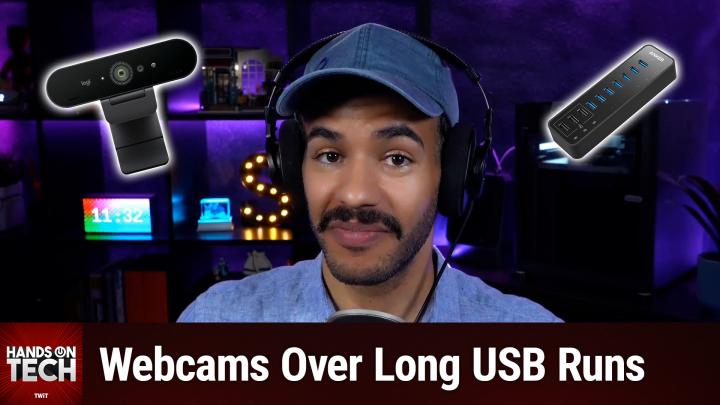
Best Ways to Use a Webcam
Created with AI, edited by humans.
If you're struggling to connect a USB webcam 15–20 feet away from your Mac Mini, there's an easy fix: add a powered USB 3 hub near your remote setup. On Hands-On Tech, host Mikah Sargent shared practical tips to overcome the common "USB Accessories Disabled" error—helping audiobook narrators and remote workers manage long cable runs, adapter limitations, and the realities of modern Macs.
Quick Summary
Connecting a USB webcam far from your Mac Mini can cause power and compatibility issues, especially with newer models lacking traditional USB ports. Mikah Sargent recommends bypassing expensive Thunderbolt solutions and focusing on a powered USB 3 hub placed close to your webcam for a reliable, cost-effective setup.
Why This Problem Happens
Recent Mac Minis (like the 2025 edition) have dropped USB-A ports in favor of USB-C/Thunderbolt ports. When you use long USB extension cables—or run through adapters—and the connected device needs more power than the port can deliver, you’ll get a “USB Accessories Disabled” message.
This typically happens because:
- USB ports on the Mac Mini can’t supply enough power over long extensions
- Adapters don’t always pass enough power
- Thunderbolt cables are expensive and often overkill for webcams
How to Apply This
Use a Powered USB 3 Hub
- Purchase a powered USB 3 hub (such as a TP-Link model, often under $30)
- The hub plugs into a wall outlet, providing its own dedicated power
- Place the hub near your remote station (e.g., inside your recording booth)
- Plug the webcam (and any other peripherals) directly into the hub
- Run a long, high-quality USB cable (active or passive) from your Mac Mini to the powered hub
This approach ensures:
- The webcam gets sufficient power regardless of distance
- The Mac Mini only needs to handle data transfer, not power
- You avoid costly Thunderbolt or fiber optic cables
Consider Your Cables and Adapters
- You can use standard USB-C cables in Thunderbolt ports; you don’t always need Thunderbolt cables for every device
- Use reputable brands (Cable Matters for USB cables, Belkin/Apple for Thunderbolt cables)
- If using an adapter (USB-C to USB-A), make sure it’s a quality model (preferably Apple’s own)
Bonus: Other Options
- If you’re in the Apple ecosystem, the Continuity Camera feature lets you use your iPhone as a wireless webcam (works up to ~30 feet with stable Wi-Fi/Bluetooth)
- If you have a larger budget, consider a Thunderbolt 4 dock (pricey but robust)
Key Takeaways
- Powered USB hubs solve most long-distance webcam connection problems for newer Macs with USB-C/Thunderbolt ports
- Choosing the right cable/adapters avoids unnecessary compatibility issues
- Wireless options (like Continuity Camera) can supplement or temporarily replace wired webcams, especially for occasional use
- Investing in a hub is far more affordable and versatile than high-end Thunderbolt cable solutions
What This Means for You
Audiobook narrators, podcasters, and remote workers can easily extend their webcam setups without technical headaches or breaking the bank. This solution also enables you to add other USB-powered accessories near your remote station—like desk lights or charging cables—all from a single hub.
The Bottom Line
Don’t spend hundreds on Thunderbolt cables or docks when a powered USB 3 hub near your webcam will keep things running smoothly—even 15–20 feet from your Mac Mini. Make sure your extension cable is reliable, and double-check your adapters. For occasional use or extra flexibility, try leveraging Continuity Camera with your iPhone.
Want even more practical tech tips? Listen to the full episode here:
https://twit.tv/shows/hands-on-tech/episodes/233