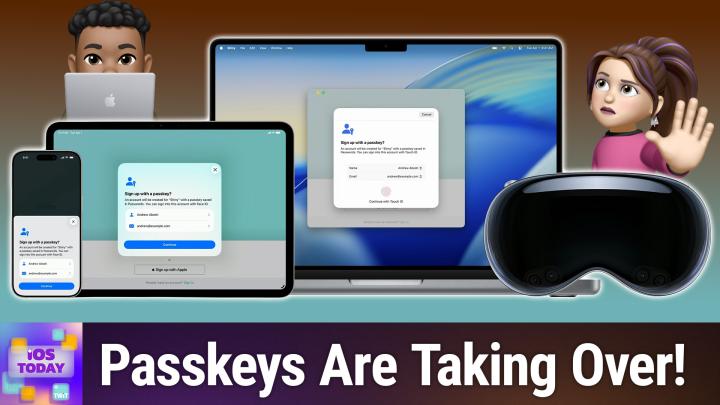
Apple's Passwords App vs. 1Password: Which Password Manager Should You Choose?
AI-generated, human-reviewed.
Apple’s Passwords app is easier to use, safer, and more feature-rich than ever, offering strong competition for established third-party password managers like 1Password. On iOS Today, Mikah Sargent and Rosemary Orchard break down how Passwords compares, who should make the switch, and what real users need to know to keep their accounts secure.
Why Apple’s Passwords App Matters Now
With digital security at stake and password fatigue on the rise, Apple’s built-in option has seen major advances—now supporting autofill, password sharing, passkeys, verification codes, and shared groups. For many users, especially those in the Apple ecosystem, Passwords now covers nearly every essential password need—at no additional cost.
At the same time, digital threats and confusing login systems mean users need simple yet robust tools. Mikah Sargent and Rosemary Orchard look at how the app performs for individuals and families, and where third-party options might still hold an edge.
Main Features of the Passwords App
- Autofill for Passwords and Passkeys: Securely enter logins across iOS, iPadOS, and macOS devices.
- Verification Code Management: One-time codes (from texts or email) are automatically detected, entered, and deleted for security and inbox tidiness.
- Password Generator: Creates strong, unique passwords directly in the app.
- Security Recommendations: Alerts about weak, reused, or exposed passwords with actionable advice.
- Credential Sharing: Share logins securely via AirDrop—perfect for shared streaming accounts or family logins.
- Shared Groups: Collaborate with family (or trusted contacts) to manage joint accounts or sensitive credentials, like Wi-Fi.
- Passkey Support: Use modern passwordless logins that resist phishing and provide seamless sign-in on supported sites.
Pros & Cons of Apple’s Passwords App
Pros
- Free and Built-In: No subscription fees or extra downloads—ready on any iPhone, iPad, or Mac.
- Simple Interface: Designed for quick setup, search, and use—even for older users new to digital tools.
- Security Integration: Automatic security checks, breach alerts, and two-factor code handling.
- Family-Friendly Sharing: Shared groups let trusted family members or caretakers keep accounts accessible and safe.
- Passkey and Wi-Fi Storage: Stay up to date with the latest authentication methods.
Cons
- Apple/Windows Only: No native support for Android, Linux, or less popular browsers, making it less ideal for mixed-device households or tech professionals.
- Limited Advanced Features: Lacks things like secure note/document storage, multiple vaults with granular permissions, or advanced recovery options found in top third-party managers.
- Transition Pain: Moving from another password manager takes effort; different managers may conflict if used together.
Who Should Use Apple’s Passwords App?
On iOS Today, Rosemary Orchard highlighted how Passwords helped her elderly grandmother transition securely away from handwritten notes—making it ideal for those who stay within Apple’s devices and want simplicity.
You should consider Apple’s Passwords app if you:
- Mostly use iPhone, iPad, Mac, or Windows (with iCloud for Windows)
- Want a low-maintenance, easy-to-train solution for yourself or family members
- Need secure, seamless autofill for apps and browsers in the Apple ecosystem
- Value features like security recommendations, code autofill, and password sharing
Stick with a third-party manager like 1Password or Bitwarden if you:
- Use Android, Linux, or need access on many different platforms
- Require advanced controls: secure notes, credit card storage, or business team features
- Prefer granular sharing and recovery options for larger families/teams
Practical Tips for Getting Started
- Import Credentials: Use Apple's import tools to bring in logins from another manager, then test autofill across devices.
- Enable Security Recommendations: Regularly check for weak/passwords or breach alerts in the app.
- Adopt Passkeys When Offered: For supported sites, migrate to passkey logins for better phishing protection and login speed.
- Share Wisely: Set up Shared Groups carefully—only include trusted people, especially when sharing sensitive accounts.
- Use the Password Generator: Always opt for randomly generated passwords where possible for maximum strength.
Key Takeaways
- Passwords app now matches core features of top paid managers—even for families
- Best for Apple-only users or those who want straightforward, integrated security
- Passkey support and code autofill put Apple ahead for user convenience and safety
- Power users or those on Android/Linux still get more flexibility with third-party managers
- It’s now much easier to get family members set up with strong logins and 2FA—no more notebooks of passwords
The Bottom Line
Apple’s Passwords app is now a strong contender for most users within the Apple ecosystem. For those who don’t require elaborate team sharing or cross-platform flexibility, it offers an unbeatable mix of price, convenience, and modern security features—making it a smart default for nearly everyone with Apple devices.
Want more tech advice, reviews, and insights? Subscribe to iOS Today:
https://twit.tv/shows/ios-today/episodes/819